
Xuda Workspace Profiles User Guide
Xuda Workspace Profiles User Guide
This guide explains the Profiles tab inside the Xuda dashboard for a non-technical user.
It focuses on how Profiles looks in the dashboard, how to understand profile cards, how to use the card controls, and what happens when you open a profile.
The screenshots are dark, full-screen desktop captures from a signed-in session at https://dev.xuda.ai/dashboard.
Feature Tips Map
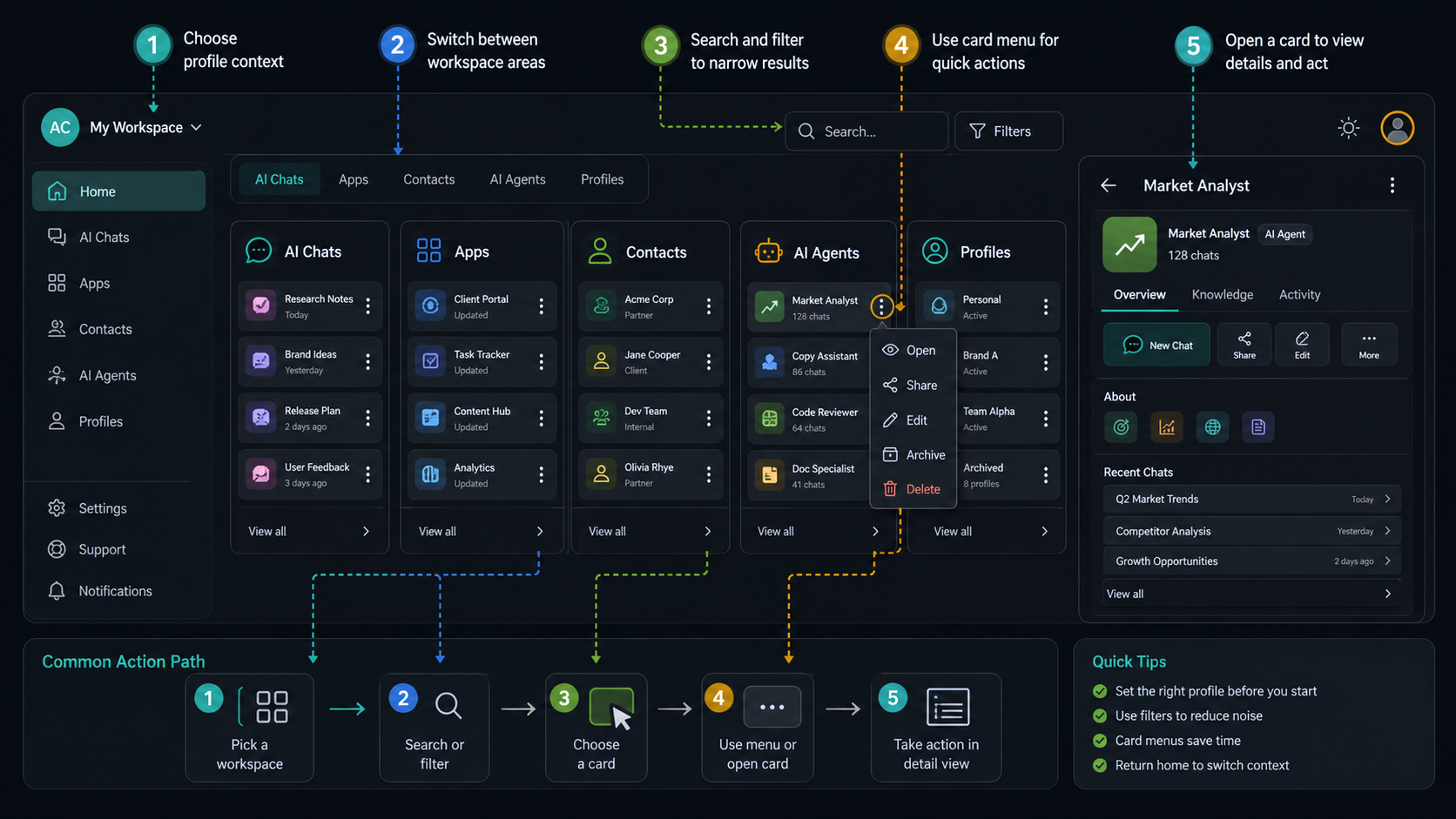
Use this visual as a quick reminder that most Xuda features work best when you connect the workspace, the data, the screen, and the next action instead of treating each area as separate.
Guide Purpose
Use this guide when you want to browse profiles, understand how profile cards are organized, create a new profile, or open an existing profile for more detail.
The goal is simple: help you treat Profiles as the place where work identities and shared workspace contexts are organized inside Xuda.
What Profiles Is
Profiles is the profile-management area inside the Xuda dashboard.
Use Profiles when you want to:
- browse available profiles
- separate work contexts into different identities
- open a specific profile and review it
- control how a profile is used inside the workspace
- create a new profile
Profiles is useful when you want your teams, brands, or work contexts organized clearly instead of mixed together.
Step 1: Open The Profiles Tab
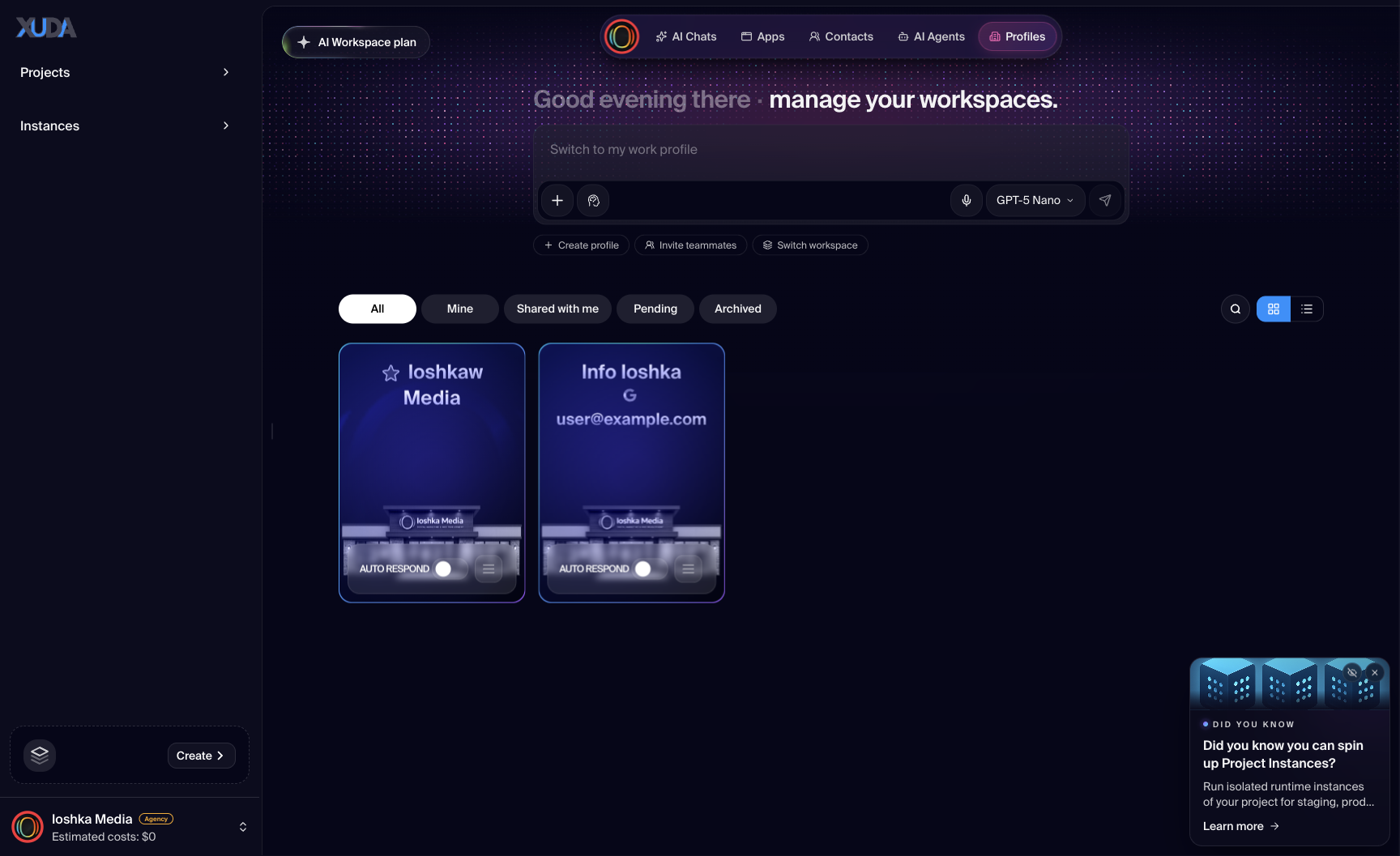
When you open Profiles, you stay inside the main Xuda dashboard.
This screen gives you several main areas:
| Profiles Dashboard Area | What It Does |
|---|---|
| Left dashboard rail | Keeps you inside the wider Xuda workspace. |
| Top workspace tabs | Lets you switch between AI Chats, Apps, Contacts, AI Agents, and Profiles. |
Create a profile button |
Starts the flow for creating another profile. |
| Filter row | Helps you narrow the list of profiles. |
| Search button | Helps you find a specific profile more quickly. |
| Profile card area | Shows the profiles you can open or manage. |
This is the main Profiles dashboard page. It is the place you return to when you want to browse profiles again.
Step 2: Use Filters To Narrow The List
The Profiles filter row helps you move through the list without opening every profile one by one.
The available filters on this screen are:
| Filter | What It Means |
|---|---|
| All | Shows all profiles you can access. |
| Mine | Shows profiles you created or own. |
| Shared with me | Shows profiles shared into your workspace. |
| Pending | Shows profiles waiting for action or review. |
| Archived | Shows older profiles you are not actively using now. |
Result: even when the workspace contains several profiles, you can still find the right one quickly.
Step 3: Read The Profile Cards
On the Profiles dashboard, each profile appears as a card.
A profile card can show:
| Profile Card Detail | What It Helps You See |
|---|---|
| Profile name | Helps you identify the profile quickly. |
| Status controls | Shows the current working state of the profile. |
| Auto-respond area | Lets you see or control whether automated response behavior is active. |
| Action button | Opens quick actions for that profile. |
This is helpful because you can understand the profile at a glance before opening it.
Step 4: Use The Card Controls
The profile cards in this view show built-in controls directly on the card.
These visible controls can include:
| Card Control | What It Helps You Do |
|---|---|
Always |
Keeps the profile in an active working mode. |
Offline |
Shows that the profile can be taken out of active use. |
AI |
Indicates AI-related profile behavior or context. |
AUTO RESPOND toggle |
Lets you see whether automated response behavior is turned on. |
You do not need to open the full profile just to understand its current setup at a basic level.
Step 5: Open The Card Menu
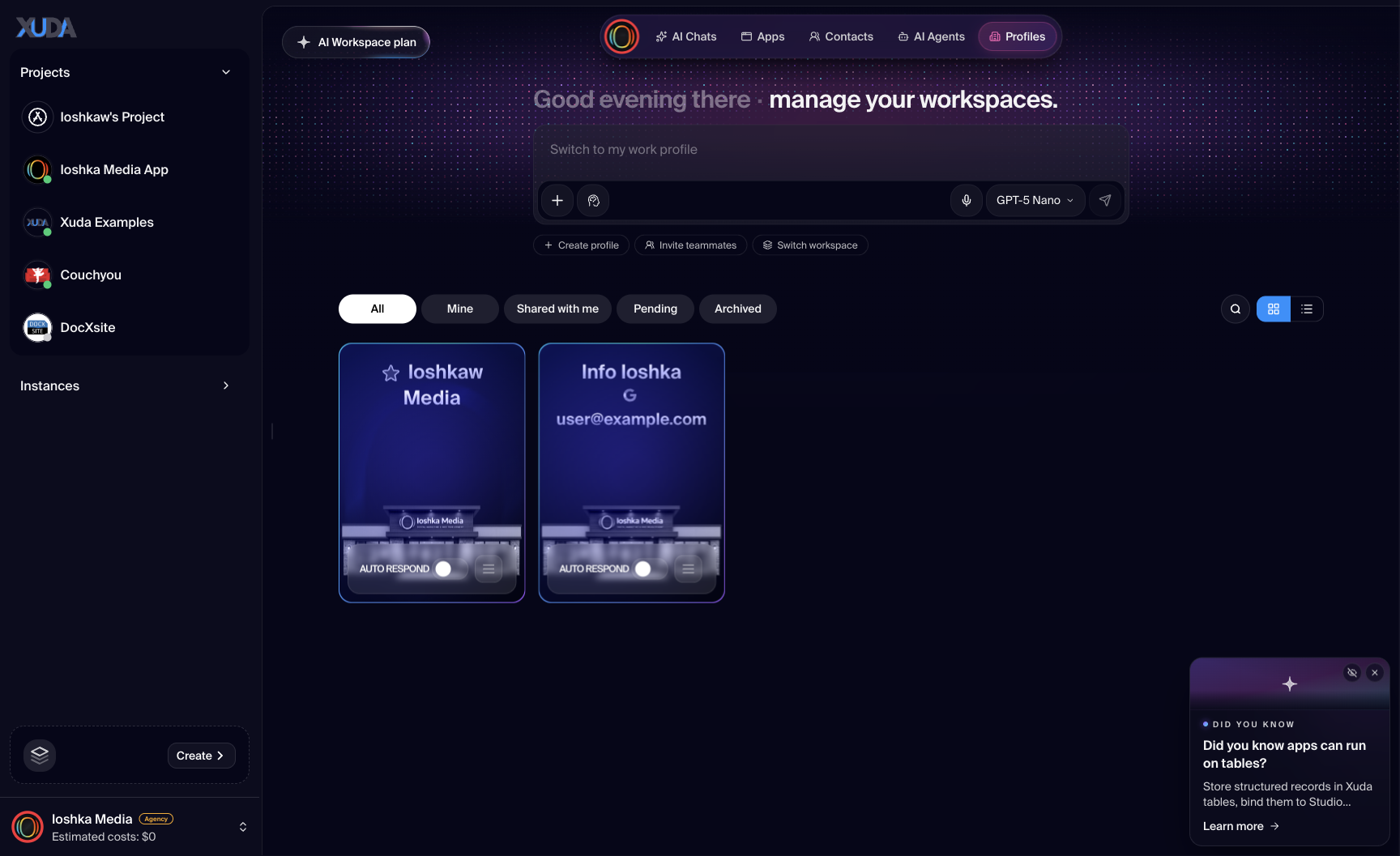
Clicking the small action button on a profile card opens a quick menu for that specific profile.
In this capture, the menu shows:
| Card Menu Option | What It Does |
|---|---|
| Share | Lets you share that profile with another person or workspace member. |
This is useful when you want to manage a profile directly from the dashboard without opening the full profile first.
Step 6: Open A Profile
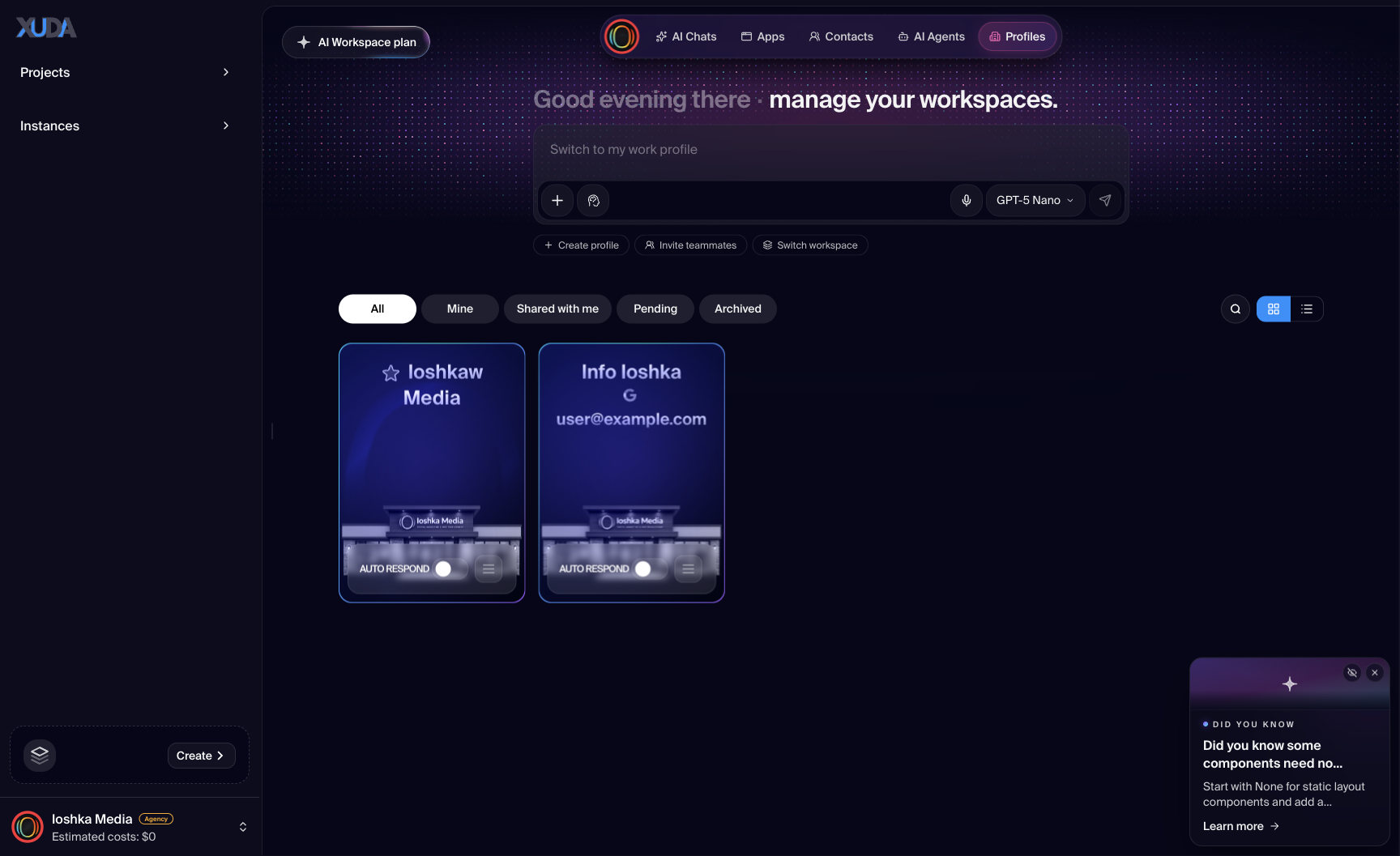
When you open a profile from the card, Xuda moves from the dashboard grid into that profile’s dedicated view.
In this example, the opened profile view shows:
| Profile View Area | What It Does |
|---|---|
| Back | Returns you to the Profiles dashboard. |
| Profile image area | Gives the profile a dedicated visual identity. |
| Profile name | Confirms which profile you are viewing. |
| Created date | Shows when the profile was created. |
| Share | Lets you share the profile from inside its own view. |
| Pin | Keeps an important profile easy to find. |
| Bottom composer area | Keeps the workspace ready for follow-up actions from the same screen. |
This is the point where Profiles becomes more than a list of cards. It becomes a dedicated workspace context.
Step 7: Return To The Profiles Dashboard
After opening a profile, use the Back control in the top-left area to return to the Profiles dashboard.
That takes you back to the profile card view where you can:
- open a different profile
- use filters
- use the card menu
- create a new profile
- search for another profile
Result: you can move back and forth between the profile list and a specific profile without leaving the Xuda workspace.
Quick Summary
| If You Want To... | Use Profiles To... |
|---|---|
| Browse available profiles | Open the Profiles dashboard |
| Narrow the list | Use filters like All, Mine, or Archived |
| Understand a profile quickly | Read the card name and visible status controls |
| Share a profile from the grid | Open the card menu |
| Open a profile in full | Click the profile card |
| Return to the list | Use Back inside the opened profile |
| Create another profile | Use Create a profile |
Extra Feature Tips
- Use Profiles when the same account needs more than one public or working identity.
- Check the active profile before starting chats, apps, or contact work.
- Use filters when the profile list includes archived, shared, or pending contexts.
- Open the card menu for quick sharing or management without entering the full profile.
- Name profiles clearly so the top selector is meaningful during fast workspace switching.
Final Takeaway
Profiles is the identity and context workspace inside Xuda.
If you remember one simple pattern, make it this:
- browse the profile cards from the Profiles dashboard
- use filters when the list is large
- check the card controls before opening
- use the card menu when you want a quick action
- open the profile when you want its dedicated view