
Xuda Dashboard Workspace User Guide
Xuda Dashboard Workspace User Guide
This guide introduces the five main work areas inside the Xuda account dashboard: AI Chats, Apps, Contacts, AI Agents, and Profiles.
It is written for a non-technical user who wants to understand what each option means after signing in.
The screenshots are dark, full-screen desktop captures from a signed-in session at https://dev.xuda.ai/dashboard.
Feature Tips Map
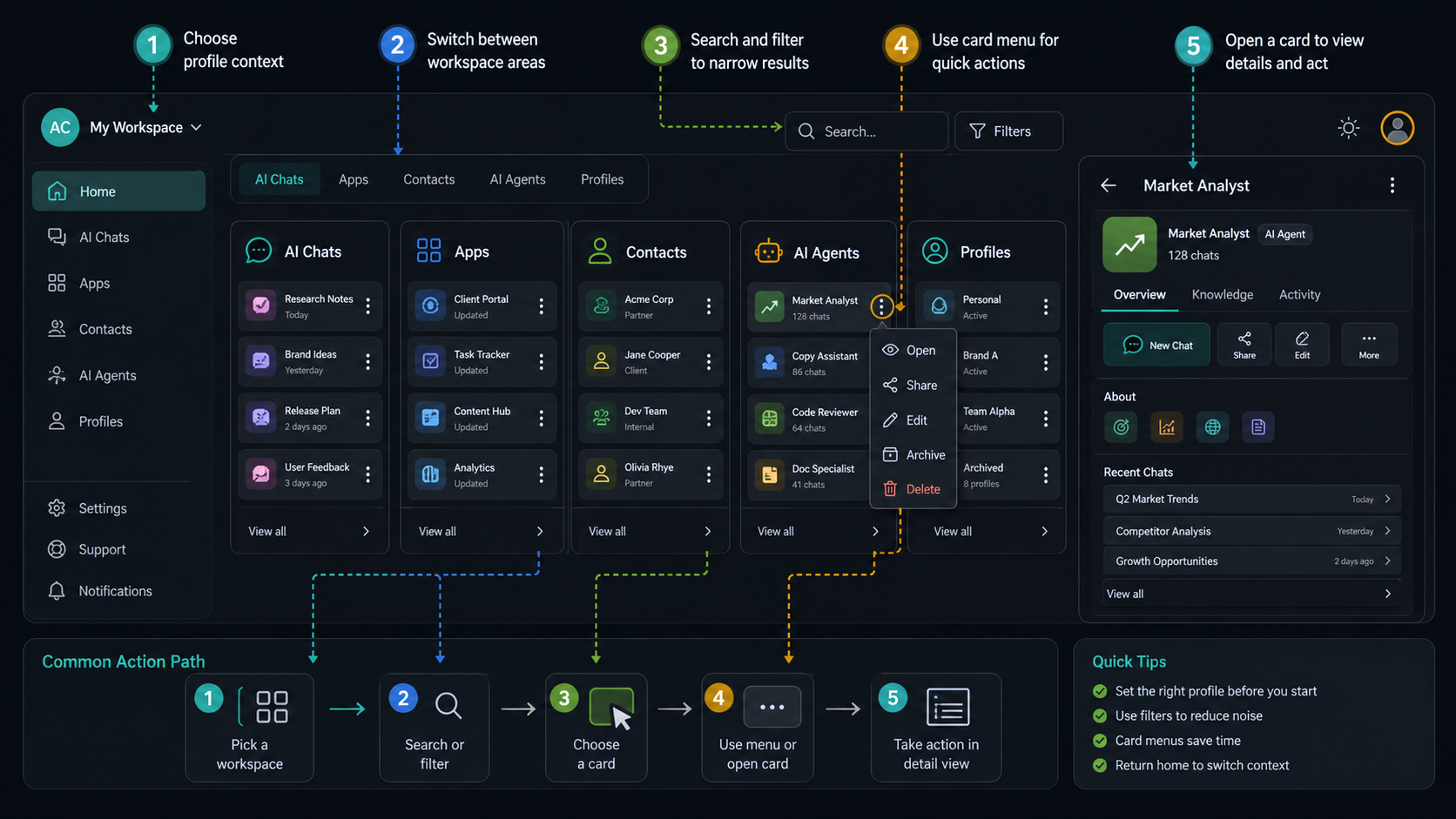
Use this visual as a quick reminder that most Xuda features work best when you connect the workspace, the data, the screen, and the next action instead of treating each area as separate.
Guide Purpose
Use this guide when you open the Xuda dashboard home and want a simple explanation of what each workspace tab does.
The goal is to help you feel comfortable moving between conversations, apps, people, reusable AI helpers, and profiles without guessing where something belongs.
What These Five Dashboard Options Are
These five options are the main workspace tabs at the top of the dashboard home.
| Workspace Tab | What It Is For |
|---|---|
| AI Chats | Your AI conversations, requests, and ongoing chat-based work. |
| Apps | Apps you create, use, share, or install. |
| Contacts | People, contact records, and relationship-based workspace items. |
| AI Agents | Reusable AI helpers you add, manage, or install. |
| Profiles | Different working identities or personas inside the same Xuda account. |
Think of them this way:
- AI Chats is where you talk.
- Apps is where you use or build tools.
- Contacts is where you manage people.
- AI Agents is where you manage reusable AI workers.
- Profiles is where you manage how you appear and work in different contexts.
Shared Dashboard Options You Will See Across These Tabs
Before looking at the tabs one by one, it helps to recognize the shared controls that appear across the workspace:
| Shared Option | What It Does |
|---|---|
| Top tab bar | Lets you switch between AI Chats, Apps, Contacts, AI Agents, and Profiles. |
| Profile selector | Lets you view the workspace under the currently active profile. |
| Search box | Finds items inside the current tab. |
| Filter buttons | Narrows the list to a specific view such as Mine, Shared with me, or Archived. |
| Item cards or tiles | Opens a specific chat, app, contact, agent, or profile. |
| Page controls | Lets you move through longer lists when there are many results. |
Some tabs also show a main action button:
- Apps:
Create a new app - Contacts:
Add a new contact - AI Agents:
Add a new agent - Profiles:
Create a profile
Step 1: Open AI Chats
When you first arrive at the dashboard home, AI Chats is the main place to start work.
Use AI Chats when you want to:
- Ask AI a new question
- Continue a previous conversation
- Keep different conversations organized as separate work threads
- Review chats that belong to you or that were shared with you
The AI Chats tab includes these filters:
| AI Chats Option | What It Means |
|---|---|
| All | Shows all chat items you can access. |
| Mine | Shows chats created by you. |
| Shared with me | Shows chats shared into your workspace. |
| Pending | Shows items that still need action or review. |
| Archived | Shows older chats you are not actively working in. |
The top prompt area is for starting a fresh AI request. The list below it is where you reopen existing conversations.
Result: AI Chats is the best place for question-and-answer work, brainstorming, follow-up tasks, and ongoing AI conversation history.
Step 2: Open Apps

Open Apps when you want to work with tools and mini-apps connected to your account.
Use Apps when you want to:
- Create a new app
- Reopen an app you already use
- Review apps shared with you
- Find apps you purchased or installed
The main button on this screen is:
Create a new app
The Apps tab includes these filters:
| Apps Option | What It Means |
|---|---|
| All | Shows all apps you can access. |
| Mine | Shows apps you created or own. |
| Shared with me | Shows apps shared into your workspace. |
| Purchased | Shows apps you obtained through a marketplace or purchase flow. |
| Pending | Shows apps waiting for action or approval. |
| Archived | Shows apps you are not actively using now. |
Each app appears as a card in the results area. Opening a card takes you into that app.
Result: Apps is where Xuda shifts from conversation into usable tools.
Step 3: Open Contacts
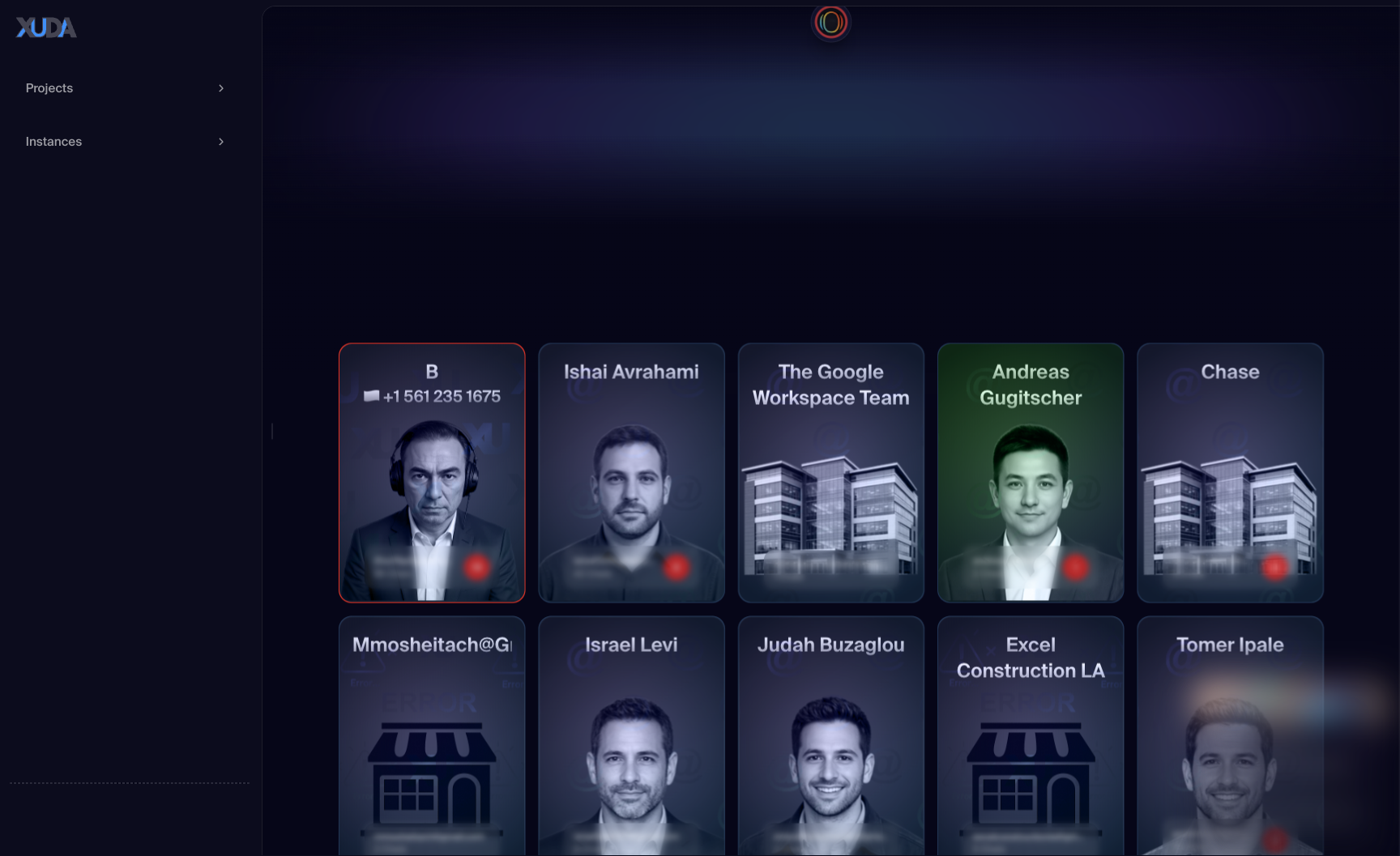
Open Contacts when your work is centered on people rather than only conversations or apps.
Use Contacts when you want to:
- Review people connected to your workspace
- Add a new contact
- Find colleagues or people who are online
- Open a contact record for more detail
The main button on this screen is:
Add a new contact
The Contacts tab includes these filters:
| Contacts Option | What It Means |
|---|---|
| All | Shows all contact records you can access. |
| Online | Shows contacts who are currently active or available. |
| Colleagues | Shows people connected to your workplace or team context. |
| Mine | Shows contacts you created or manage. |
| Shared with me | Shows contact records shared into your workspace. |
| Pending | Shows contact-related items waiting for action. |
| Archived | Shows older or inactive contact records. |
This tab also keeps the AI prompt area at the top, which means contact work can still begin from a request or instruction.
Result: Contacts helps you keep people, communication context, and related work inside the same dashboard.
Step 4: Open AI Agents

Open AI Agents when you want more than a one-time chat.
Use AI Agents when you want to:
- Add a reusable AI helper
- Manage agents already in your workspace
- Review agents shared with you
- Find agents you purchased or installed
The main button on this screen is:
Add a new agent
The AI Agents tab includes these filters:
| AI Agents Option | What It Means |
|---|---|
| All | Shows all agents you can access. |
| Mine | Shows agents you created or manage. |
| Shared with me | Shows agents shared into your workspace. |
| Purchased | Shows agents obtained through a marketplace or purchase flow. |
| Pending | Shows agents waiting for action or approval. |
| Archived | Shows agents that are no longer part of active work. |
Items in this tab open as agent records rather than simple chat cards.
Result: AI Agents is where you manage repeatable AI help that can be reused again and again.
Step 5: Open Profiles

Open Profiles when you want to work with different identities or personas inside the same Xuda account.
Use Profiles when you want to:
- Create a profile for a different role or context
- Keep work separated by persona
- Review profile records available to you
- Open a profile to manage it in more detail
The main button on this screen is:
Create a profile
The Profiles tab includes these filters:
| Profiles Option | What It Means |
|---|---|
| All | Shows all profiles you can access. |
| Mine | Shows profiles you created or control. |
| Shared with me | Shows profiles shared into your workspace. |
| Pending | Shows profiles waiting for action. |
| Archived | Shows older or inactive profiles. |
Profiles also connect to the profile selector at the top of the workspace, which helps you move between different working identities without leaving the same account.
Result: Profiles makes it possible to keep one Xuda account while still working in more than one role or context.
Quick Comparison
| If You Want To... | Open This Tab |
|---|---|
| Ask AI or continue a conversation | AI Chats |
| Use or create a tool | Apps |
| Work with people and contact records | Contacts |
| Reuse a specialized AI helper | AI Agents |
| Work under a different persona or identity | Profiles |
Extra Feature Tips
- Use AI Chats for thinking and drafting, Apps for tools, Contacts for people, AI Agents for repeatable helpers, and Profiles for identity context.
- Switch profile context before opening a tab when the same account supports more than one working identity.
- Use filters inside each tab to reduce noise before choosing a card.
- Open card menus for management tasks such as sharing or archiving.
- Return to the dashboard home when you are unsure which workspace should handle the next step.
Final Takeaway
The dashboard home is not just one page. It is a small workspace made of five connected areas.
If you remember one simple rule, make it this:
- Start in AI Chats for conversation
- Move to Apps for tools
- Use Contacts for people
- Open AI Agents for reusable AI help
- Use Profiles to switch working identity inside the same account