
Xuda Dashboard Project Backups User Guide
Xuda Dashboard Project Backups User Guide
This guide explains the Backups tab inside a Xuda dashboard project.
Guide Purpose
Use this tab when you want to protect the project, review backup history, or set up automatic backups.
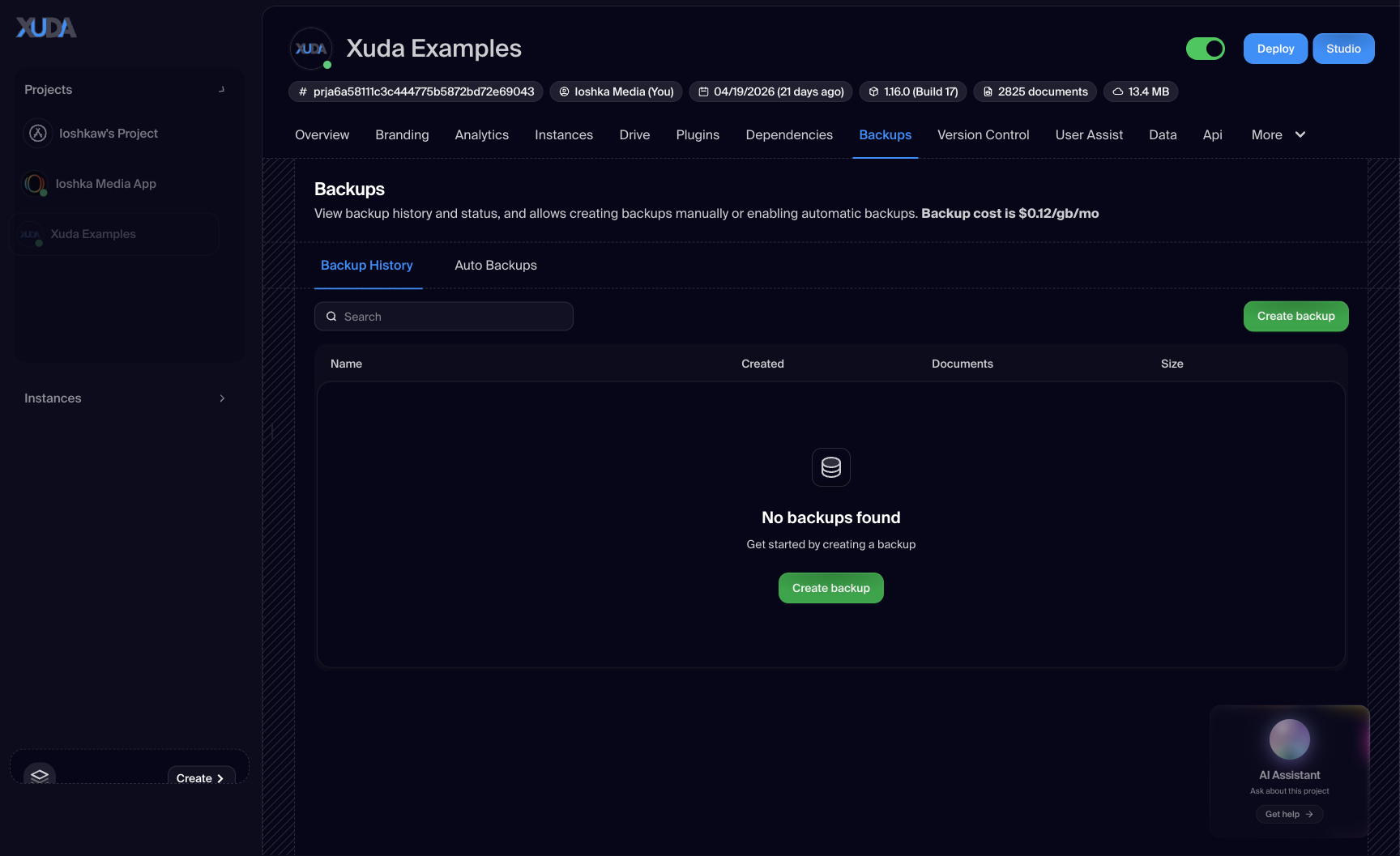
Step 1: Open The Backups Tab
Open your project in dev.xuda.ai/dashboard, then click Backups in the top project tab row.
Step 2: Use The Two Backup Views
Backups is split into two working areas:
- Backup History
- Auto Backups
Backup History is where you review existing backups and create a new one manually.
Auto Backups is where you control the recurring backup plan.
Step 3: Manage Backup History
In Backup History, the page can show:
- a Search field
- a Create backup button
- backup rows with details such as name, created date, document count, and size
- a row menu for actions such as Restore or Delete
This is the area to use before a risky change or when you need a restore point.
Step 4: Set Up Auto Backups
In Auto Backups, you can usually:
- turn automatic backups on or off
- choose which days backups should run
- decide how many copies to keep
- save or reset your changes
What This Tab Is Best For
Use Backups when you want peace of mind.
It is one of the most practical tabs in the project dashboard because it helps you recover from mistakes, bad deployments, or unwanted changes.