
Xuda Workspace AI Chats User Guide
Xuda Workspace AI Chats User Guide
This guide explains the AI Chats area inside the Xuda dashboard for a non-technical user.
It focuses on what AI Chats is for, how it looks inside the dashboard, how to start a new chat, how to work inside a real conversation, how to continue a thread, and what actions you can use while a chat is active.
The screenshots are dark, full-screen desktop captures from a signed-in session at https://dev.xuda.ai/dashboard.
Feature Tips Map
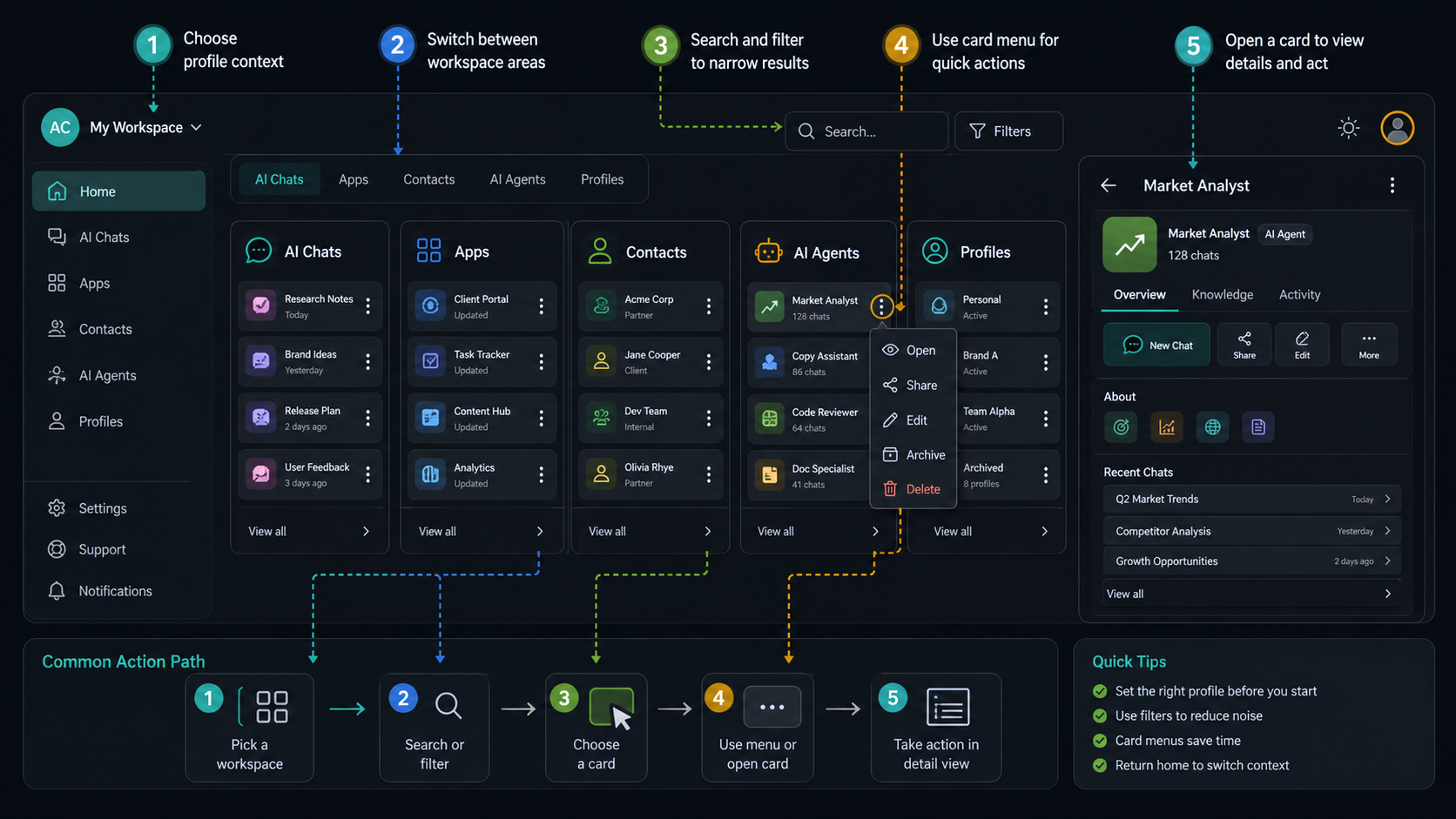
Use this visual as a quick reminder that most Xuda features work best when you connect the workspace, the data, the screen, and the next action instead of treating each area as separate.
Guide Purpose
Use this guide when you want to ask Xuda AI for help, continue earlier conversations, or keep your AI work organized in one place.
The goal is simple: help you feel comfortable using AI Chats as a day-to-day workspace instead of only a one-time prompt box.
What AI Chats Is
AI Chats is the conversation area of the Xuda dashboard.
Use it when you want to:
- ask a new question
- continue an earlier conversation
- keep work separated into named chat threads
- share conversations with other people
- reopen past chats later
- save useful responses to Xuda Drive
AI Chats is useful for drafting, planning, brainstorming, summarizing, rewriting, and follow-up work that needs context over time.
How AI Chats Fits Inside The Dashboard
AI Chats is not a separate product window. It is one workspace area inside the main Xuda dashboard.
That means:
- the left-side rail stays visible while you work
- the top workspace tabs let you move between AI Chats, Apps, Contacts, AI Agents, and Profiles
- opening a chat thread keeps you inside the same dashboard workspace
- clicking Back from a thread returns you to the AI Chats dashboard view
This matters because it helps you treat AI Chats as part of your everyday workspace, not as a one-time pop-up tool.
Step 1: Open AI Chats In The Dashboard
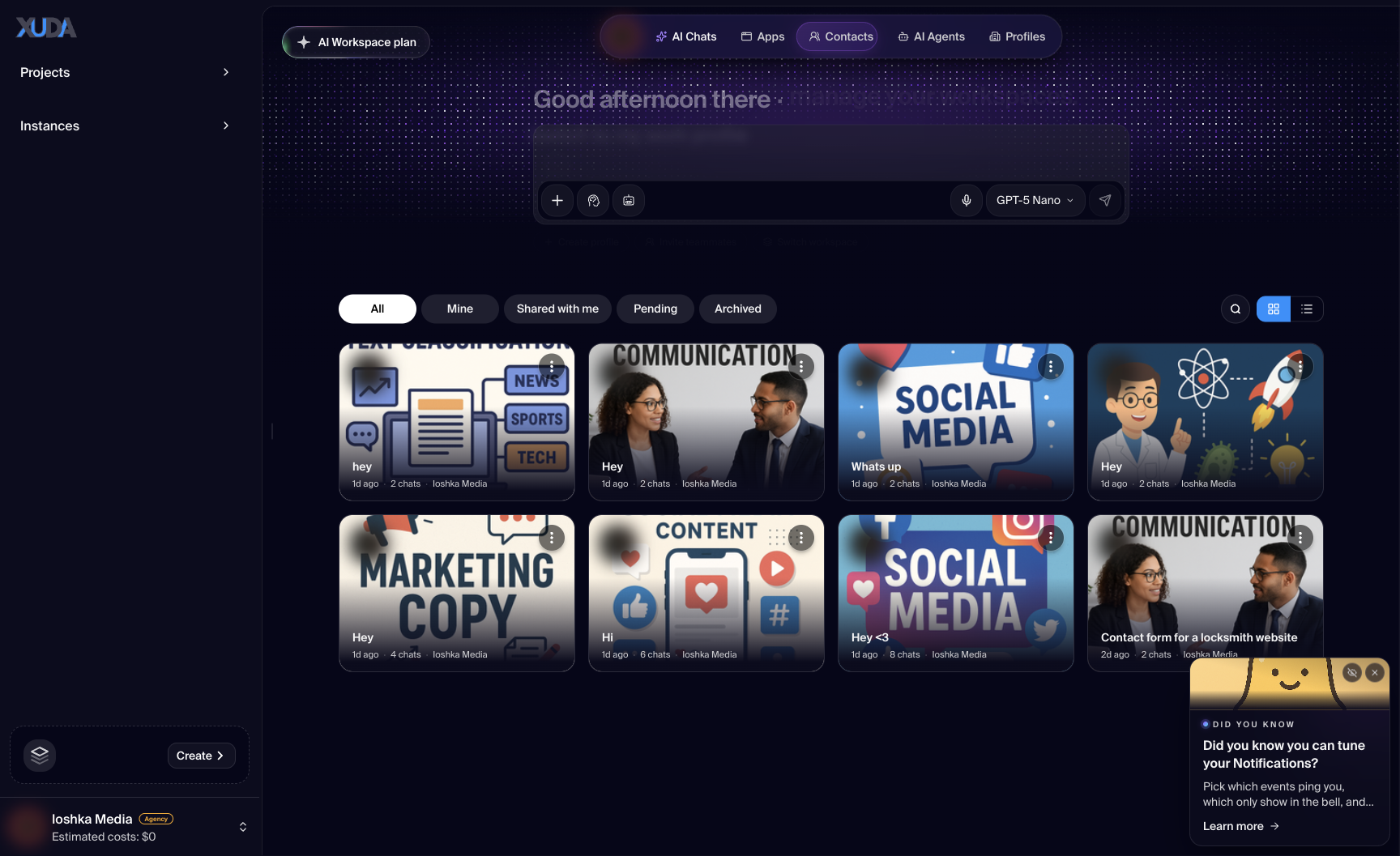
When you open AI Chats, you are already inside the Xuda dashboard.
The screen gives you a dashboard layout with several layers:
- the left dashboard rail, for broader Xuda navigation
- the top workspace tabs, where AI Chats is one option among other workspace areas
- the top prompt area, where you start something new
- the AI Chats content area, where you browse, filter, and reopen chat threads
The main dashboard areas include:
| Dashboard Area | What It Does |
|---|---|
| Left rail | Keeps you anchored in the wider Xuda dashboard. |
| Workspace tabs | Lets you move between AI Chats, Apps, Contacts, AI Agents, and Profiles. |
| Prompt box | Lets you type a new request. |
+ button |
Adds an attachment or related input before sending. |
Auto option |
Uses the chat’s automatic mode for handling the request. |
| Send button | Sends the prompt and starts the conversation. |
| Filter row | Helps you narrow the chat list below. |
| Search button | Helps you find a specific conversation more quickly. |
This view is the main AI Chats dashboard page. It is the page you return to when you leave a chat thread and go back.
Step 2: Use Filters And Search
On the AI Chats home screen, you can narrow the list using filters.
The available AI Chats filters are:
| Filter | What It Means |
|---|---|
| All | Shows all chats you can access. |
| Mine | Shows chats created by you. |
| Shared with me | Shows chats shared into your workspace. |
| Pending | Shows chats that still need attention or action. |
| Archived | Shows older chats you are not actively using. |
You can also use the search control on the right side to find a specific conversation more quickly.
Result: even when you have many chat threads, you can still find the right one without scrolling through everything.
Step 3: Start A New Chat

When you start a new chat, Xuda opens a dedicated conversation screen.
This screen is where you:
- type your request in one place
- add attachments before sending
- stay focused on one conversation thread
- use the Back button to return to the chat list
The new-chat screen is best when you want a clean conversation with no distraction from the wider dashboard list.
Step 4: Read An Active Chat Thread

After you send a prompt, Xuda turns it into a named chat thread.
In a live thread, you can usually see:
| Thread Area | What It Does |
|---|---|
| Back | Returns to the AI Chats list. |
| Thread title | Gives the conversation a name so you can find it again later. |
| Share | Lets you share the chat with someone else. |
| Pin | Keeps an important chat easy to find. |
| Your message bubble | Shows what you asked. |
| AI response area | Shows the answer and keeps the conversation context together. |
| Bottom composer | Lets you continue the same conversation without leaving the thread. |
This is the point where AI Chats becomes more than a simple prompt. It becomes a reusable work thread.
Step 5: Continue The Same Chat

The biggest strength of AI Chats is that you can continue the same thread instead of starting over.
In the example above, the chat was continued with a follow-up request after the first answer. That means:
- the second prompt stays connected to the first one
- Xuda keeps the earlier context
- the thread grows as one organized conversation
- you do not need to repeat the full background every time
This is useful when you want to:
- ask for a rewrite
- simplify the answer
- turn the answer into steps
- ask for a checklist, summary, or draft
- keep refining one topic over several turns
Result: AI Chats works well for multi-step thinking, not only one-off answers.
Step 6: Click Back To Return To The Dashboard And See Chat Thumbnails

Inside an active chat thread, the Back control in the top-left corner returns you to the AI Chats dashboard view.
This is useful because it lets you move between two levels of work:
- the thread view, where you focus on one conversation
- the dashboard view, where you manage many conversations as chat cards or thumbnails
After clicking Back, you return to a screen where you can:
- start a fresh chat from the top prompt area
- switch to another workspace tab such as Apps or Contacts
- use filters like Mine or Archived
- use search to find an earlier conversation
- reopen a conversation by clicking its thumbnail card
In the dashboard view, each chat can appear as a thumbnail card that helps you recognize it quickly.
The thumbnail card can show:
| Chat Thumbnail Detail | What It Helps You See |
|---|---|
| Preview image | Gives a fast visual way to spot the conversation |
| Chat title | Helps you identify the thread |
| Recent activity text | Shows whether the conversation changed recently |
If you want to find your own chat cards more easily, the Mine filter is often the fastest choice.
Result: you never leave the Xuda workspace. You simply move from one chat thread back to the wider AI Chats dashboard, where the conversation can be reopened from its thumbnail.
Step 7: Open The Thumbnail Menu

When you move over a chat thumbnail, Xuda can show a small menu button on the card.
Clicking that menu opens quick actions for that specific conversation without opening the full chat first.
The thumbnail menu in this view shows:
| Thumbnail Menu Option | What It Does |
|---|---|
| Share | Lets you share the chat with another person or workspace member. |
| Profiles | Opens profile-related options connected to that conversation. |
| Archive | Moves the chat out of the active list without deleting it. |
This is helpful when you want to organize, share, or reduce clutter directly from the dashboard view.
Step 8: Continue Existing Chats
When chats already exist, the AI Chats area shows them as conversation entries you can reopen.
Each chat can help you:
- continue where you left off
- review earlier answers
- keep a topic inside one thread
- reopen something shared with you
Chat entries can also be managed from their menu, including actions such as:
- Share
- Profiles
- Archive
- Unarchive
- Delete
Result: AI Chats works more like an organized conversation library than a temporary prompt box.
Step 9: Use Actions Inside A Chat
After a conversation has messages in it, more actions become available.
Actions on AI responses
These actions can appear on assistant replies:
| Action | What It Does |
|---|---|
| Copy | Copies the response text. |
| Regenerate response | Creates a fresh version of the reply. |
| Download PDF | Saves the response as a PDF file. |
| Save to Xuda Drive | Stores the response in your drive. |
| Opens the response for printing. | |
| Suggestions | Shows next-step suggestions. |
| Browse Agents | Lets you continue the work with an AI agent. |
| Delete | Removes the message. |
These actions help when you want to keep a useful answer, regenerate a better one, or hand the next step to another AI helper.
Actions on your own messages
These actions can appear on your messages:
| Action | What It Does |
|---|---|
| Copy | Copies your message. |
| Edit | Lets you change the message and send an updated version. |
| Delete | Removes the message. |
Editing is especially useful when the first question was close but not quite right. Instead of starting a brand-new chat, you can improve the same thread.
Step 10: Use Suggestions When They Appear
AI Chats can show suggestion cards during or after a response.
These suggestions help you:
- continue the conversation in a useful direction
- hand the task to a relevant AI agent
- skip suggestions if you already know what you want next
This is helpful when you want faster next steps instead of writing every follow-up manually.
Step 11: Share, Pin, And Reuse Important Chats
Inside an active chat, Xuda can also show top-level conversation actions such as:
- Back
- Share
- Pin or Unpin
These are useful when a chat becomes important enough to keep, reuse, or pass to someone else.
Step 12: Use The Composer As Your Ongoing Work Area
The bottom composer stays available while you are inside the chat thread.
That means you can keep working from the same screen by:
- typing another follow-up
- attaching files with the
+button - using
Automode - choosing the chat model when available
- stopping a response if it is still generating
This is the practical habit to build:
- Ask the first question.
- Read the answer.
- Continue with a smaller follow-up.
- Save, copy, print, or share the result if it is useful.
Quick Summary
| If You Want To... | Use AI Chats To... |
|---|---|
| Ask a fresh question | Start from the top prompt box or a new chat screen |
| Continue refining one topic | Stay in the same thread and send a follow-up |
| Return to the wider workspace | Click Back to go from a thread to the AI Chats dashboard |
| Manage a chat from the dashboard | Open the thumbnail menu to share, profile, or archive it |
| Reopen older work | Use the chat list, filters, and search |
| Keep context in one place | Continue inside the same conversation thread |
| Share or organize conversations | Use chat actions like Share, Archive, and Pin |
| Save useful results | Download as PDF or save to Xuda Drive |
Extra Feature Tips
- Keep one topic in one thread when follow-up context matters.
- Start a new chat when the goal, profile, or source material changes sharply.
- Use Back when you want to manage the conversation from the dashboard instead of continuing inside the thread.
- Use thumbnail actions for organization after the useful answer exists, not while the conversation is still forming.
- Save or export strong answers before experimenting with a very different prompt direction.
Final Takeaway
AI Chats is the main conversation workspace inside Xuda.
If you remember one simple rule, make it this:
- start new work from the prompt box
- stay in the same thread when you want context
- click Back when you want the wider dashboard view again
- use follow-up prompts to improve the result
- use the message actions to save, improve, or reuse the output