
Xuda Studio Component Datasource Options User Guide
Xuda Studio Component Datasource Options User Guide
This guide explains the Datasource options for a component in Xuda Studio.
It is written for non-technical users. Instead of describing every field one by one, it explains what each option helps you do and what result you should expect.
The screenshots are dark, full-screen captures from https://dev.xuda.ai/studio.
Feature Tips Map
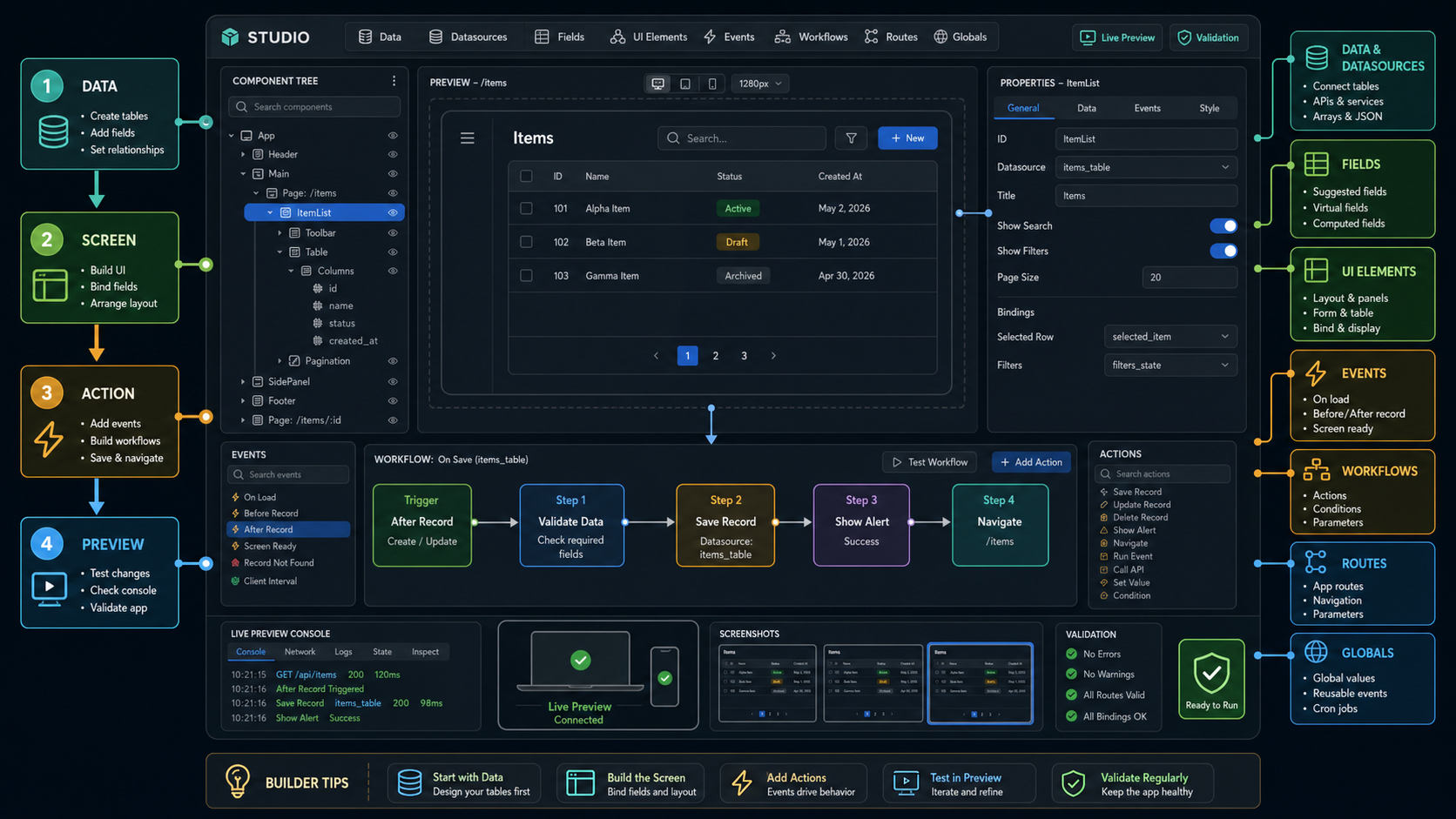
Use this visual as a quick reminder that most Xuda features work best when you connect the workspace, the data, the screen, and the next action instead of treating each area as separate.
Screenshot Gallery
Use this section to confirm that the screenshots are loading in your Markdown preview.
| Screen | Screenshot |
|---|---|
| Datasource overview | 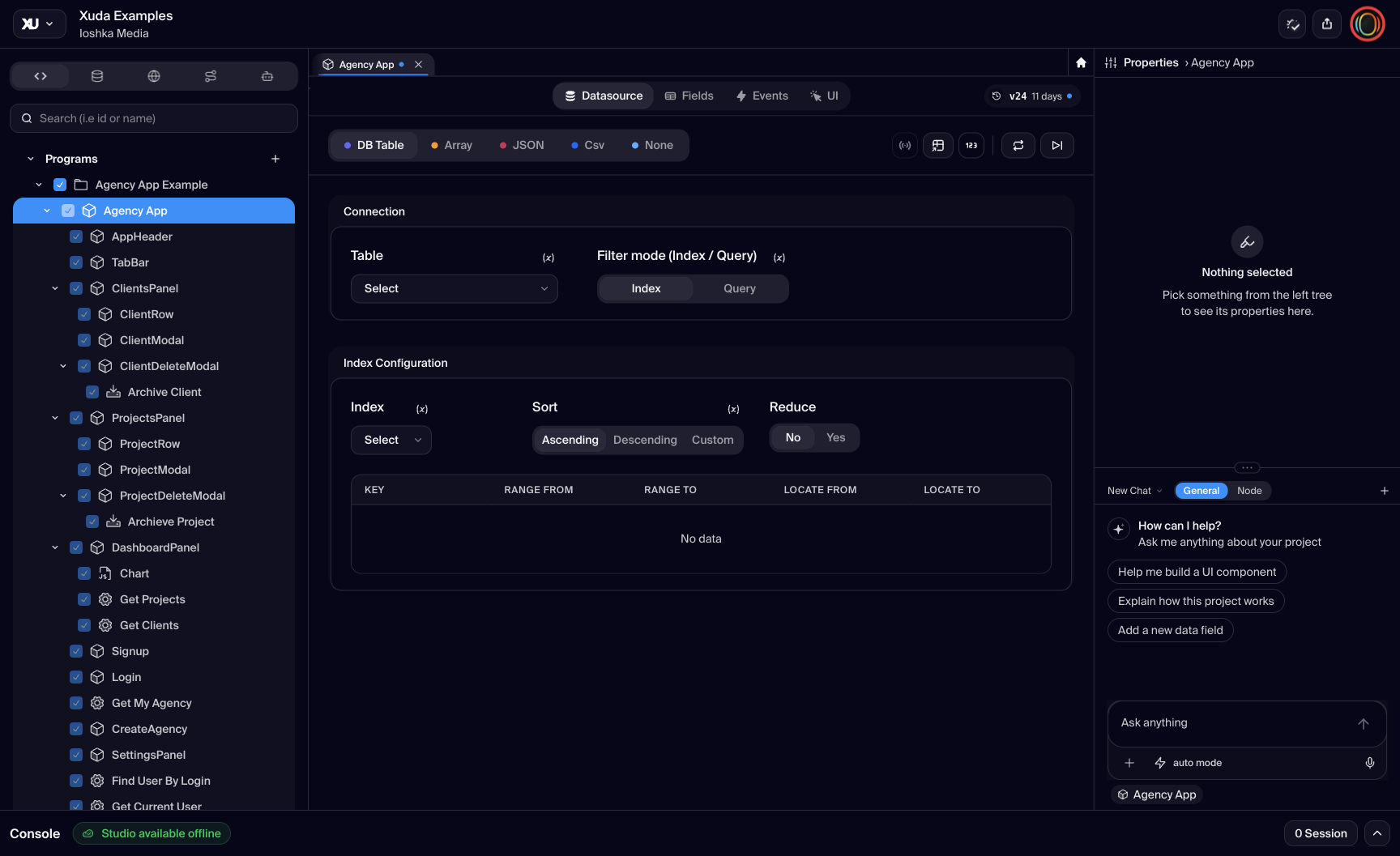 |
| DB Table with Index | 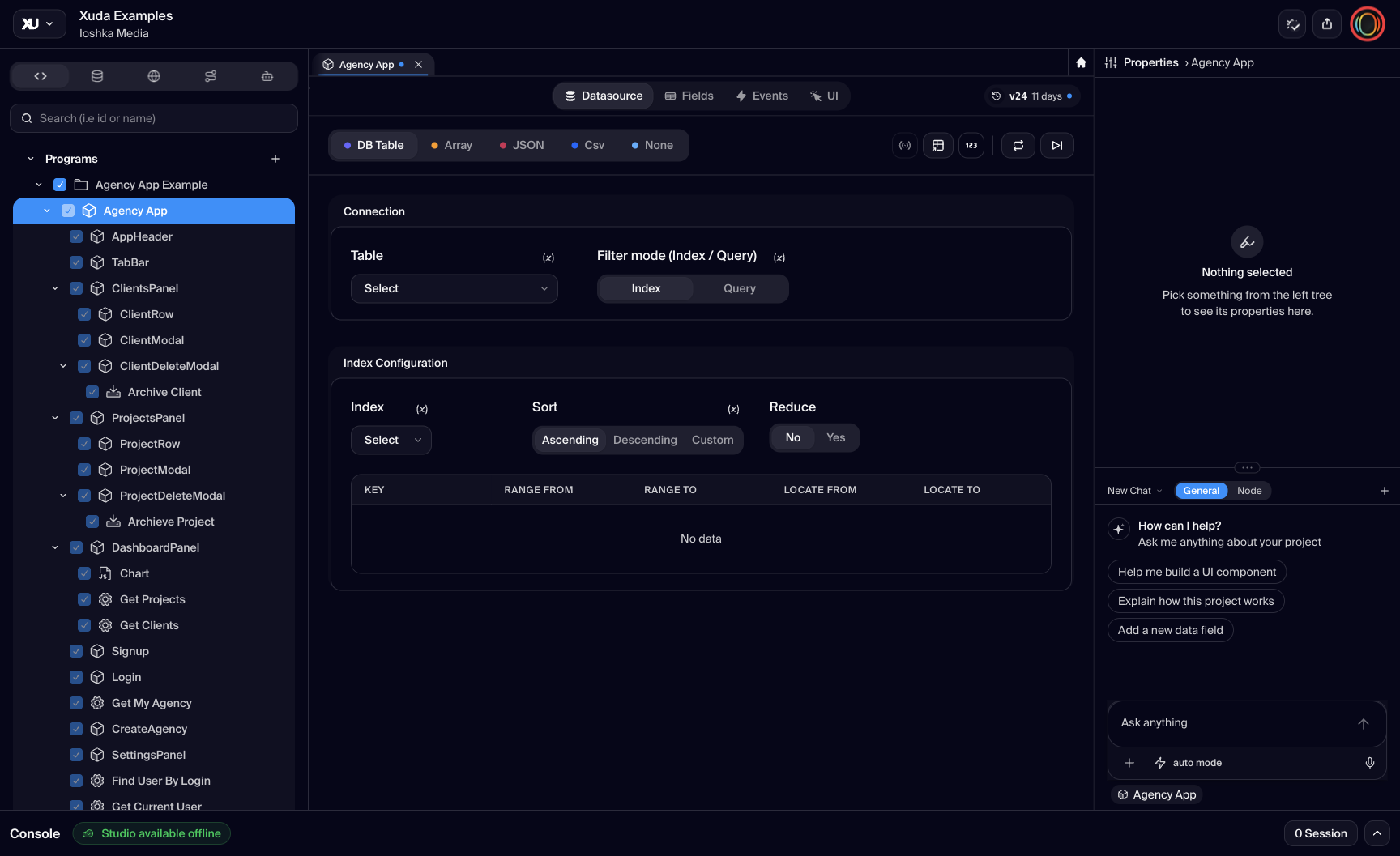 |
| DB Table with Query | 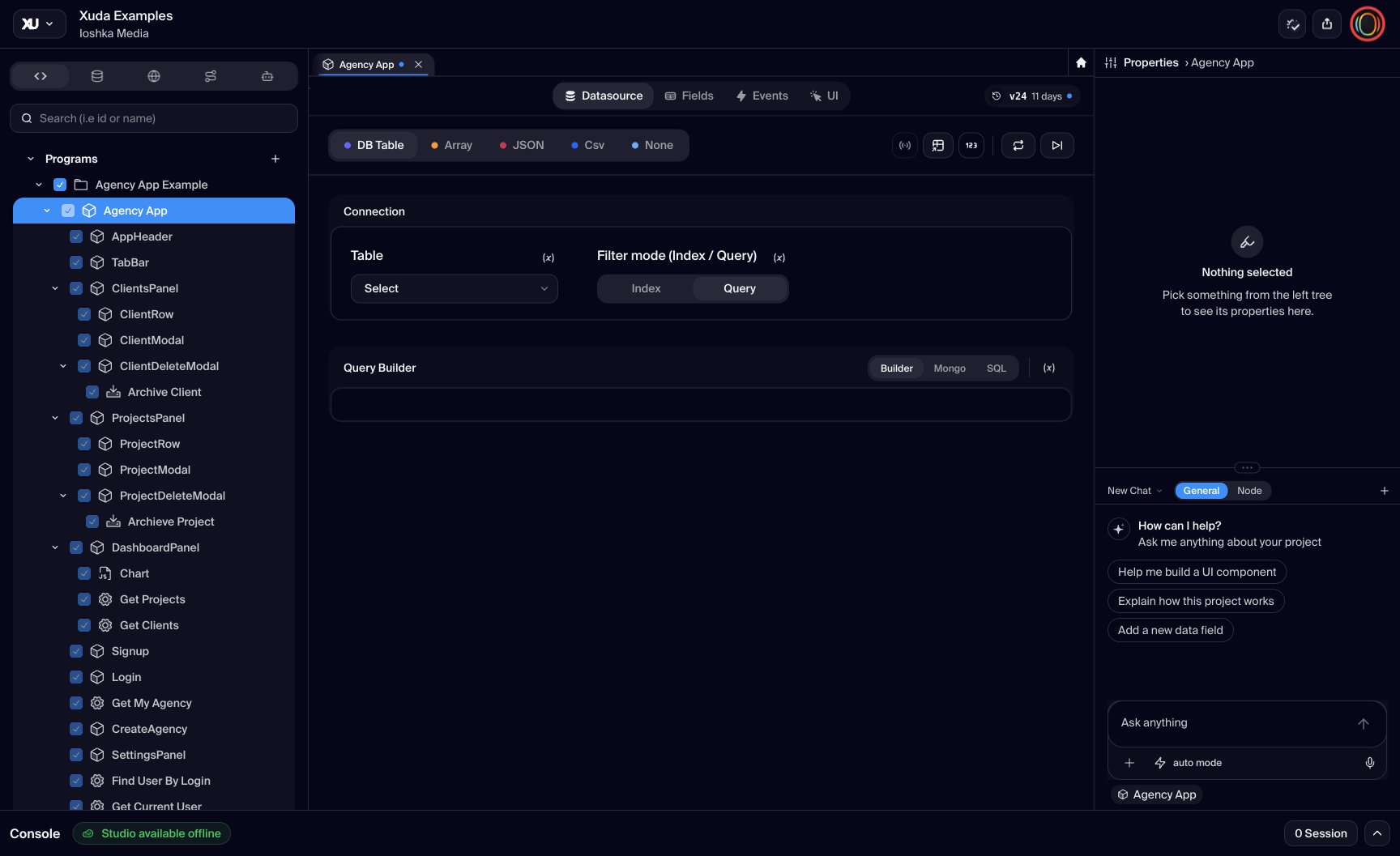 |
| Array from URL | 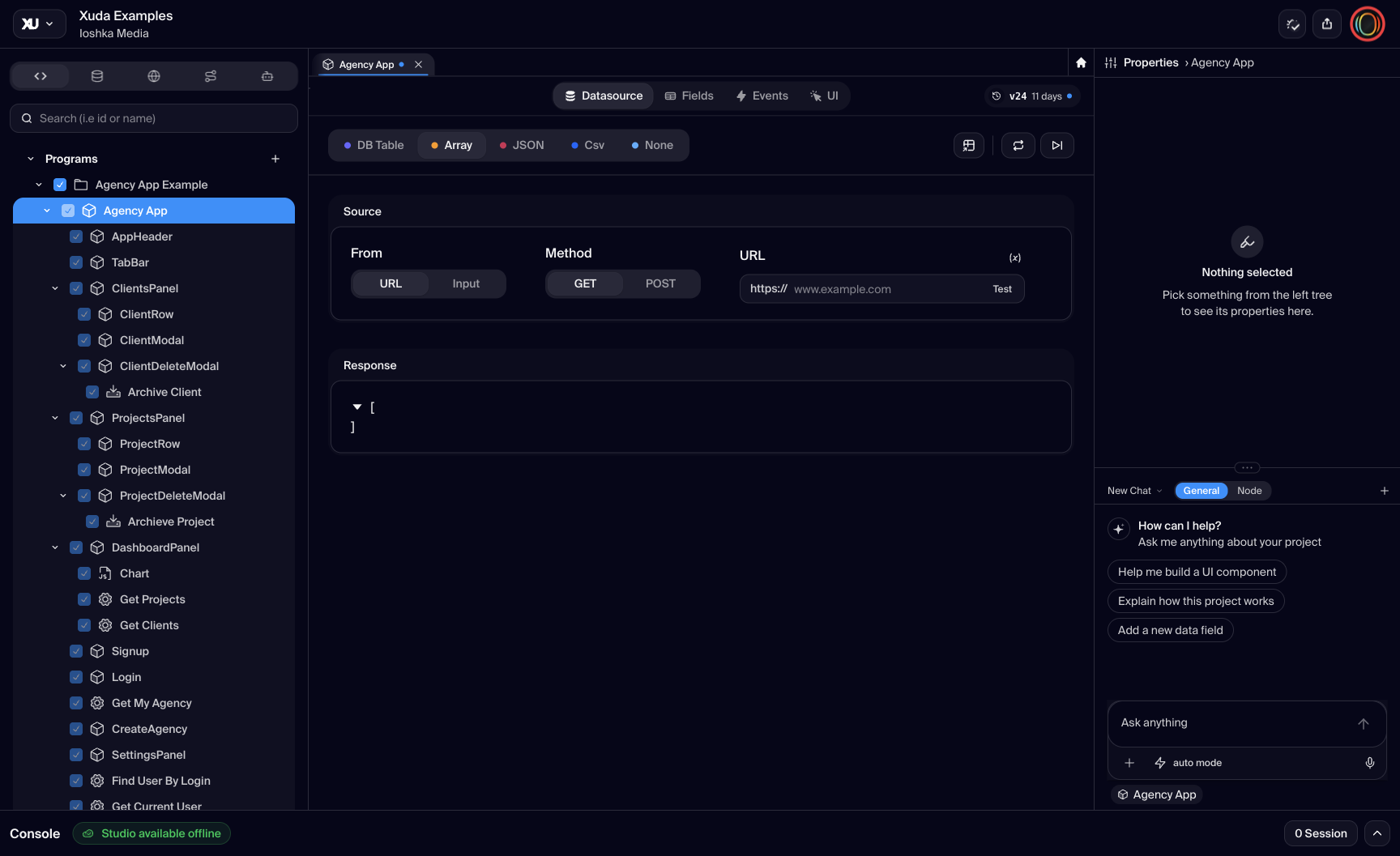 |
| Array from Input | 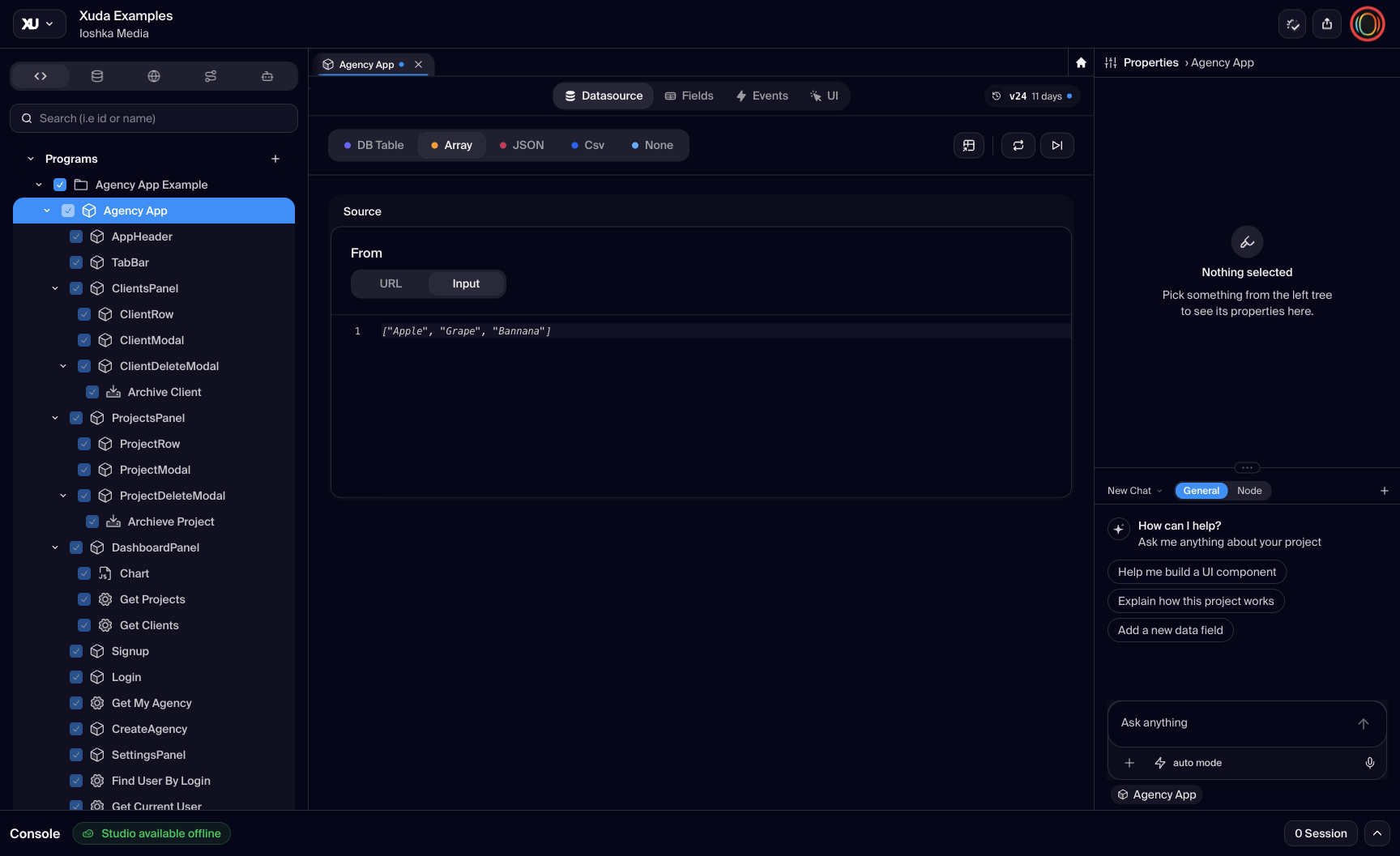 |
| JSON from URL | 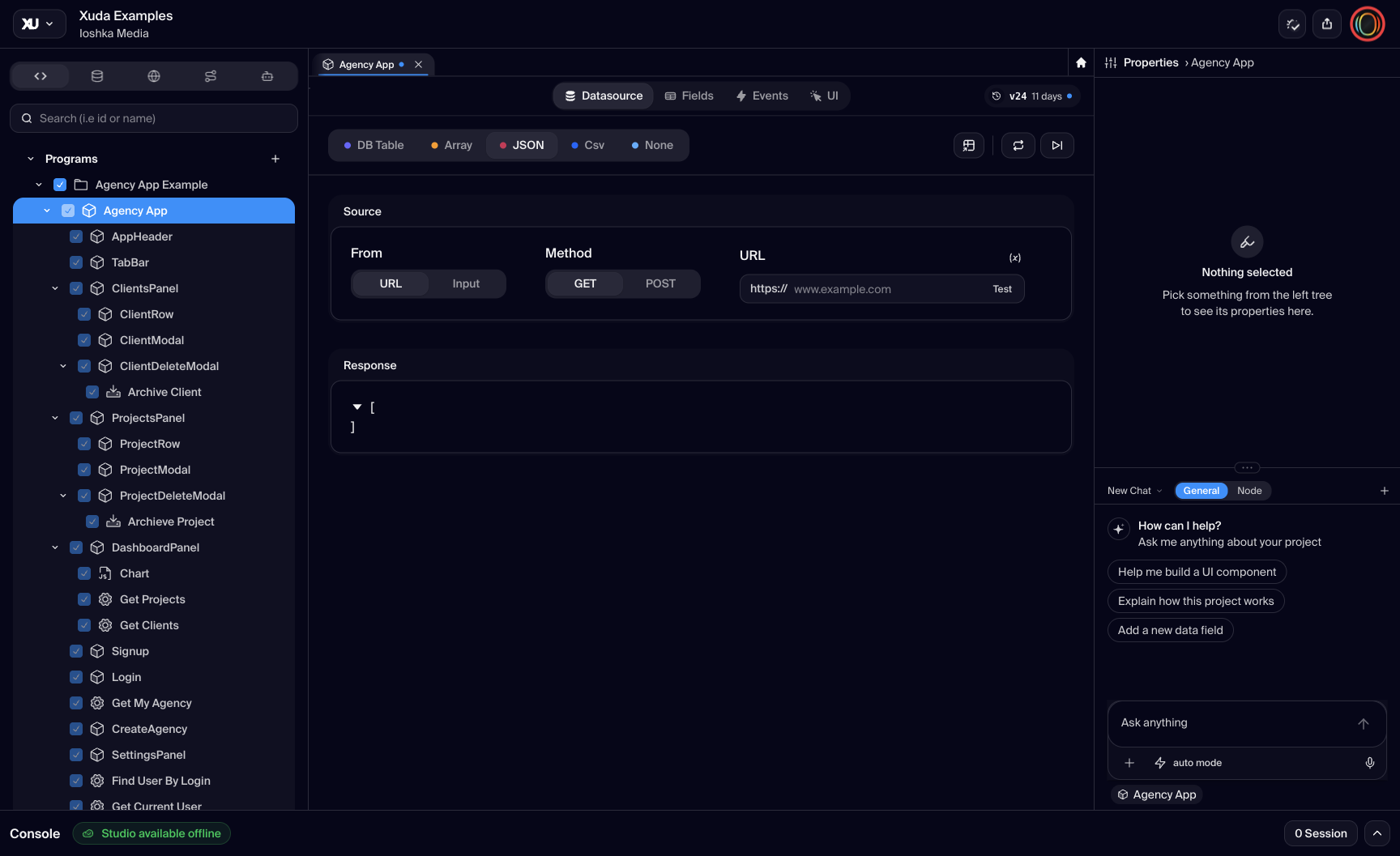 |
| Csv from URL | 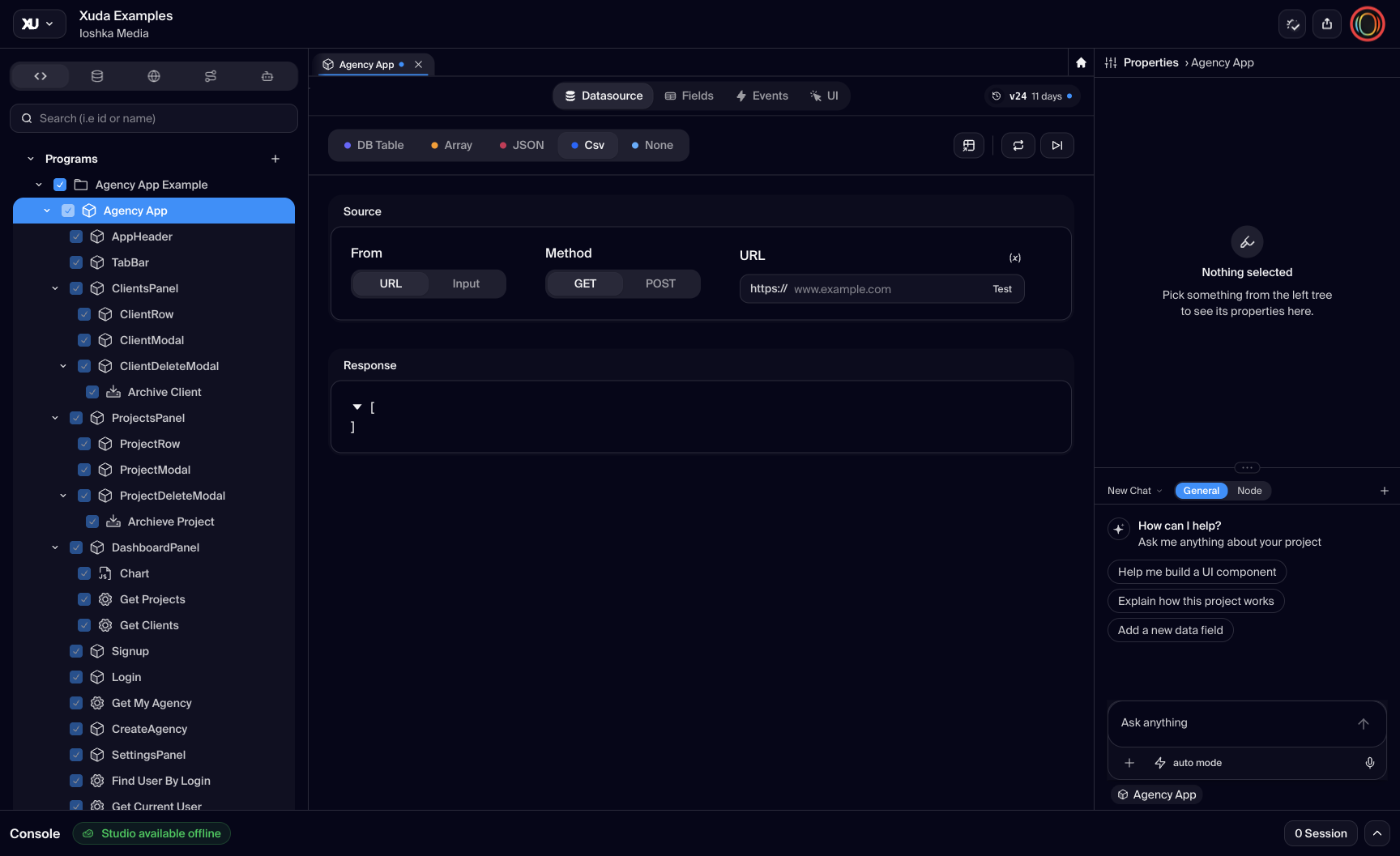 |
| POST parameters | 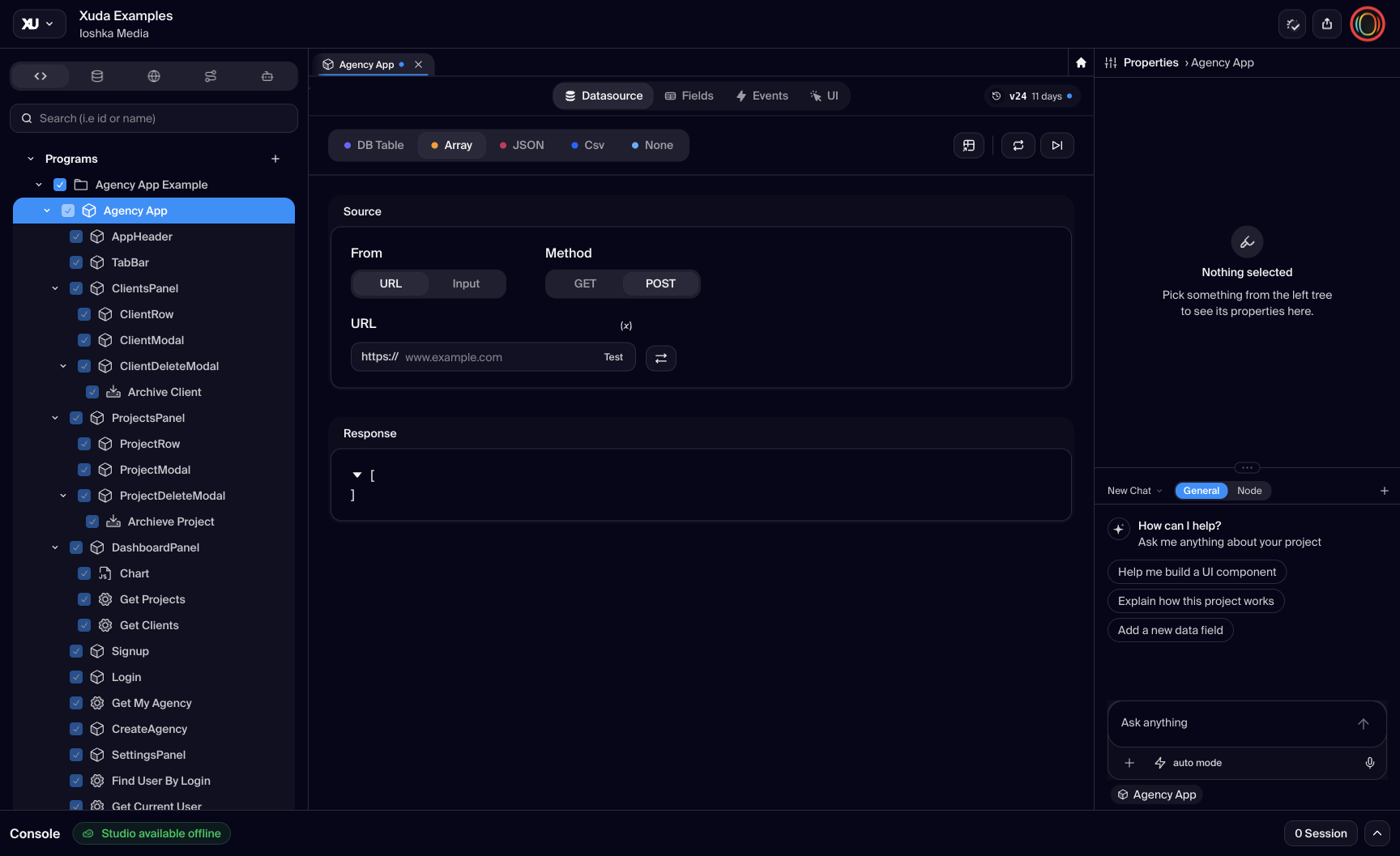 |
| None | 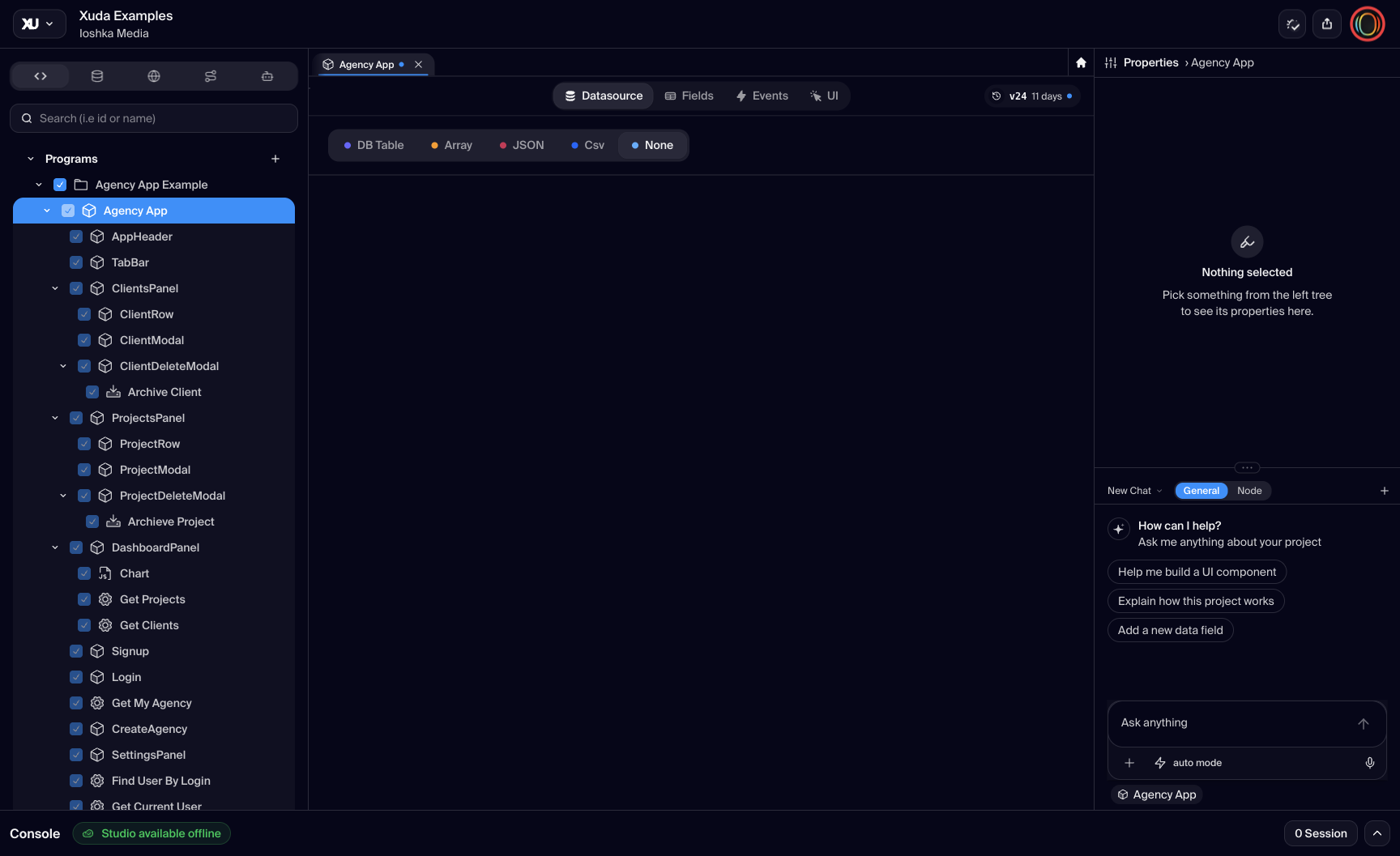 |
What A Datasource Does
A component can show information, repeat items, react to records, or stay empty until another part of the app gives it data.
The Datasource screen is where you choose where that component gets its data from.
Result: the component knows whether it should use a table, a list, a JSON feed, a CSV feed, or no datasource at all.
DB Table
Choose DB Table when the component should use records that already belong to the app.
This is usually the right choice for app data such as customers, tasks, orders, messages, inventory, or any other table-based information.
Result: the component is connected to a saved table, so it can display and work with real app records.
DB Table With Index
Use Index when the component should load records through a prepared lookup path.
This is useful when the app already knows the common way to find the records, such as showing records by owner, status, date, category, or another repeated access pattern.
Result: Studio can load the matching records in a predictable way, and the component can show the right slice of the table.
DB Table With Query
Use Query when you want to choose records by rules.
For most users, Builder is the best starting point because it lets you build the rule visually. Mongo and SQL are advanced views for people who already know those query styles.
Result: the component receives only the records that match the rules you set.
DB Table Helper Options
The top buttons in the DB Table datasource help control how the component receives table data.
Use Realtime when the component should stay updated while records change.
Use Output Field when the component only needs a specific part of the returned data.
Use Reduce when the component should summarize data instead of using every record directly.
Use Limit when the component should receive only a certain number of records.
Use Skip when the component should start after earlier records, which is useful for paging through results.
Result: the component gets data in the shape and amount that fits the screen.
Array
Choose Array when the component should work with a list of items.
The list can come from a web address, or you can place the list directly into Studio.
Result: the component can repeat over list items, such as rows, cards, menu choices, tags, or simple sample data.
Array From URL
Use URL when the list should come from another service or endpoint.
Use GET when the component only needs to request data. Use POST when the request also needs to send values first.
Result: Studio can fetch the list from outside the project and make it available to the component.
Array From Input
Use Input when you want to provide the list directly inside Studio.
This is helpful for drafts, demos, testing a component layout, or using a small fixed list that does not need to come from a table.
Result: the component has immediate sample data to work with, even before connecting it to a live source.
JSON
Choose JSON when the component should receive structured information from a web address or direct input.
JSON is useful when the data has named pieces of information, nested details, or a shape that is more than a simple list.
Result: the component can use structured outside data, such as profile details, settings, API responses, or grouped information.
Csv
Choose Csv when the data comes from a spreadsheet-like source.
CSV is useful for simple rows and columns, especially when information starts in a spreadsheet or export file.
Result: the component can use tabular data without first turning it into an app table.
POST Parameters
When a URL datasource uses POST, Studio can send values along with the request.
Use this when the outside source needs extra information before it can return the right data, such as a selected category, search text, user choice, or filter value.
Result: the datasource can ask for a more specific result instead of receiving the same response every time.
Test And Response
For URL-based datasources, use Test before relying on the datasource.
The response area helps you confirm that Studio received something usable.
Result: you can check the connection early, before building more of the component around it.
None
Choose None when the component does not need its own datasource.
This is useful for layout pieces, buttons, static sections, wrappers, or components that receive their data from another place in the app.
Result: the component stays independent from any direct data source.
Quick Decision Table
| Goal | Use This Datasource |
|---|---|
| Show records from the app | DB Table |
| Use a prepared table lookup | DB Table with Index |
| Filter table records by rules | DB Table with Query |
| Work with a simple list | Array |
| Bring in structured outside data | JSON |
| Use spreadsheet-like rows and columns | Csv |
| Build a layout or static component | None |
| Try a component before connecting real data | Array from Input |
| Check an outside source before using it | Test |
Practical Tips
Start with None for layout-only components.
Start with Array from Input when you want to design a component before real data is ready.
Use DB Table when the information belongs to the app and should be saved there.
Use URL sources when the information already lives somewhere outside the app.
Use Test any time a datasource depends on an outside source.
Extra Feature Tips
- Start with None for static layout components and add a datasource only when the component needs its own records.
- Use Array from Input to design against sample data before the real source is ready.
- Prefer DB Table when the data belongs to the app and should be saved with it.
- Test URL-based JSON or Csv sources before binding fields to the response.
- Keep POST parameters explicit so a future builder can understand what the outside service expects.