
Xuda Dashboard Project Data User Guide
Xuda Dashboard Project Data User Guide
This guide explains the Data tab inside a Xuda dashboard project.
Guide Purpose
Use this tab when you want to review the tables that belong to the project and open a table from the dashboard side.
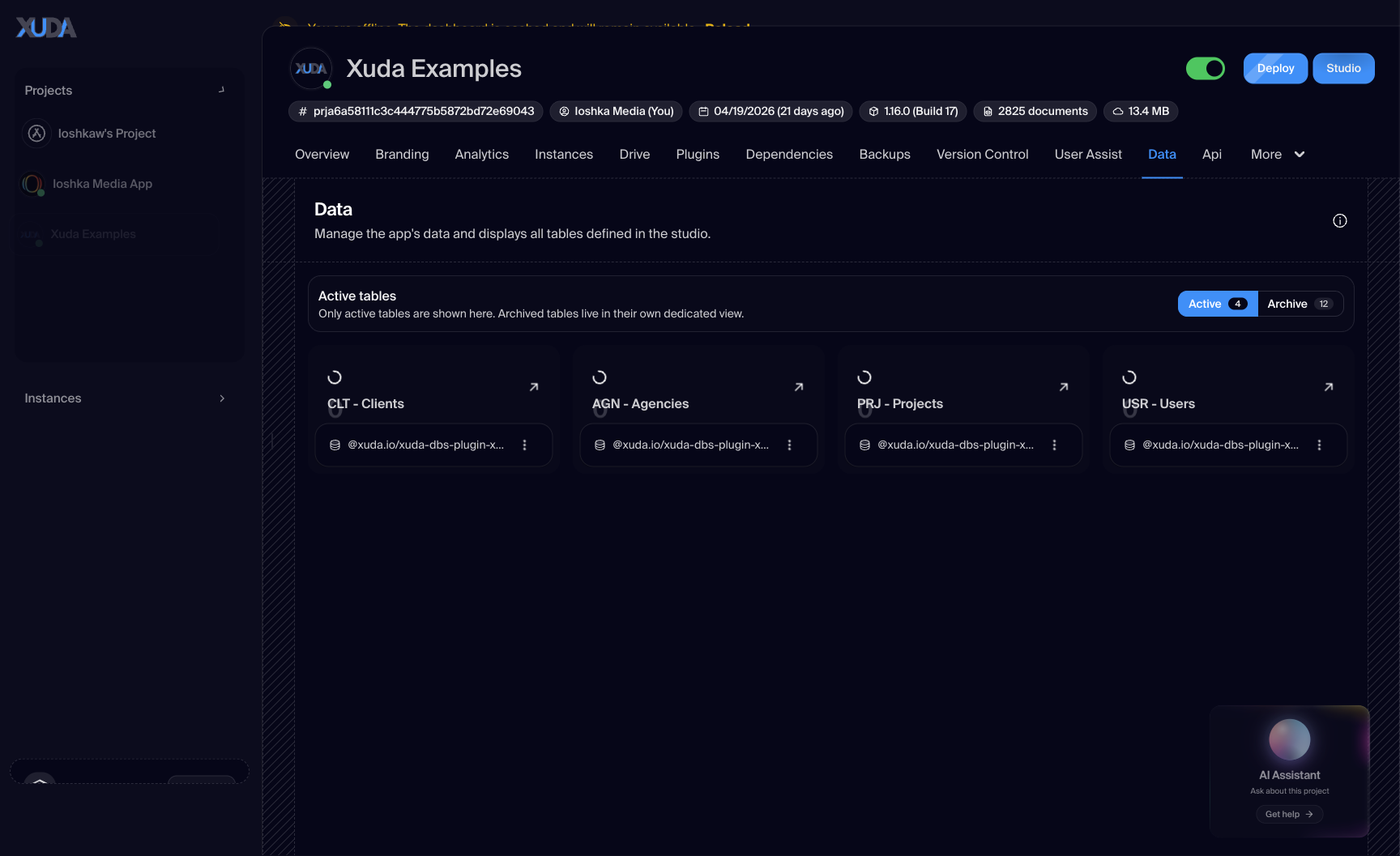
Step 1: Open The Data Tab
Open your project in dev.xuda.ai/dashboard, then click Data in the top project tab row.
If the tab is tucked away, open More first.
Step 2: Understand The Table Cards
Each card represents a table that has been defined for the project.
A card can show:
- the table name
- a record count
- a database or driver label
- an open icon
- a small menu for table-specific actions
These cards are the quickest way to understand what structured data areas exist in the project.
Step 3: Open A Table When You Need Detail
Use the open icon on a table card when you want to go deeper into that specific table.
The page also includes an information button in the header area, which helps explain the data section itself.
What This Tab Is Best For
Use Data when you want to:
- confirm which tables exist
- check whether a table looks active
- move from dashboard management into a specific table view
This tab is especially helpful when the project stores important business records such as users, products, or CRM data.