
Xuda Workspace AI Agents User Guide
Xuda Workspace AI Agents User Guide
This guide explains the AI Agents area inside the Xuda dashboard for a non-technical user.
It focuses on how AI Agents looks in the dashboard, how to work in the lanalogo profile context, how to understand agent cards, and how to start from an agent card.
The screenshots are dark, full-screen desktop captures from a signed-in session at https://dev.xuda.ai/dashboard.
This guide uses the lanalogo profile context shown in the top circular profile selector.
Feature Tips Map
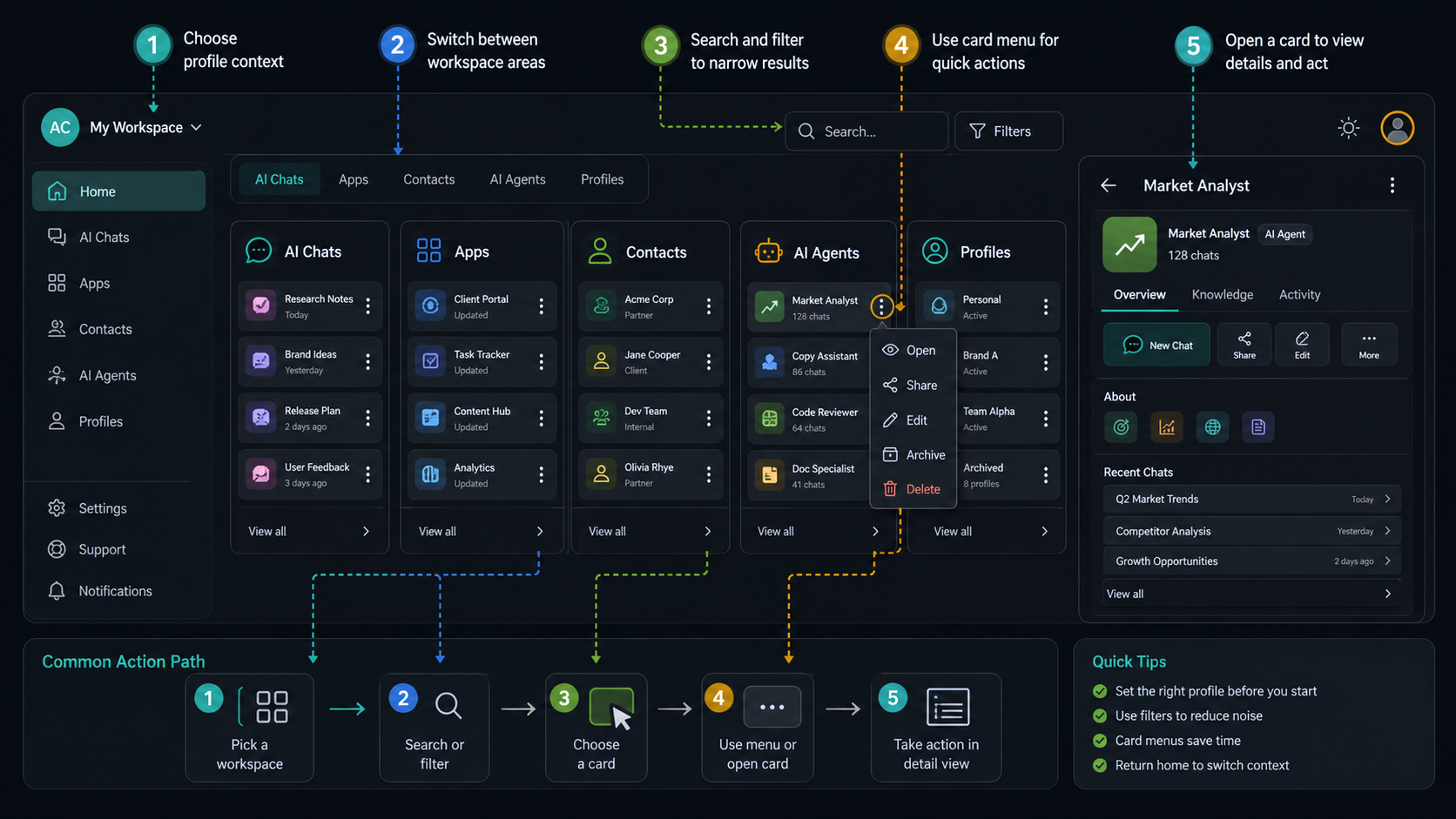
Use this visual as a quick reminder that most Xuda features work best when you connect the workspace, the data, the screen, and the next action instead of treating each area as separate.
Guide Purpose
Use this guide when you want to browse available AI agents, switch to the right profile context, narrow the list, and start from a specific agent card.
The goal is simple: help you treat AI Agents as a ready-to-use library of specialized helpers inside your Xuda workspace.
What AI Agents Is
AI Agents is the specialist-assistant area of the Xuda dashboard.
Use AI Agents when you want to:
- choose an agent built for a specific task
- reuse an agent that already has a clear purpose
- work inside a specific profile context
- narrow agents by ownership or availability
- add a new agent
AI Agents is useful when you want more focused help than a general chat alone.
Step 1: Open AI Agents In The Dashboard
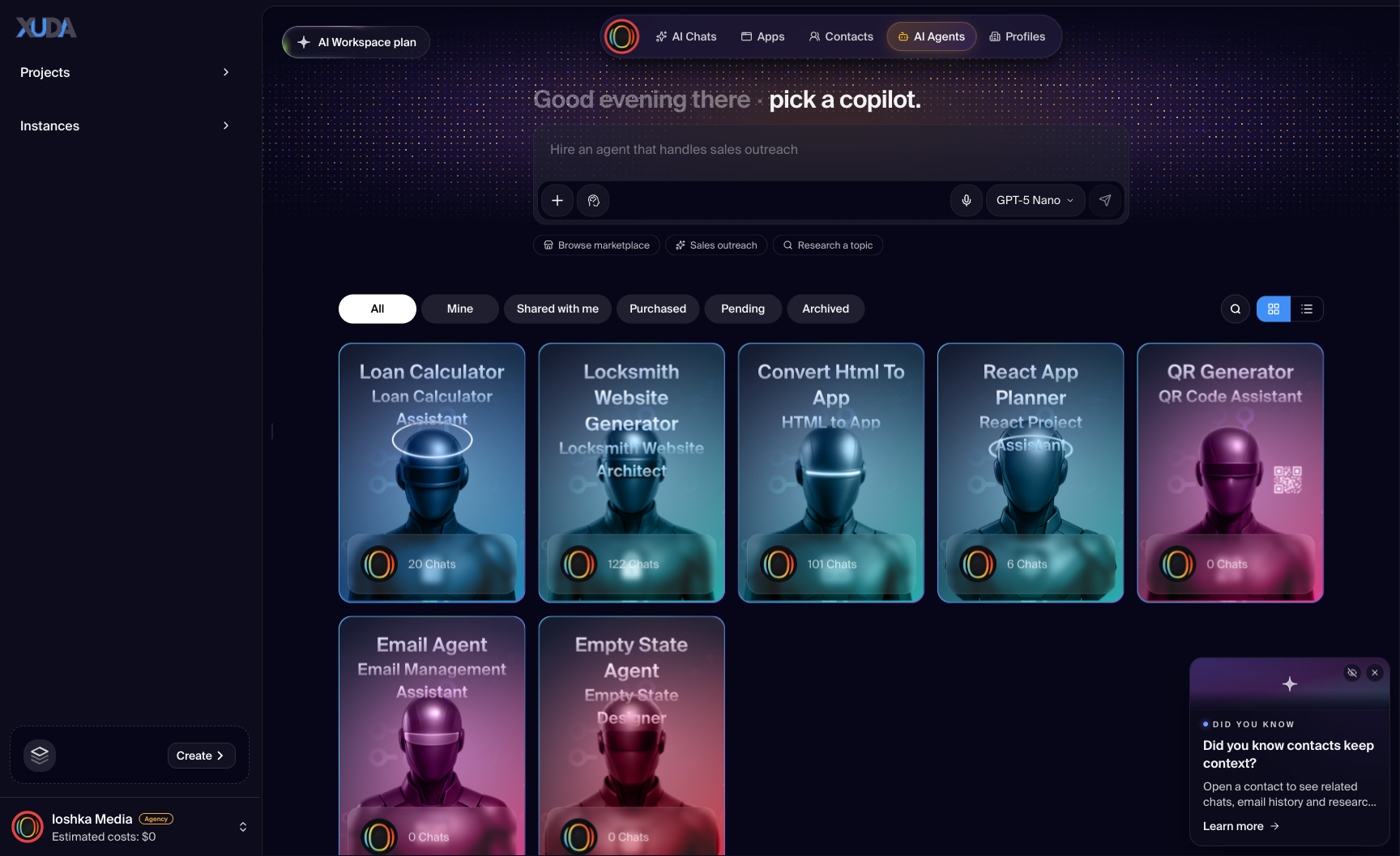
When you open AI Agents, you stay inside the main Xuda dashboard.
The screen gives you several main areas:
| AI Agents Dashboard Area | What It Does |
|---|---|
| Left dashboard rail | Keeps you inside the wider Xuda workspace. |
| Top workspace tabs | Lets you switch between AI Chats, Apps, Contacts, AI Agents, and Profiles. |
| Top profile selector | Shows the current profile context for the workspace. |
Add a new agent button |
Starts the flow for creating another agent. |
| Filter row | Helps you narrow the agent list. |
| Search button | Helps you find a specific agent more quickly. |
| Agent grid | Shows the available agents as cards. |
This is the main AI Agents dashboard page. It is the place you return to when you want to browse agents again.
Step 2: Use The lanalogo Profile Context
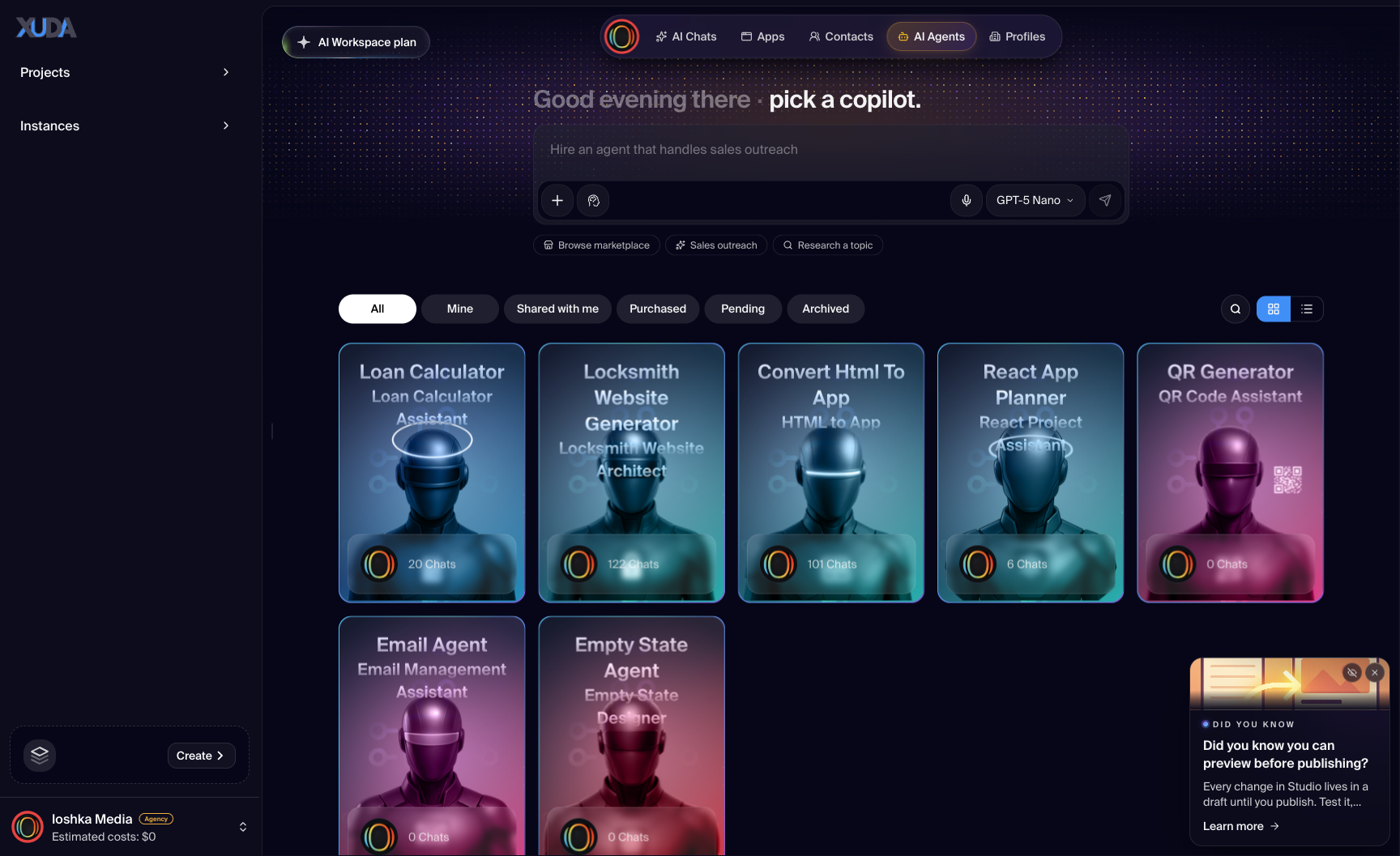
For this guide, the active profile context is lanalogo, shown in the top circular profile selector near the top-left of the workspace tabs.
When you change the active profile context:
- the top profile icon changes
- the AI Agents grid refreshes
- the available agent list can update to match that profile context
This is useful when your workspace contains more than one profile and you want the agent list to match the correct brand, role, or working context.
Step 3: Use Filters And Search
The AI Agents filter row helps you move through the list without opening every card one by one.
The available filters on this screen are:
| Filter | What It Means |
|---|---|
| All | Shows all agents you can access. |
| Mine | Shows agents you created or own. |
| Shared with me | Shows agents shared into your workspace. |
| Purchased | Shows agents you obtained through a purchase or marketplace flow. |
| Pending | Shows agents waiting for action or review. |
| Archived | Shows older agents you are not actively using now. |
You can also use the search button on the right side to locate a specific agent more quickly.
Result: even when many agents are available, you can narrow the list fast.
Step 4: Read The Agent Cards
On the AI Agents dashboard, each agent appears as a card.
An agent card can show:
| Agent Card Detail | What It Helps You See |
|---|---|
| Agent title | Helps you identify the agent quickly. |
| Assistant subtitle | Shows the agent’s role or purpose. |
| Chat count | Shows how many chats are connected to that agent. |
| Card design or artwork | Gives you a fast visual clue so agents are easier to recognize. |
This is helpful because you can choose an agent by both its purpose and its visual card, not only by name.
Step 5: Hover Over A Card To Reveal Quick Actions
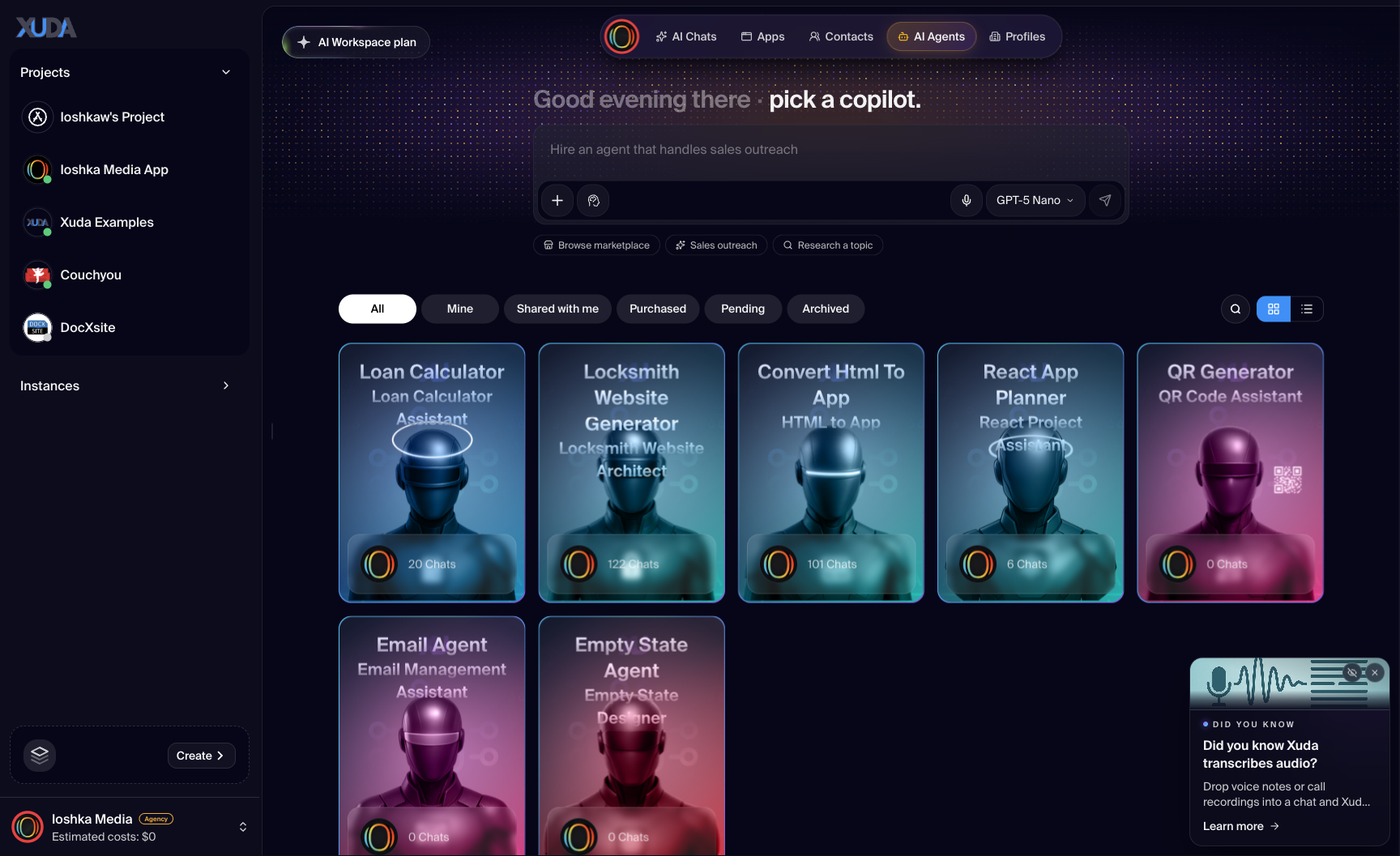
When you move over an agent card, Xuda can reveal extra controls directly on the card.
In this view, the hover state shows:
| Hover Control | What It Does |
|---|---|
Chat button |
Starts work from that agent. |
| Secondary action button | Opens additional actions for that card. |
This is useful when you want to start from a specific agent immediately without leaving the dashboard grid first.
Step 6: Choose The Right Agent For The Task
The AI Agents dashboard is easiest to use when you think in simple task terms.
For example:
- choose a website-related agent when you want help with a site or page
- choose a QR or calculator agent when the task already matches that agent’s purpose
- choose an empty-state or template-style agent when you want to start from a prepared structure
Practical habit:
- Pick the right profile context first.
- Use filters if the list is too broad.
- Read the card title and assistant subtitle.
- Hover the card.
- Use
Chatto begin from that agent.
Step 7: Add A New Agent When Needed
If the current grid does not give you the specialist you want, use the Add a new agent button at the top of the AI Agents screen.
That option is useful when:
- you want a new specialist for a new type of work
- you need an agent dedicated to one business area
- you want to separate different workflows into different agents
Quick Summary
| If You Want To... | Use AI Agents To... |
|---|---|
| Browse specialist helpers | Open the AI Agents dashboard |
| Work in the right profile context | Use the top profile selector, such as lanalogo |
| Narrow the list | Use filters like All, Mine, or Archived |
| Recognize an agent quickly | Read the title, subtitle, artwork, and chat count |
| Start from an agent | Hover a card and use Chat |
| Create another specialist | Use Add a new agent |
Extra Feature Tips
- Pick the profile context before choosing an agent so the conversation starts under the right identity.
- Use agent cards as shortcuts to repeated work, not only as one-time chat starters.
- Compare the subtitle, artwork, and chat count when two agents look similar.
- Archive agents that are no longer active so the useful specialists stay easier to find.
- Create a new agent when the job has a stable role, audience, or process that you expect to reuse.
Final Takeaway
AI Agents is the specialist-helper library inside Xuda.
If you remember one simple pattern, make it this:
- switch to the right profile context first
- browse the agent cards
- use filters when the list is large
- hover the card you want
- use
Chatto start with that agent