
Xuda Free Account Signup User Guide
Xuda Free Account Signup User Guide
This guide explains Xuda free account signup for a non-technical user. It focuses on what a Xuda account is for, how the account stays with you over time, what account types and tiers mean, and how to sign up or log in.
The screenshots are dark, full-screen desktop captures from https://dev.xuda.ai/dashboard.
Feature Tips Map
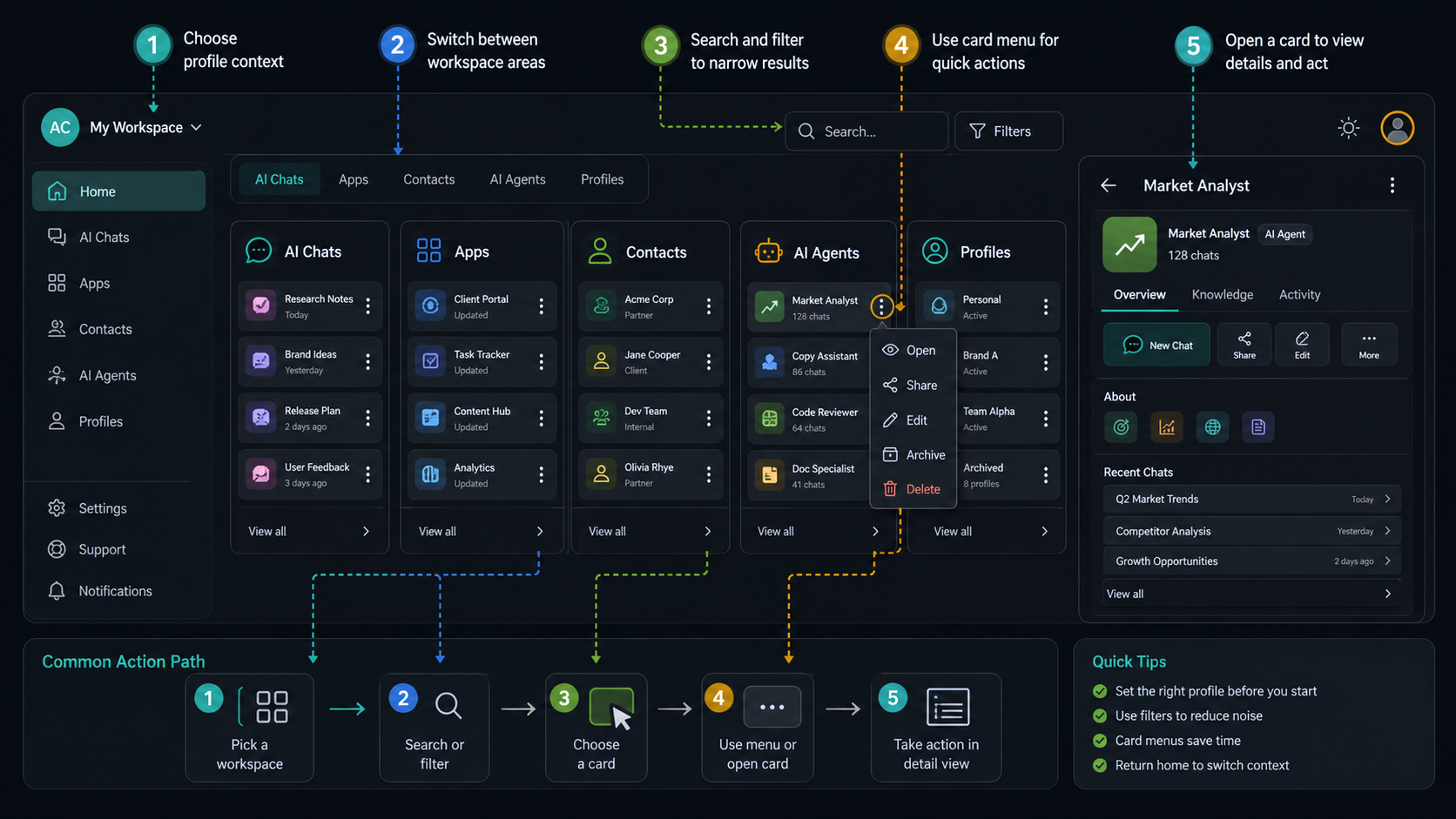
Use this visual as a quick reminder that most Xuda features work best when you connect the workspace, the data, the screen, and the next action instead of treating each area as separate.
Guide Purpose
Use this guide when you want to create a free Xuda account and understand what that account represents before you start building, exploring, or joining work owned by someone else.
The goal is simple: create one Xuda identity that can follow you across personal projects, work projects, business use, invitations, and future changes in your role or workplace.
What Is Xuda
Xuda is a platform for building, running, deploying, and managing apps and AI-powered workspaces. It brings together several product areas:
| Xuda Area | What It Helps You Do |
|---|---|
| Dashboard | Manage your account, projects, files, support, billing, teams, and settings. |
| Studio | Create apps visually, often from a plain-language description, without writing code. |
| AI workspace | Work with AI agents, chats, contacts, profiles, and app-building tools. |
| Marketplace | Explore, install, publish, or share apps, agents, plugins, and reusable building blocks. |
| Runtime and deployments | Run apps, previews, mini apps, and production deployments. |
For a new user, the important idea is that Xuda is not only one tool. It is an account-based workspace where your projects, access, support, plans, and identity are connected.
One Lifetime Account
The new account approach is based on one long-lived Xuda account instead of repeatedly switching or managing many separate accounts.
Think of the Xuda account as your portable identity:
| Situation | How The Account Helps |
|---|---|
| Personal use | You can create and keep your own projects, files, agents, and app ideas. |
| Work use | You can be invited into work projects without creating a separate work-only identity. |
| Changing jobs | Your account can remain yours while project access changes around it. |
| Business ownership | You can use the same identity to create or manage business workspaces. |
| Team invitations | You can join projects or connections by signing in with your existing Xuda credentials. |
The result is account mobility. Your Xuda identity stays with you, while the projects, teams, and permissions attached to it can change as your life and work change.
Account Types
During profile setup, Xuda supports two account types: Personal and Business.
| Account Type | Best For | What Xuda Asks For |
|---|---|---|
| Personal | An individual using Xuda for personal work, learning, freelance work, or as a team member. | First name, last name, email, country, phone number, and profile picture/avatar. |
| Business | A company, organization, agency, or formal business identity. | Business name, email, country, phone number, and business logo/avatar. |
You can start with the account type that matches how you are using Xuda today. The onboarding screen says basic information can be adjusted later.
Account Tiers
Xuda uses tiers and plans to decide which capabilities, usage levels, and support levels are available.
For a free signup, the practical starting point is:
| Tier Area | What It Means |
|---|---|
| Free account | Lets you create an account, enter the dashboard, complete your profile, and begin exploring Xuda. |
| Credits | New-account messaging references welcome credits that can be used for Xuda services or features. |
| Membership plans | Expand what individuals, teams, agencies, and enterprises can do as needs grow. |
| Support plans | Control the support level attached to the account. New accounts start with Starter support, with Developer, Business, and Enterprise tiers available for more critical work. |
| Deployment or hosting plans | Apply when you run apps or infrastructure beyond basic exploration. |
You do not need to choose every tier during free signup. The free account is the entry point. Other tiers matter later when you need more capacity, production usage, business support, or enterprise controls.
Step 1: Open The Dashboard
Go to https://dev.xuda.ai/dashboard.
If you are not signed in, Xuda opens the welcome screen.
From this screen you can:
- Continue with credentials.
- Continue with Google.
- Continue with GitHub.
- Open the signup form with Sign Up Now.
- Review the Terms of Service and Privacy Policy.
- Toggle dark mode from the bottom-right control.
The result is the starting point for both new account signup and returning-user login.
Step 2: Open Signup
Select Sign Up Now.
Xuda opens the signup form. The form asks for:
| Field | What To Enter |
|---|---|
| First name | Your personal first name. |
| Last name | Your personal last name. |
| Email address | The email you want attached to your Xuda account. |
| Password | A new password that meets Xuda password rules. |
The password checklist shows the requirements:
- More than 8 characters.
- Contains a number.
- Contains an uppercase letter.
- Contains a special character.
The Sign up button becomes usable when the form is ready.
Step 3: Choose A Signup Method
On the signup form, you can create the account with credentials, Google, or GitHub.
| Method | When To Use It |
|---|---|
| Credentials | Use this when you want a Xuda email-and-password login. |
| Use this when you want to sign in through your Google identity. | |
| GitHub | Use this when you want to sign in through your GitHub identity. |
Use the method you expect to keep long term. Since the account is meant to stay with you, choose an email or provider you will still control if your workplace changes.
Step 4: Complete Account Setup
After signup, Xuda may ask you to complete your profile before entering the full dashboard.
Profile setup can include:
| Setup Area | Why It Matters |
|---|---|
| Account type | Choose whether the account represents a person or a business. |
| Name or business name | Gives the account a clear identity in Xuda. |
| Country and phone | Helps complete the account profile and support account operations. |
| Industry | Helps Xuda understand the kind of work you do. |
| Avatar or logo | Gives your account a recognizable profile image. |
The result is a usable Xuda account with enough information to personalize your workspace, invitations, profile, and support experience.
Step 5: Log In Later
When you return to Xuda, go back to https://dev.xuda.ai/dashboard.
You can log in with the same method you used during signup:
| Login Option | What Happens |
|---|---|
| Continue with credentials | Opens the email and password form. |
| Continue with Google | Uses your Google account. |
| Continue with GitHub | Uses your GitHub account. |
The credentials form includes:
- Email address.
- Password.
- Remember me.
- Forgot your password.
- Sign in.
After successful login, Xuda opens your dashboard or the area you were trying to reach.
Account Mobility In Practice
A Xuda account is designed to be used across different parts of your life without starting over each time.
Examples:
| Example | What To Do |
|---|---|
| You start with a personal project | Sign up once, create the project, and keep it under your account. |
| A company invites you to a project | Accept the invitation and sign in with your existing Xuda account. |
| You leave a company | The company can remove access to its projects, while your personal Xuda account remains yours. |
| You start a business later | Use business account details or business workspaces without losing your existing identity. |
| You upgrade support or usage | Change the relevant plan or tier when the work becomes more important. |
The account is the stable part. Access, roles, projects, teams, billing, and support can change around it.
What To Expect After Signup
After creating the account, you can begin using Xuda from the dashboard.
Common next steps:
- Explore the dashboard.
- Complete your profile.
- Check account settings.
- Open Studio to create an app.
- Explore existing Xuda apps, agents, and marketplace items.
- Review credits, billing, plans, or support options when needed.
- Accept project or team invitations.
You do not need to understand the technical parts of Xuda before signing up. The account simply gives you a place to start, save work, receive invitations, and grow into more advanced features over time.
Quick Reference
| Question | Short Answer |
|---|---|
| Is signup free? | Yes, free signup creates the starting account. |
| Do I need separate personal and work logins? | No. The intended approach is one account that can be used across personal and work contexts. |
| Can I use Google or GitHub? | Yes. The login screen offers credentials, Google, and GitHub. |
| What account types exist? | Personal and Business. |
| What tier do new accounts start with? | A free account starts the experience, and support starts at the Starter tier. |
| Can account details change later? | Profile setup indicates basic information can be adjusted later. |
| What should I use for signup? | Use an email or provider you expect to keep for the long term. |
Extra Feature Tips
- Choose an email or provider that you expect to keep because the account can grow with personal and business work.
- Complete profile details soon after signup so shared work and support requests are easier to recognize.
- Use one account for multiple contexts, then manage access, roles, teams, and projects around it.
- Review settings before accepting important invitations so account information is current.
- Explore the dashboard after signup before creating complex apps; it makes the later Studio flow easier to understand.