
Xuda Dashboard Project Plugins User Guide
Xuda Dashboard Project Plugins User Guide
This guide explains the Plugins tab inside a Xuda dashboard project.
Guide Purpose
Use this tab when you want to review, add, configure, or activate plugins that extend the project.
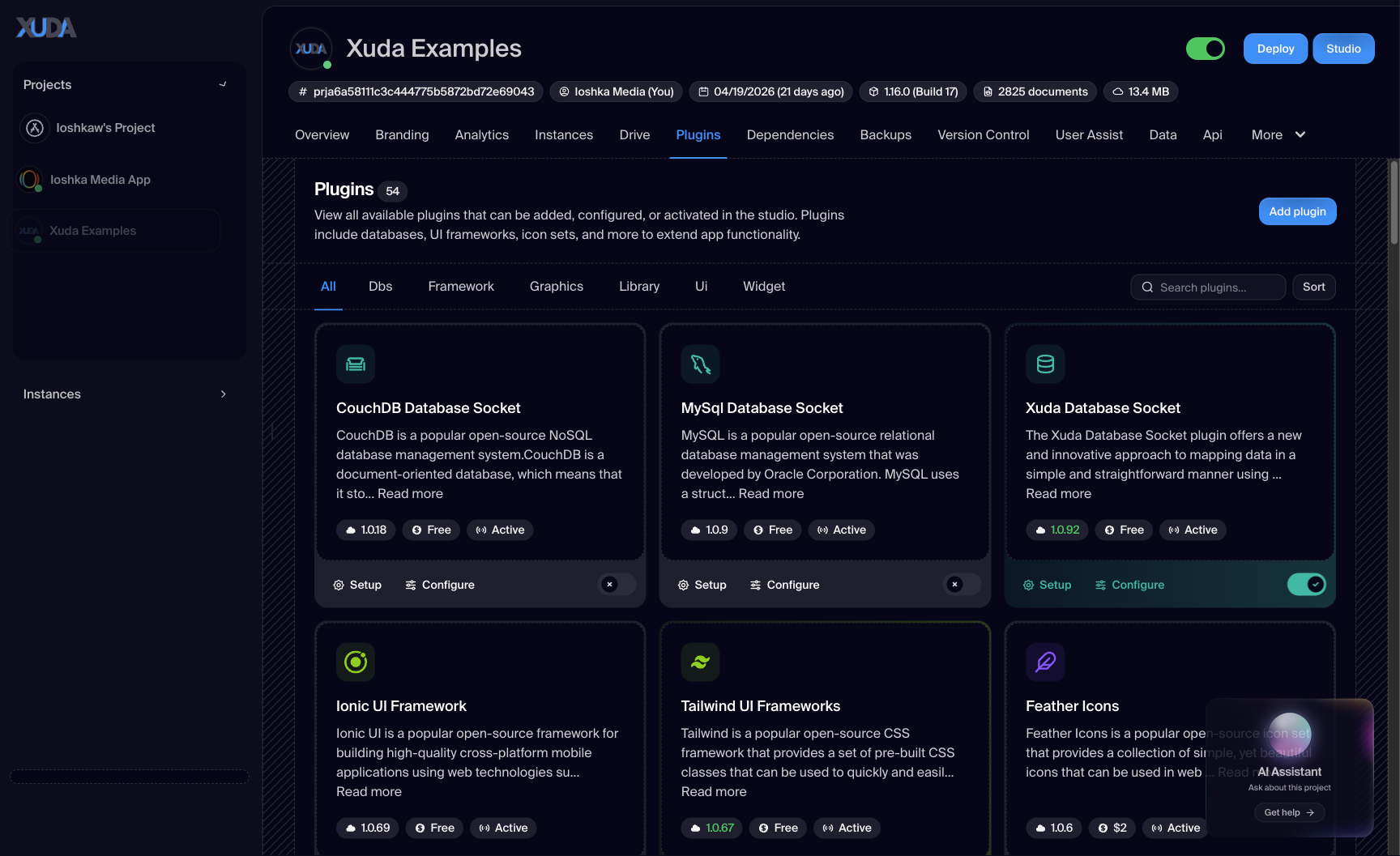
Step 1: Open The Plugins Tab
Open your project in dev.xuda.ai/dashboard, then click Plugins in the top project tab row.
Step 2: Narrow The Plugin List
At the top of the page, the dashboard gives you ways to focus the list.
The main controls are:
- type tabs such as All and specific plugin categories
- Search
- Sort
- Add plugin
This makes it easier to move from a long marketplace-style list to the one item you actually need.
Step 3: Review The Plugin Cards
Plugin cards are where you work with each option.
Depending on the plugin, actions can include:
- adding it to the project
- configuring it
- activating it
- setting it up
- verifying it
The exact buttons can vary by plugin type and by whether the plugin is already connected.
What This Tab Is Best For
Use Plugins when you want to extend what the project can do without leaving the dashboard.
Common examples include:
- connecting a database-related plugin
- adding a UI or framework plugin
- reviewing which extensions are already active on the project