
Xuda Deploy Embed User Guide
Xuda Deploy Embed User Guide
This guide explains how to create an Embed deployment from a Xuda project dashboard.
Guide Purpose
Use Embed when you want to place a Xuda app inside another website.
Step 1: Open Deploy From The Project
Open your project in dev.xuda.ai/dashboard, then click Deploy.
The Deploy Type screen lists the available deployment categories.
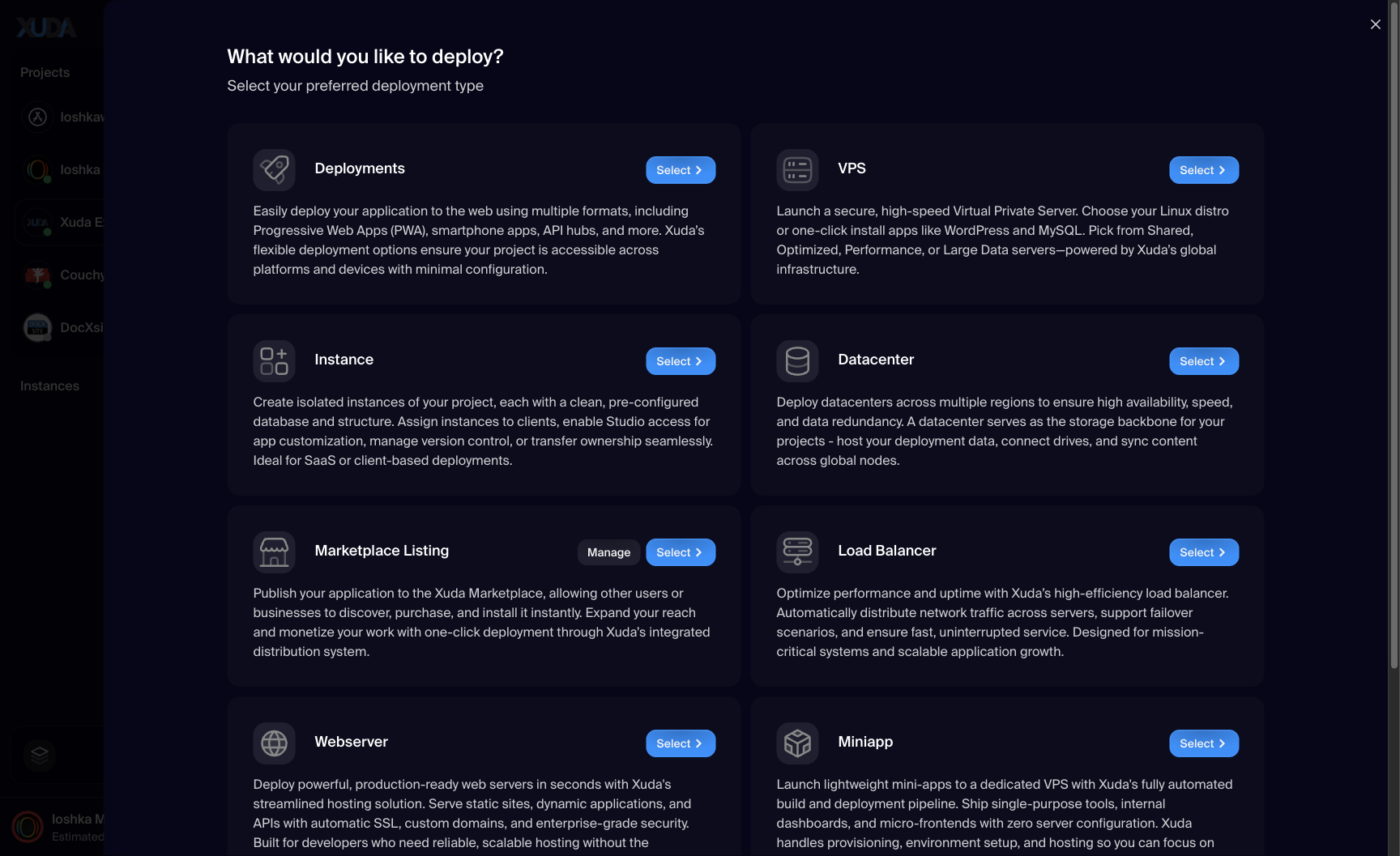
Step 2: Find Embed Under Deployments
Select Deployments. Embed is shown alongside Preview, SPA, PWA, User Group, and MPA.
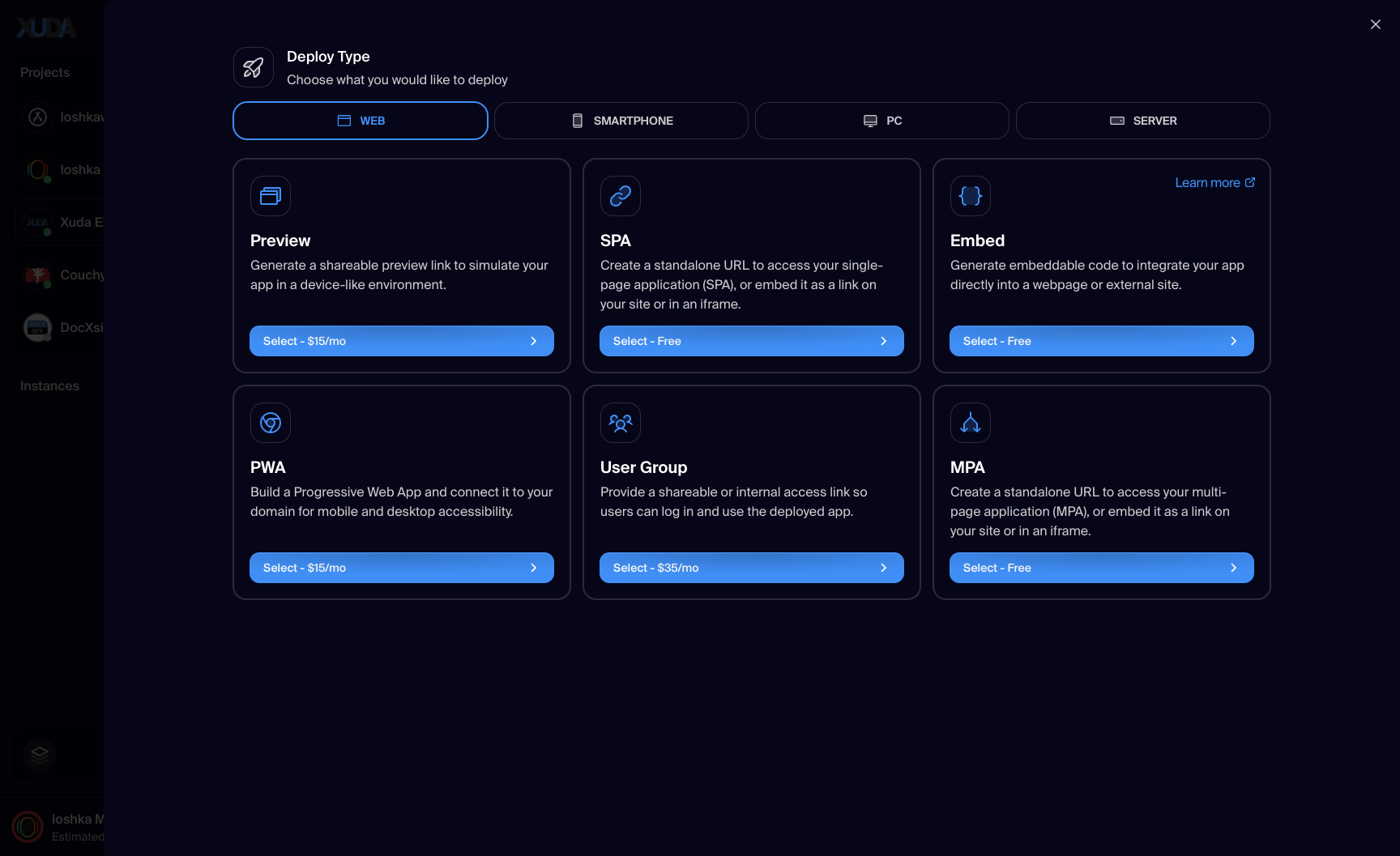
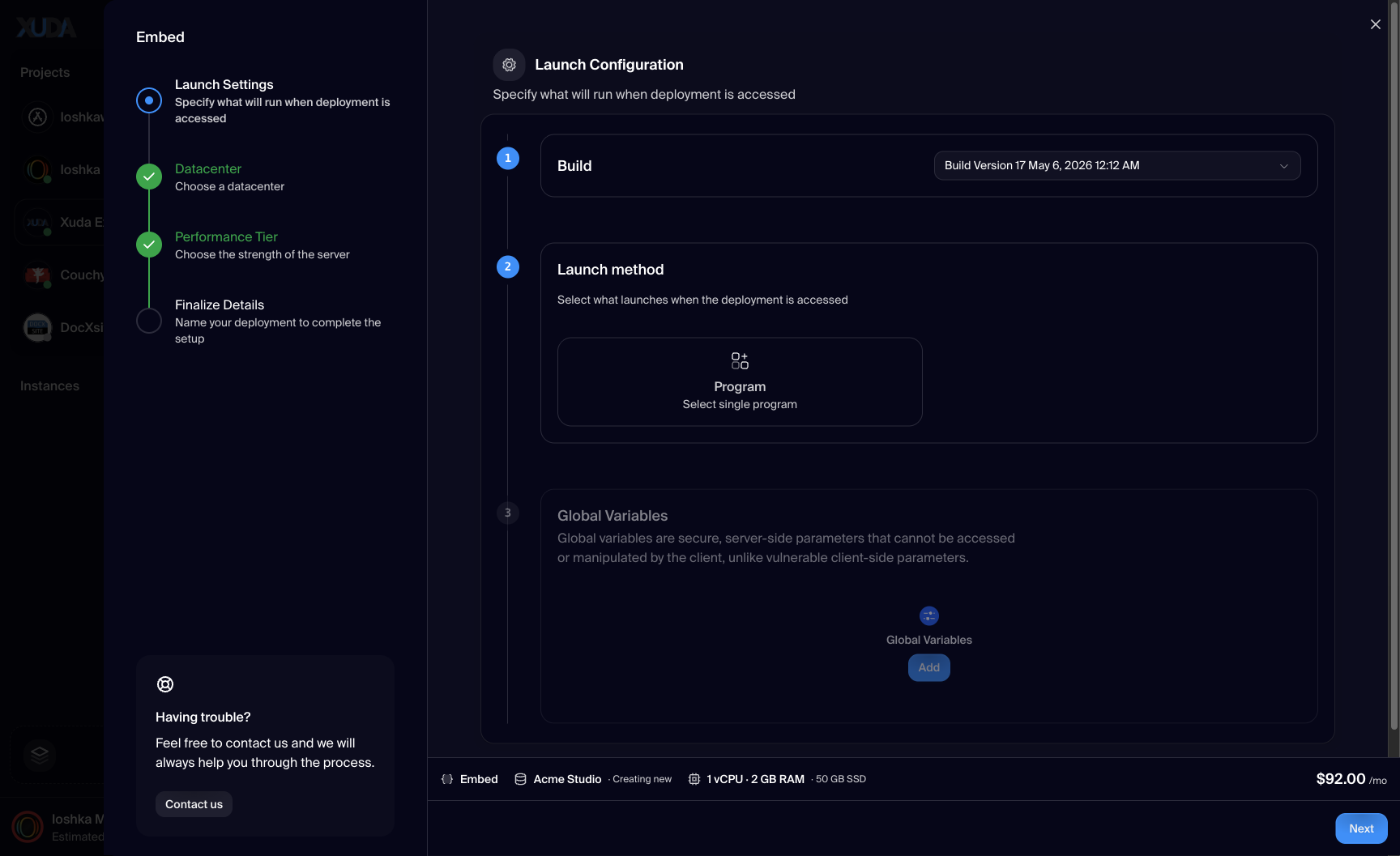
Step 3: Choose Launch Settings
Click the Select button on the Embed card to open the deployment wizard.
In Launch Settings, choose the project screen or experience that should appear inside the embedded area. Choose the exact target you want website visitors to see.
Step 4: Choose Datacenter
Choose an existing datacenter or create a new one.
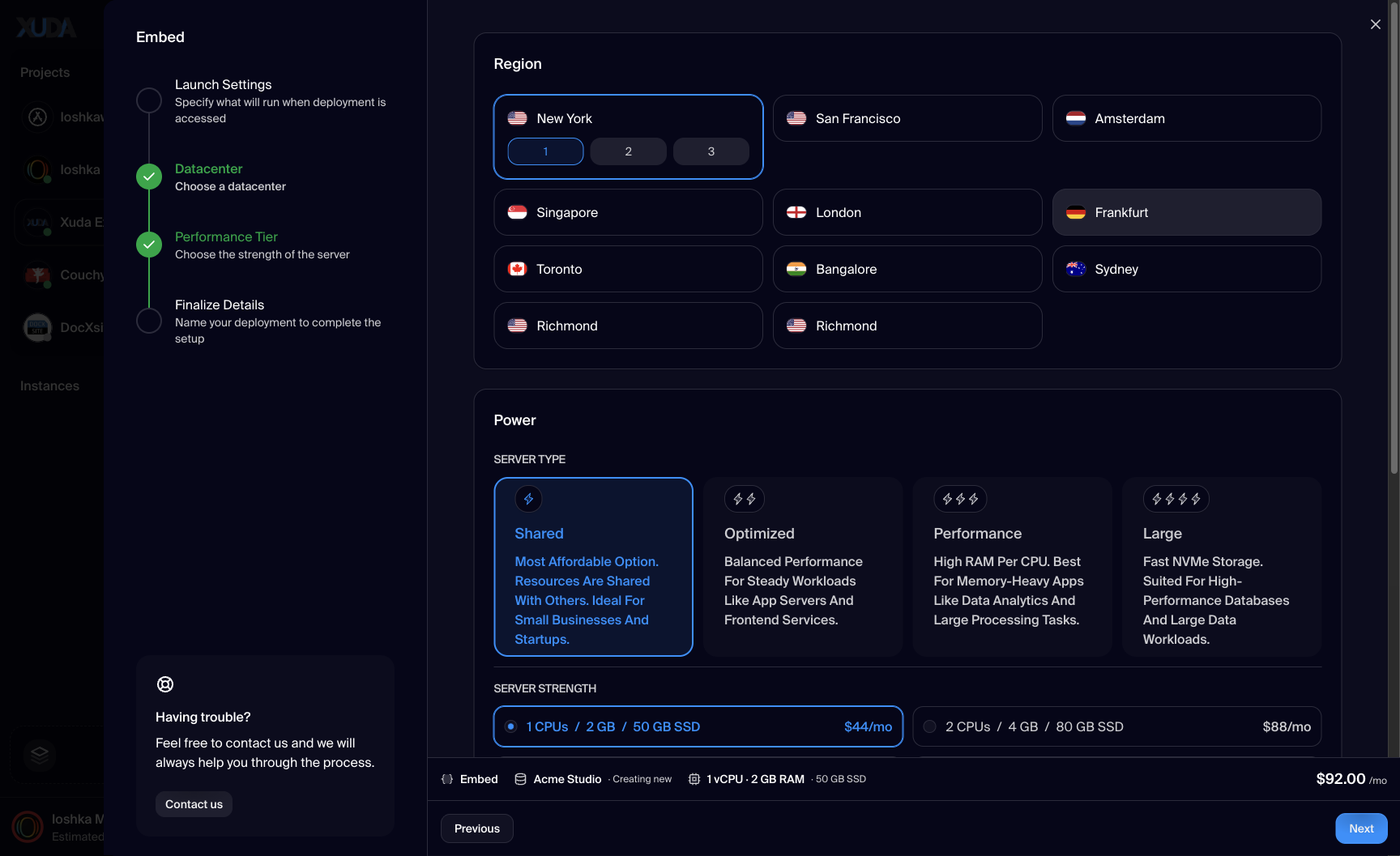
Step 5: Choose Performance Tier
Select the Performance Tier. If the embed will appear on a high-traffic website, choose enough power for that traffic.

Step 6: Finalize Details
Select the build you want to deploy and review the Embed name.
Check the estimated price in the bottom bar.
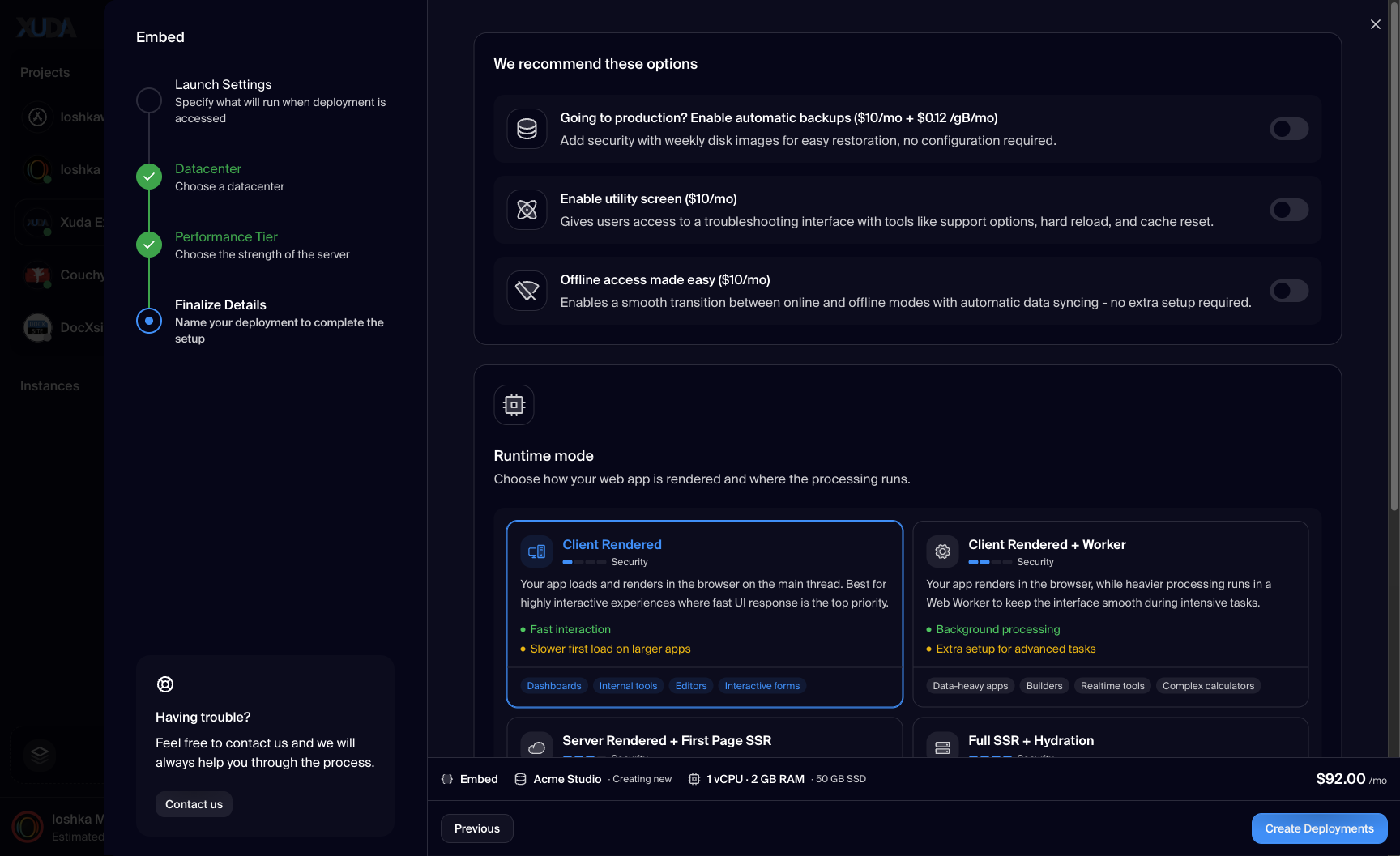
Step 7: Create The Embed
Click Create Embed.
Step 8: Copy The Embed Code
After creation, Xuda shows an Embed area for the new deployment.
Copy the embed code and place it in the website where the app should appear.
Best For
Embed is best for:
- adding a Xuda app to an existing site
- partner websites
- customer portals
- pages where the app should appear without sending users away