
Xuda Dashboard Project User Assist User Guide
Xuda Dashboard Project User Assist User Guide
This guide explains the User Assist tab inside a Xuda dashboard project.
Guide Purpose
Use this tab when you want to monitor live user activity and support users while they are actively connected.
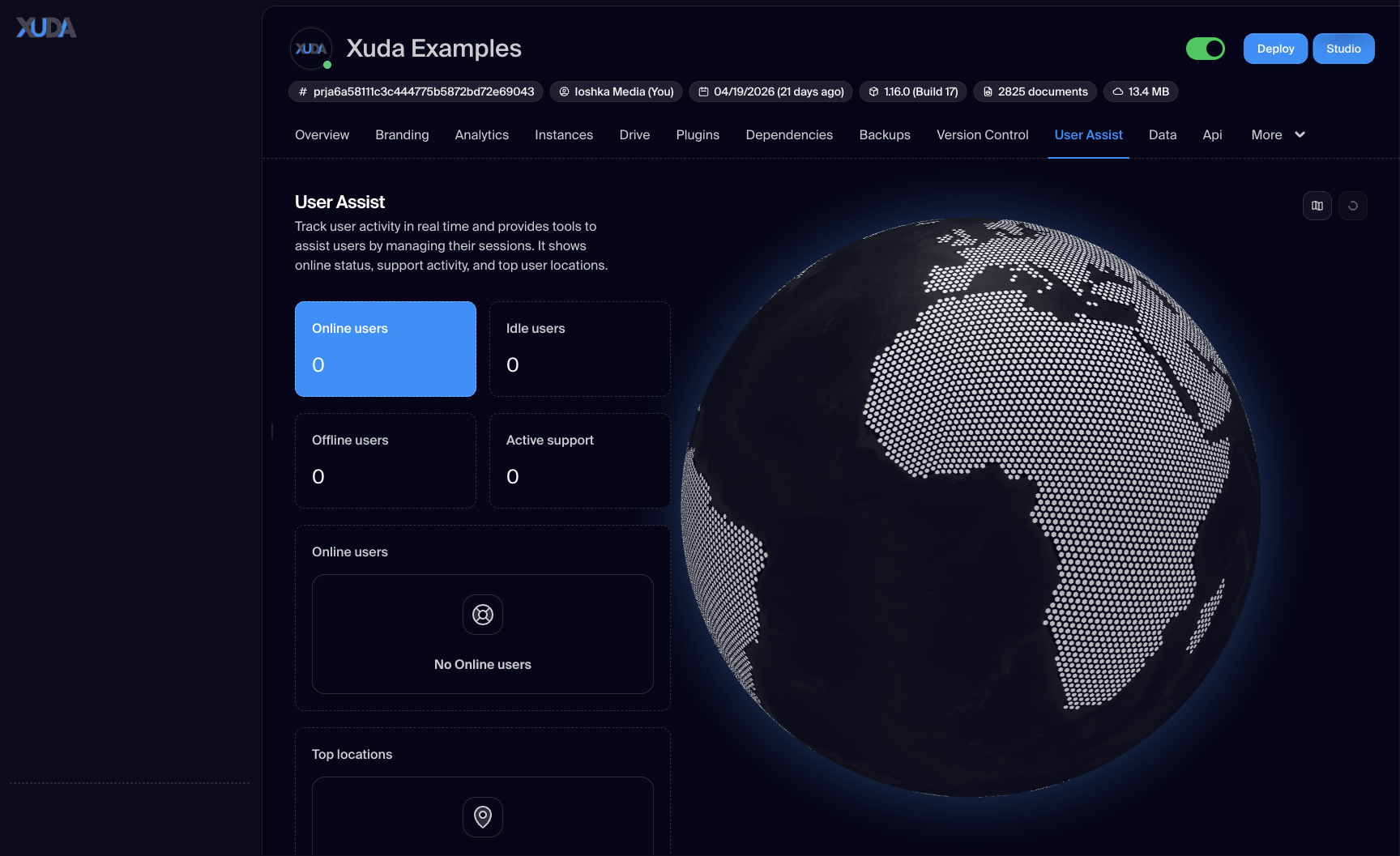
Step 1: Open The User Assist Tab
Open your project in dev.xuda.ai/dashboard, then click User Assist in the top project tab row.
If you do not see it right away, open More.
Step 2: Read The Status Cards
The top part of the page is designed for live monitoring.
Common cards include:
- Online users
- Idle users
- Offline users
- Active support
These numbers help you understand whether users are actively present and whether support activity is happening at that moment.
Step 3: Review The Live Panels
Below the counters, the page can show panels such as:
- a current list of online users
- top locations
- a live map or user-position view
- support tools for selected users on supported project types
On some deployments, this tab may first show an Enable step before live monitoring becomes available.
What This Tab Is Best For
Use User Assist when you want to:
- see whether users are currently inside the project
- understand support demand in real time
- help a user while they are active
- review where activity is coming from at a high level