
Xuda Deploy MacOs App User Guide
Xuda Deploy MacOs App User Guide
This guide explains what to do when you want a MacOs App deployment from a Xuda project dashboard.
Guide Purpose
Use MacOs App when you want to package a project as a macOS desktop application.
Current Availability
In the current dashboard, MacOs App is marked as Early access.
That means selecting it opens a support request instead of the normal deployment wizard.
Step 1: Open Deploy From The Project
Open your project in dev.xuda.ai/dashboard, then click Deploy.
The Deploy Type screen lists the available deployment categories.
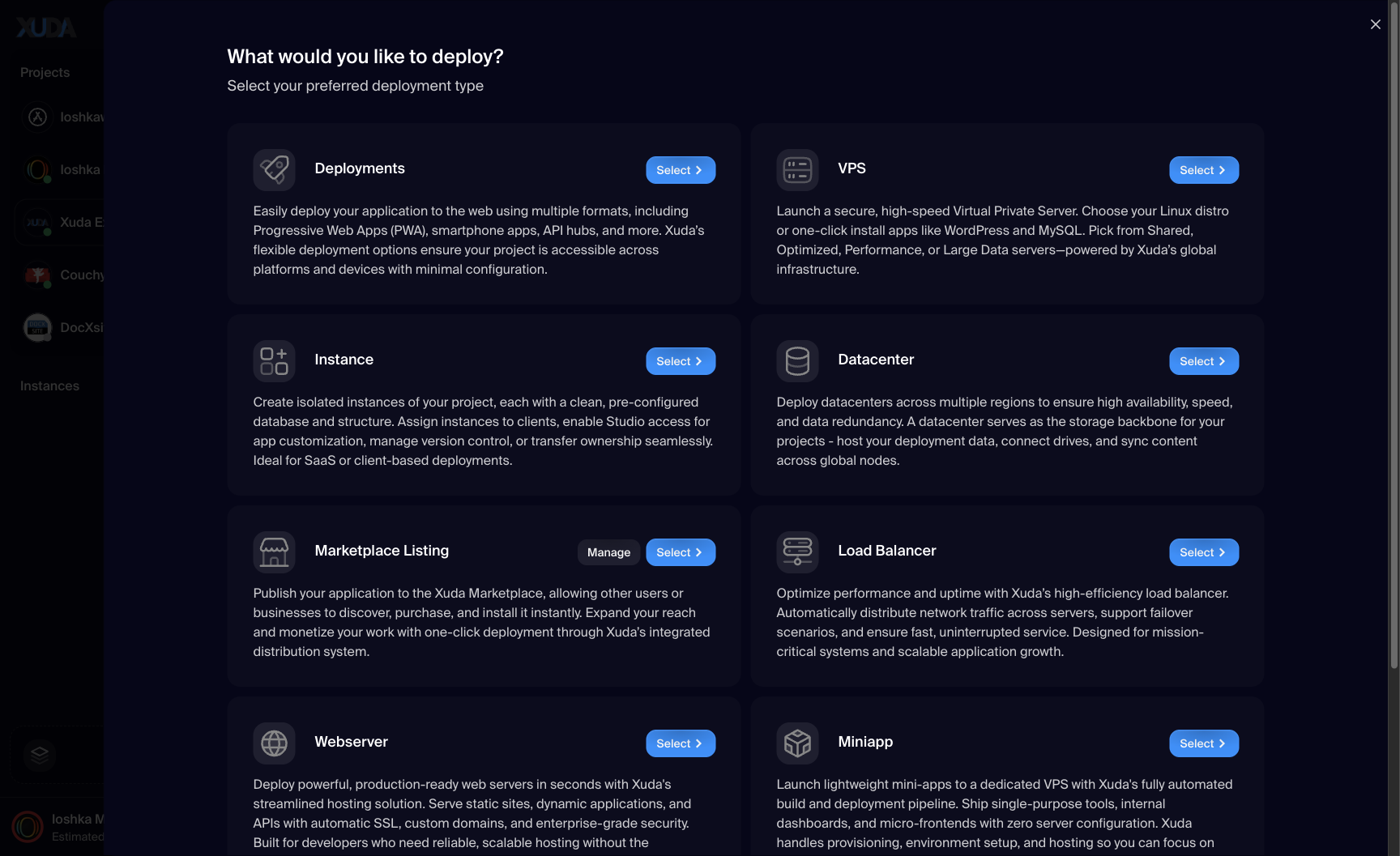
Step 2: Find MacOs App Under Deployments
Select Deployments, then switch to the PC tab. MacOs App is shown alongside Windows App and Linux App, and is marked Early access.
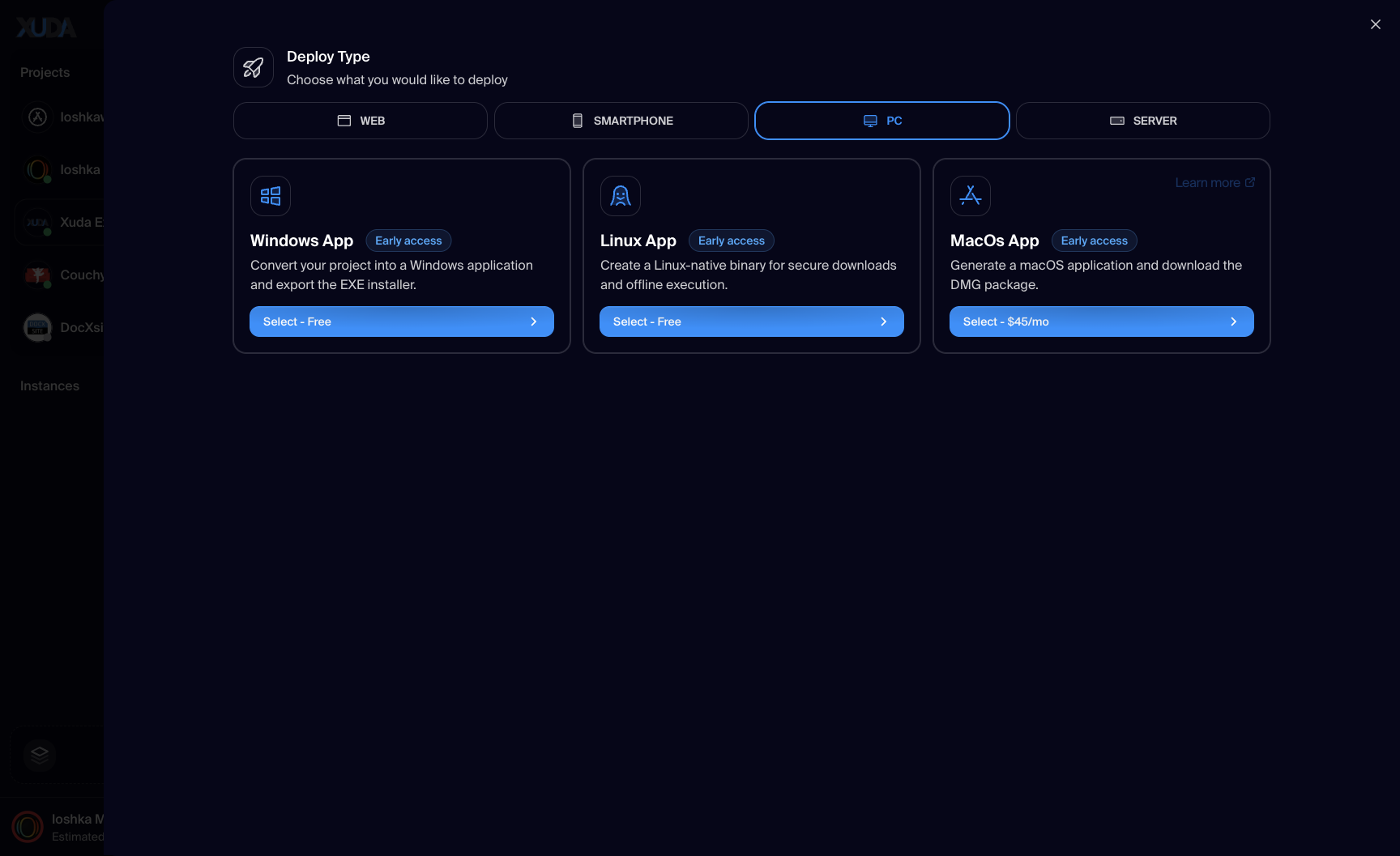
Step 3: Request Early Access
Click the Select button on the MacOs App card.
Because MacOs App is Early access, Xuda opens the support page with the macOS topic preselected so you can describe what you need.
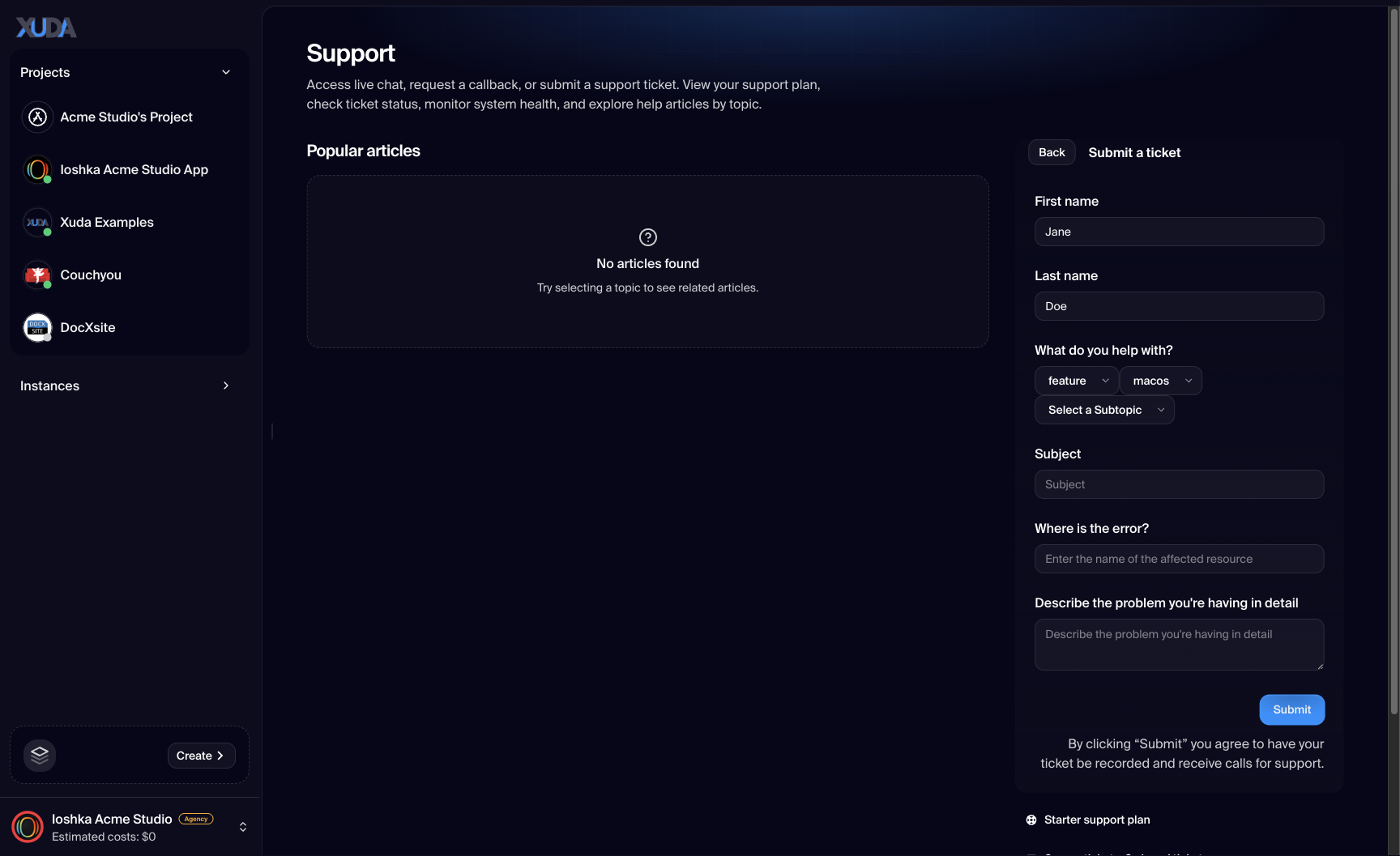
Step 4: Send The Request
Explain that you want to deploy the current project as a macOS app.
Mention whether you need a downloadable package or help preparing for distribution.
Best For
MacOs App is best for:
- macOS desktop apps
- internal Mac tools
- downloadable desktop packages
- app-like workflows outside the browser