
Xuda Studio Component Tree Right-Click Options User Guide
Xuda Studio Component Tree Right-Click Options User Guide
This guide explains every option in the menu that appears when you right-click a component in the Xuda Studio project tree.
It is written for non-technical users. Each option has its own screenshot and explains what the option helps you do.
The screenshots are dark, full-screen captures from https://dev.xuda.ai/studio.
Feature Tips Map
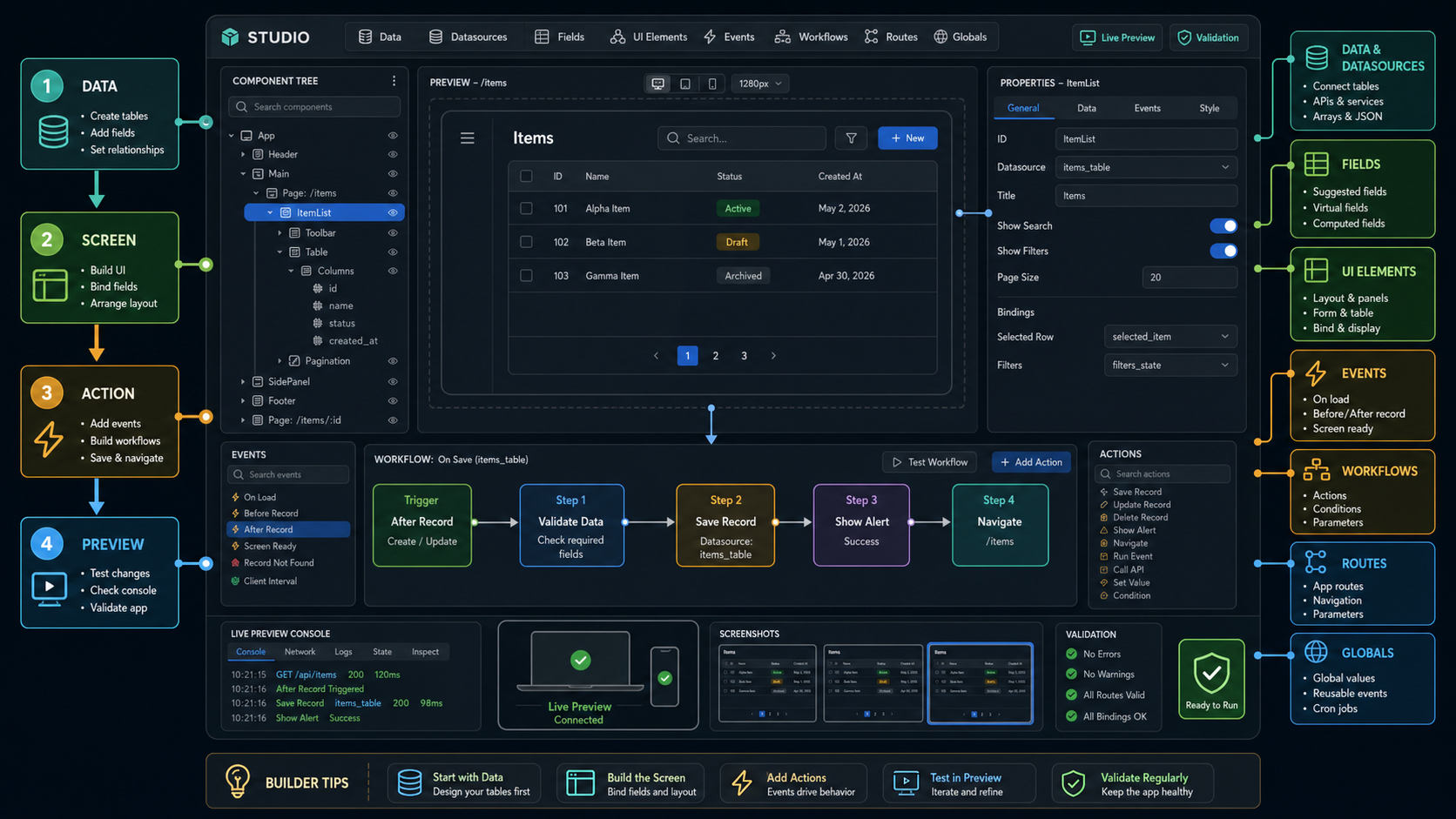
Use this visual as a quick reminder that most Xuda features work best when you connect the workspace, the data, the screen, and the next action instead of treating each area as separate.
Screenshot Gallery
Use this section to confirm that the screenshots are loading in your Markdown preview.
| Option | Screenshot |
|---|---|
| Menu | 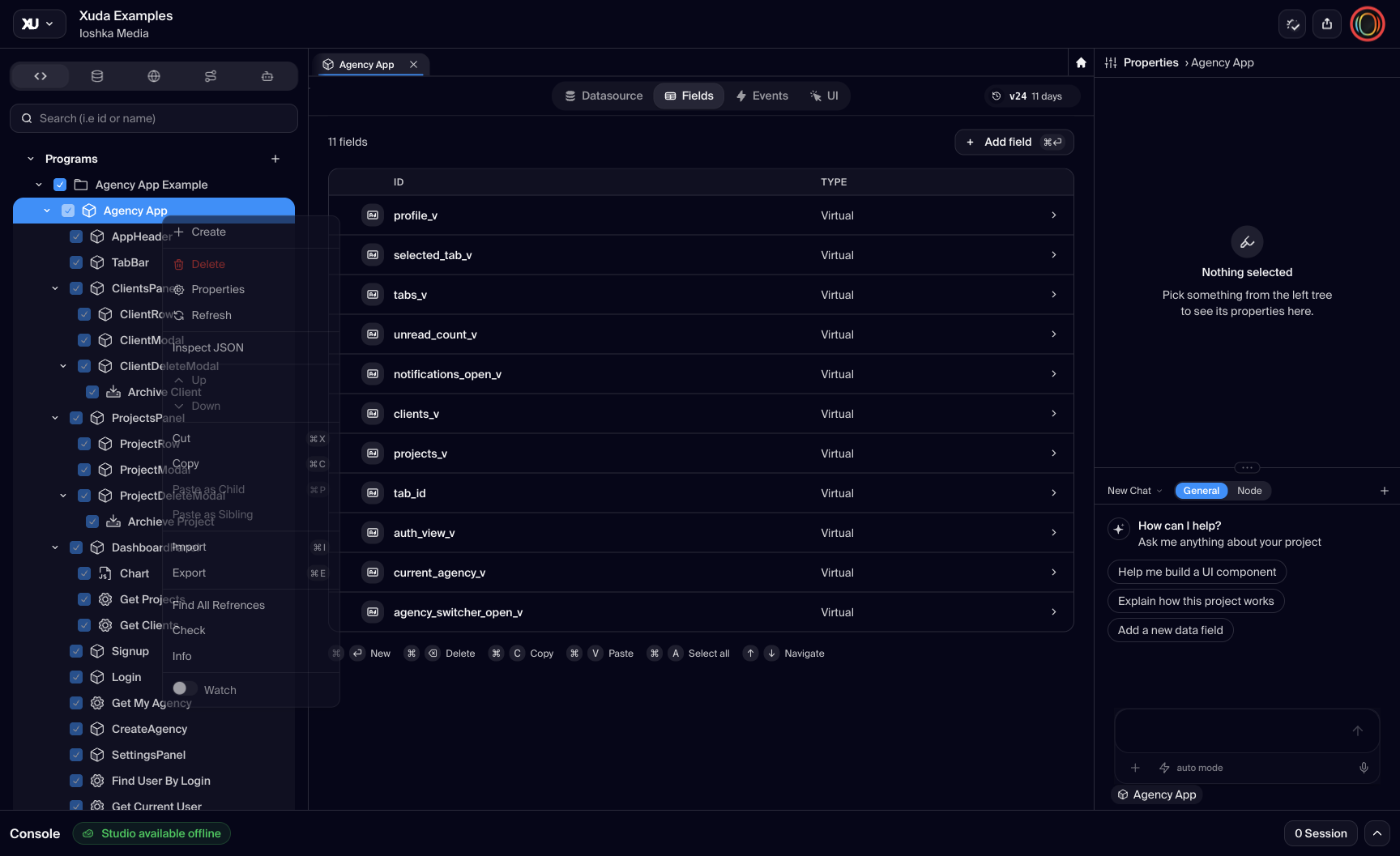 |
| Create | 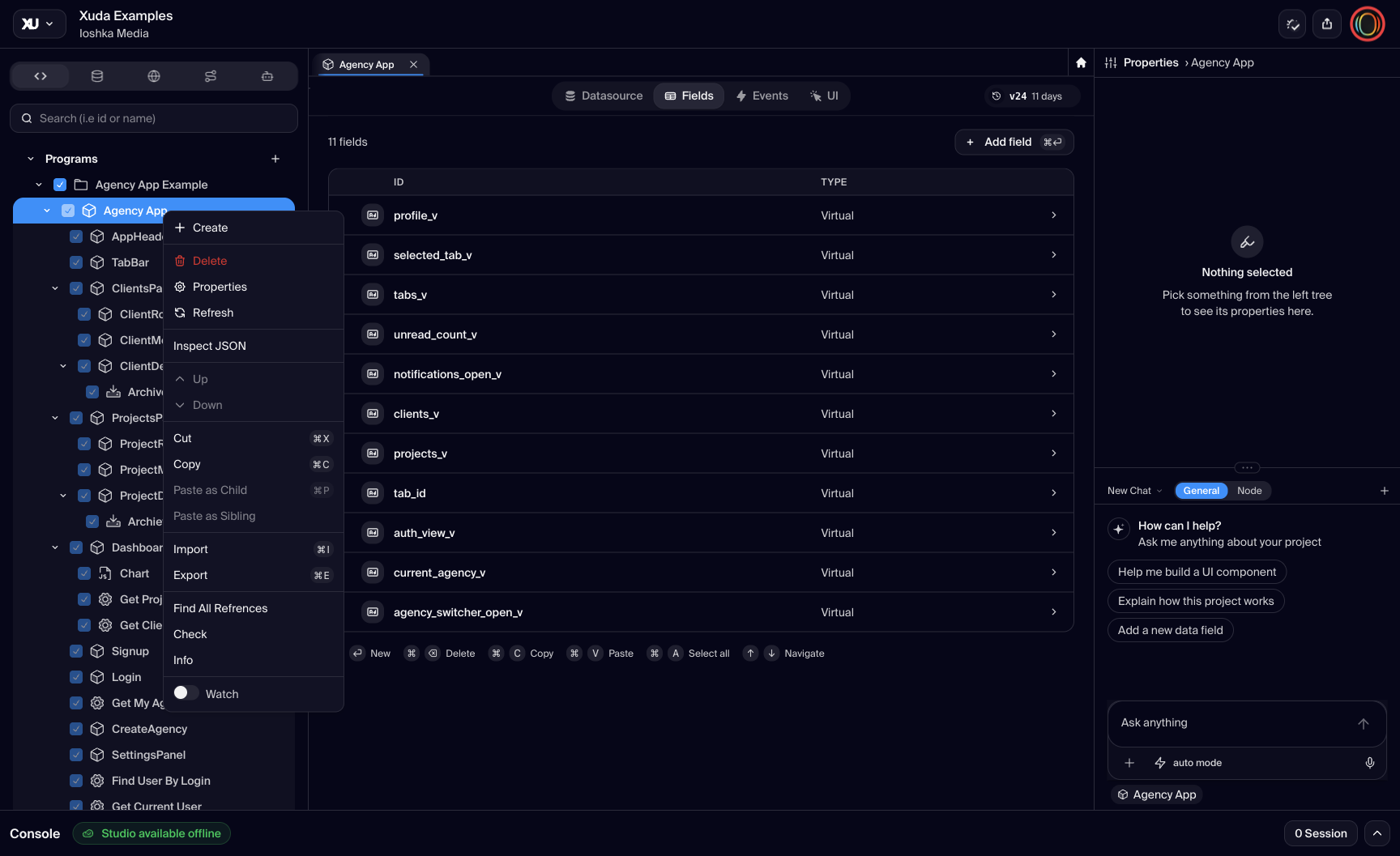 |
| Delete | 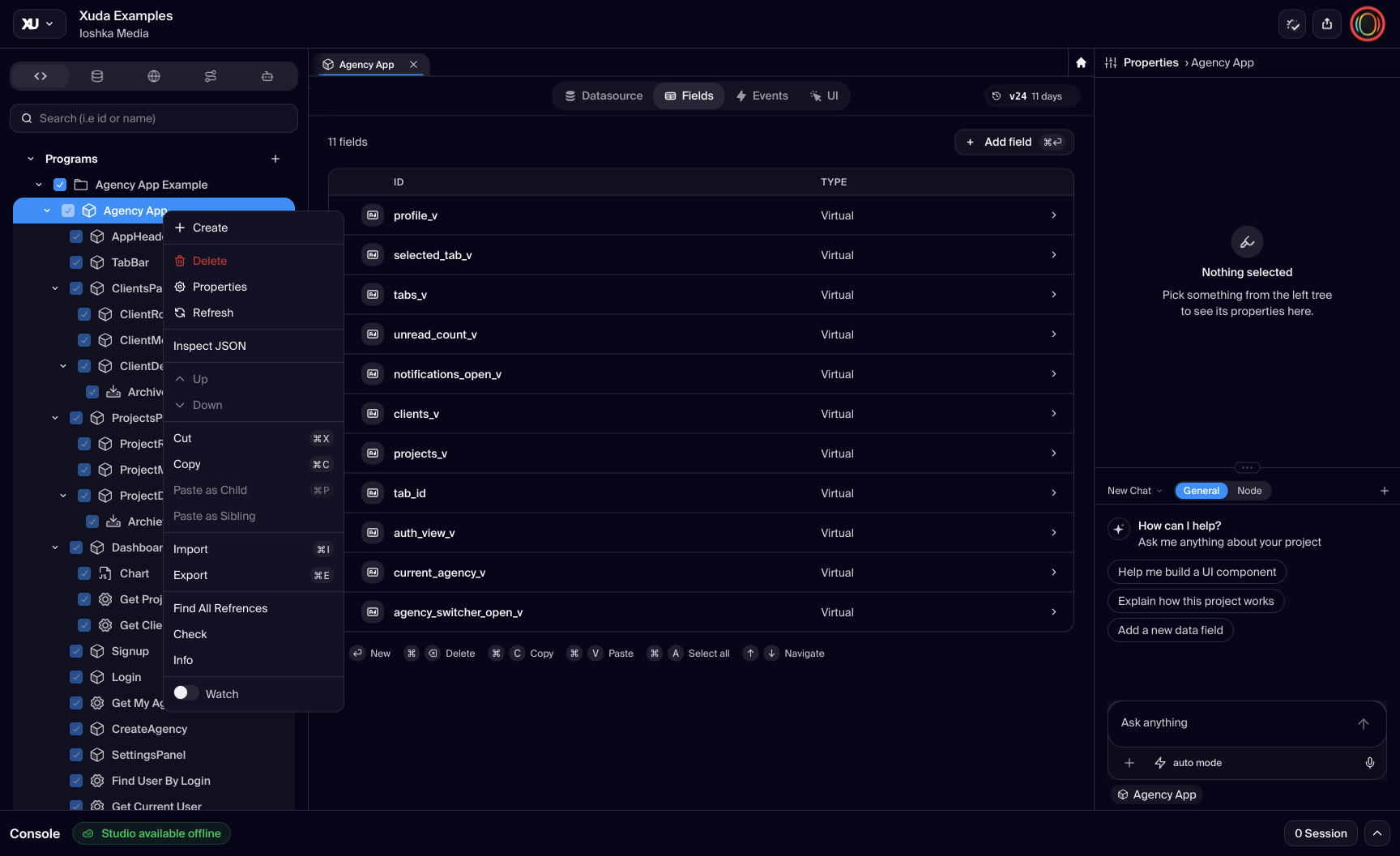 |
| Properties | 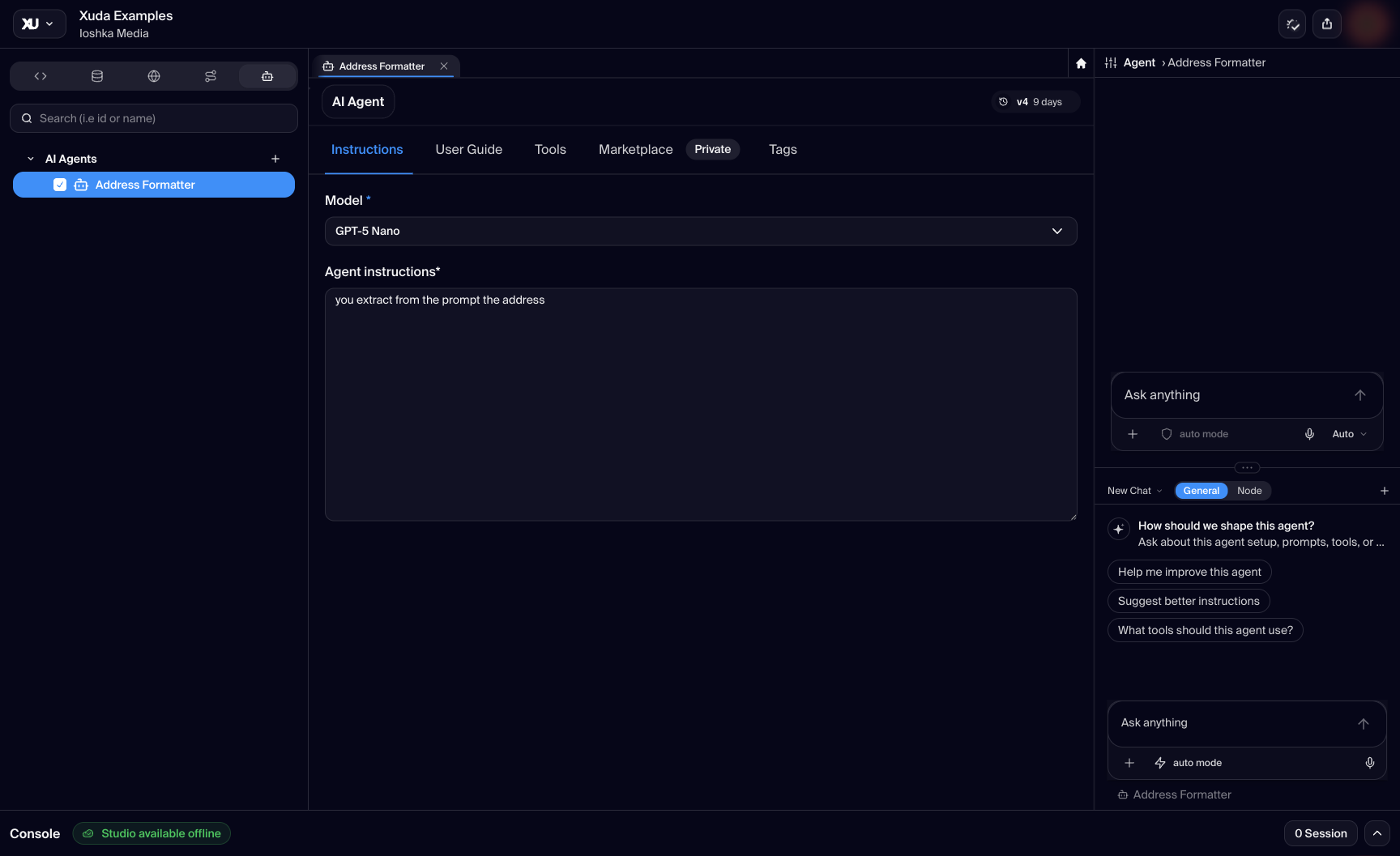 |
| Refresh | 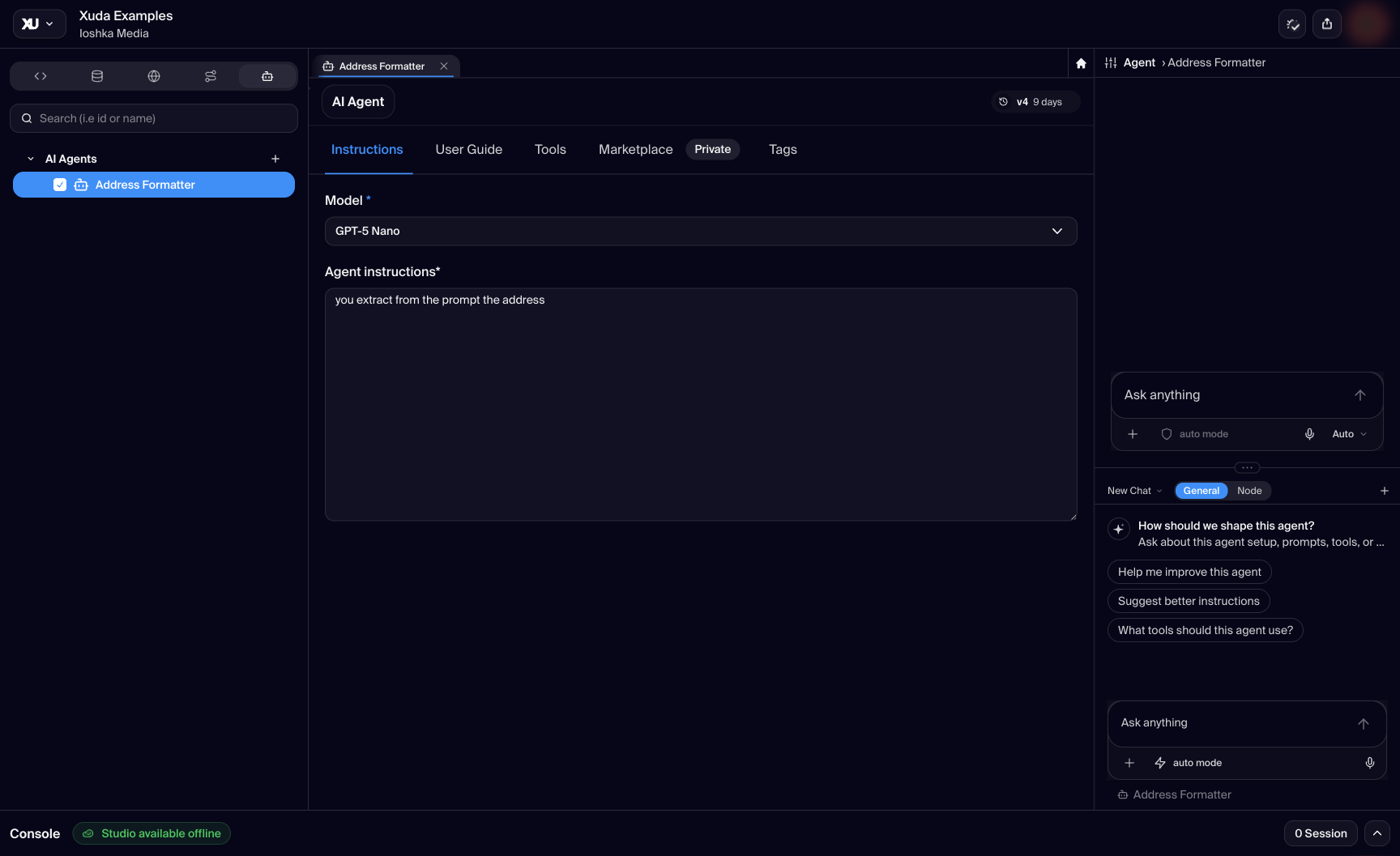 |
| Inspect JSON | 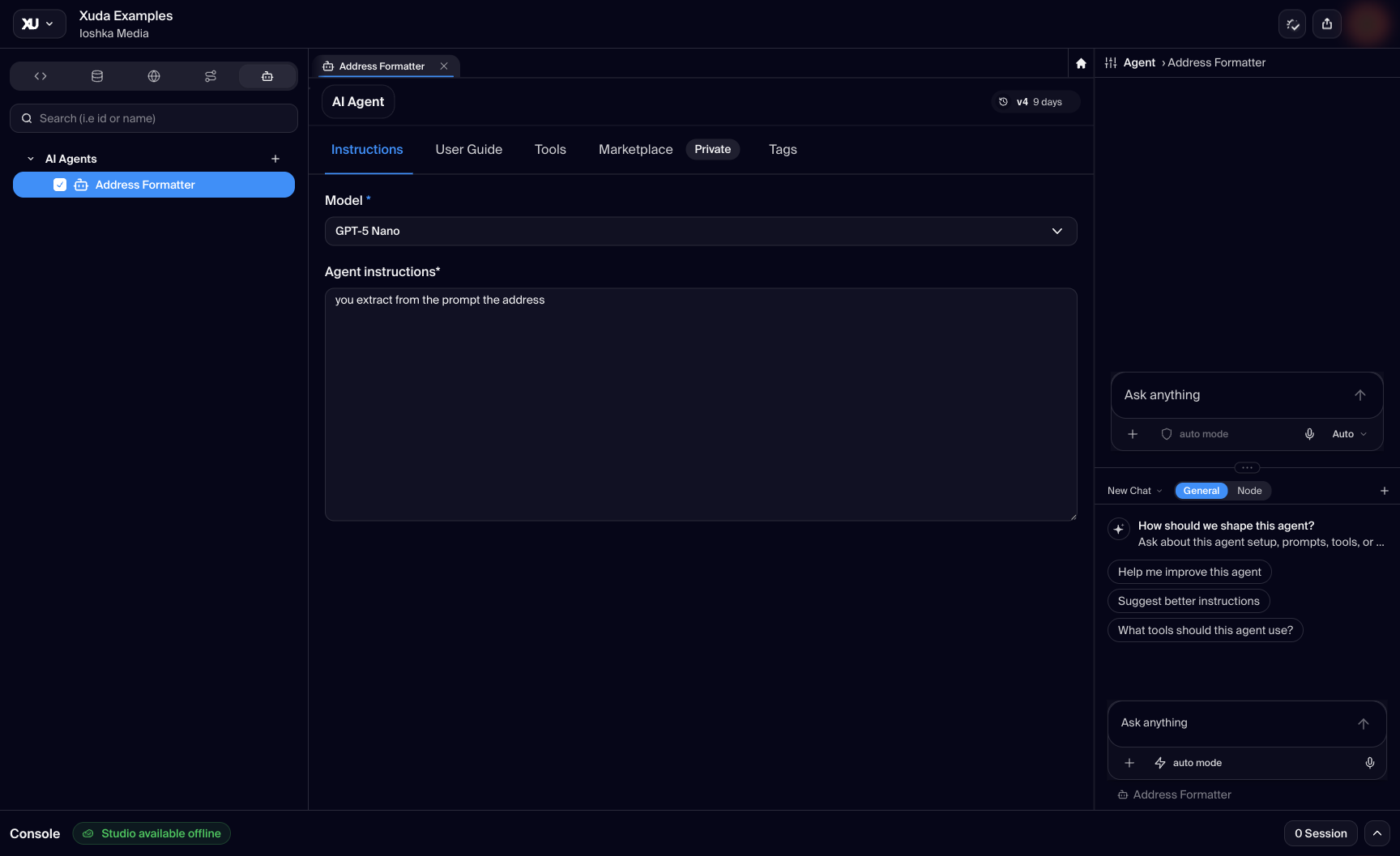 |
| Up | 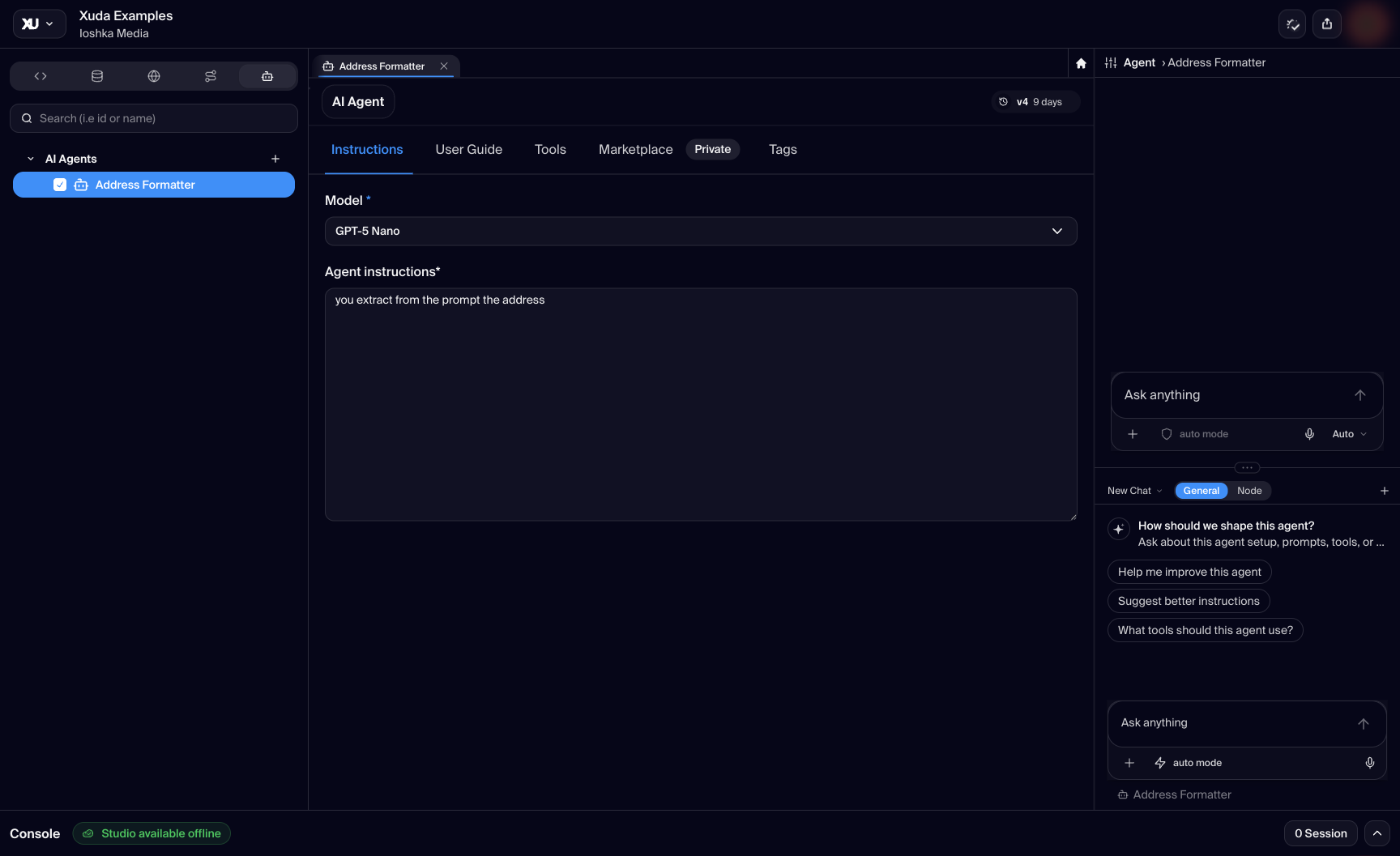 |
| Down | 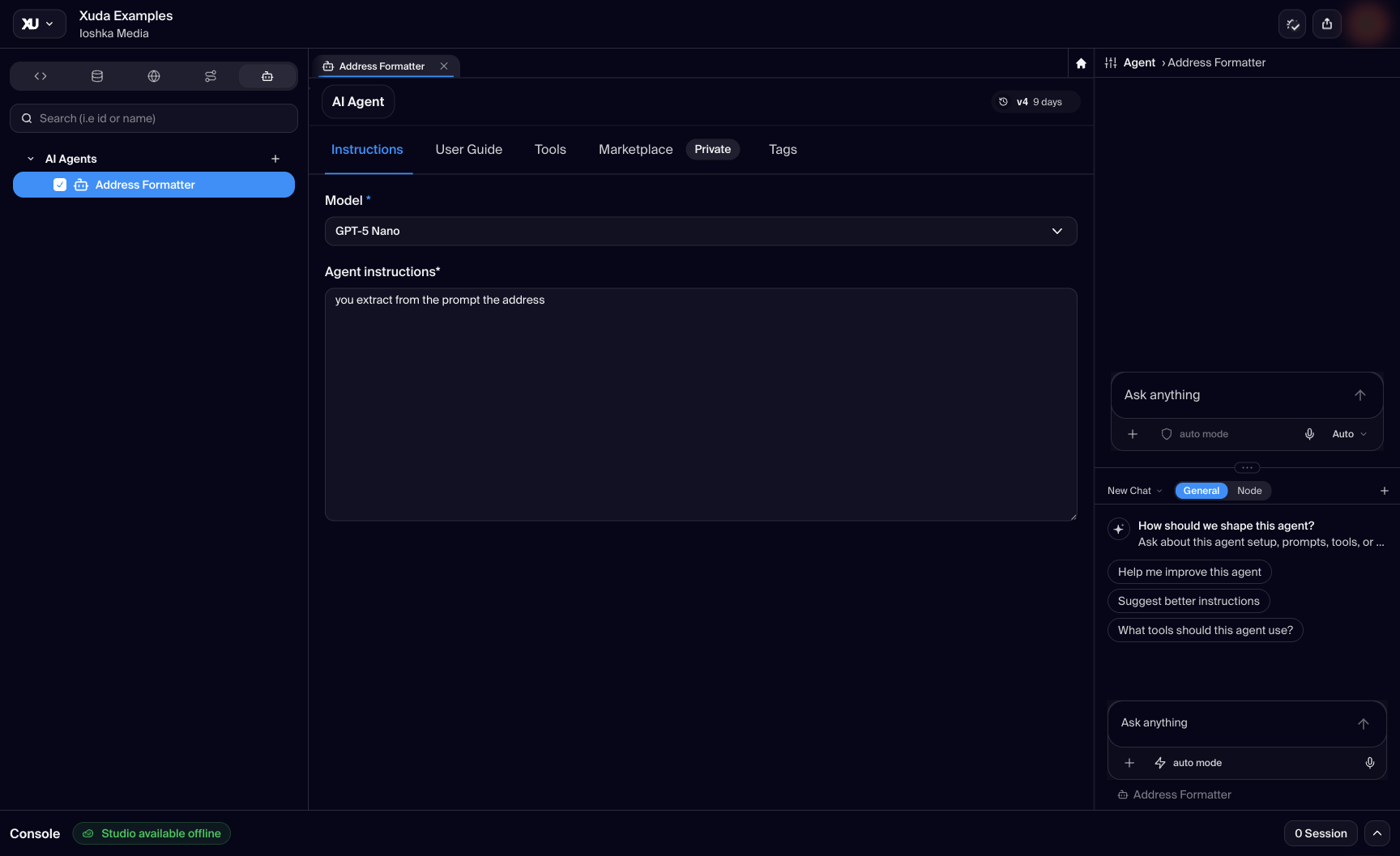 |
| Cut | 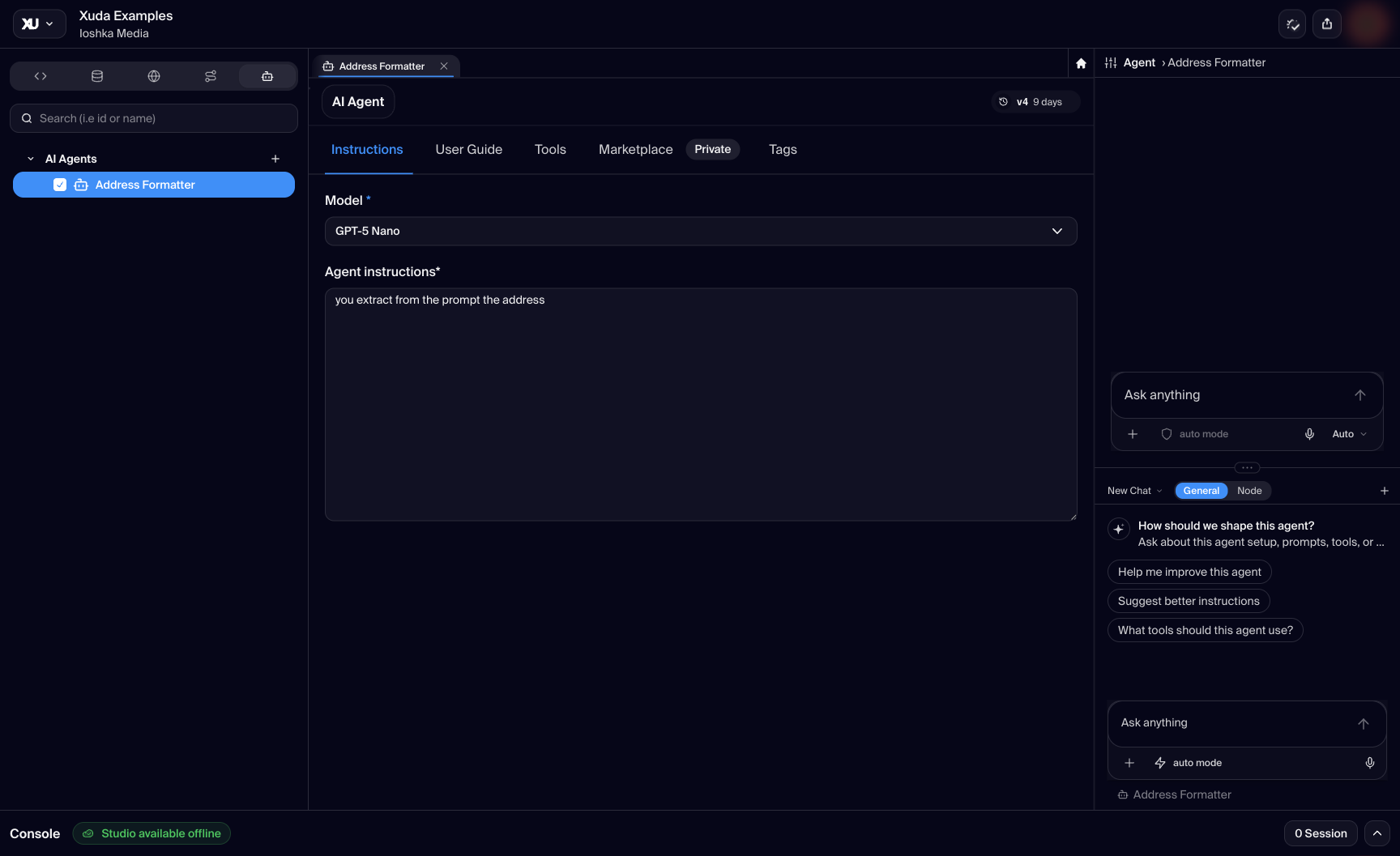 |
| Copy | 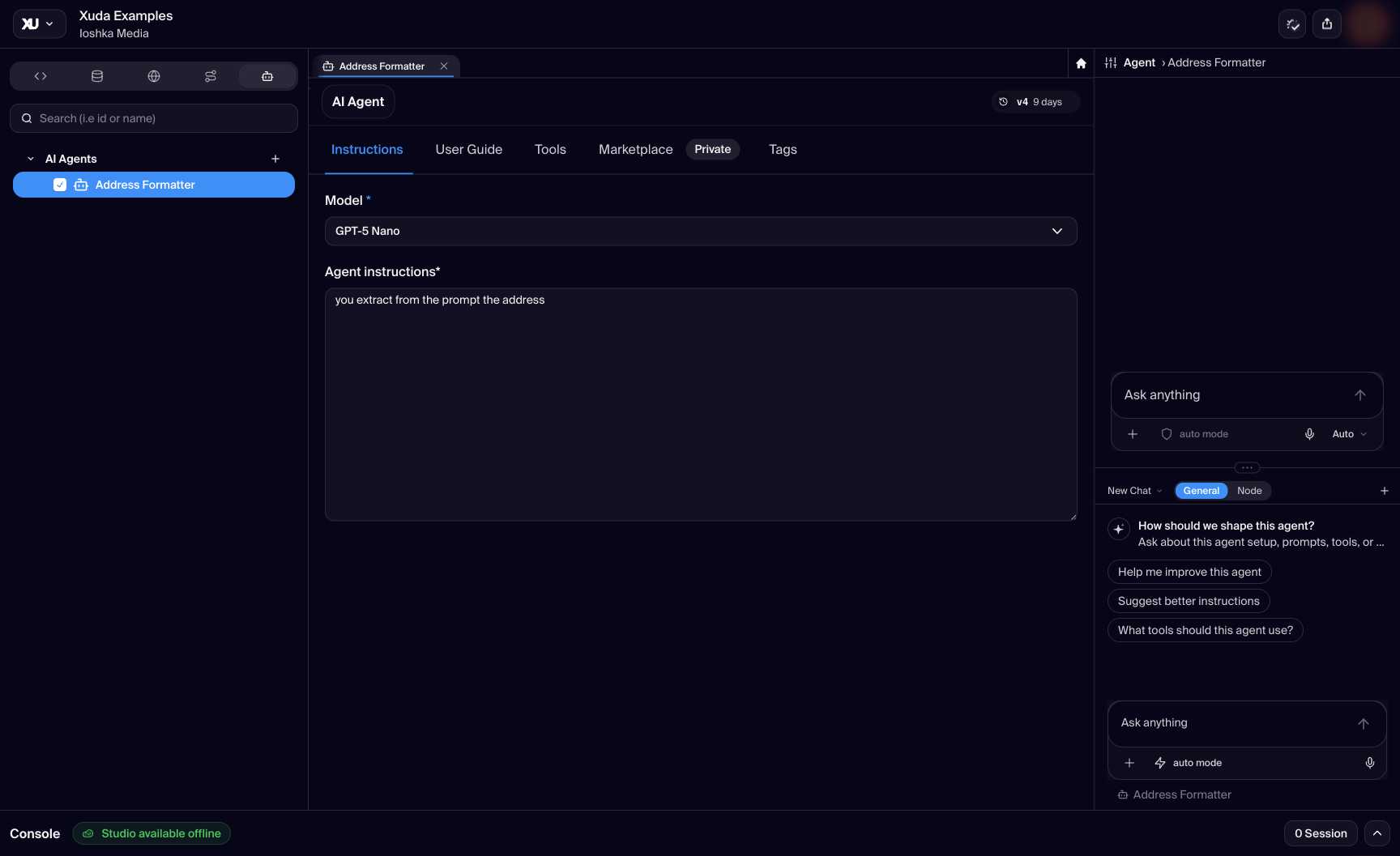 |
| Paste as Child | 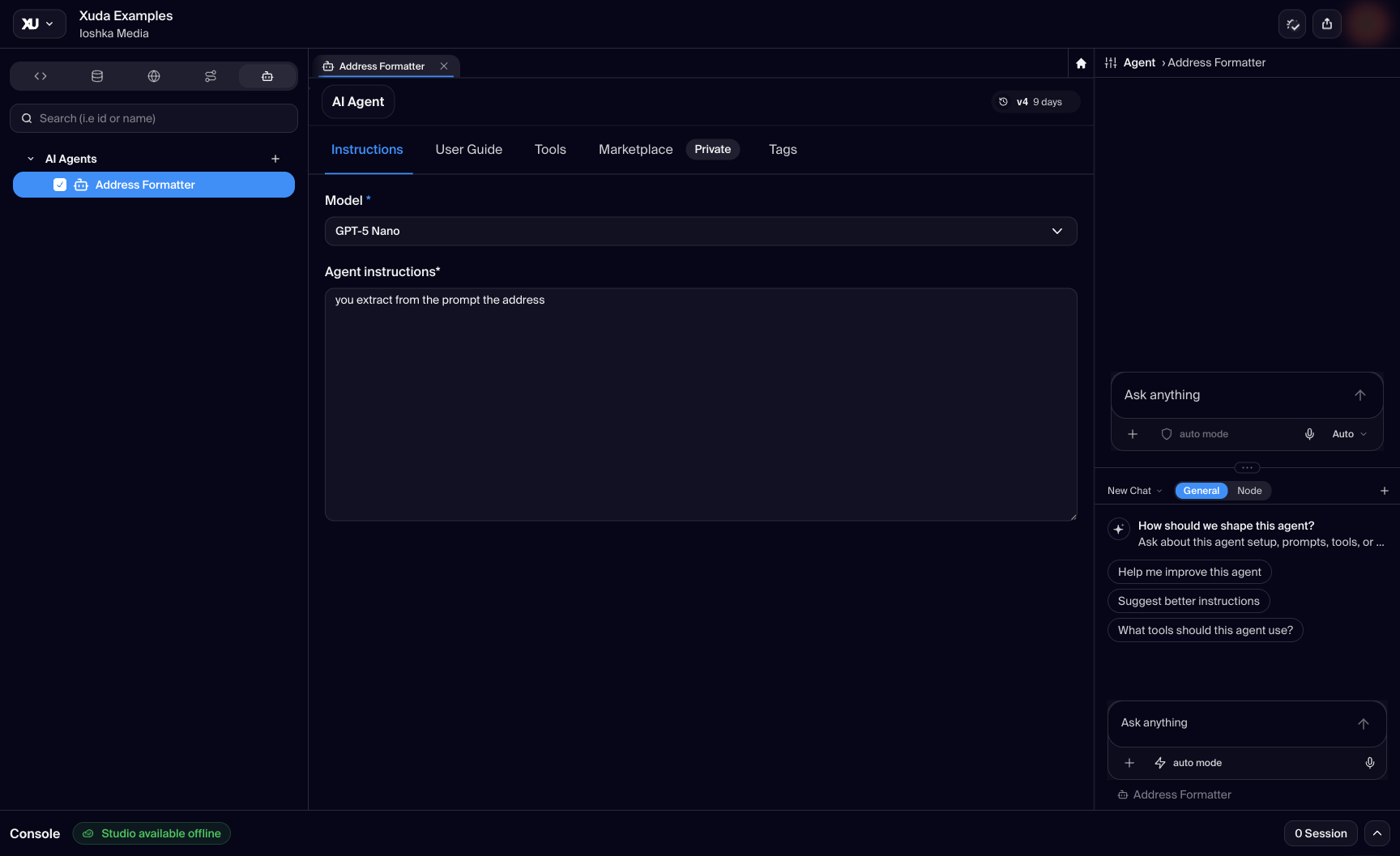 |
| Paste as Sibling | 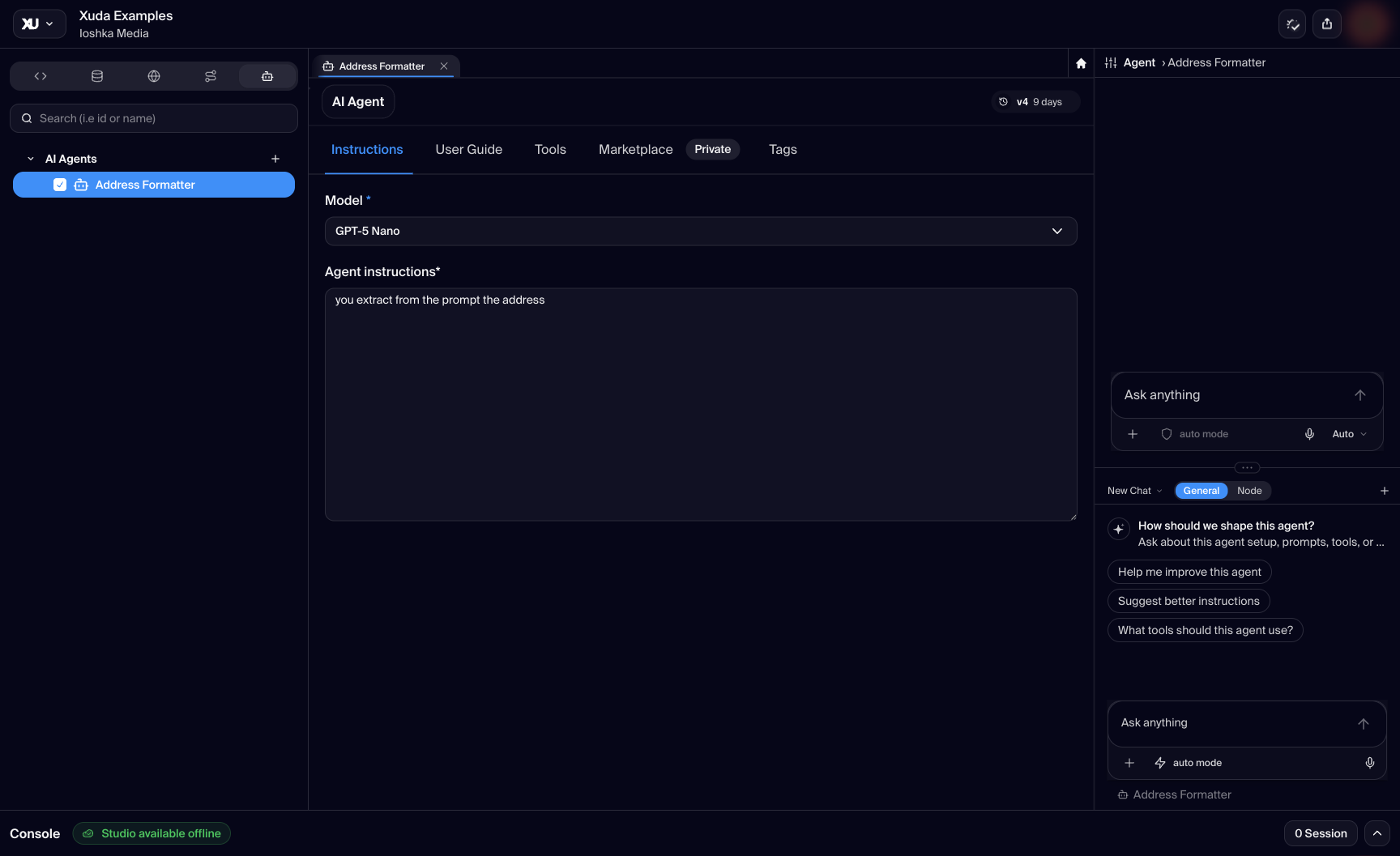 |
| Import | 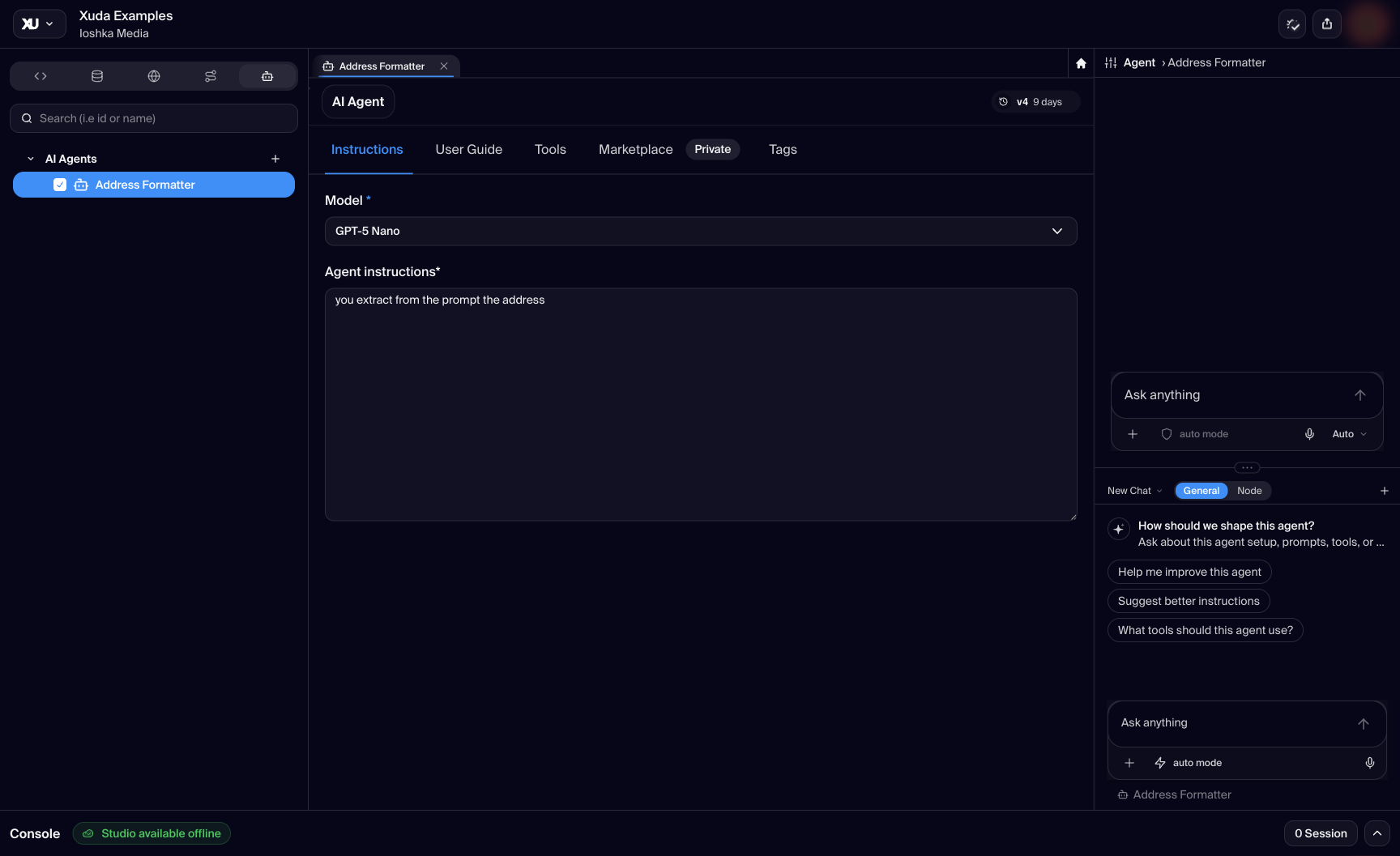 |
| Export | 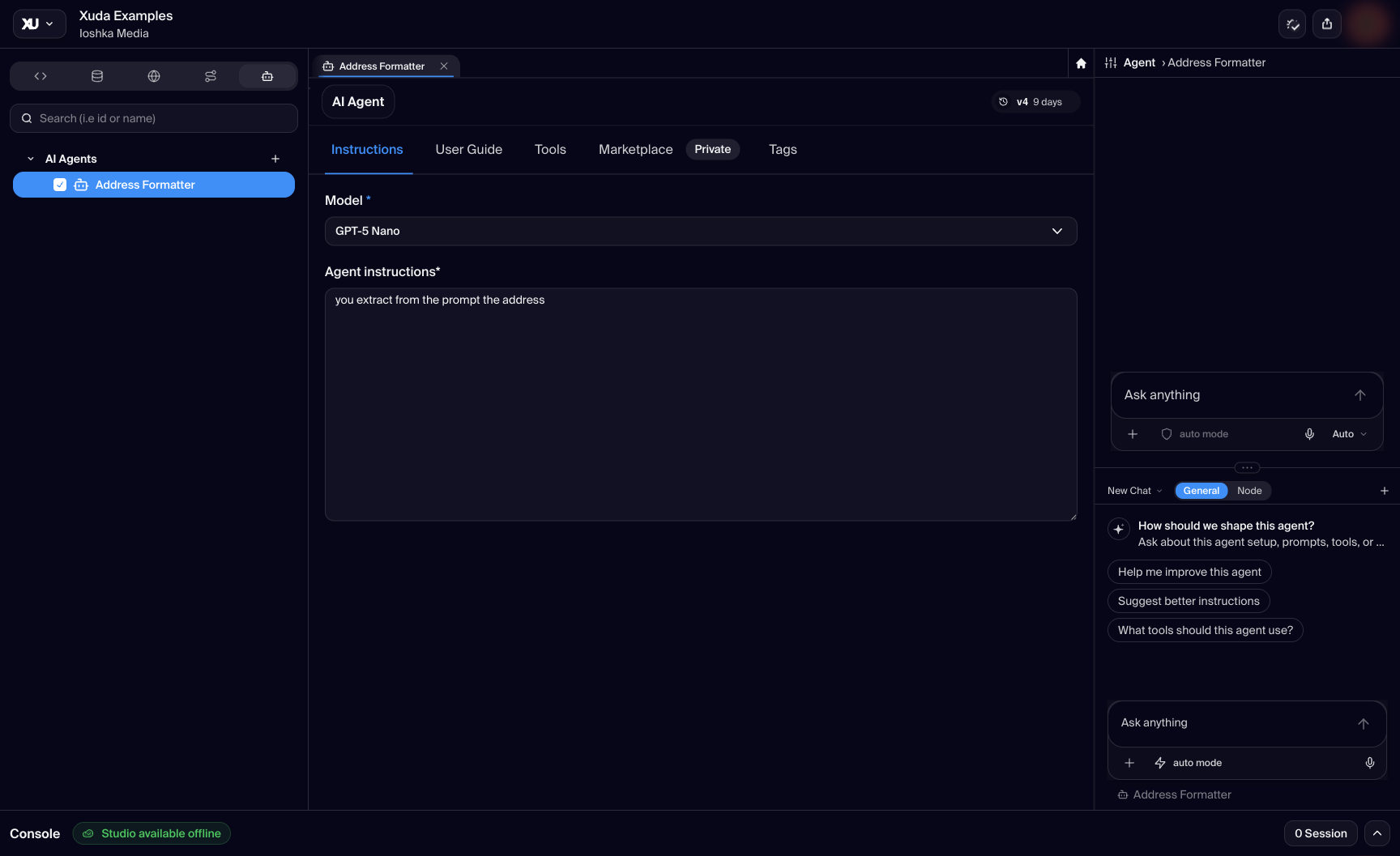 |
| Find All Refrences | 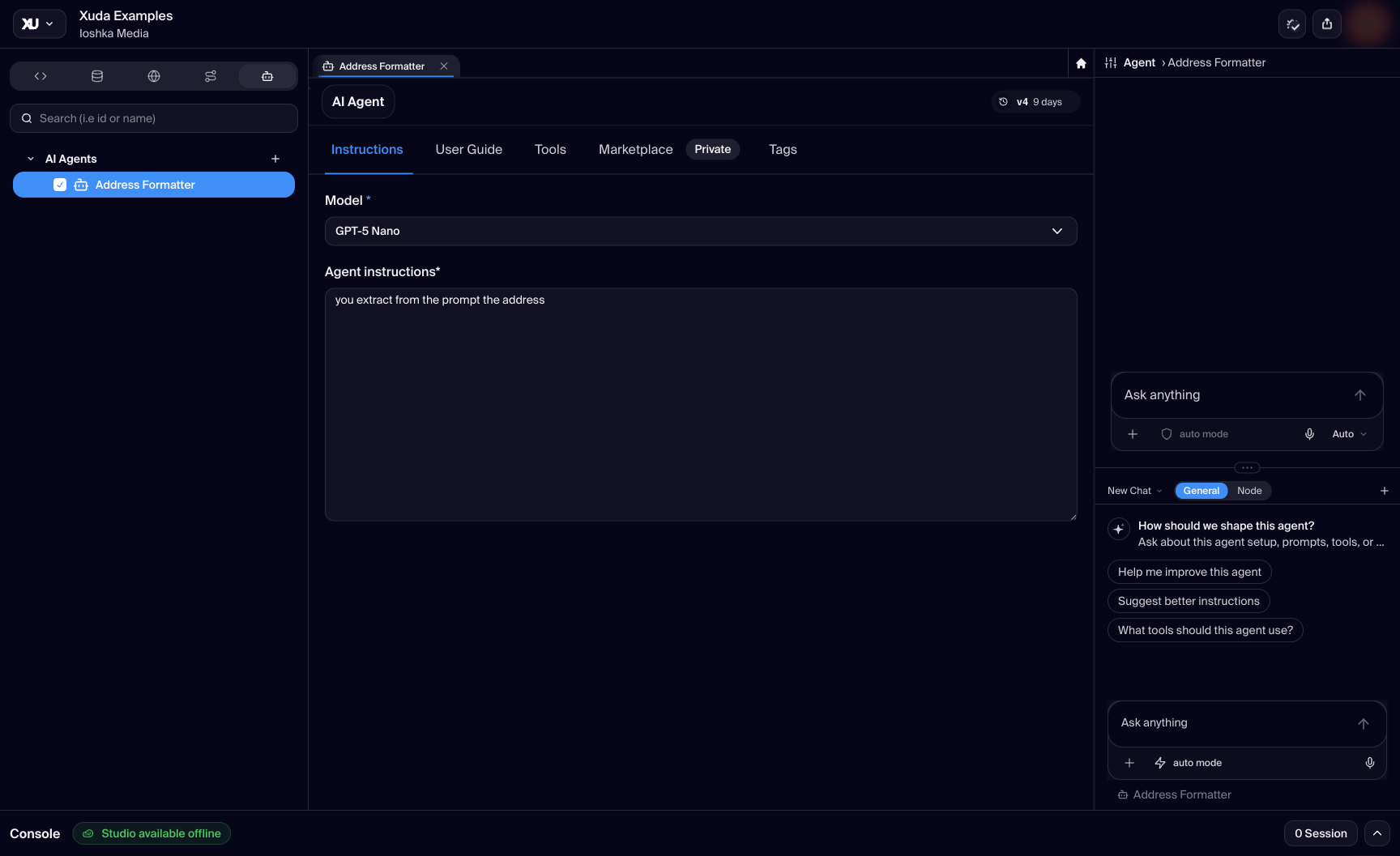 |
| Check | 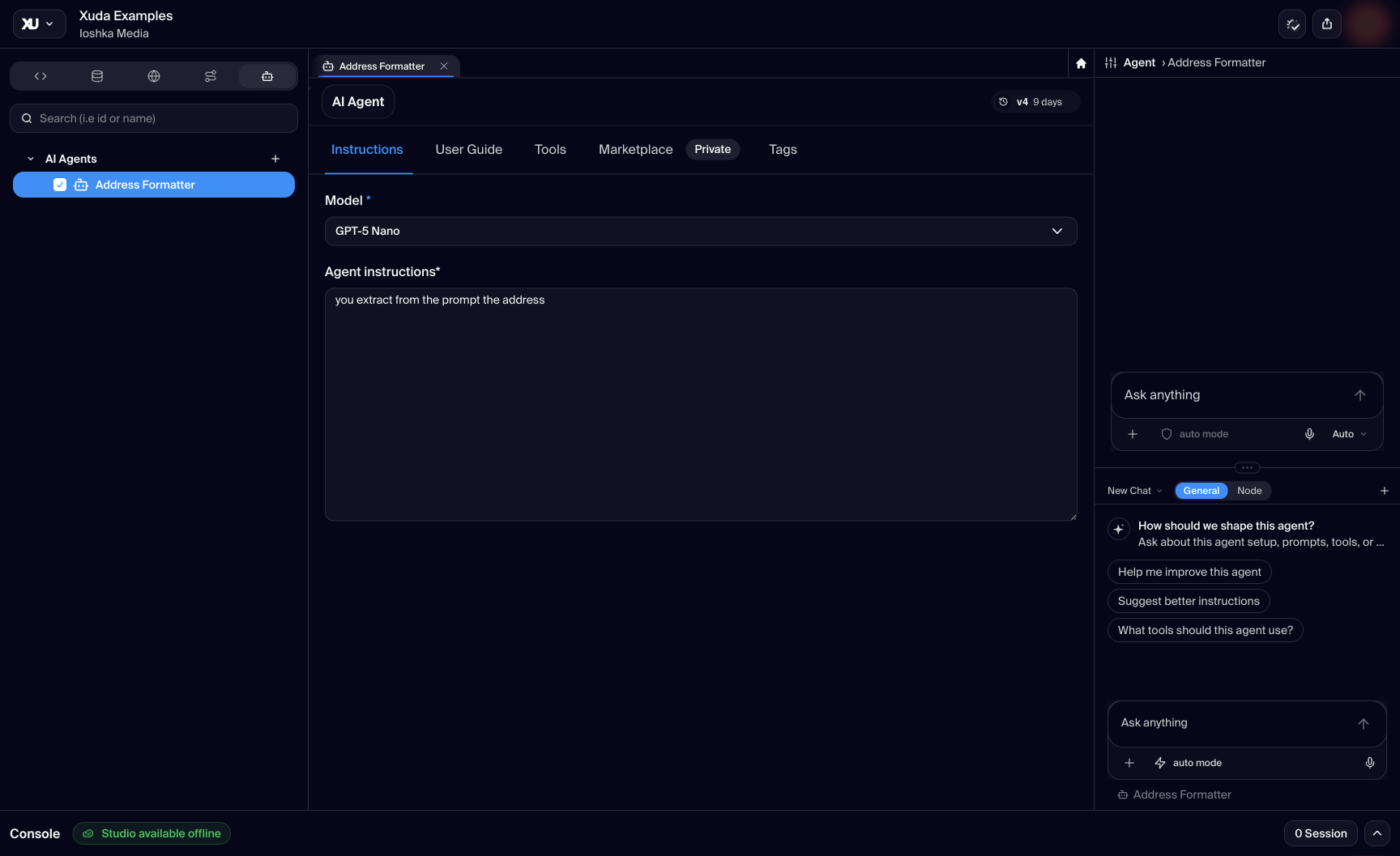 |
| Info | 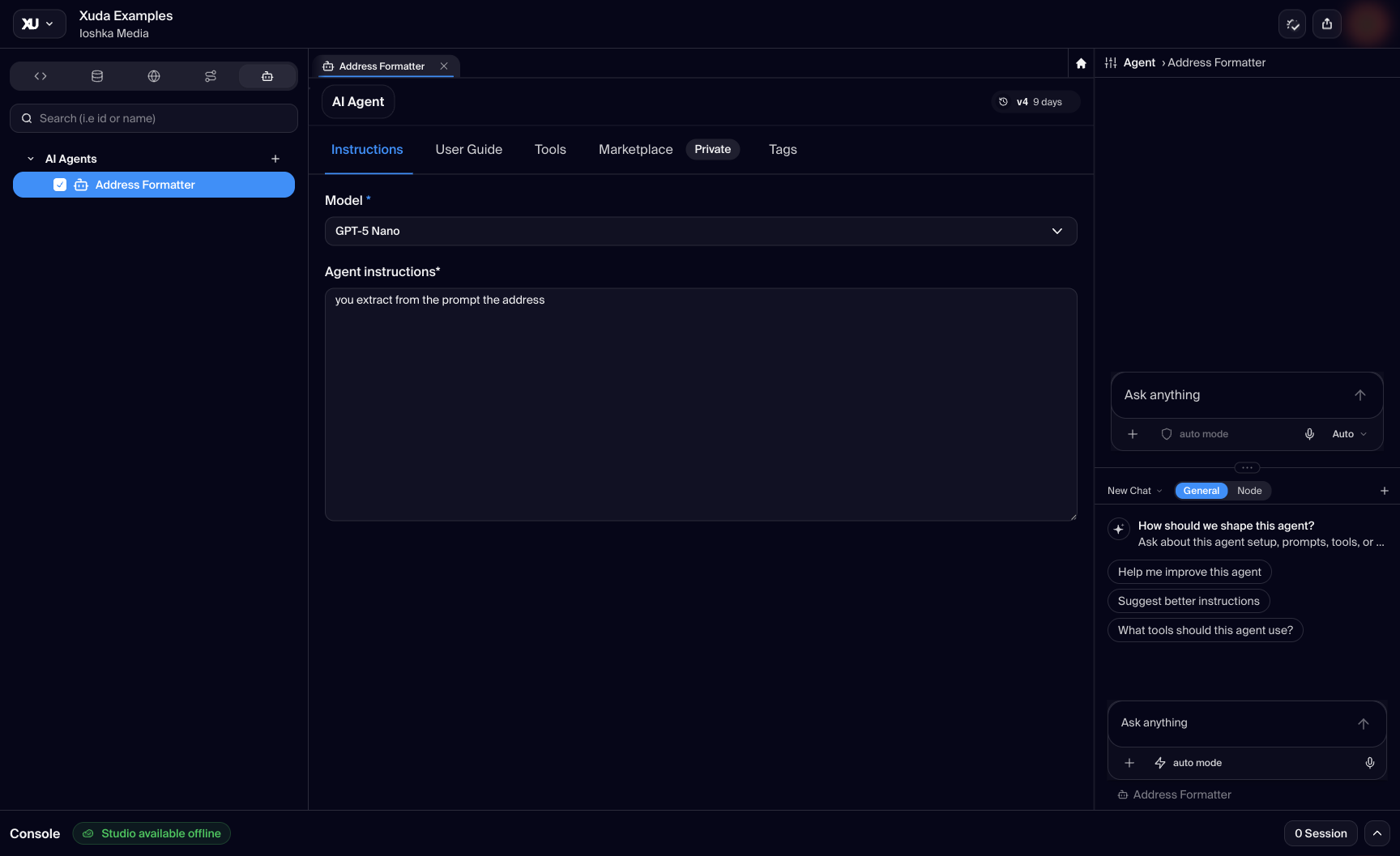 |
| Watch | 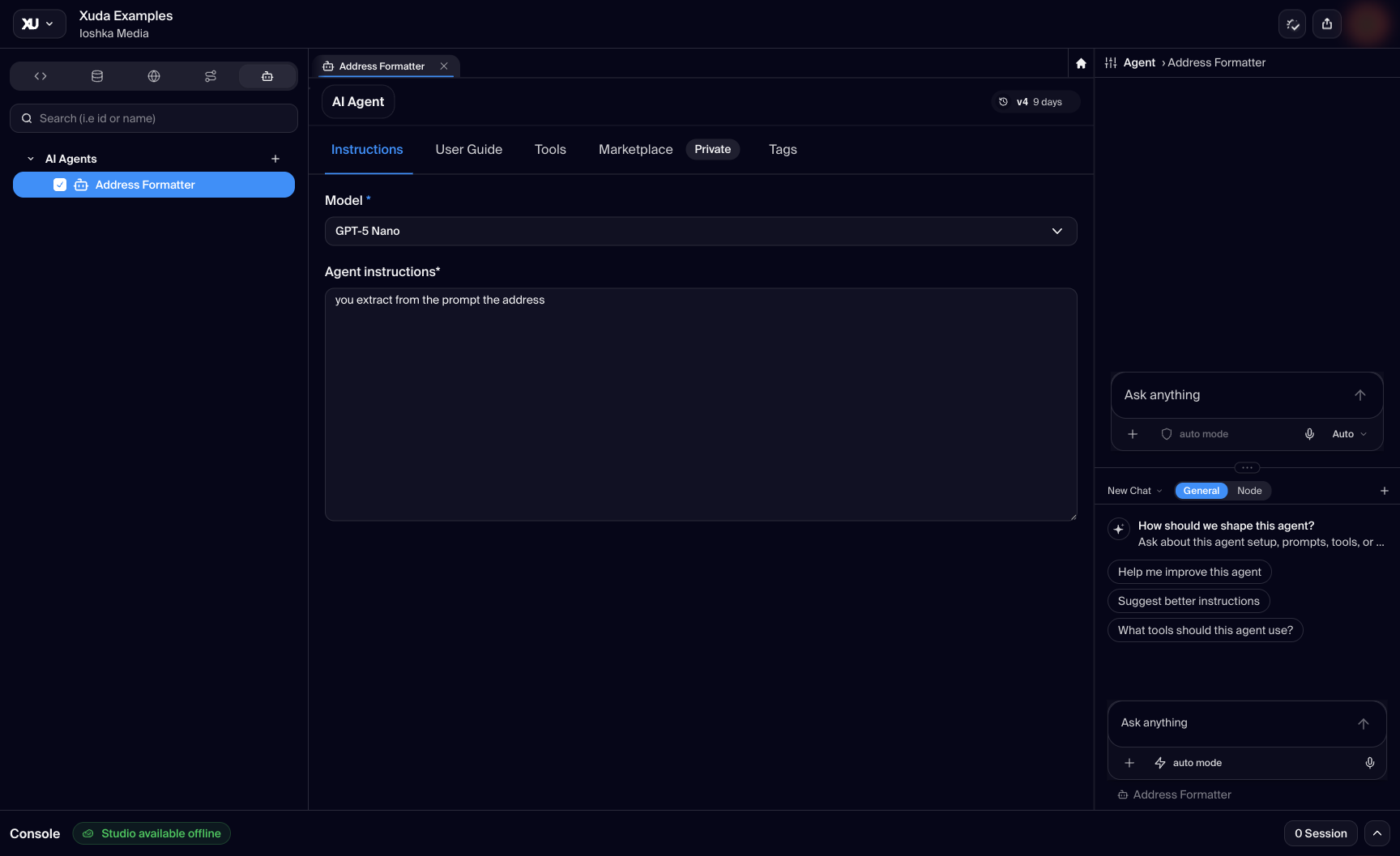 |
Open The Component Menu
In the project tree, find a component under Programs, then right-click the component name.
Result: Studio opens the component menu.
Create
Create opens a panel for adding a new item under the selected component.
Use it when you want to add another component, action, batch, alert, JavaScript item, or folder related to this component.
Result: the selected component can grow into a more complete part of the app.
Delete
Delete starts the removal flow for the selected component.
Use it only when you are sure the component is no longer needed. Before deleting, it is a good idea to use Find All Refrences to see where the component is used.
Result: after confirmation, the component is removed from the project tree.
Properties
Properties opens the component settings.
Use it when you want to adjust the component's name, title, mode, framework, output style, or other setup choices.
Result: you can change how the component is configured without rebuilding it.
Refresh
Refresh reloads the selected item in the tree.
Use it when the tree looks stale, after changes were made, or when you want Studio to show the latest available state.
Result: the component tree is refreshed. This may not create a dramatic visual change if the tree was already current.
Inspect JSON
Inspect JSON opens an advanced inspection view for the selected component.
Most non-technical users will not need this option during normal building. It is helpful when someone needs to inspect the deeper structure of the component for troubleshooting.
Result: Studio shows the component in a deeper inspection mode.
Up
Up moves the selected component higher in the project tree.
Use it when you want important components to appear earlier in the list.
Result: the component moves up one position when there is another item above it.
Down
Down moves the selected component lower in the project tree.
Use it when the component should appear after another component.
Result: the component moves down one position when there is another item below it.
Cut
Cut prepares the selected component to be moved.
After cutting, right-click another place in the tree and choose Paste as Child or Paste as Sibling.
Result: the next paste action moves the component instead of copying it.
Copy
Copy prepares a duplicate of the selected component.
Use it when you want to reuse a component as a starting point for another screen or variation.
Result: the next paste action creates another version of the component.
Paste As Child
Paste as Child places the cut or copied item inside the selected tree item.
Use it when the pasted item should belong under the selected component.
Result: the pasted item becomes nested below the selected component.
Paste As Sibling
Paste as Sibling places the cut or copied item beside the selected tree item.
Use it when the pasted component should appear at the same level as the selected component.
Result: the pasted item appears next to the selected component in the tree.
Import
Import brings component-related content into the current tree location.
Use it when you already have component work from another place and want to add it to this project.
Result: Studio starts the import flow. Depending on the browser and file source, the visible screen may not change until you choose what to import.
Export
Export prepares the selected component for use outside the current project.
Use it before sharing a component, moving it to another project, or keeping a portable copy.
Result: Studio starts the export flow. In some sessions, the browser may handle the next step outside the visible Studio screen.
Find All Refrences
Find All Refrences searches for places where the selected component is used.
Use it before changing, moving, or deleting a component.
Result: Studio helps you understand what other parts of the app may be affected.
Check
Check runs validation for the selected component.
Use it before previewing, sharing, or relying on the component.
Result: Studio checks the component for issues and shows status indicators if something needs attention.
Info
Info shows details about the selected component.
Use it when you want more context about the component, such as identity, timing, or tree information.
Result: Studio opens an information view for the selected component.
Watch
Watch keeps attention on the selected component during the current work session.
Use it when you want Studio to follow or monitor the selected item while you continue working.
Result: the component becomes the watched item for that session.
Quick Decision Table
| Goal | Use This Option |
|---|---|
| Add something under the component | Create |
| Remove the component | Delete |
| Change setup or naming | Properties |
| Reload the tree item | Refresh |
| Inspect deeper structure | Inspect JSON |
| Reorder components | Up / Down |
| Move a component | Cut, then Paste |
| Duplicate a component | Copy, then Paste |
| Nest a pasted item | Paste as Child |
| Place a pasted item beside another | Paste as Sibling |
| Bring in outside work | Import |
| Share or move work elsewhere | Export |
| See where the component is used | Find All Refrences |
| Look for problems | Check |
| See component details | Info |
| Follow the component during work | Watch |
Safe Working Tips
- Use Find All Refrences before deleting or heavily changing a component.
- Use Copy before risky changes if you want a fallback version.
- Use Check before previewing or sharing.
- Use Properties for normal setup changes.
- Use Inspect JSON only when deeper troubleshooting is needed.
Result: the right-click menu becomes a practical control center for managing components directly from the project tree.
Extra Feature Tips
- Use Create from the tree when the new component should live near the selected item.
- Use Copy before risky edits when you want a quick fallback version.
- Use Paste as Child for nesting and Paste as Sibling for layout peers.
- Use Find All Refrences before Delete, Export, or a major rename.
- Use Check after import, paste, or reordering so tree-level issues are caught before preview.