
Xuda Dashboard Projects User Guide
Xuda Dashboard Projects User Guide
This guide explains Xuda projects inside the dashboard, not the Studio project-creation flow.
It focuses on the signed-in project pages inside dev.xuda.ai/dashboard/project/..., where you manage a project after it already exists.
The screenshots below are dark, full-screen desktop captures from the live dashboard project area.
Guide Purpose
Use this guide when you want to:
- understand what a dashboard project page is
- know what the left-side project list does
- understand the main project header
- learn what each top project tab is for
- know when to use Deploy, Studio, or the project status toggle
The goal is simple: help you feel comfortable managing a project from the dashboard without confusing it with Studio editing.
What A Dashboard Project Is
A dashboard project is the management page for an existing Xuda project.
This is where you:
- review project status
- monitor activity and traffic
- open project files
- manage plugins and dependencies
- review backups and builds
- inspect logs and data
- jump into Studio when you want to edit the app itself
Think of it this way:
- Dashboard project page = manage, monitor, share, deploy, and review
- Studio = build and edit the project
How To Recognize The Project Page
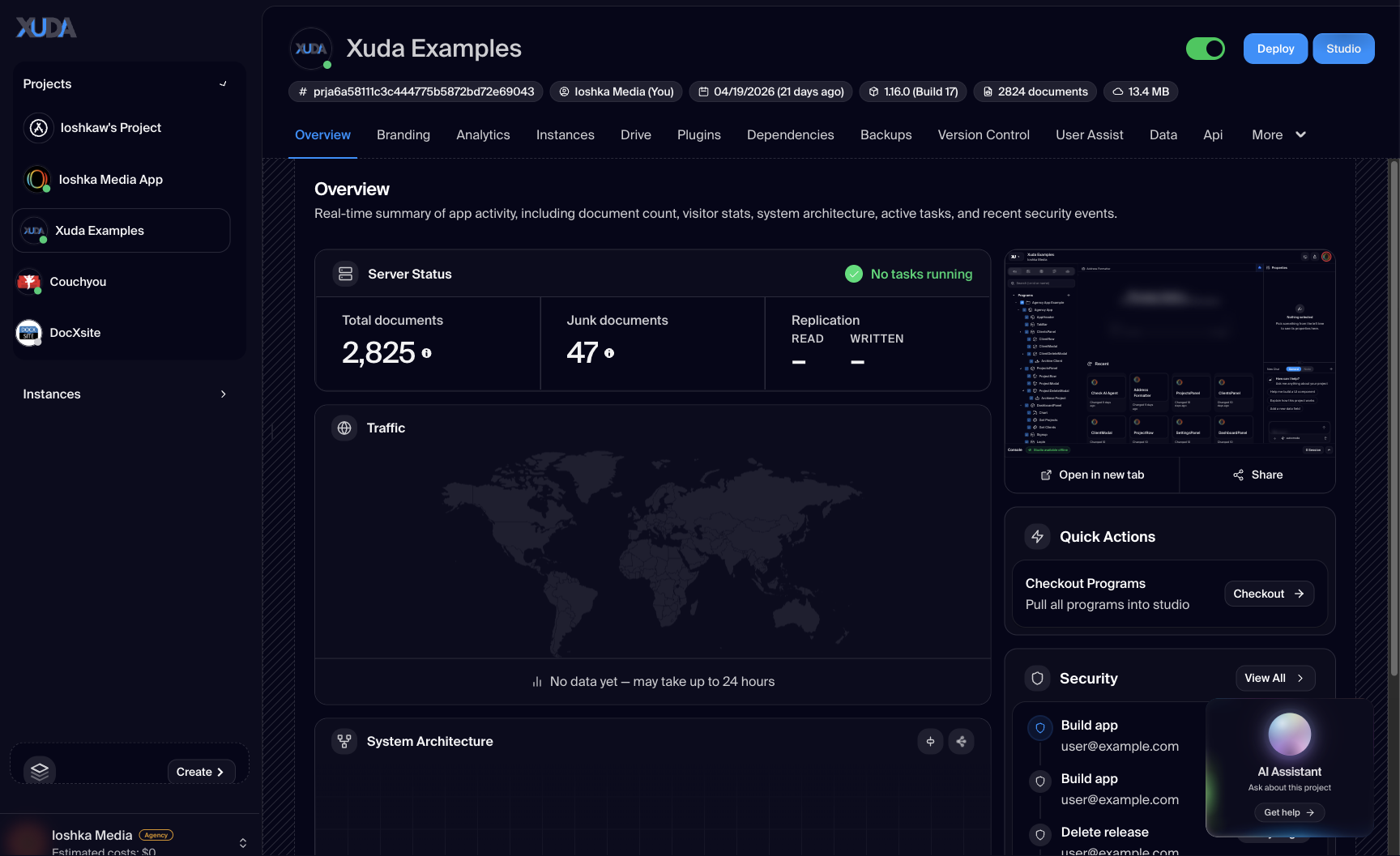
On the dashboard project page, you usually see four main areas:
| Area | What It Does |
|---|---|
| Left sidebar | Lets you switch between projects and other infrastructure areas such as instances. |
| Project header | Shows the current project name, project details, status, and top actions. |
| Project tabs | Lets you move between Overview, Analytics, Drive, Plugins, and other project sections. |
| Main content area | Shows the selected tab’s actual information and controls. |
This is the page you showed in the dashboard screenshot, with a project selected and the Overview tab open.
Step 1: Use The Left Sidebar
The left side of the page is your project switcher.
It usually includes:
| Sidebar Section | What It Helps You Do |
|---|---|
| Projects | Shows the projects you can open. |
| Selected project card | Highlights the project you are currently managing. |
| Other project entries | Lets you switch to another project quickly. |
| Instances | Opens project-instance or infrastructure-related areas when available. |
| Create button | Starts the creation flow for a new item from the dashboard context. |
Use the sidebar when you want to move between projects without leaving the dashboard.
Step 2: Read The Project Header
The top header tells you which project is open and gives you the most important controls right away.
The header can show:
| Header Item | What It Means |
|---|---|
| Project name | The project you are currently managing. |
| Project ID chip | The internal project identifier. |
| Owner chip | Who owns the project or whether it belongs to you. |
| Date chip | When the project record was created, along with how long ago that was. |
| Build chip | The current build or version reference. |
| Documents chip | How many project documents are stored. |
| Size chip | Approximate project storage usage. |
This area gives you a quick health-and-identity check before you change anything.
Step 3: Use The Top Actions
The top-right controls are the fastest project actions.
The main ones are:
| Action | What It Does |
|---|---|
| Status toggle | Turns the project on or off, depending on project type and access. |
| Deploy | Opens deployment-related actions for the project. |
| Studio | Opens the project in Xuda Studio in a new tab so you can edit it. |
This is the cleanest way to think about them:
- use Dashboard to manage the project
- use Studio to change the project
- use Deploy to publish or push the project into a runnable state
Step 4: Move Through The Project Tabs
Across the top of the page, the dashboard shows the main project sections.
Some projects show many tabs at once. On narrower widths, extra tabs can move into More.
Also, exact tabs can vary by project type, deployment type, and permission level.
Detailed Tab Guides
Use these focused guides when you want a tab-by-tab walkthrough:
- Overview
- Analytics
- Drive
- Plugins
- Dependencies
- Backups
- Version Control
- User Assist
- Data
- Logs
- API
- Notifications
- Advanced
What Each Main Project Tab Means
Overview
Use Overview when you want the fastest summary of the project.
The dashboard describes it as a real-time summary of app activity, including:
- document count
- visitor statistics
- system architecture
- active tasks
- recent security events
- quick access to key actions
This is usually the best first tab to open after selecting a project.
Analytics
Use Analytics when you want to review traffic and audience behavior.
This area is meant for information such as:
- visitors
- traffic history
- countries or map activity
- devices and related usage patterns
Use it when you want to understand who is reaching the project and how it is being used.
Drive
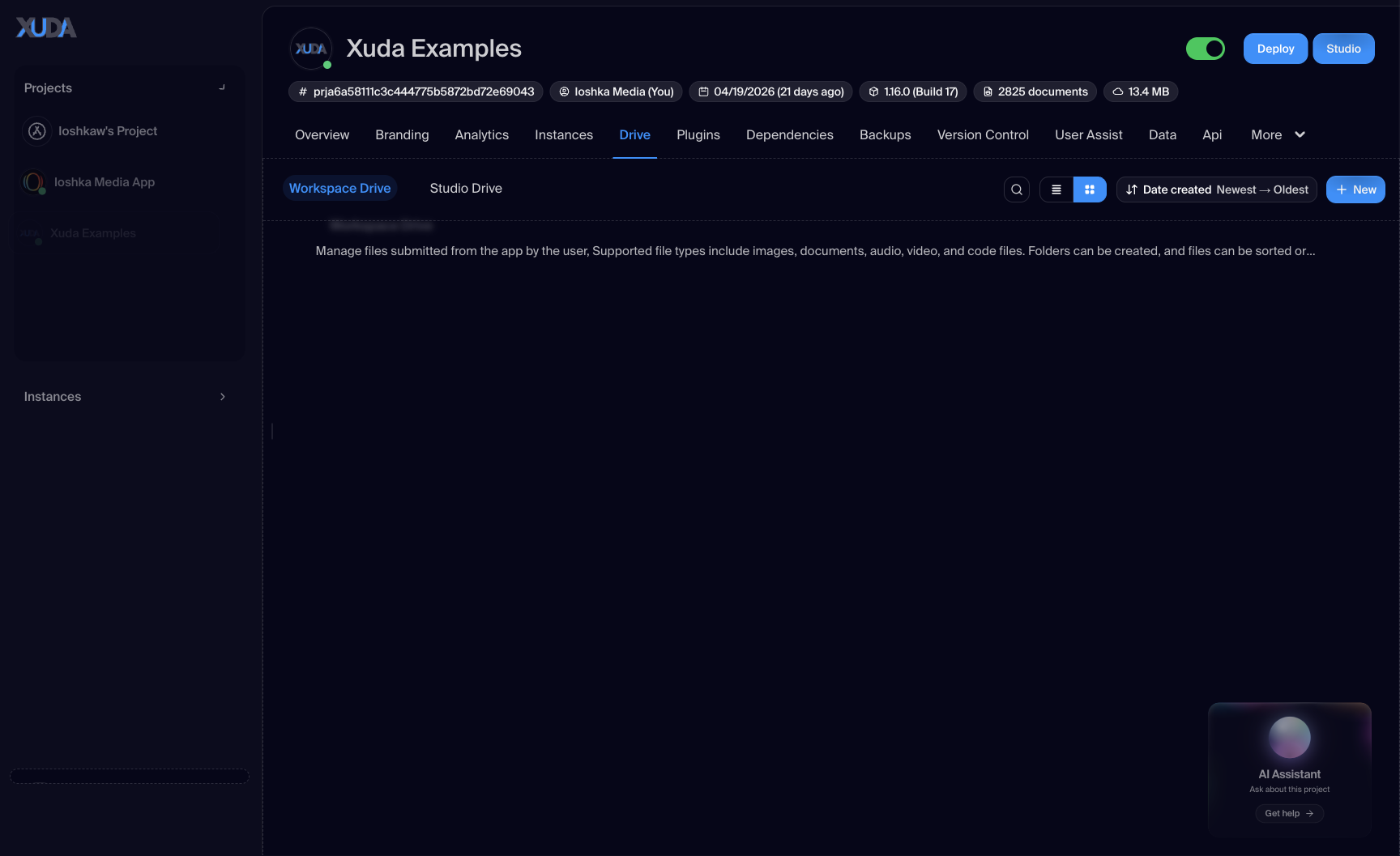
Use Drive when you want to work with project files.
Depending on the available drive sections, this area can help you:
- browse project files
- browse workspace-submitted files
- create folders
- upload files
- search files
- sort files
In short, Drive is the file-management area for the project.
Plugins
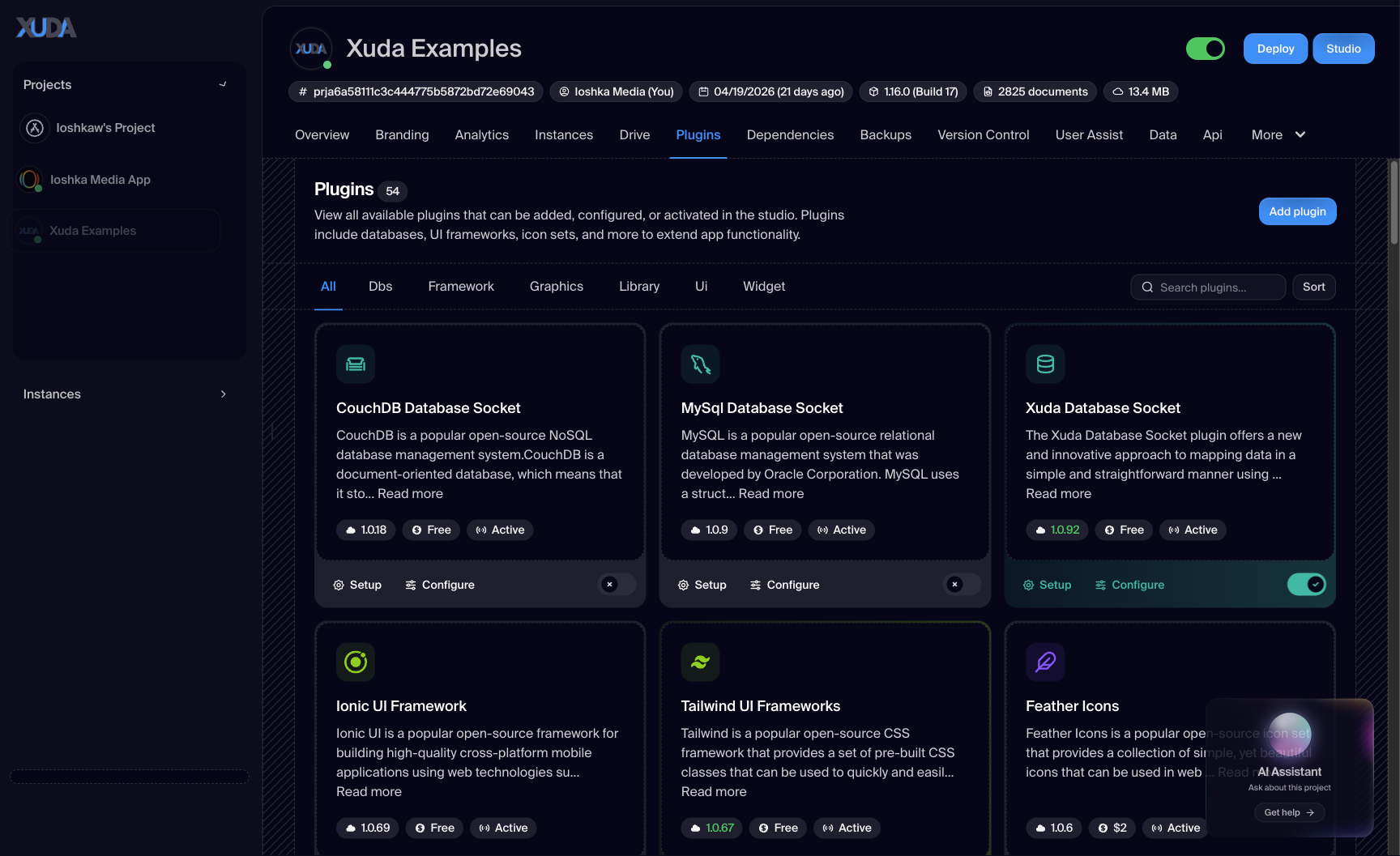
Use Plugins when you want to review or extend project capabilities.
The dashboard describes this tab as the place to view plugins that can be:
- added
- configured
- activated
This can include things like:
- databases
- UI frameworks
- icon sets
- other project extensions
Dependencies
Use Dependencies when you want to review or manage npm packages used by the project.
This tab is for:
- viewing package names
- checking versions
- adding new dependencies
- updating dependency versions
This is especially useful when the project relies on external packages behind the scenes.
Backups
Use Backups when you want to protect the project or review backup history.
This tab is for:
- viewing backup history
- checking backup status
- creating a manual backup
- enabling or adjusting automatic backups
If the project matters, this is one of the most practical tabs in the dashboard.
Version Control
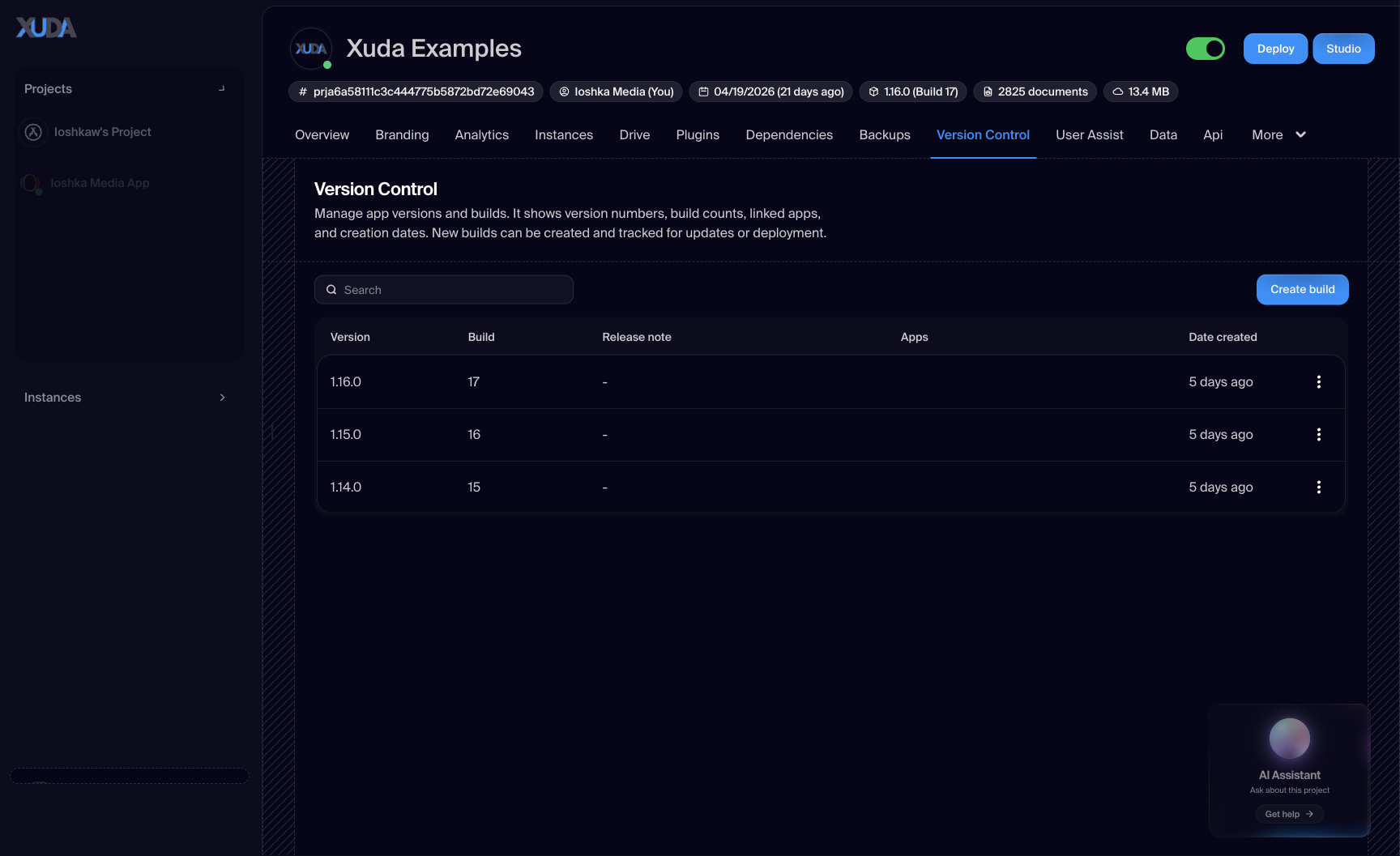
Use Version Control when you want to review builds and app versions.
This tab is for:
- seeing version numbers
- reviewing build counts
- checking linked apps
- seeing creation dates
- creating a new build
This is the place to go when you want to package a new version of the project for update or deployment.
User Assist
Use User Assist when you want to monitor user activity and support activity in real time.
The dashboard describes this tab as a place to:
- track user activity
- view online status
- view support activity
- see top user locations
- manage user sessions
This is a monitoring-and-support tool, not a build tool.
Data
Use Data when you want to review the app’s tables and stored project data.
This tab is for:
- viewing tables defined in Studio
- opening a table from the dashboard side
- reviewing data structure and table-level information
This is where project data becomes visible from the dashboard management side.
Logs
Use Logs when you want to monitor actions and events happening in the app.
This tab is for:
- reviewing application logs
- watching recent activity
- investigating what happened inside the app
When something looks wrong, this is one of the first places to check.
API
Use API when you want developer-facing access related to the project.
Depending on access and setup, this area can connect to:
- API tools
- developer controls
- keys, usage, or related API views
For non-technical users, the important idea is that this tab is for integration and technical access rather than everyday project browsing.
More
The More menu is not a separate project feature by itself. It is the overflow area for tabs that do not fit in the main row.
So if you do not see a tab immediately, check More.
What The Overview Page Usually Contains
The Overview tab is often the most important project page, so it helps to know its common cards.
It can include:
| Overview Card | What It Helps You See |
|---|---|
| Server Status | Current project/server state, task activity, document counts, and related system status. |
| Traffic | A map or early traffic summary for the project. |
| System Architecture | Structural or infrastructure-related project layout information. |
| Preview | A live preview card with actions such as opening the project in a new tab or sharing it. |
| Quick Actions | Fast project actions such as checkout or protection toggles, depending on project type. |
| Security | Recent security-related activity with a path to see more. |
This is why Overview is the best first stop: it shows both status and action in one place.
What Quick Actions Is For
The Quick Actions card is for tasks you may want to do without hunting through tabs.
Depending on the project, it can include actions such as:
- checking out programs into Studio
- toggling protection features
Use it for short operational tasks that relate to the whole project.
What Preview Is For
The Preview card helps you interact with the live result of the project.
This area can let you:
- open the project in a new tab
- share it
- copy its link
Use this when you want to see or share the project as an experience, not just as a managed record.
What Security Is For
The Security card on the project overview is a recent-activity view.
It helps you review sensitive or meaningful events and then jump to the fuller security area when needed.
Use it when you want a quick confidence check on what has happened around the project.
A Good Dashboard-Project Workflow
For most people, this is a good working pattern:
- open the project from the left sidebar
- start on Overview
- confirm the project name, owner, build, documents, and size
- use Analytics if you want traffic information
- use Drive for files
- use Plugins and Dependencies for project setup extensions
- use Backups before major changes
- use Version Control when preparing a build
- open Studio when you are ready to edit the app itself
This keeps the dashboard focused on management, while Studio stays focused on building.
Dashboard Projects Versus Studio
This is the most important distinction in the whole guide:
| If You Want To... | Use... |
|---|---|
| review project health, files, builds, logs, traffic, and backups | Dashboard project page |
| edit screens, tables, workflows, routes, and app structure | Studio |
If you remember that split, the rest of the interface gets much easier.
Related Guides
Use these when you want to go deeper into nearby areas:
- Xuda account dashboard introduction
- Xuda Workspace AI Chats user guide
- Xuda Workspace Apps user guide
- Xuda CLI user guide
- Xuda Slim user guide
Final Takeaway
Dashboard projects are the place where you manage an existing Xuda project after it has already been created.
If you remember one pattern, make it this:
- pick the project from the left sidebar
- read the header to confirm what is open
- use Overview for the fastest summary
- use the tabs for files, traffic, builds, logs, backups, and data
- use Studio when you need to edit the project itself