
Xuda Workspace Apps User Guide
Xuda Workspace Apps User Guide
This guide explains the Apps area inside the Xuda dashboard for a non-technical user.
It focuses on how Apps looks in the dashboard, how to understand app cards, how to use the thumbnail menu, and what happens when you open an app.
The screenshots are dark, full-screen desktop captures from a signed-in session at https://dev.xuda.ai/dashboard.
Feature Tips Map
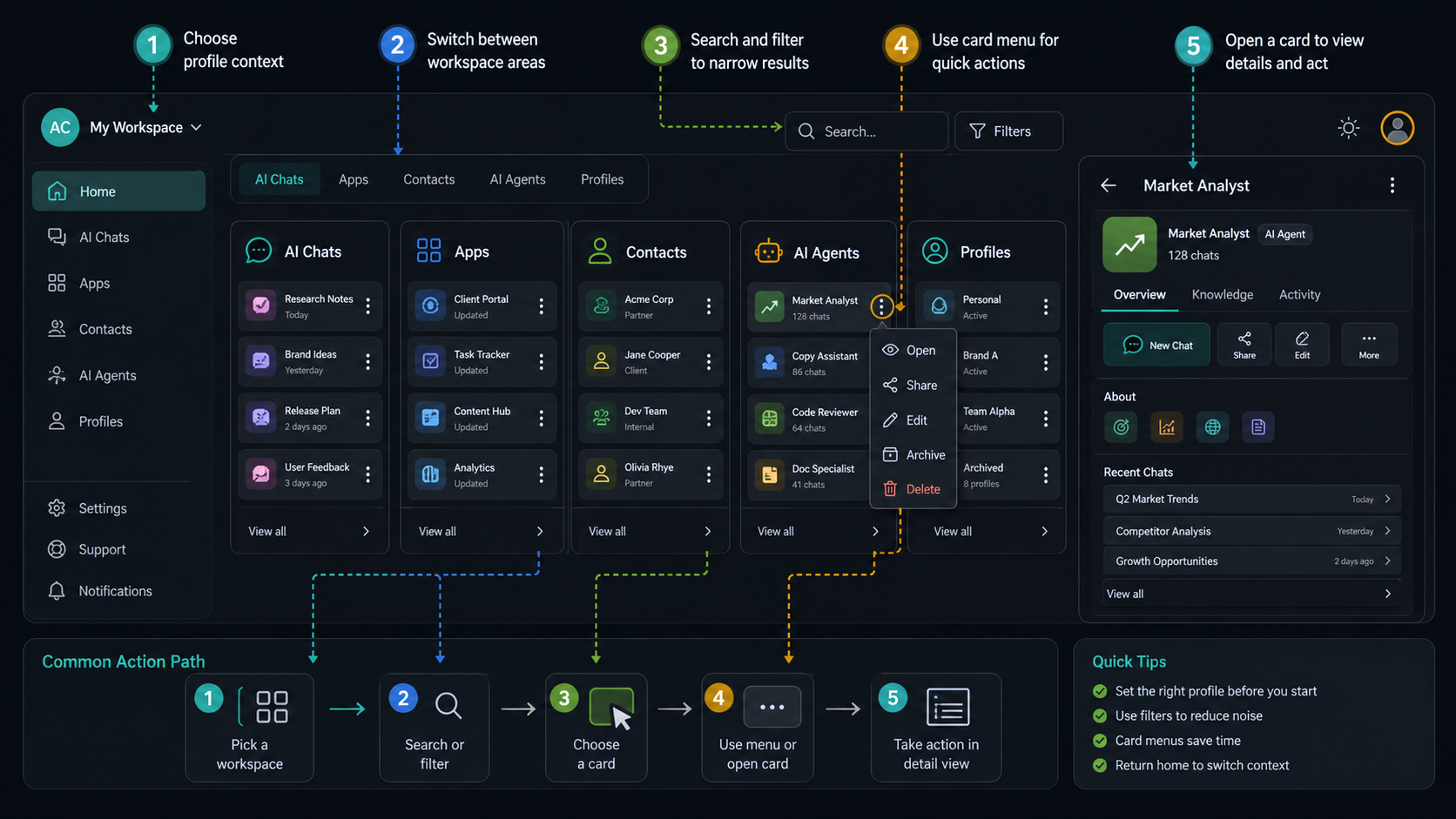
Use this visual as a quick reminder that most Xuda features work best when you connect the workspace, the data, the screen, and the next action instead of treating each area as separate.
Guide Purpose
Use this guide when you want to browse apps, find one you already use, open a shared app, or manage an app directly from the dashboard.
The goal is simple: help you feel comfortable treating Apps as a visual library of tools inside your Xuda workspace.
What Apps Is
Apps is the tool and mini-app workspace inside the Xuda dashboard.
Use Apps when you want to:
- open a tool you already use
- return to an app someone shared with you
- review apps you purchased or installed
- organize app cards from the dashboard
- create a new app
Apps is where Xuda shifts from conversation into usable tools.
Step 1: Open Apps In The Dashboard
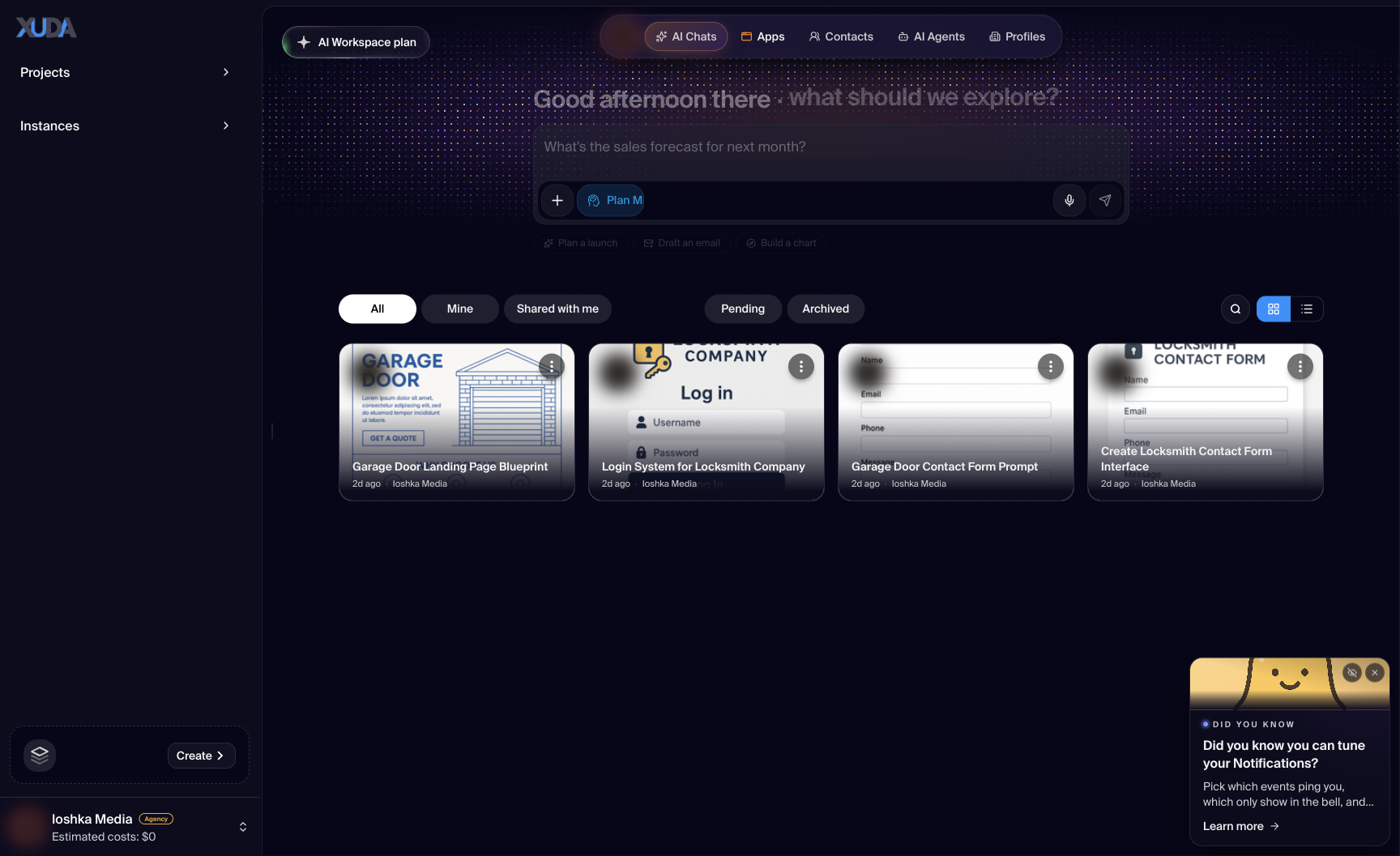
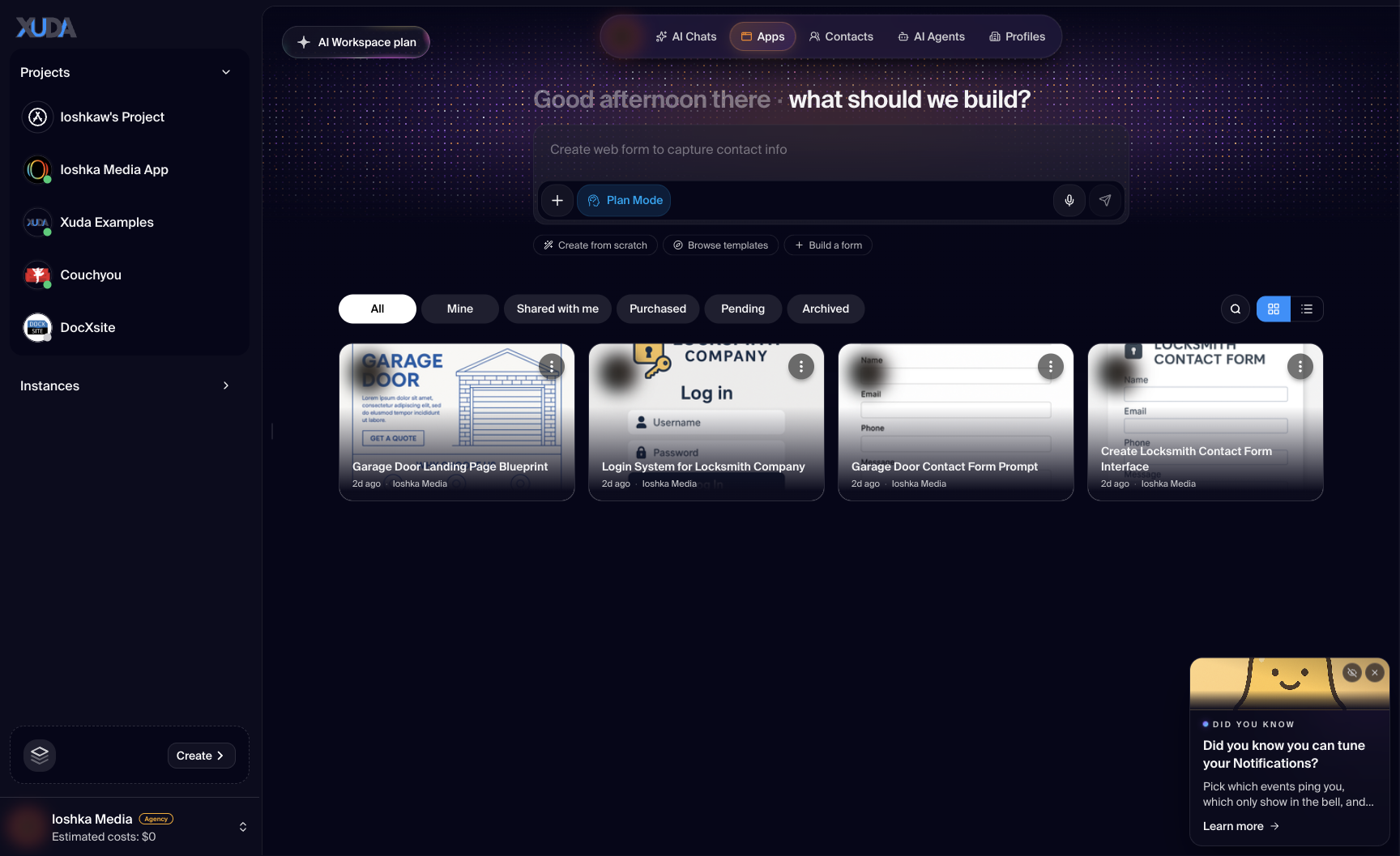
When you open Apps, you stay inside the main Xuda dashboard.
This screen gives you several main areas:
| Apps Dashboard Area | What It Does |
|---|---|
| Left dashboard rail | Keeps you inside the wider Xuda workspace. |
| Top workspace tabs | Lets you switch between AI Chats, Apps, Contacts, AI Agents, and Profiles. |
Create a new app button |
Starts the app creation flow. |
| Filter row | Helps you narrow the app list. |
| Search button | Helps you find a specific app more quickly. |
| App card area | Shows the apps you can open or manage. |
This is the main Apps dashboard page. It is the place you return to when you leave an app and go back.
Step 2: Use Filters To Narrow The List
The Apps filter row helps you move through your app library without opening every card one by one.
The available Apps filters on this screen are:
| Filter | What It Means |
|---|---|
| All | Shows all apps you can access. |
| Mine | Shows apps you created or own. |
| Shared with me | Shows apps shared into your workspace. |
| Purchased | Shows apps you obtained through a purchase or marketplace flow. |
| Pending | Shows apps waiting for action or review. |
| Archived | Shows older apps you are not actively using now. |
Result: even when your workspace grows, you can find the right app more quickly.
Step 3: Read The App Cards
On the Apps dashboard, each app appears as a card or thumbnail.
An app card can show:
| App Card Detail | What It Helps You See |
|---|---|
| Preview image | Gives you a quick visual clue about the app. |
| App title | Helps you identify the tool. |
| Recent activity text | Shows when the app changed most recently. |
This is useful because you do not need to remember every app by name alone.
Step 4: Hover Over A Card To Reveal Quick Actions
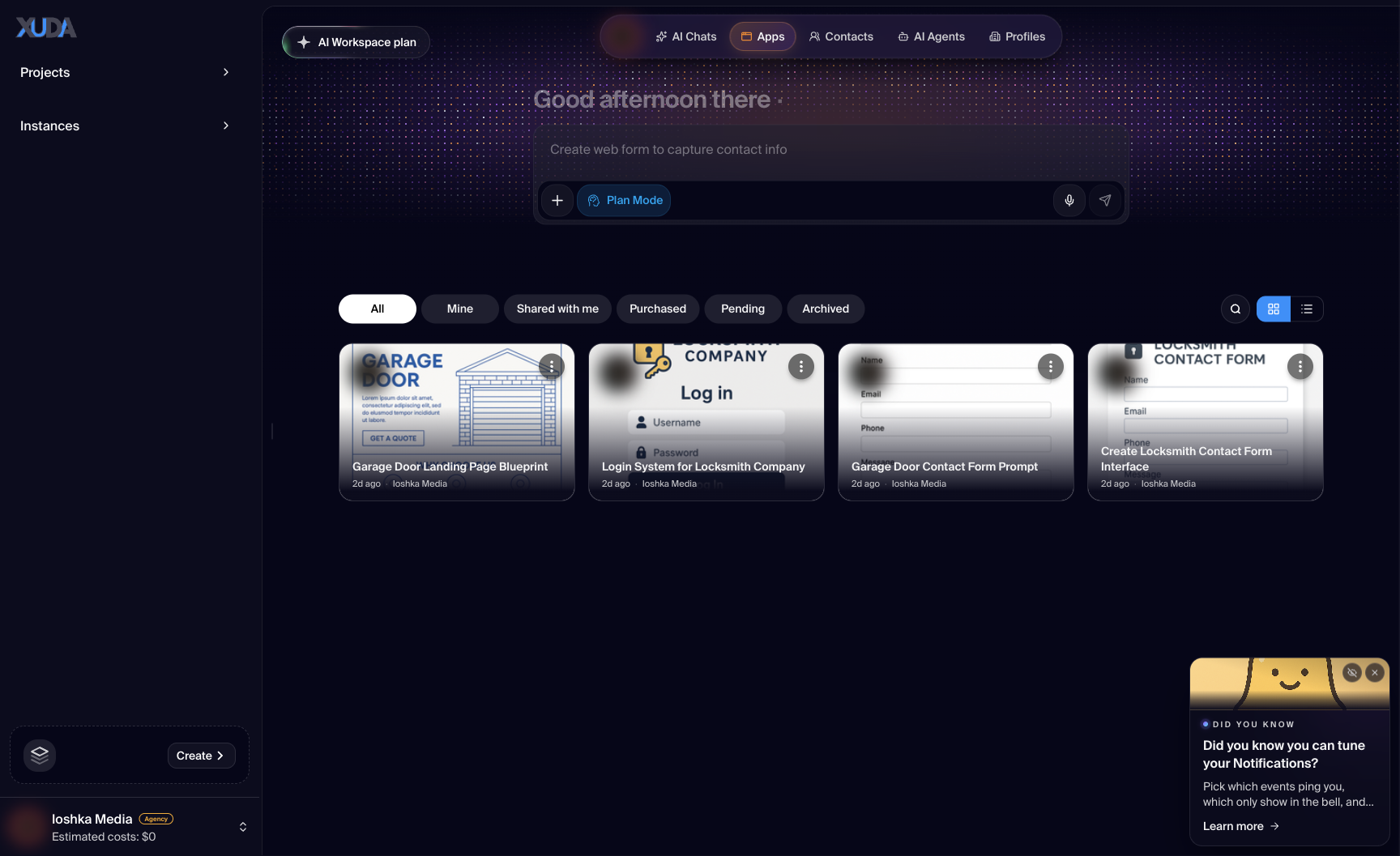
When you move over an app card, Xuda can reveal extra controls directly on the thumbnail.
In this view, the hover state shows:
| Hover Control | What It Does |
|---|---|
| Menu button | Opens quick management actions for that app. |
Go action |
Opens the app directly from the card. |
This is helpful when you want to act on an app without opening its full details first.
Step 5: Open The Thumbnail Menu
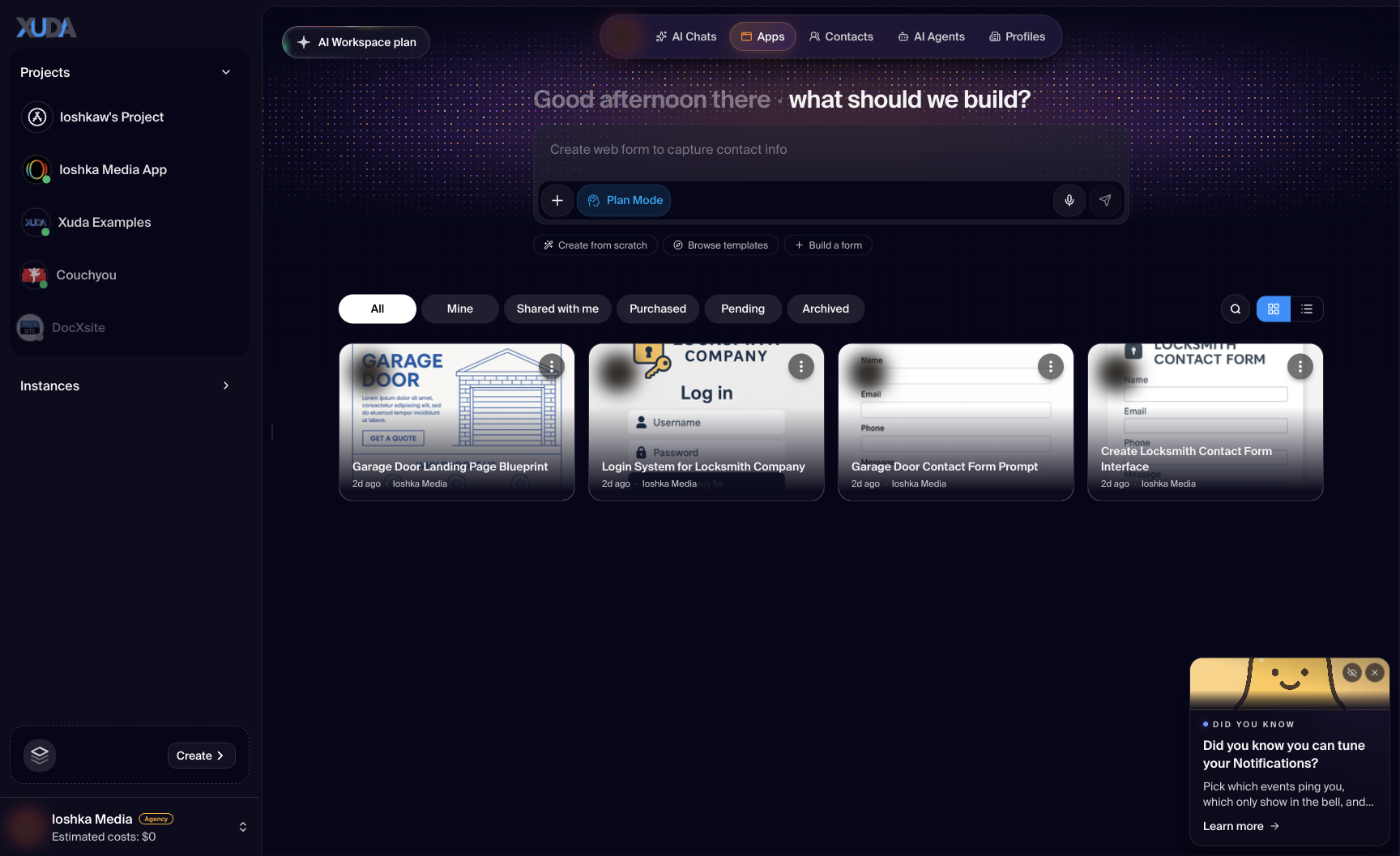
Clicking the menu button on an app card opens quick actions for that specific app.
The thumbnail menu shown here includes:
| Thumbnail Menu Option | What It Does |
|---|---|
| Share | Lets you share the app with another person or workspace member. |
| Profiles | Opens profile-related options connected to that app. |
| Archive | Moves the app out of the active list without deleting it. |
This is the fastest way to organize or share an app from the dashboard view.
Step 6: Open An App With Go
When you use the Go action on a card, Xuda opens that app in its own workspace view.
The exact content inside the app can vary from one app to another, but the top bar is the important part to recognize first.
In this example, the opened app view shows:
| App View Area | What It Does |
|---|---|
| Back button | Returns you to the Apps dashboard. |
| App title | Shows which app you are currently using. |
| Top-left mode icons | Provide app-view controls for working inside the app. |
| Share | Lets you share the app from inside its own view. |
| Deploy | Opens a more advanced action for publishing or making the app available. |
If you are mainly using an app rather than building one, the most important controls are usually:
- Back, to return to the Apps dashboard
- the app title, so you know where you are
- Share, if you want to pass the app to someone else
Step 7: Return To The Apps Dashboard
After opening an app, use the Back control in the top-left area to return to the Apps dashboard.
That takes you back to the app card view where you can:
- open a different app
- use the thumbnail menu
- switch filters
- create a new app
- search for another tool
Result: you can move back and forth between the app library and individual apps without leaving the Xuda workspace.
Quick Summary
| If You Want To... | Use Apps To... |
|---|---|
| Browse available tools | Open the Apps dashboard |
| Narrow the app list | Use filters like All, Mine, or Archived |
| Recognize an app quickly | Use the thumbnail image, title, and recent activity |
| Open an app menu | Hover a card and use the menu button |
| Share or archive an app | Use the thumbnail menu |
| Open the tool itself | Click Go on the app card |
| Return to the app library | Use Back inside the opened app |
Extra Feature Tips
- Use Apps as the place to launch finished or reusable tools, while Studio remains the place to build or change them.
- Filter to Mine when you need the apps you own or maintain.
- Hover a card before opening it when you only need share, archive, or quick management actions.
- Use Go when you are ready to enter the app experience itself.
- Return with Back after checking an app so the app library remains your navigation hub.
Final Takeaway
Apps is the tool library inside Xuda.
If you remember one simple pattern, make it this:
- browse the app cards from the Apps dashboard
- hover a card when you want quick actions
- open the menu when you want to share or archive
- use
Gowhen you want to enter the app itself