
Xuda Studio Draft User Guide
Xuda Studio Draft User Guide
This guide starts when you choose Draft from the Start a new project panel. It is written for non-technical users and explains what a draft is for, what the draft workspace gives you, and how to use it while shaping an early app idea.
The screenshots are dark, full-screen captures from https://dev.xuda.ai/studio.
Feature Tips Map
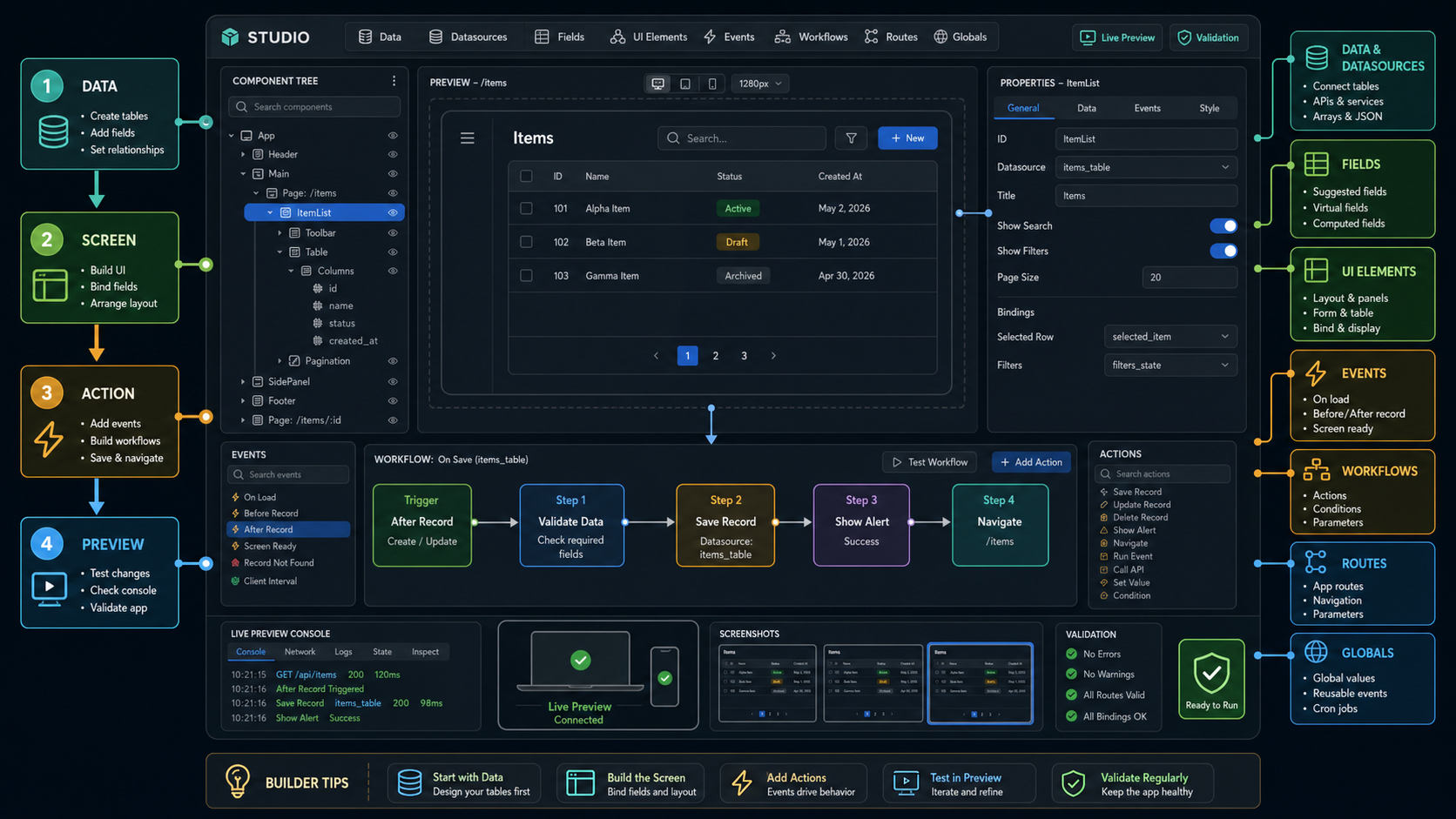
Use this visual as a quick reminder that most Xuda features work best when you connect the workspace, the data, the screen, and the next action instead of treating each area as separate.
Choose Draft
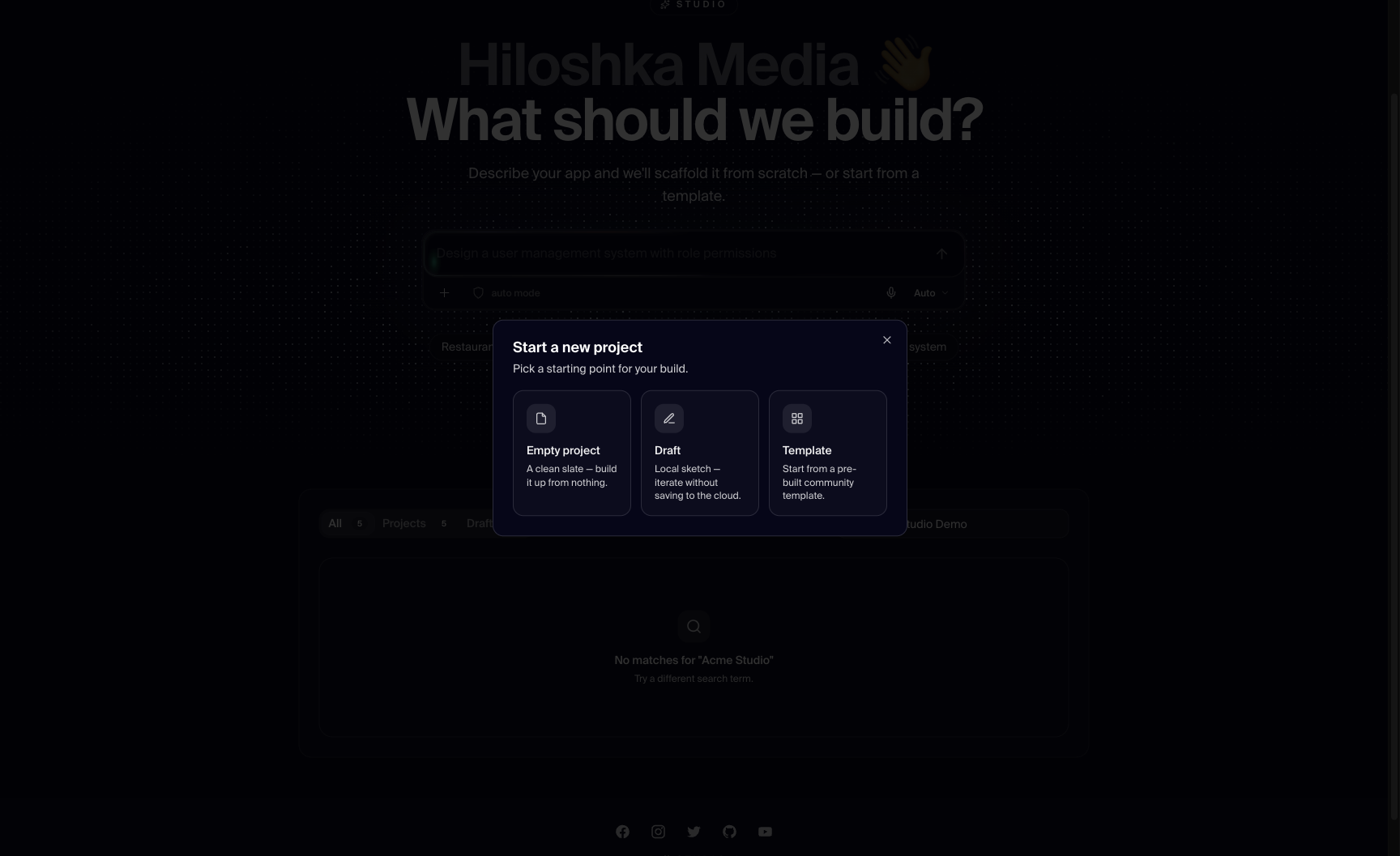
Choose Draft when you want a flexible place to explore an idea before treating it as a finished project.
A draft is useful when:
- You are still deciding what the app should do.
- You want to try an idea quickly.
- You want to keep working locally before saving everything to the cloud.
- You want to experiment without worrying about the final structure yet.
- You want Studio AI to help shape the first version.
Result: Studio prepares a lighter workspace for exploration and iteration.
Name The Draft
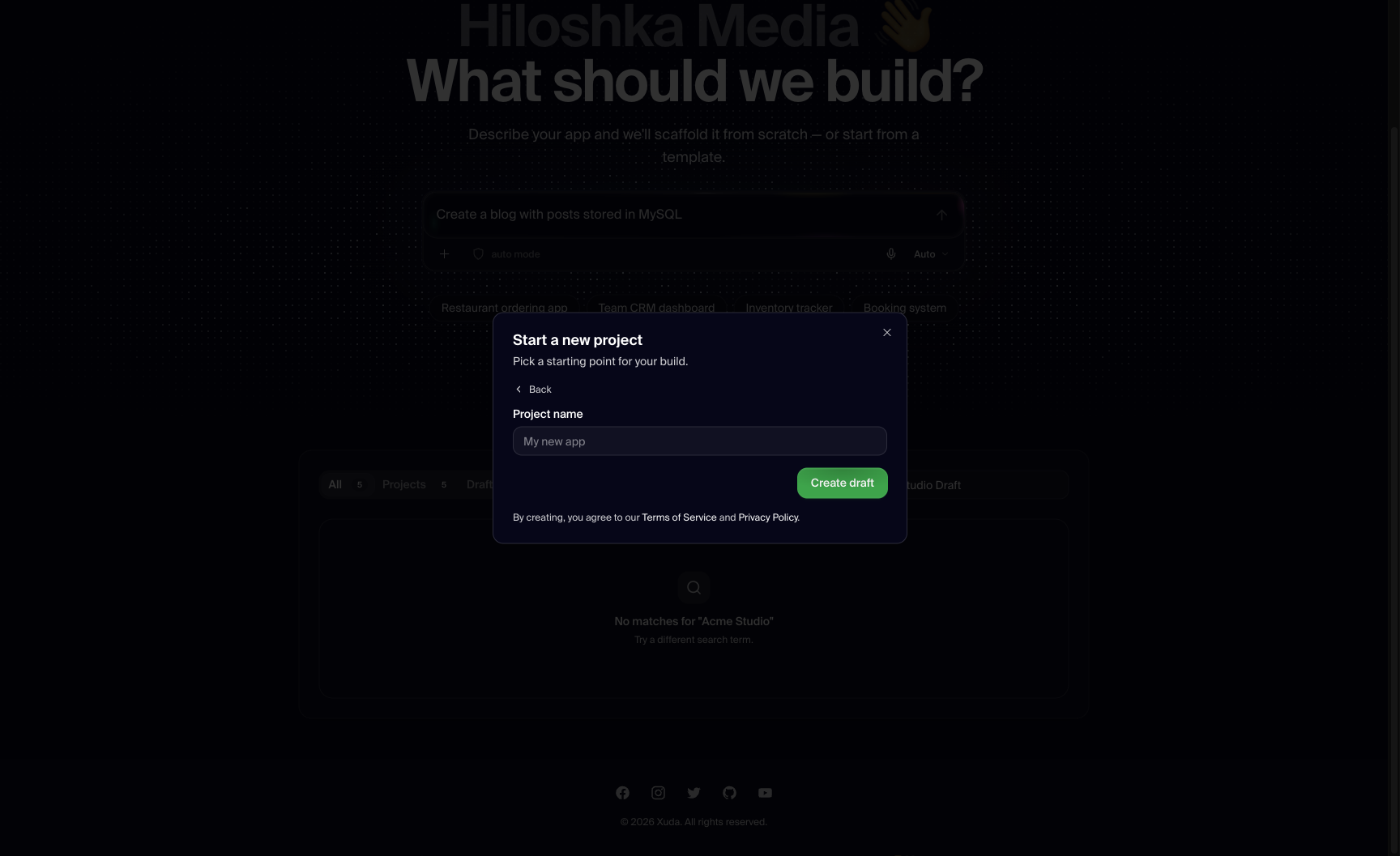
Before the draft opens, Studio asks for a name. Use a name that describes the idea clearly, such as Idea Sketch, Booking Draft, CRM First Pass, or Inventory Concept.
From this screen you can:
- Confirm that you are creating a draft.
- Name the idea so it is easy to recognize later.
- Go back and choose Empty project or Template instead.
- Review the Terms of Service and Privacy Policy.
- Create the draft.
Result: the draft opens as a new working space where you can begin shaping the idea.
First Draft Workspace
After creation, Studio opens the draft editor. The top bar shows the draft name and marks it as Draft, so you can tell that you are still working in an early-stage space.
The center of the workspace invites you to describe what you want to build. The right side gives you chat and properties panels. The bottom console shows the Studio status, including whether it is available offline.
Result: you can start building by describing the app, adding parts manually, or combining both approaches.
What A Draft Is For
A draft is the best place to turn a rough idea into a clearer app direction.
Use a draft to:
- Explore different versions of the same idea.
- Try a first screen without committing to the full app.
- Test what information the app should remember.
- Ask Studio AI to suggest screens, fields, and actions.
- Work through changes while the idea is still moving.
- Continue working when the connection changes.
Result: you get a low-pressure workspace for discovery before the app becomes more formal.
Main Draft Features
Describe The App
The prompt area lets you explain the app in plain language.
You can describe goals like:
- Create a contact form.
- Build a booking page.
- Make a customer list.
- Add a newsletter signup.
- Create an inventory tracker.
Result: Studio can help turn the description into a first app direction.
Work With Studio AI
The chat panel is available from the start. You can ask it to help with the project, explain what exists, or suggest what to add next.
You can ask for help with:
- A first screen.
- A missing field.
- A simple workflow.
- A better app structure.
- A next step when you are unsure.
Result: the draft can grow through conversation instead of only manual setup.
Add App Information
Drafts can include the information your app will remember, such as customers, tasks, bookings, products, or messages.
Result: the idea starts becoming a real app with usable data.
Add Screens
Screens are the parts people see and use. In a draft, screens are often rough first versions that help you understand the user experience.
You can create:
- Forms
- Lists
- Dashboards
- Detail pages
- Simple panels
Result: the draft becomes something you can see, click, and improve.
Add Actions
Actions make the draft respond when users do something.
You can shape behavior such as:
- Save a form.
- Open another page.
- Refresh information.
- Show a success or error message.
- Run a small process.
Result: the draft becomes interactive, not just a layout.
Preview The Idea
The preview and console areas help you test what the draft feels like as an app.
You can check whether:
- A screen opens correctly.
- A button does what you expect.
- Information appears in the right place.
- The app status is healthy.
- The idea is ready for more structure.
Result: you can learn from the draft before sharing or expanding it.
Online And Offline Work
Drafts are designed for flexible work. When Studio is online, it can save and sync the draft. When Studio is available offline, you can keep shaping the idea locally and continue from there when the connection returns.
Result: drafts are useful for experimenting even when the work session is not perfect or final.
Draft Building Blocks
A draft uses the same basic building blocks as a larger project, but you can add them gradually.
| Building Block | What It Helps You Explore | Result |
|---|---|---|
| Tables | What the app should remember | The idea gets real information to work with. |
| Screens | What users will see | The app starts feeling usable. |
| Datasources | Which information appears where | Screens show the right records. |
| Fields | The important details | Information can be shown, edited, or reused. |
| Events | When the app should react | The app knows when something happened. |
| Workflows | What happens next | The app saves, navigates, alerts, or refreshes. |
| Routes | Which pages can open | The draft becomes easier to move through. |
| Alerts | What users need to know | Users get feedback after actions. |
| AI Agents | AI-assisted behavior | The draft can include guided or automated help. |
A Good Draft Workflow
Start with the smallest useful version of the idea:
- Name the draft after the app idea.
- Describe the app in one or two sentences.
- Create the first important screen.
- Add the main information the app should remember.
- Connect the screen to that information.
- Add one useful action, such as save or open details.
- Preview the result.
- Ask Studio AI what should be improved next.
- Keep, change, or rebuild the draft based on what you learn.
Result: the draft helps you discover the right app shape before you invest too much in details.
When To Use Draft Instead Of Empty Project
| Choose Draft When... | Choose Empty Project When... |
|---|---|
| The idea is still early. | You already know what you want to build. |
| You want to experiment. | You want a clean, organized project from the start. |
| You may change direction. | You are ready to build the final structure. |
| You want to work locally and iterate. | You want to create the project directly. |
| You want AI help shaping the first version. | You want to build manually from a clean slate. |
Draft is the better choice for discovery. Empty project is the better choice when the plan is already clear.
Extra Feature Tips
- Use Draft when you are still learning the shape of the app and expect changes.
- Name the draft after the problem or workflow, not only after the first screen.
- Let AI help create the first version, then inspect the data, UI, fields, and events before expanding.
- Keep early draft actions simple, such as save, alert, or navigate.
- Move toward an Empty project style once the draft proves the main workflow.