
Xuda Account Settings User Guide
Xuda Account Settings User Guide
This guide explains Account Settings in the Xuda dashboard for a non-technical user. It walks through every menu option in Settings and explains what each screen is for, what you can safely review, and when to ask for help before changing something.
Use this guide after signing in at https://dev.xuda.ai/dashboard.
Guide Purpose
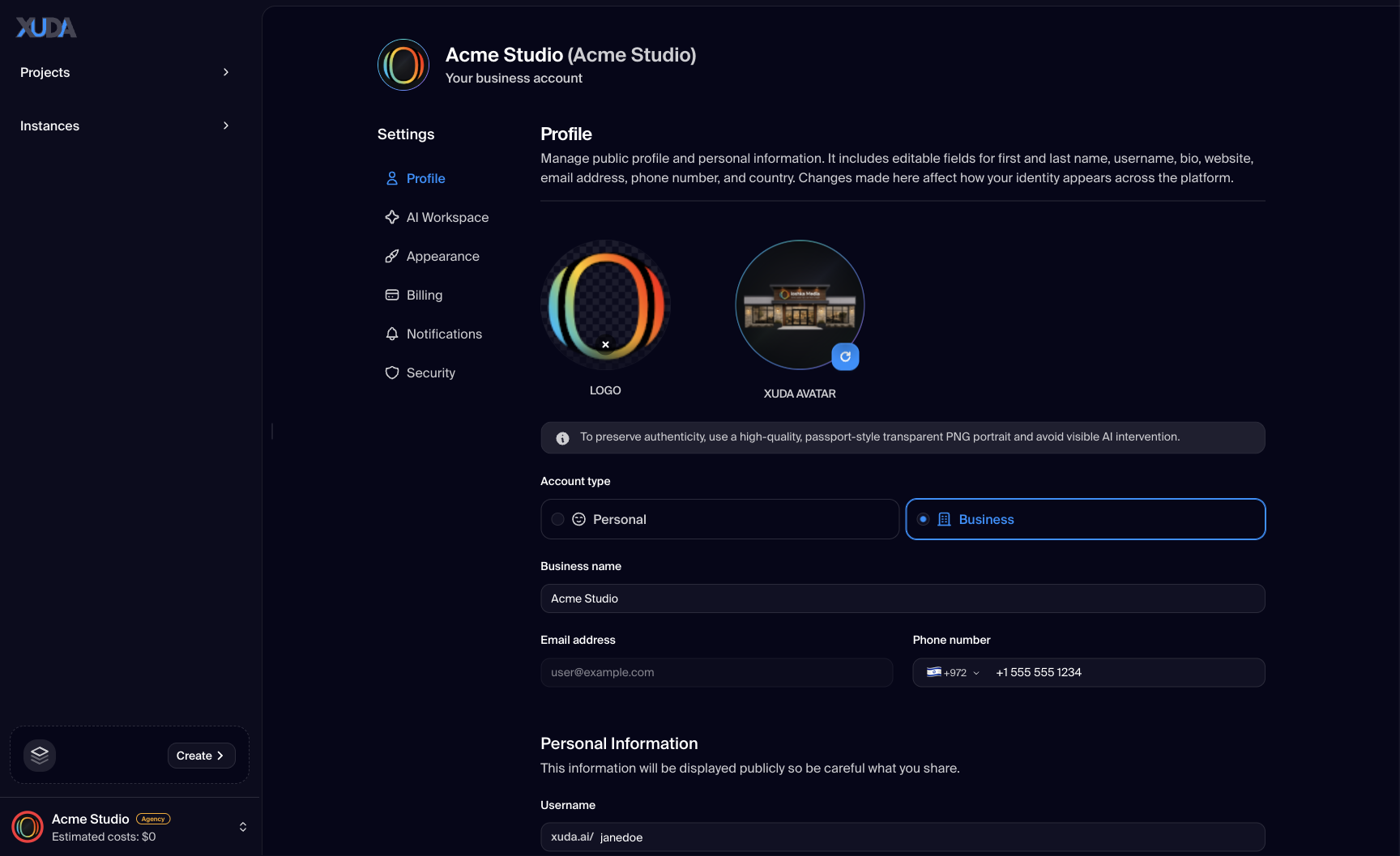
Account Settings is where you manage the account around your Xuda workspace. This includes your public profile, AI usage, visual preferences, billing, notifications, security history, active sessions, and SSH keys.
The Settings page has a left-side menu. Some menu items open directly, and some expand into smaller sub-options.
Open Account Settings
From the dashboard, choose Settings in the main navigation.
The Settings area opens with your account summary at the top and the Settings menu on the side. Your profile picture or avatar appears near the top, and hovering over it gives you a quick Edit shortcut back to the Profile screen.
Complete Settings Menu
| Settings Menu Option | What It Is For |
|---|---|
| Profile | Manage your account identity, public profile details, picture, avatar, phone number, country, and username. |
| AI Workspace > Usage | Review AI credit use and workspace consumption. |
| AI Workspace > Plan | Review the current AI Workspace plan, billing date, payment method, and upgrade option. |
| Appearance | Change dashboard preferences such as default dashboard, sidebar style, theme, and AI-generated thumbnails. |
| Billing > Summary | Review the current billing cycle summary. |
| Billing > Balance | Review account balance, past due amount, estimated due amount, payment date, promo code, and balance top-up. |
| Billing > Subscriptions | Review membership, support, and AI Workspace plans. |
| Billing > Cards | Manage saved payment cards and add a new card. |
| Billing > Invoices | Review recent invoices and open the full invoice list. |
| Billing > Seller Account | Configure seller-account details for marketplace or payout-related features. |
| Notifications > Preferences | Choose which account or app events send email or push notifications. |
| Security > Sensitive Logs | Review sensitive account and authentication activity. |
| Security > Sessions | Review devices and sessions that have accessed your account, and log out sessions if needed. |
| Security > SSH Keys | Add, edit, or delete public SSH keys used for secure server access. |
Profile
Use Profile when you want to change how your account appears across Xuda.
You can manage:
- profile picture or business logo
- Xuda avatar
- account type: Personal or Business
- first and last name, or business name
- email address
- phone number
- username shown as
xuda.ai/username - bio
- website
- country
- state, when the selected country is the United States
Your email address is shown but not edited from this form. The username field checks whether the username is available before saving.
The avatar tools can regenerate a Xuda avatar from your current profile picture. Personal accounts may also show modify options such as enlarge, shrink, younger, older, male, or female. Avatar generation can take more than a minute.
Choose Save after making changes.
AI Workspace Usage
Open AI Workspace, then choose Usage.
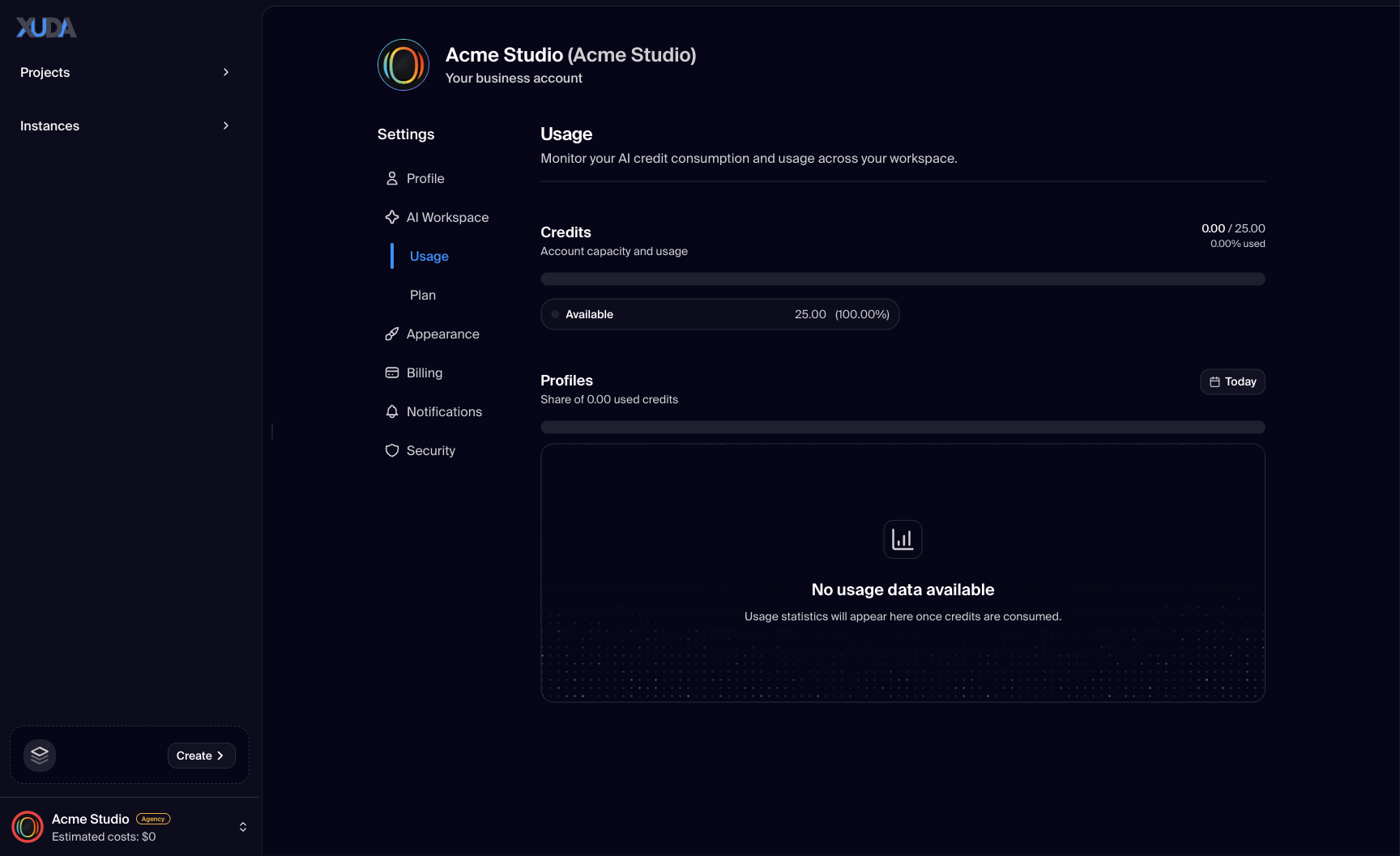
Use this screen to understand how much AI activity your workspace is using. It is the place to check before deciding whether your AI Workspace plan is still the right size.
This page is useful when:
- AI activity seems higher than expected
- you want to understand credit usage
- you are preparing to upgrade or review a plan
AI Workspace Plan
Open AI Workspace, then choose Plan.
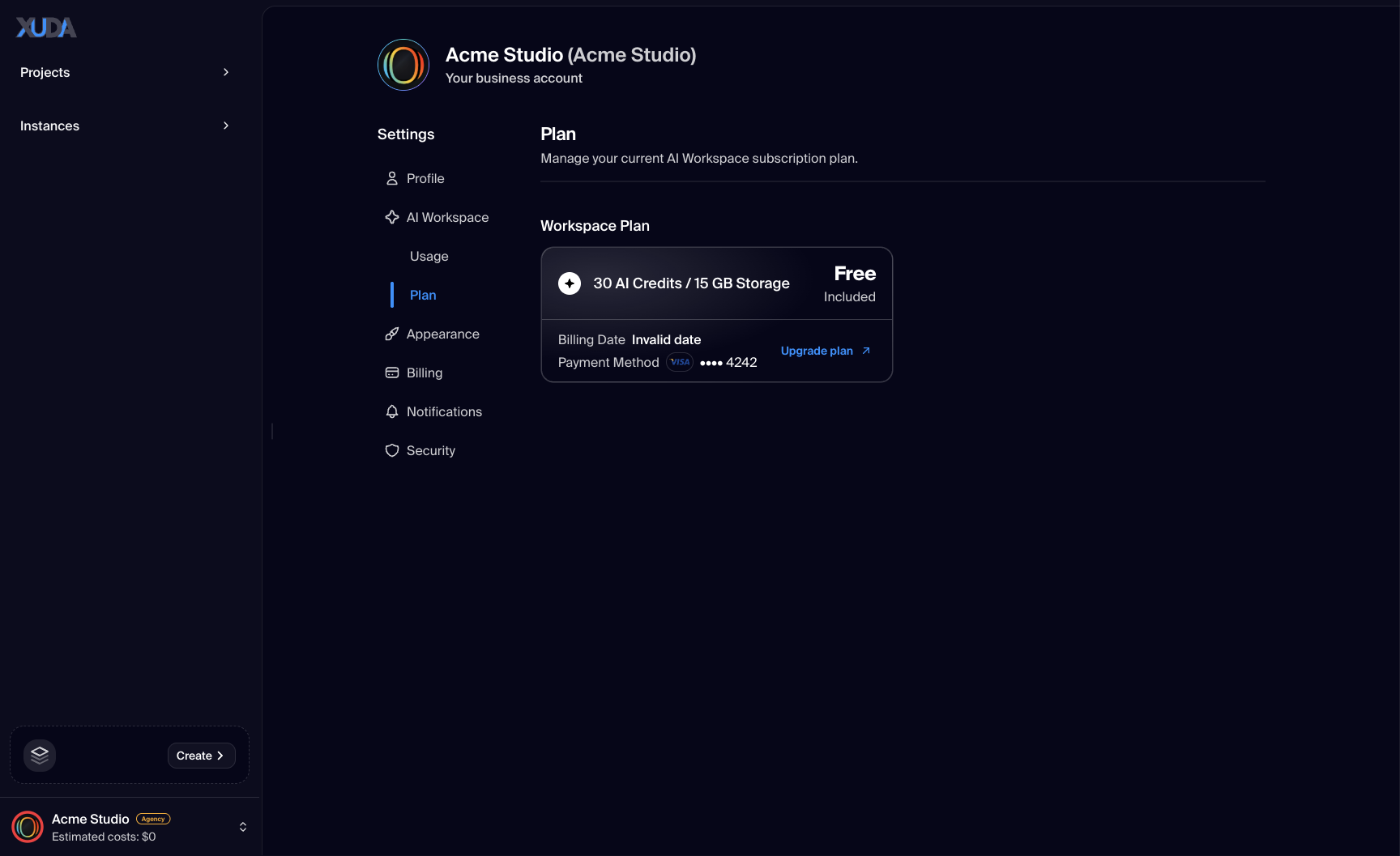
This screen shows your current AI Workspace subscription plan. It can show plan details, the next billing date, the default payment method, and an Upgrade plan option.
Use this screen when you want to:
- confirm the active AI Workspace plan
- check when the plan renews
- see which payment method is used
- open the plan upgrade flow
Appearance
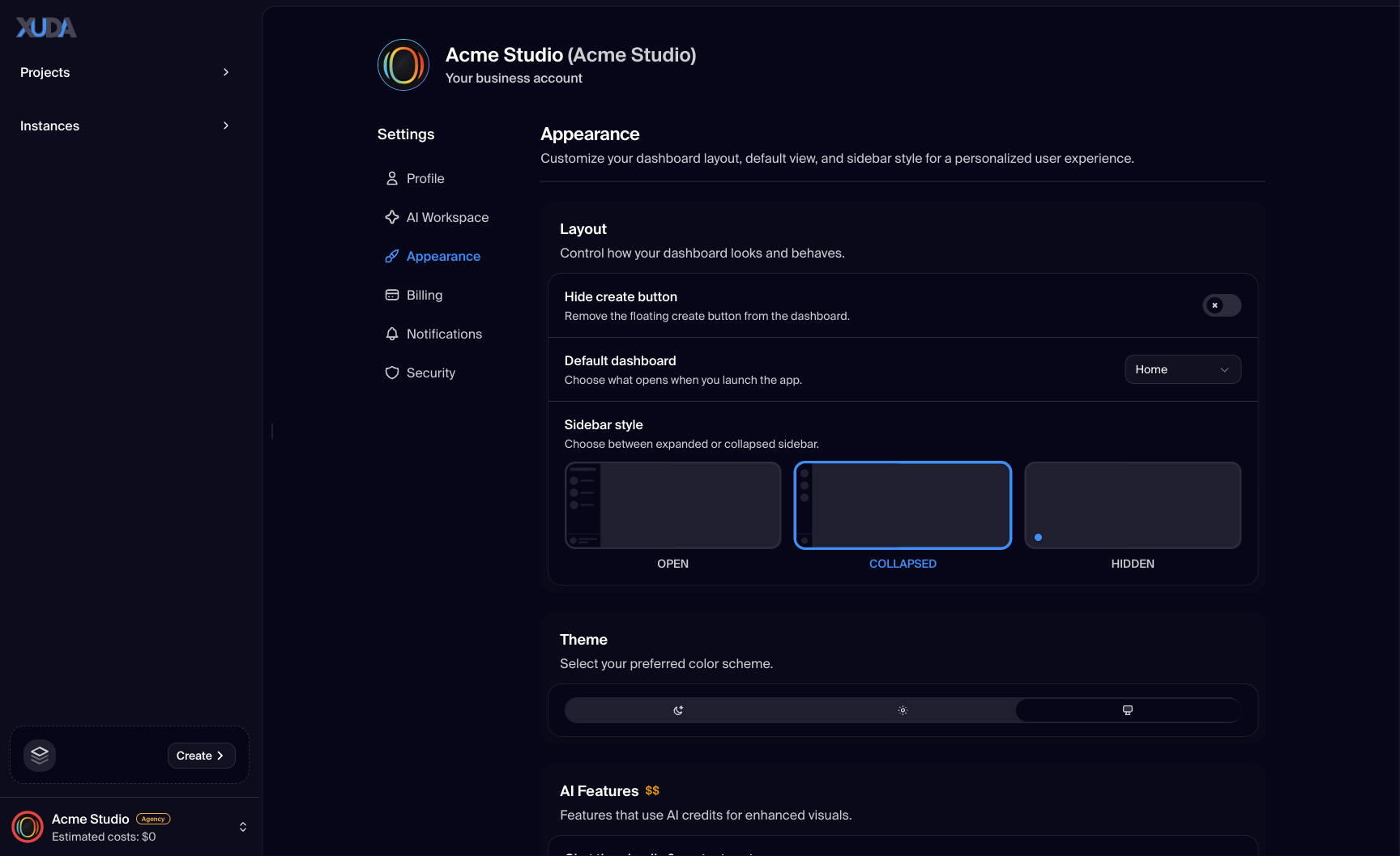
Use Appearance to personalize the dashboard experience.
Available preferences can include:
- Hide create button: hides the dashboard create button when you want a cleaner layout.
- Default dashboard: chooses whether the dashboard opens at Home or at a specific project.
- Sidebar Style: changes how the dashboard sidebar behaves.
- Theme: switches the visual theme, including dark mode.
- Generate Accurate Chat thumbnails + Fictual Contact Avatar: uses AI to generate chat thumbnails and fictional contact avatars. This can consume additional credits.
Choose Save after changing appearance preferences.
Billing Summary
Open Billing, then choose Summary.
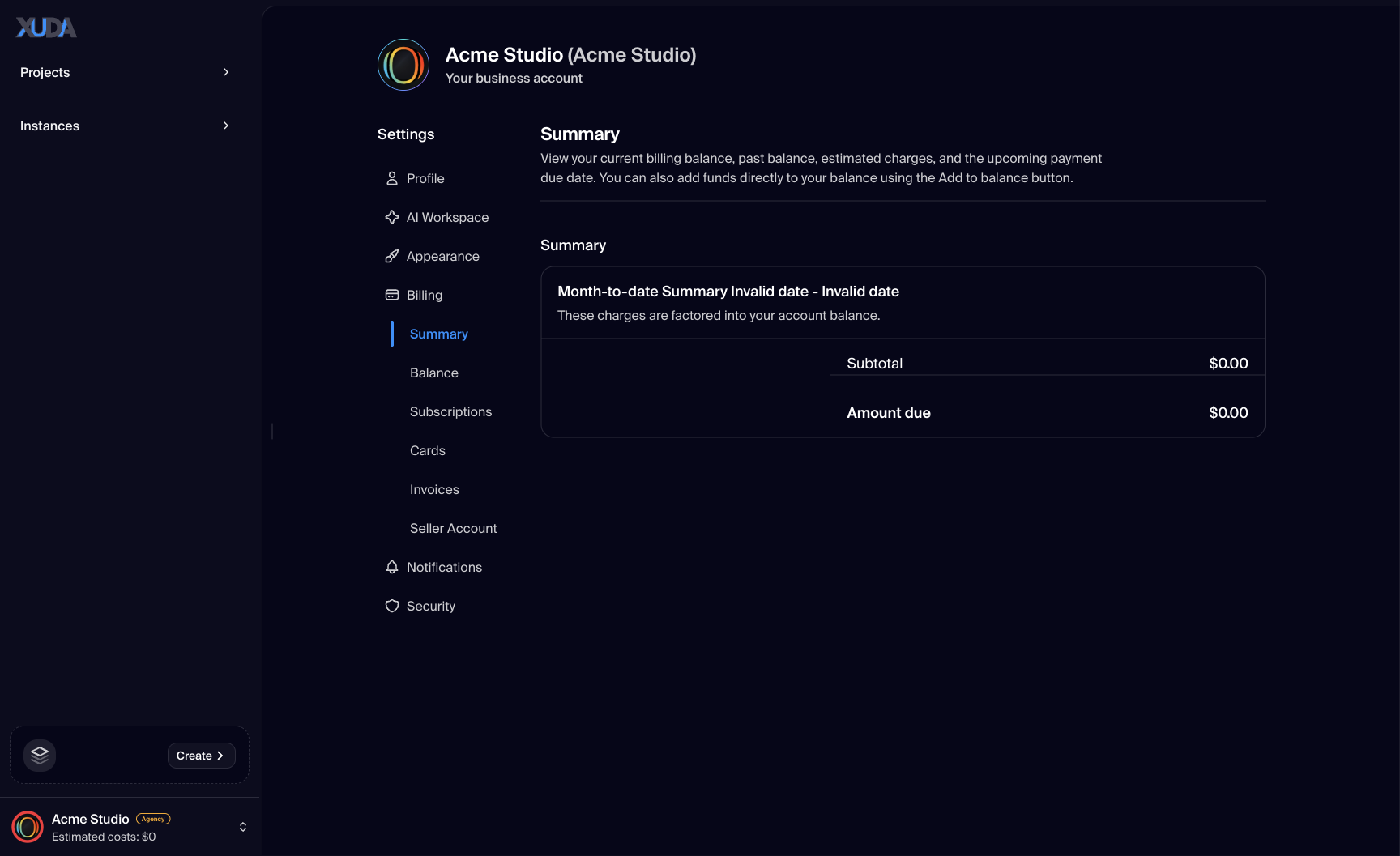
Use this screen for a quick month-to-date billing review. It shows the current billing period and a summary of charges that are factored into the account balance.
This is the first Billing screen to check when you want a simple answer to: "What is happening with billing this month?"
Billing Balance
Open Billing, then choose Balance.
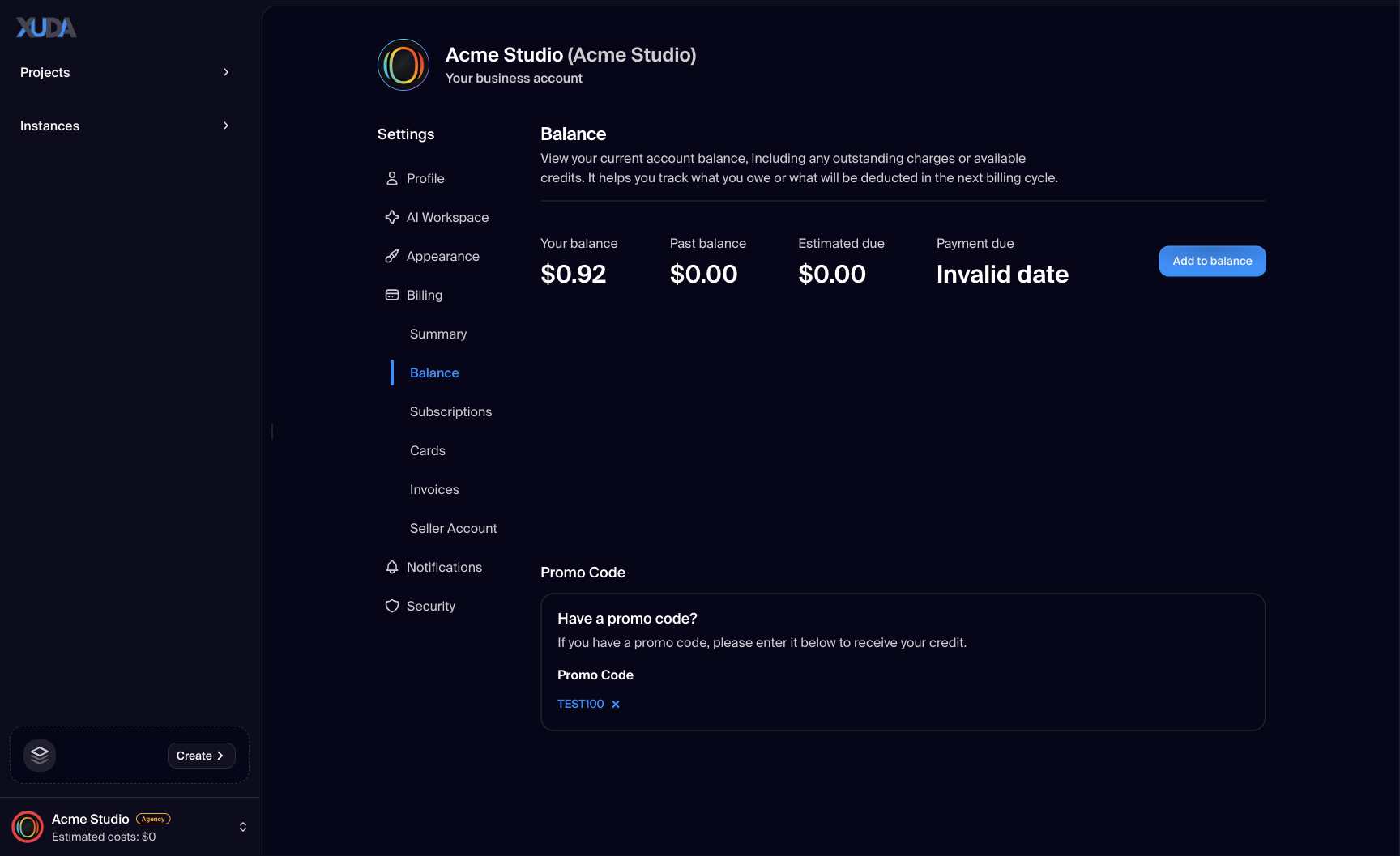
This screen focuses on money currently owed or available on the account.
It can show:
- current balance
- past balance
- estimated due amount
- next payment due date
- a billing chart
- Add to balance
- promo code entry
Use Add to balance when you intentionally want to add funds. Use the promo code area when you have a valid Xuda promo code to apply.
Billing Subscriptions
Open Billing, then choose Subscriptions.
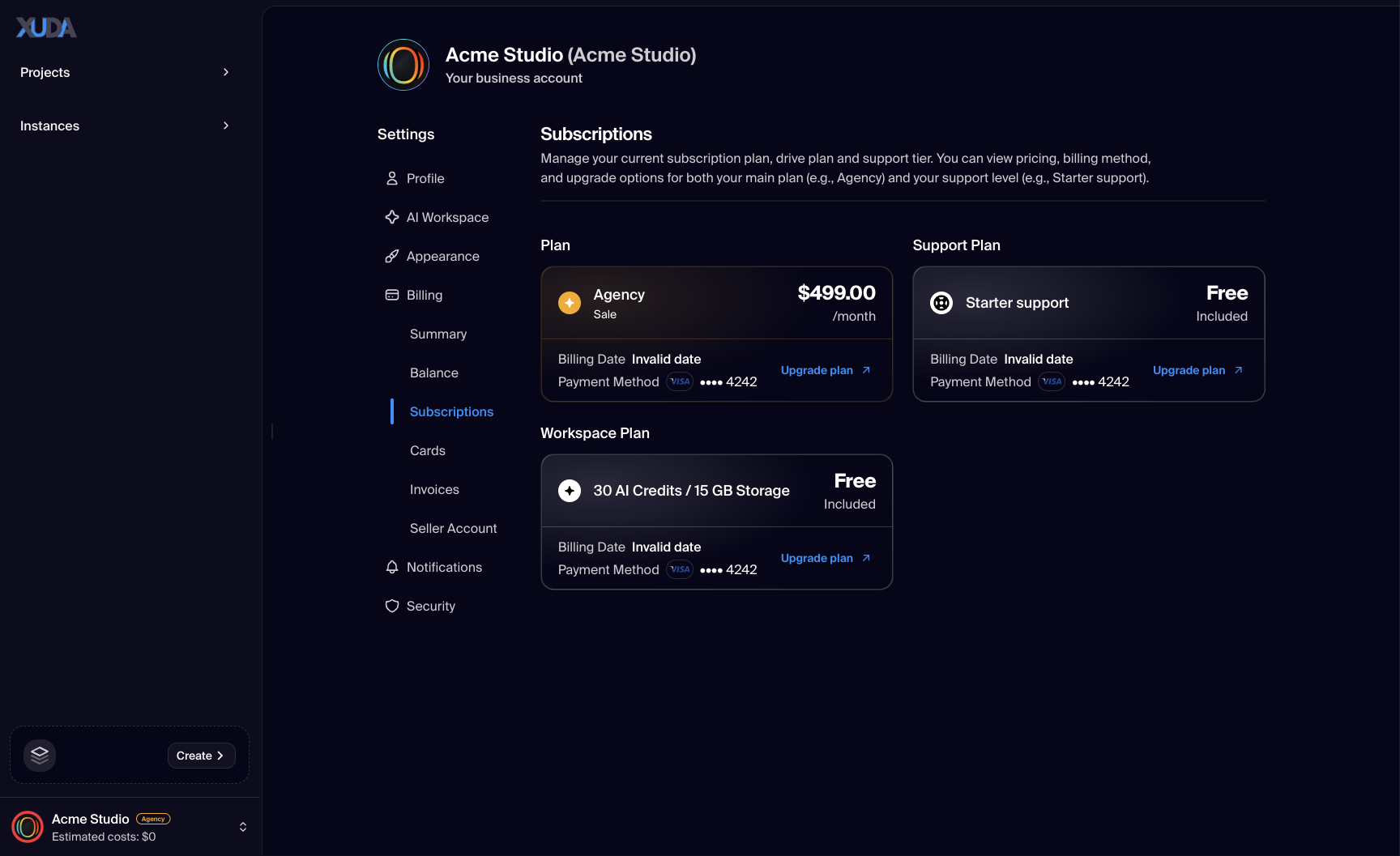
This screen groups the main account plans in one place:
- membership plan
- support plan
- AI Workspace plan
Each plan card can show the billing date, payment method, and an Upgrade plan option.
Use this screen when you want to understand the account's overall subscription setup, not just one specific charge.
Billing Cards
Open Billing, then choose Cards.
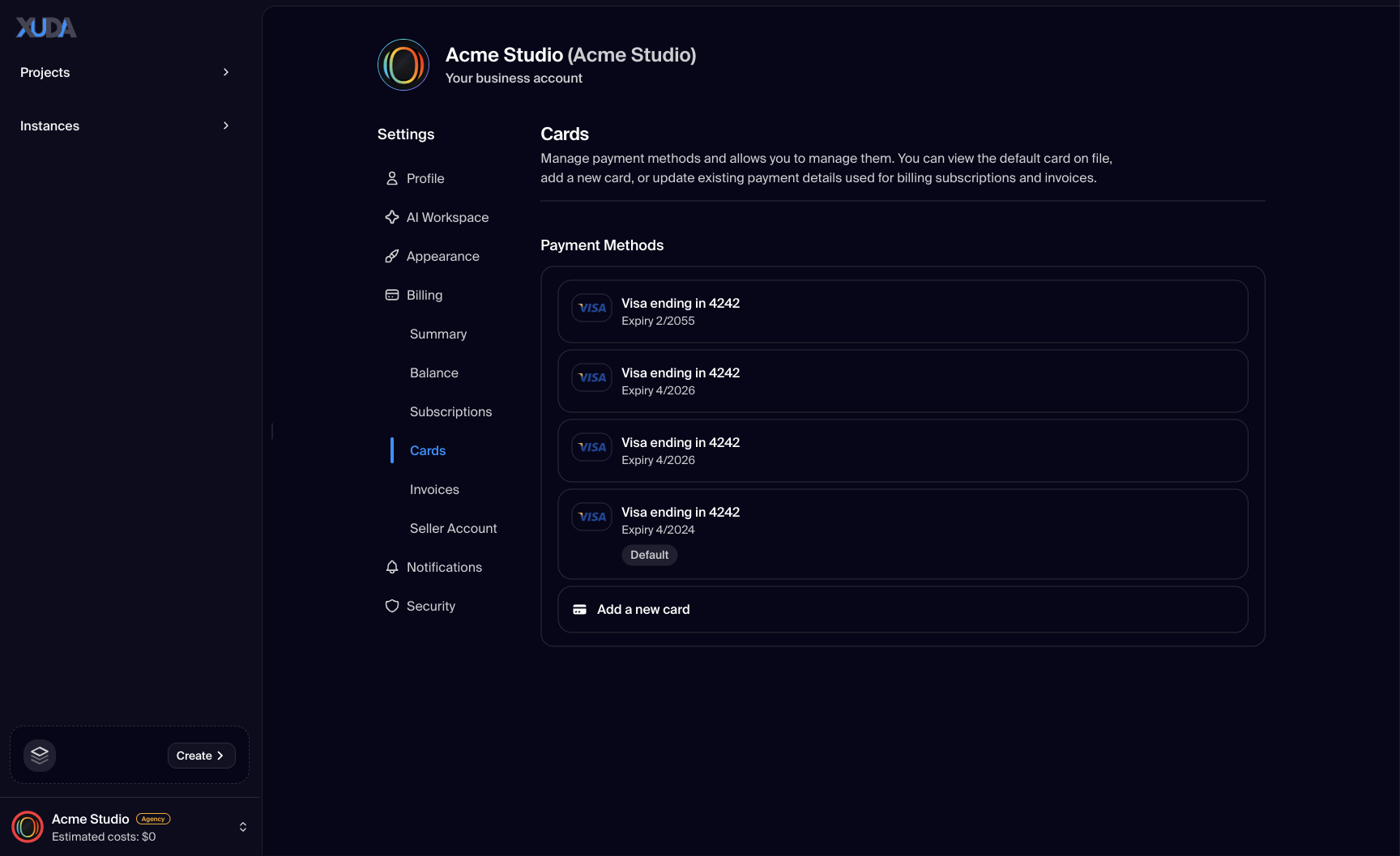
Use this screen to manage saved payment methods. You can review cards already on the account and choose Add a new card to add another payment method.
Payment methods affect subscriptions and invoices, so update this area before a renewal date if the current card is no longer valid.
Billing Invoices
Open Billing, then choose Invoices.
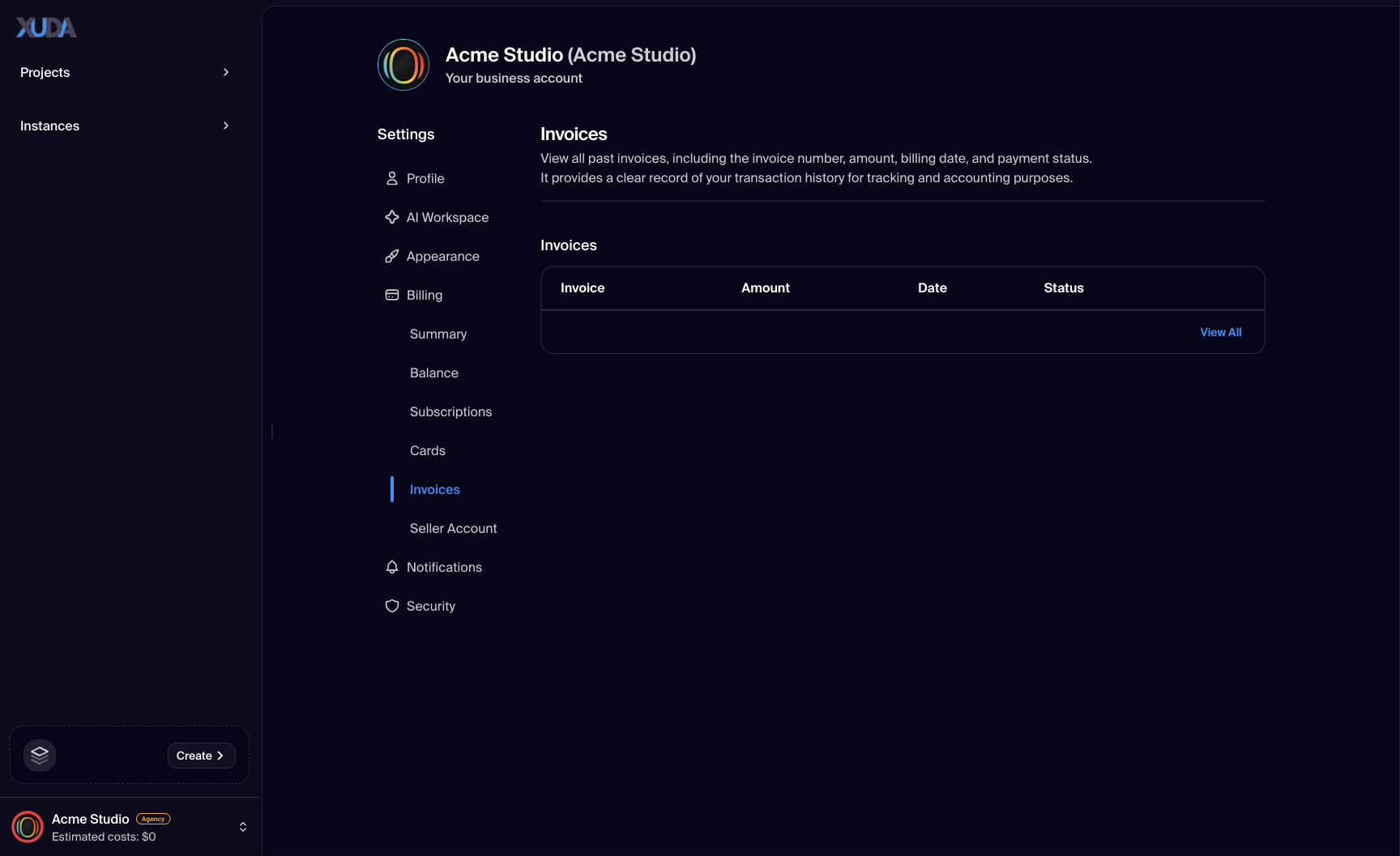
This screen shows recent invoices with billing records such as invoice number, amount, date, and status. Use View All to open the full invoice list in a side panel.
Use this screen when you need:
- a transaction record
- invoice history for accounting
- confirmation that a payment was created or completed
Billing Seller Account
Open Billing, then choose Seller Account.
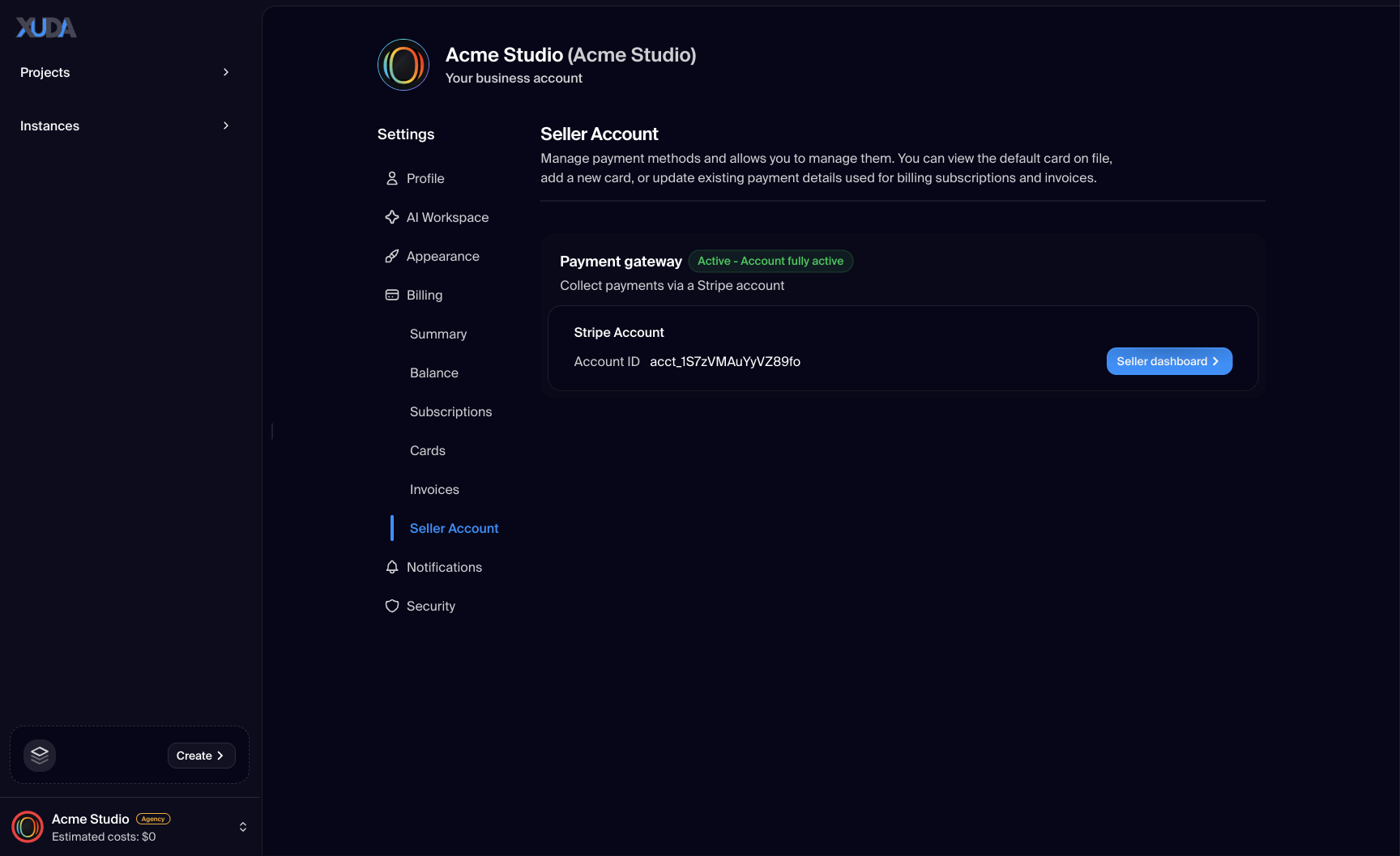
Use this screen if your account sells or receives payouts through Xuda marketplace-related features. It opens the seller-account configuration area.
If you are not selling through Xuda, you may not need to change anything here.
Notification Preferences
Open Notifications, then choose Preferences.
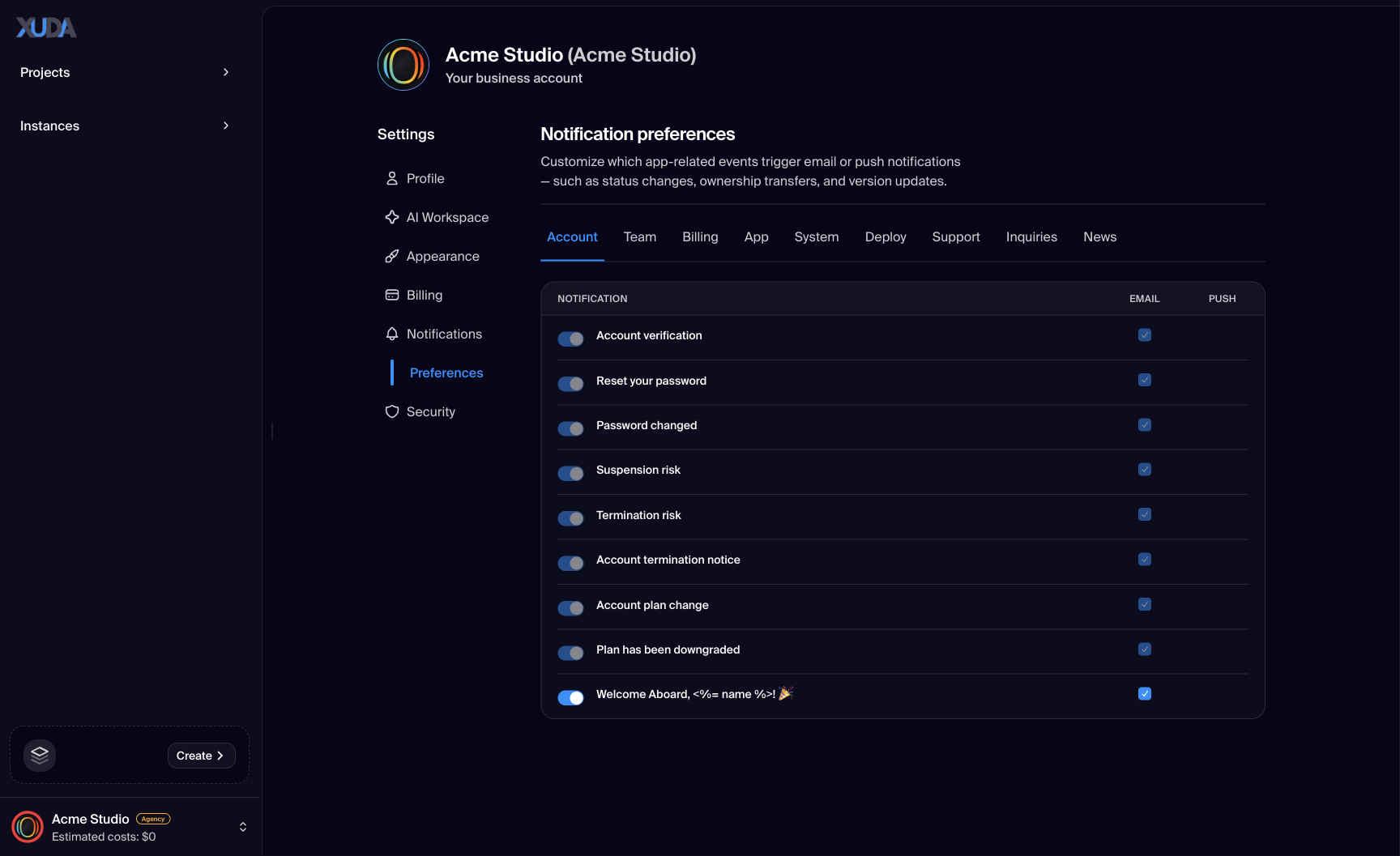
This screen lets you choose which events send notifications. Notification categories appear as tabs, and each topic can include separate choices for email and push.
Use this screen when you want fewer alerts, more alerts, or different alert channels.
Common examples:
- receive email for important account changes
- turn off push notifications for lower-priority activity
- keep app or project status changes visible
Security Sensitive Logs
Open Security, then choose Sensitive Logs.
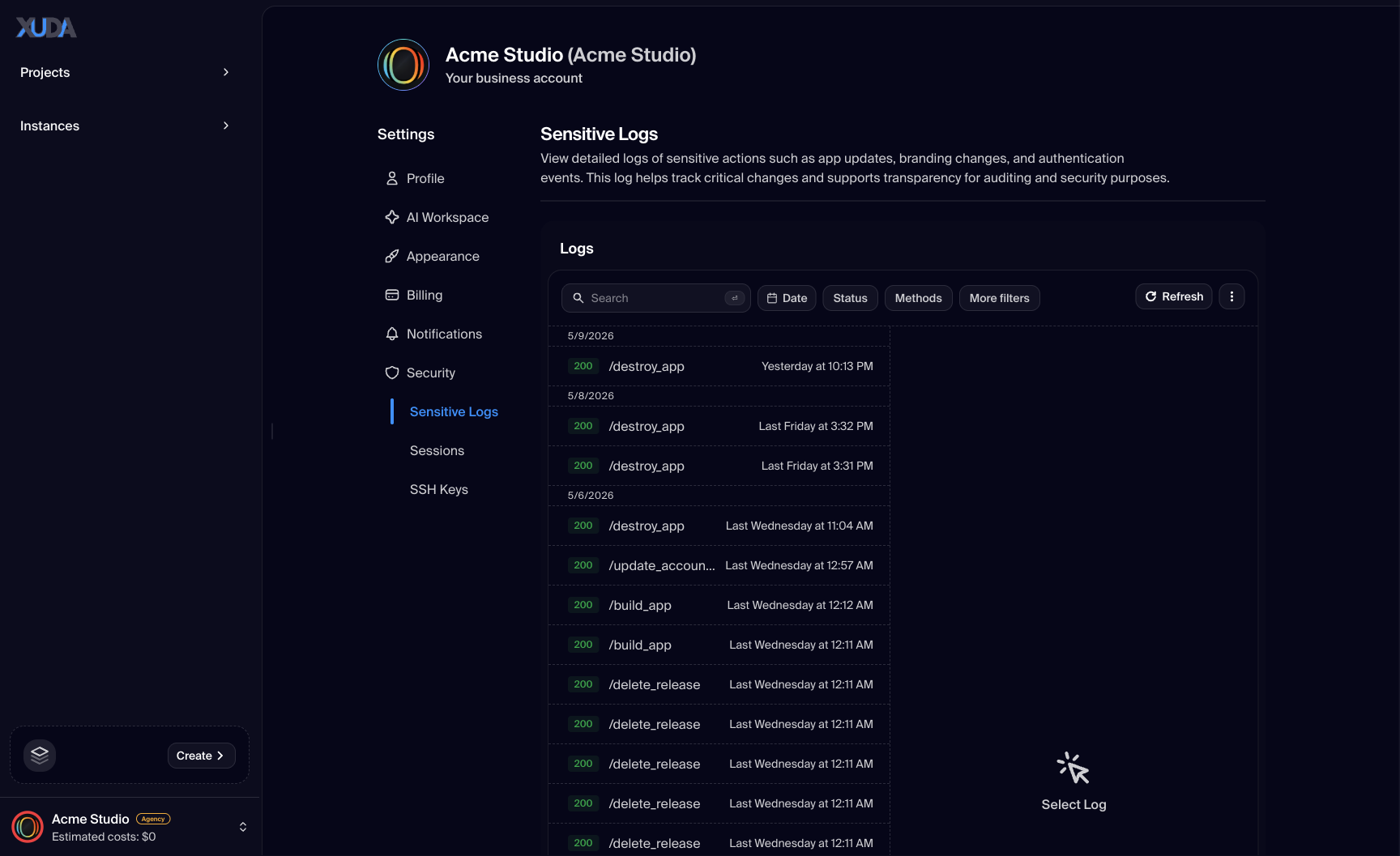
This screen shows sensitive account activity, such as authentication events, app updates, branding changes, and other important changes.
Use it when you want to check whether something important changed on the account and when it happened.
Security Sessions
Open Security, then choose Sessions.
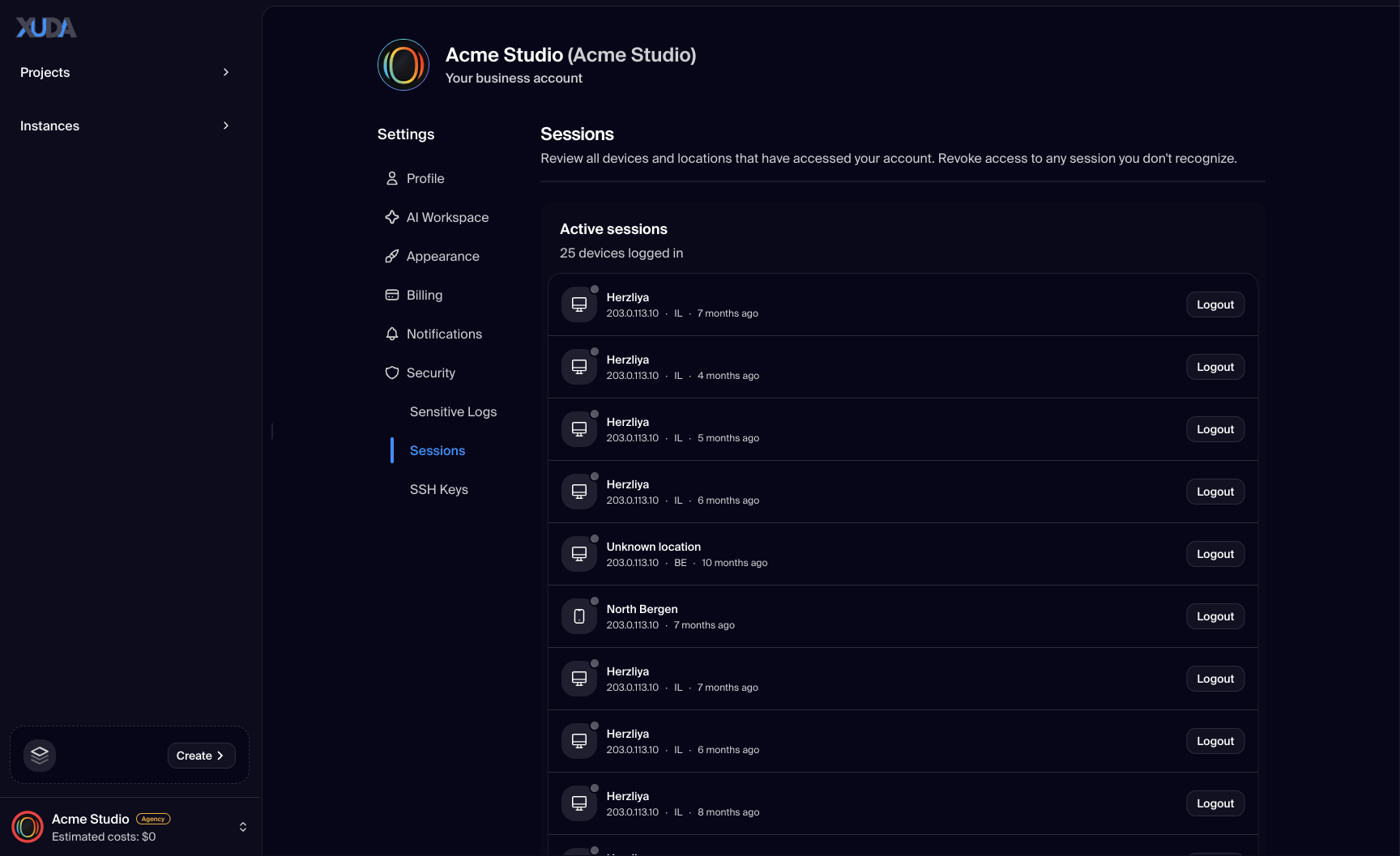
This screen lists devices and sessions that have accessed your account. It can include device information, IP address, location, and login time.
Use Logout on a session if you do not recognize it or no longer want that device to stay signed in.
Security SSH Keys
Open Security, then choose SSH Keys.
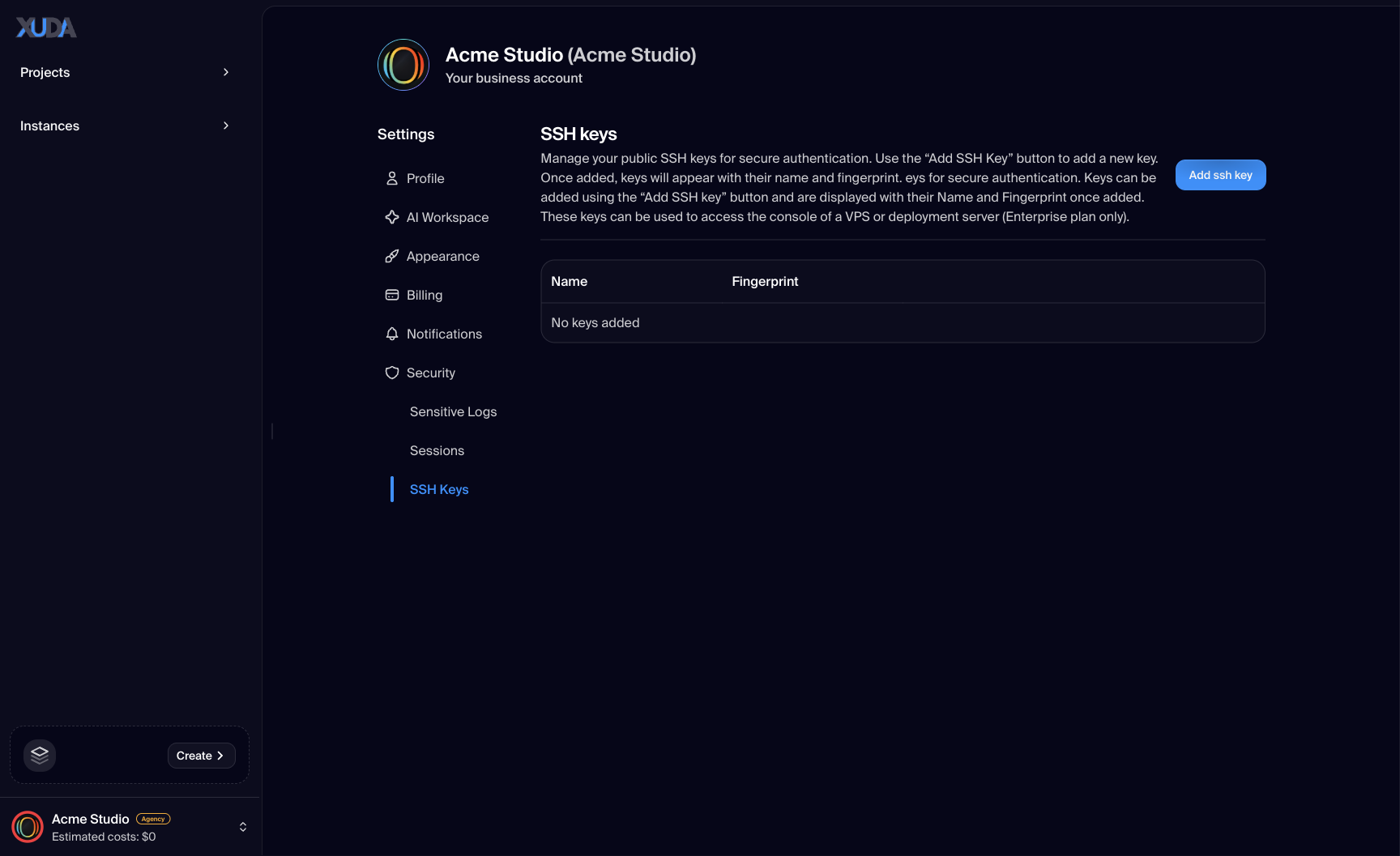
SSH keys are public keys used for secure server access. This screen can show each key's name and fingerprint. You can add a new key, edit an existing key, or delete a key from the More menu.
For non-technical users, the safest rule is simple: only add or delete SSH keys when a trusted technical teammate asks you to. SSH keys can affect access to VPS or deployment servers, and some server access features may require an Enterprise plan.
Recommended First Pass
If you are setting up your account for the first time, review Settings in this order:
- Profile: confirm your name, account type, username, phone, country, profile picture, and public information.
- Appearance: choose the dashboard theme and default dashboard.
- AI Workspace > Usage: check whether AI activity looks expected.
- Billing > Subscriptions: confirm your active plans.
- Billing > Cards: confirm the payment method.
- Notifications > Preferences: choose the alerts you want.
- Security > Sessions: make sure only familiar devices are signed in.
What To Be Careful With
Some Settings areas are routine. Others can affect billing, privacy, or access.
Be extra careful with:
- changing account type from Personal to Business or back
- changing public username
- adding funds to balance
- changing payment cards
- upgrading plans
- configuring seller-account details
- logging out active sessions
- adding, editing, or deleting SSH keys
When in doubt, review the screen first, then ask a teammate or Xuda support before saving changes.
Quick Summary
Account Settings is the control area for your Xuda identity, preferences, plans, alerts, and account security. Most everyday users should know how to update Profile, Appearance, Notifications, Billing, and Sessions. SSH keys and seller-account settings are more specialized and should usually be handled with a technical or finance teammate.