
Xuda Dashboard Project Notifications User Guide
Xuda Dashboard Project Notifications User Guide
This guide explains the Notifications tab inside a Xuda dashboard project.
Guide Purpose
Use this tab when you want to review project notifications, filter them, or create outgoing notifications when your permissions allow it.
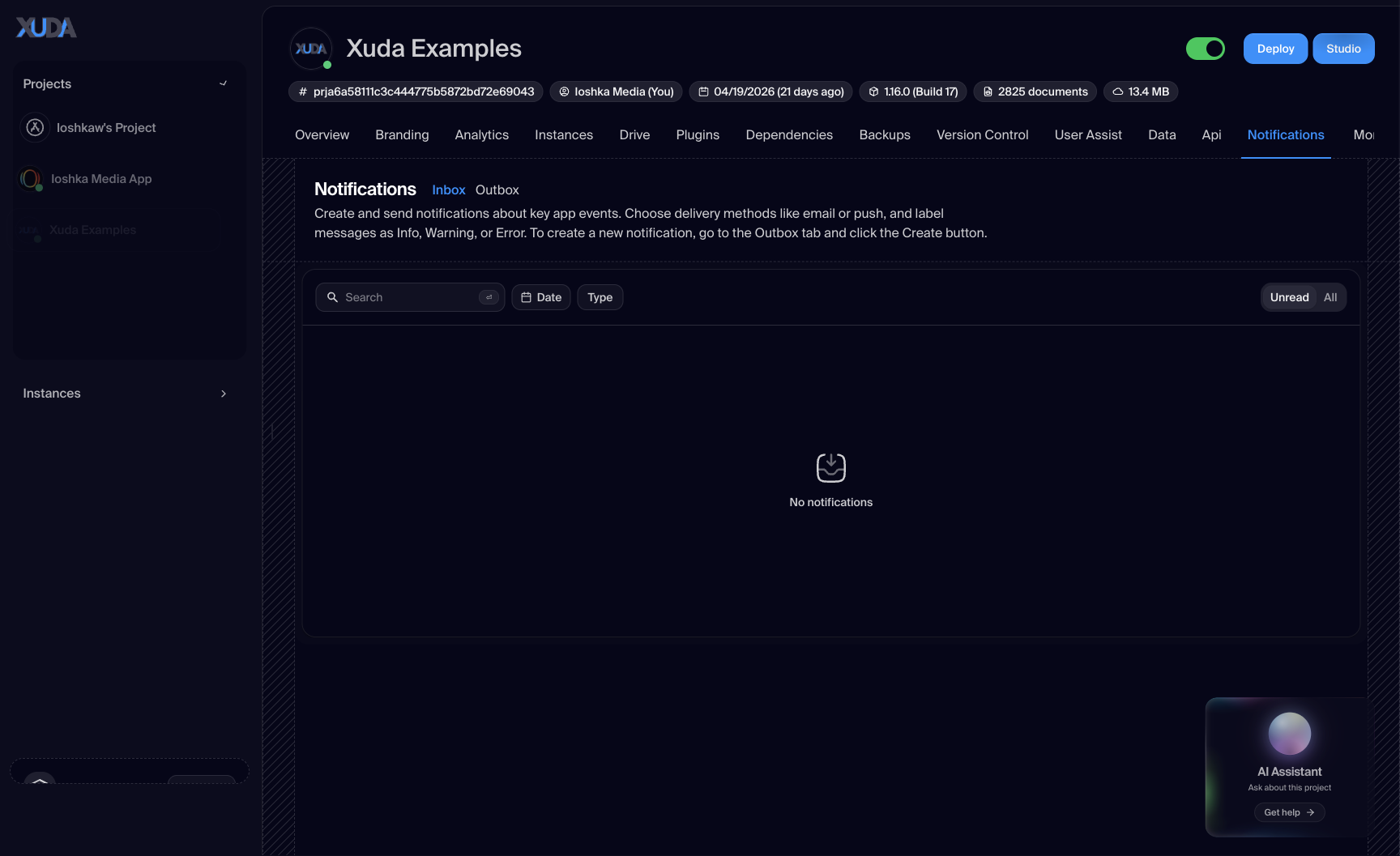
Step 1: Open The Notifications Tab
Open your project in dev.xuda.ai/dashboard, then click Notifications in the top project tab row.
If you do not see it, open More.
Step 2: Choose Inbox Or Outbox
Notifications is organized around two working views:
- Inbox
- Outbox
Use Inbox to review notifications that have been received.
Use Outbox when you want to review or create notifications that are being sent out.
Step 3: Use The Filters
The main filters and controls can include:
- Search
- Date
- Type
- category filters
- Unread and All
- Create in the Outbox area when available
This makes it easier to focus on the messages that matter right now instead of scrolling through everything.
Step 4: Read The Notification List
The main panel groups notifications by date and shows items in a simple list.
You can usually see:
- the notification title
- its delivery method, such as Email
- its date
- a small row menu for more actions
What This Tab Is Best For
Use Notifications when you want to:
- keep up with recent project alerts
- review what has been sent out
- find unread items quickly
- create a project-level message for users when the workflow allows it