
Xuda Slim User Guide
Xuda Slim User Guide
This guide explains Xuda Slim in a more approachable way than the technical reference.
It is meant for people who want to understand what Slim is, when it is the right fit, and what they need for a successful first run.
If you want the deeper runtime reference afterward, use xuda-slim.md.
Feature Tips Map
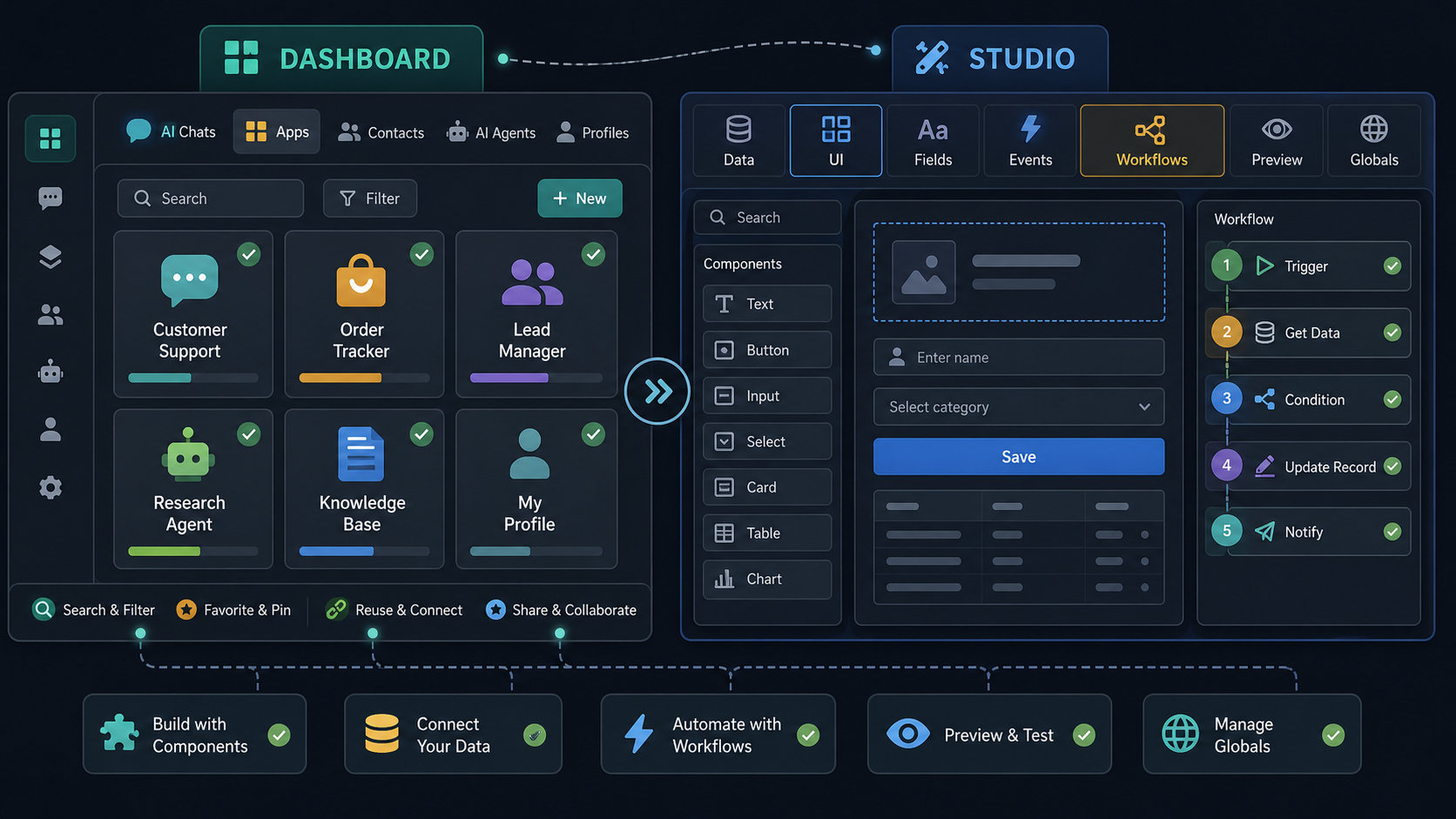
Use this visual as a quick reminder that most Xuda features work best when you connect the workspace, the data, the screen, and the next action instead of treating each area as separate.
Guide Purpose
Use this guide when you want to:
- understand what Xuda Slim is
- decide whether to use Slim or the full Xuda CLI flow
- choose the right Slim authoring mode
- understand the few settings that matter most at startup
- avoid the most common first-day mistakes
The goal is simple: help you get comfortable with Slim before you move into detailed implementation work.
What Xuda Slim Is
Xuda Slim is the lightweight browser entry point into the Xuda runtime.
That means you can run Xuda programs without starting from the full project-loader and CLI project shape.
Slim is useful when you want to build or mount:
- a small interactive page
- an embedded widget
- a runtime demo
- a documentation example
- a generated Xuda program tree
The important thing to remember is that Slim is still Xuda.
It is not a separate framework and it does not switch you into a different programming model. It still uses Xuda programs, Xuda fields, Xuda expressions, and the Xuda runtime tree.
What Slim Is Not
Slim is not:
- a replacement for the full Xuda CLI experience
- a different runtime with different rules
- only for HTML pages
- only for JSON runtime trees
Instead, it is a lighter way to start using the same runtime.
When To Choose Slim
Choose Slim when the work feels like a page, widget, demo, or embedded surface.
Slim is usually the better fit when:
- the UI is small or self-contained
- HTML is the natural authoring surface
- another system generates the runtime tree
- you want to prototype quickly
- you want to embed Xuda into an existing page
When To Choose Xuda CLI Instead
Choose the full Xuda CLI flow when the work feels more like a complete application.
CLI is usually the better fit when:
- the project needs a full app structure
- you want clear source folders and project conventions
- the app will grow across multiple features or routes
- tables, resources, and logic units need stronger structure
- you want the compiler and sync flow to manage runtime docs for you
A Simple Rule Of Thumb
| If the work feels like... | Start with... |
|---|---|
| a document, widget, demo, or embedded UI | Xuda Slim |
| an application with broader structure | Xuda CLI |
The Three Main Ways To Use Slim
Slim supports three practical authoring paths.
| Slim Mode | Best For | What You Provide |
|---|---|---|
| HTML template mode | Hand-authored pages and quick prototypes | HTML templates with Xuda directives |
project_data mode |
Generated or explicit runtime trees | A Xuda project_data object |
| Hybrid runtime page | Custom runtime assembly | The slim bundle plus your own runtime setup code |
These modes are compatible with the same runtime concepts, so moving from one to another is much easier than switching frameworks.
Mode 1: HTML Template Authoring
This is the easiest mode to understand when you want to stay close to markup.
In this mode you:
- write HTML
- add Xuda directives such as
xu-bind,xu-render,xu-show,xu-for, andxu-click - let Slim turn template content into the runtime program tree
This mode is a strong fit for:
- docs pages
- embedded components
- fast experiments
- small reactive screens
Mental Model For HTML Mode
Think of HTML mode like this:
- HTML gives you structure
- Xuda fields hold state
- expressions such as
@field_nameread values - directives connect UI behavior to the datasource
If you already think comfortably in terms of DOM structure, this is usually the friendliest place to start.
Mode 2: project_data Authoring
This mode is best when your page should be built from data rather than written directly as markup.
In this mode you provide the runtime tree yourself in the shape Xuda expects.
This is a good fit when:
- another tool generates the UI
- you want deterministic runtime output
- you want exact control over program structure
- you want to understand the document model behind the scenes
The most important idea here is that Slim is still rendering a Xuda program. You are just providing that program directly as data.
Mode 3: Hybrid Runtime Page
This mode is useful when you want to load the slim runtime and then assemble the rest with custom JavaScript.
Use it when:
- your page has custom boot logic
- you are composing runtime pieces from multiple sources
- you need a package-managed or module-based setup
- you are building an advanced embed or test harness
This is the most flexible option, but also the least beginner-friendly.
The Startup Checklist
No matter which Slim mode you choose, the same startup ideas come back every time.
1. Load The Slim Runtime
Slim needs the Xuda slim runtime bundle available in the page or module context.
2. Choose A Mount Target
You can mount Slim into a real DOM element.
In slim mode, the runtime can also fall back to body, so the mount target is flexible.
3. Tell Slim Which Program To Start
The most important startup setting is prog_id.
This tells Slim which program should render first.
That program must exist either:
- in
project_data.programs, or - as a parsed template with a matching template id
4. Provide The Program Content
Your page must give Slim one of these:
- template-based HTML to parse
project_data- custom runtime setup that creates the program shape
5. Wait For Mount Completion
The most dependable completion signal is the on_mounted event on document.body.
That is the cleanest way to know the page finished booting.
The Most Important Slim Options
You do not need to memorize every runtime option on day one. These are the ones that matter most first.
| Option | Why It Matters |
|---|---|
domain |
Helps Slim resolve runtime assets and related runtime behavior. In local examples this is often dev.xuda.ai. |
prog_id |
Selects the startup program. This is the most important first-run setting. |
project_data |
Supplies the Xuda program definition directly when you are not relying only on template parsing. |
params |
Lets you pass extra session-style values into the runtime. |
url_params |
Supplies additional input values for the program session. |
debug_js |
Helps when you need debug-oriented behavior during development. |
app_id |
Optional in many Slim cases when you fully provide the program data yourself. |
What Template Mode Automatically Handles
If your page contains <template> tags, Slim can:
- read the templates
- use the template
idas the program id - convert the HTML into
progUi - add the result into
_session.project_data.programs - pick the first template as the startup program if no
prog_idwas supplied
This makes template mode a very convenient entry path for learning.
The Most Useful HTML Directives To Learn First
If you are starting in HTML mode, these directives give you the most value early.
| Directive | What It Does |
|---|---|
xu-store |
Seeds local field values near the UI that uses them. |
xu-bind |
Connects input state to a field. |
xu-exp:* |
Computes values or attributes from expressions. |
xu-content |
Pushes content into the DOM. |
xu-show |
Hides or shows a node without removing it. |
xu-render |
Adds or removes a node conditionally. |
xu-for |
Repeats a node from a collection. |
xu-click |
Handles a simple click-driven field update. |
xu-on:* |
Attaches a fuller workflow payload to an event. |
You do not need every directive to begin. A lot of early pages can be understood with just xu-store, xu-bind, xu-exp:*, xu-content, and xu-click.
What project_data Needs
When you use JSON authoring, the most important pieces are:
Part Of project_data |
Why It Exists |
|---|---|
globals |
Holds global metadata and shared field setup. |
tables |
Holds table definitions when your program depends on them. |
programs |
Stores each program by id. |
progUi |
Describes the render tree that Xuda will actually draw. |
If you understand those four pieces, the overall shape becomes much less intimidating.
How To Know Slim Is Working
A successful first run usually looks like this:
- the runtime mounts into the target element or
body - your selected
prog_idrenders something visible - the
on_mountedevent fires - field-driven UI updates begin to behave reactively
If those four things happen, your Slim page is in good shape.
Common First-Day Mistakes
These are the issues most likely to slow someone down early.
Wrong prog_id
If prog_id does not match a program that Slim can actually find, the wrong thing will load or nothing useful will render.
Expecting Slim To Be A Different Runtime
Slim is lighter to start, but it still follows Xuda runtime concepts. If you expect a totally different mental model, the page will feel confusing.
Forgetting That Template Parsing Is Template-Driven
The verified local auto-conversion path is template-driven. In practice, that means you should rely on <template> tags when you want the HTML-to-progUi conversion path.
Malformed JSON-Like Attribute Values
In template mode, some attributes are parsed as JSON when they look like objects, arrays, or quoted JSON strings.
If the value is malformed, it may stay a string instead of becoming structured data.
Picking CLI Work And Calling It Slim Work
If the project really wants routing, bigger app structure, stronger source organization, and long-lived app architecture, you will likely be happier in full Xuda CLI.
A Good Way To Learn Slim
The easiest learning path is:
- start with HTML template mode
- learn a few directives
- understand
prog_id - learn what
project_datalooks like - move into hybrid or package-managed setups only when you need them
That path keeps the first experience clear and reduces the chance of mixing too many concepts at once.
Helpful Local References
If you want to go deeper after this guide, these local files are the best next stops:
- Technical reference: xuda-slim.md
- Live local example: xu-for-bug-example.html
- Technical overview source
- Choosing a mode
Extra Feature Tips
- Use Slim when the first surface is small, embedded, or documentation-like.
- Start with HTML template mode when readability matters more than packaging.
- Keep
prog_idobvious because it is the bridge between authored markup and the runtime program. - Use
project_datawhen another tool or service should provide the runtime tree. - Move to the full Xuda CLI flow once the work needs broader project structure, routes, or long-lived source organization.
Final Takeaway
Xuda Slim is the lightest way to start using the Xuda runtime in the browser.
If you remember one pattern, make it this:
- use Slim when the work is small, embedded, or fast-moving
- start with template mode if you want the easiest learning path
- use
project_datawhen the runtime tree should come from data - keep
prog_idand mount completion in focus - move to full Xuda CLI when the project starts behaving like a larger application