
Xuda Studio Globals User Guide
Xuda Studio Globals User Guide
This guide explains Globals in Xuda Studio.
It is written for non-technical users. It focuses on what Globals help you do, when to use them, and what result you should expect.
The screenshots are dark, full-screen captures from https://dev.xuda.ai/studio.
Feature Tips Map
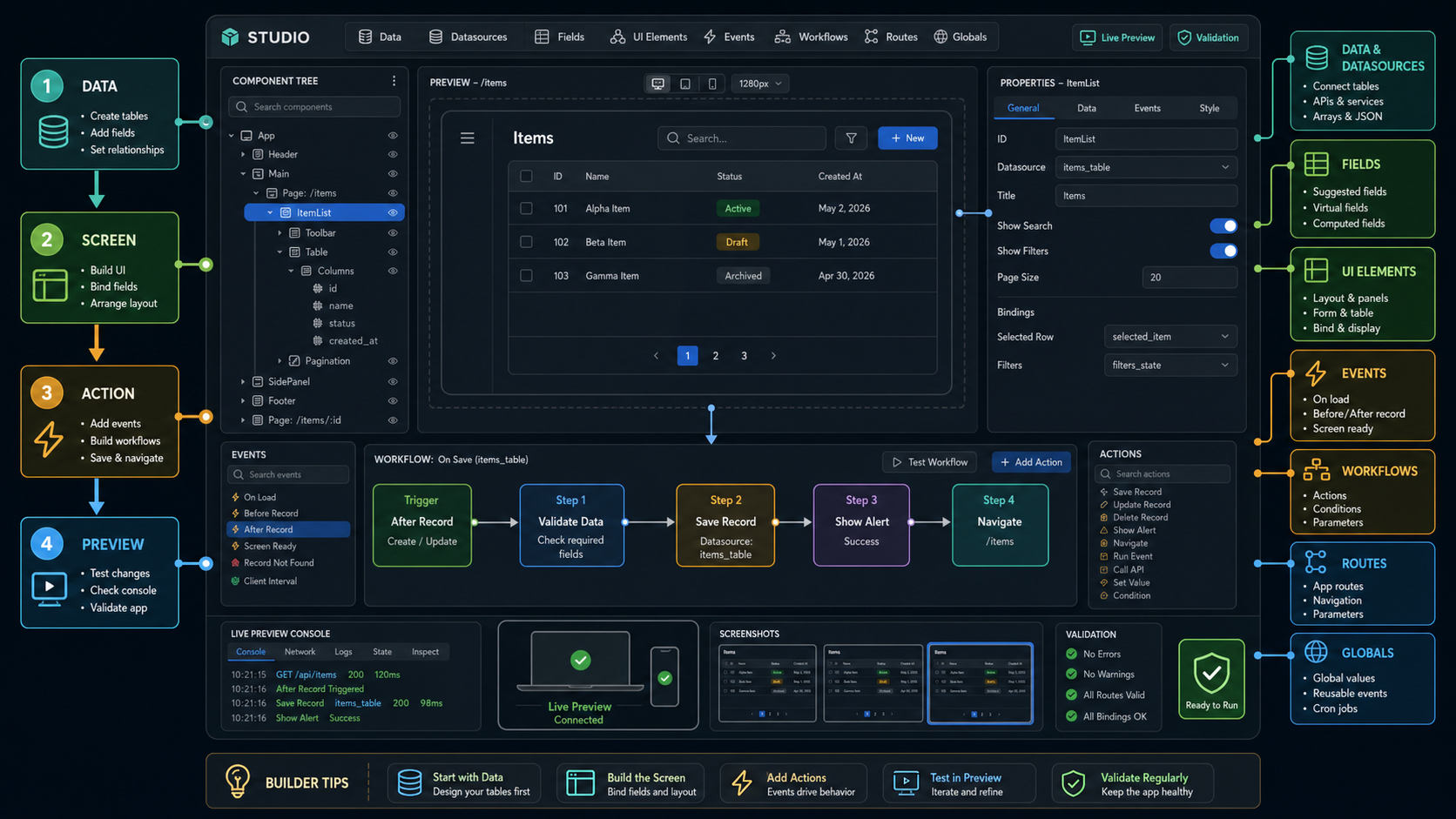
Use this visual as a quick reminder that most Xuda features work best when you connect the workspace, the data, the screen, and the next action instead of treating each area as separate.
Screenshot Gallery
Use this section to confirm that the screenshots are loading in your Markdown preview.
| Screen | Screenshot |
|---|---|
| Empty Globals fields | 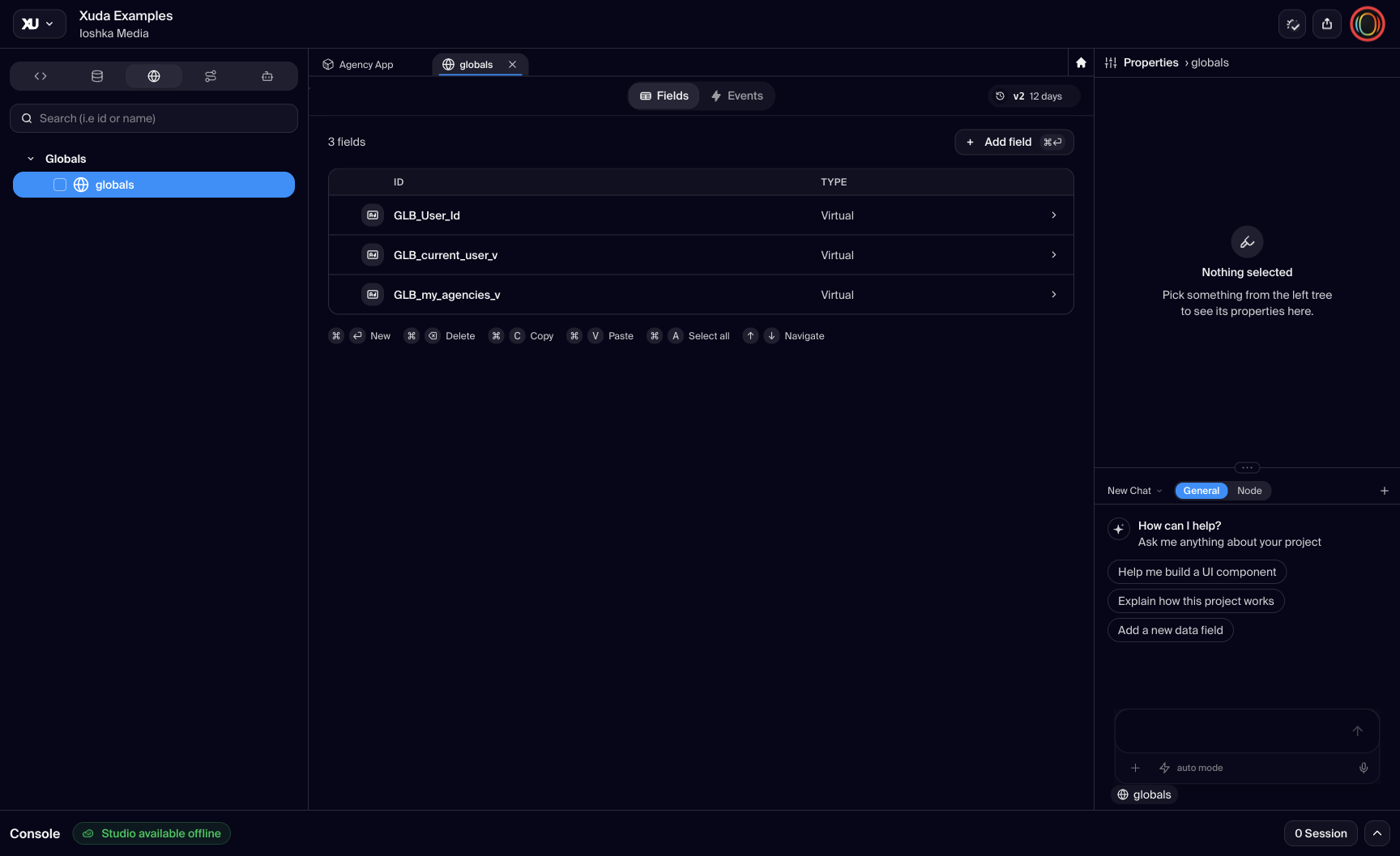 |
| Globals fields list | 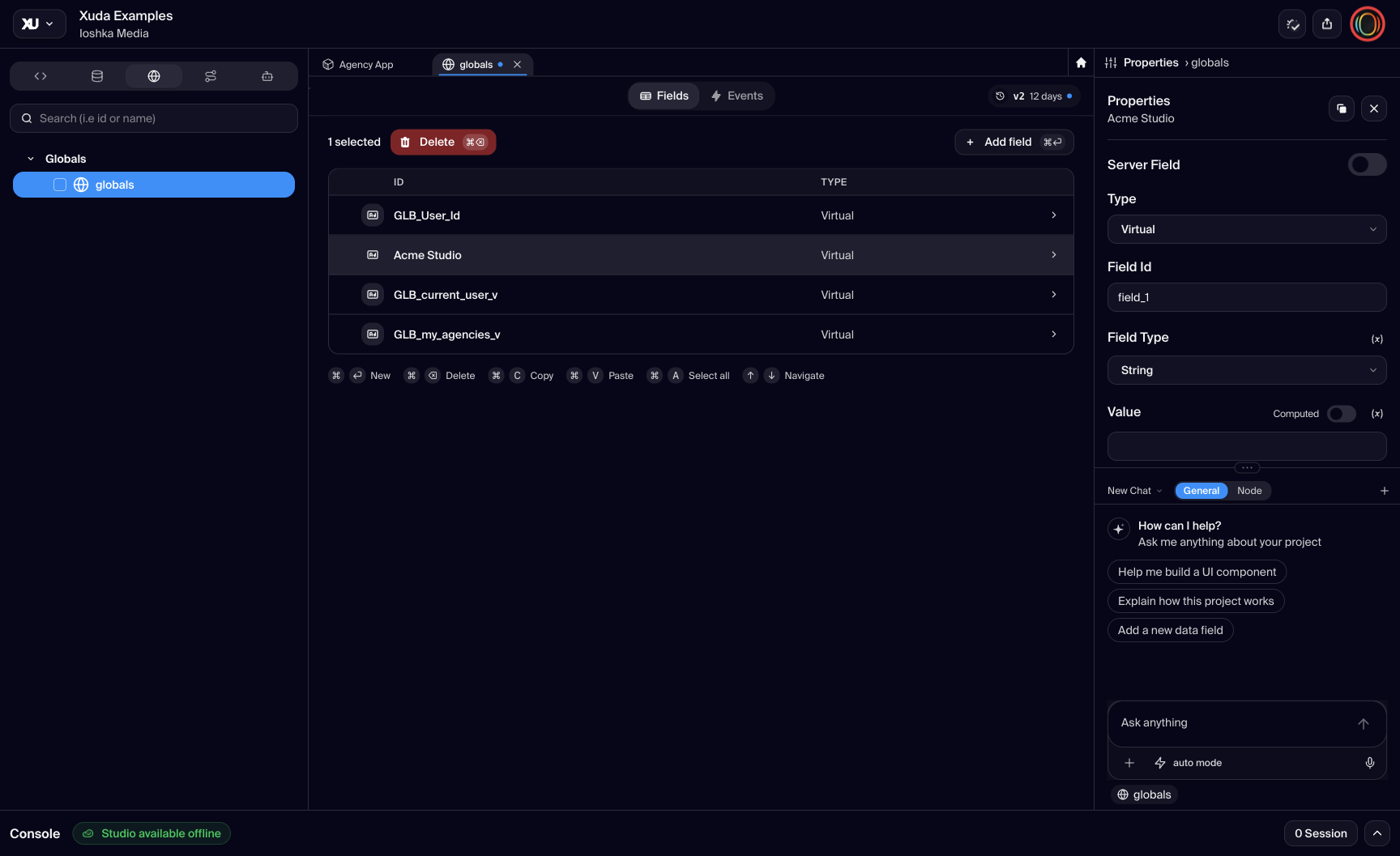 |
| Global field properties | 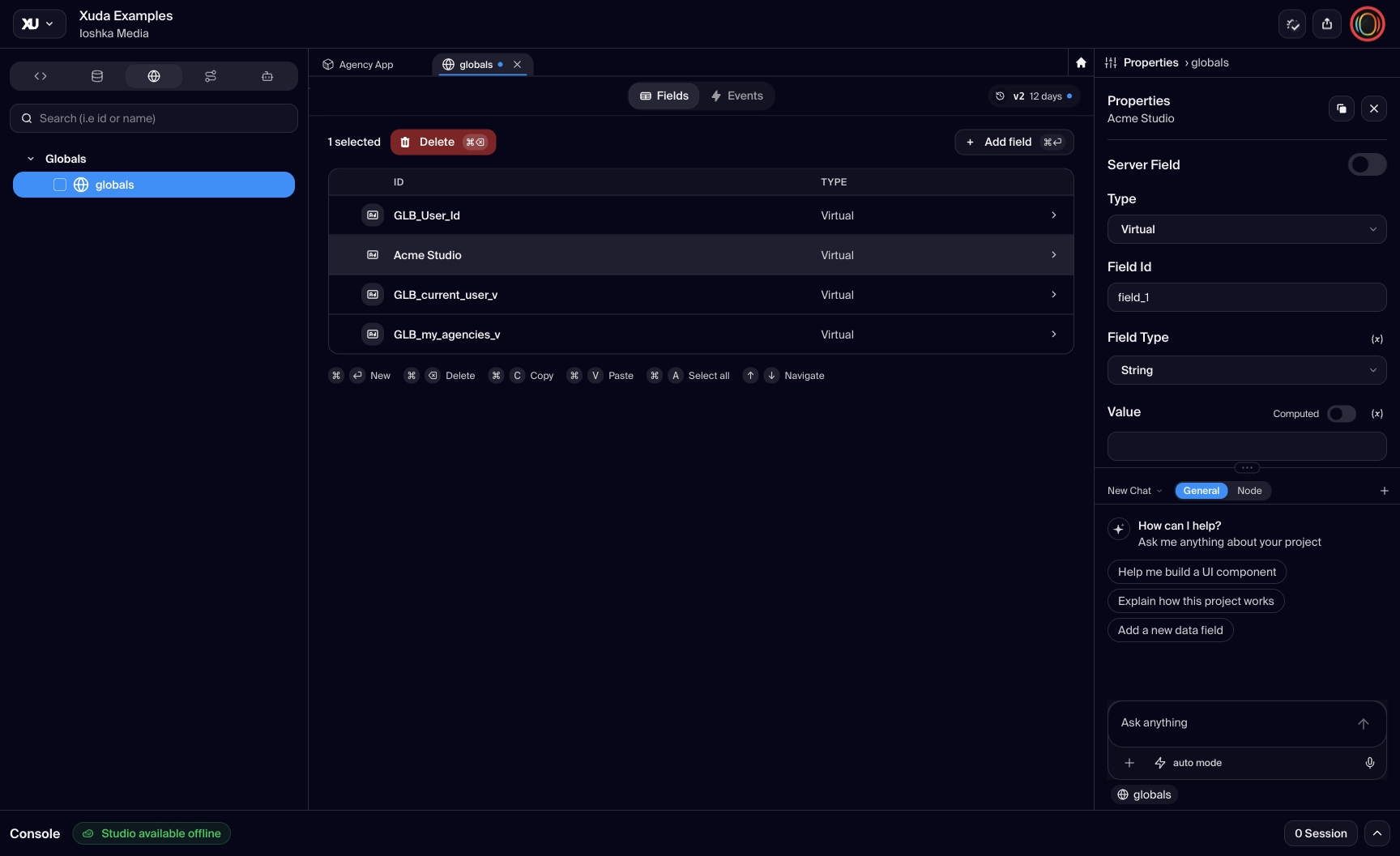 |
| Global field type menu | 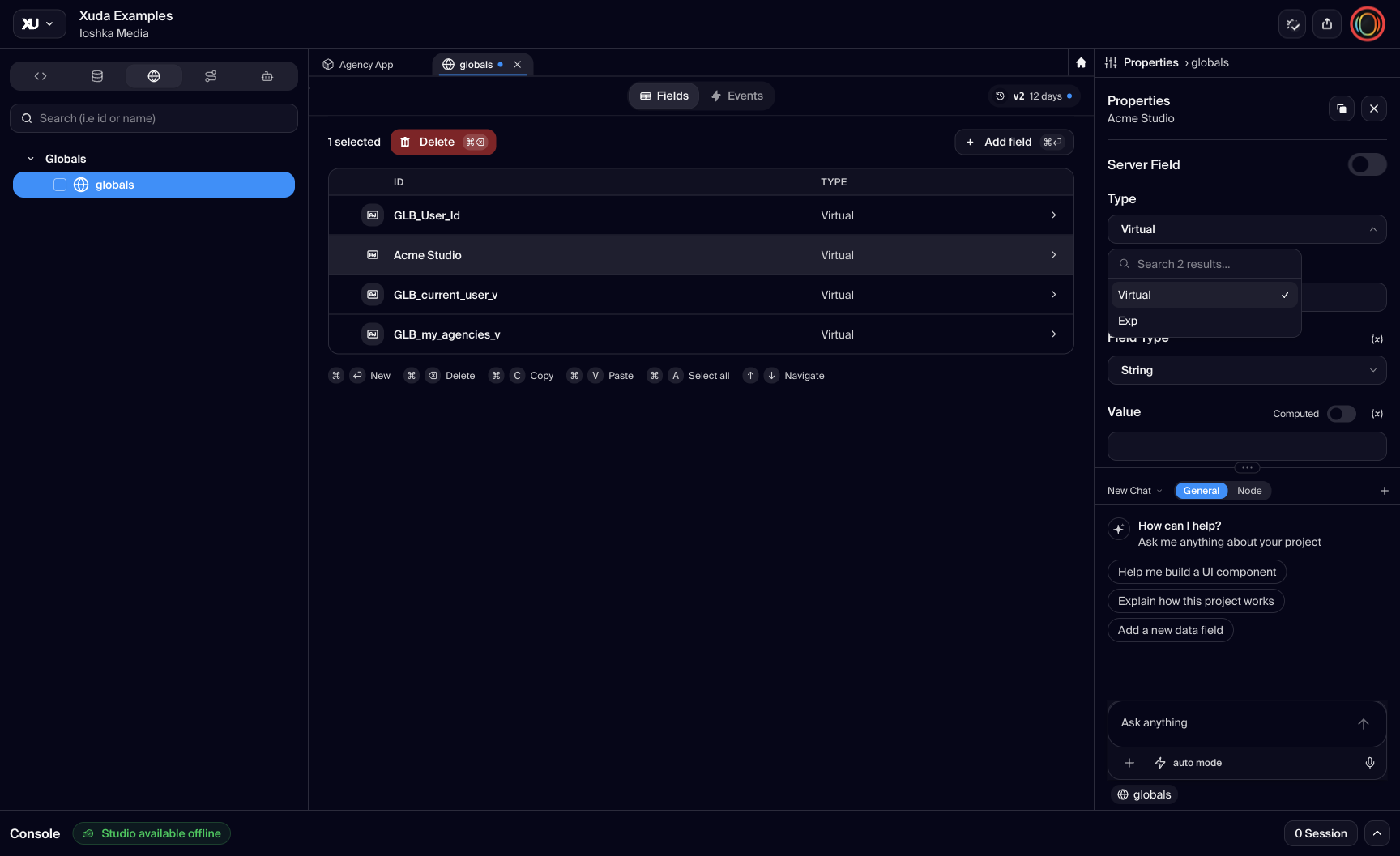 |
| Global value type menu | 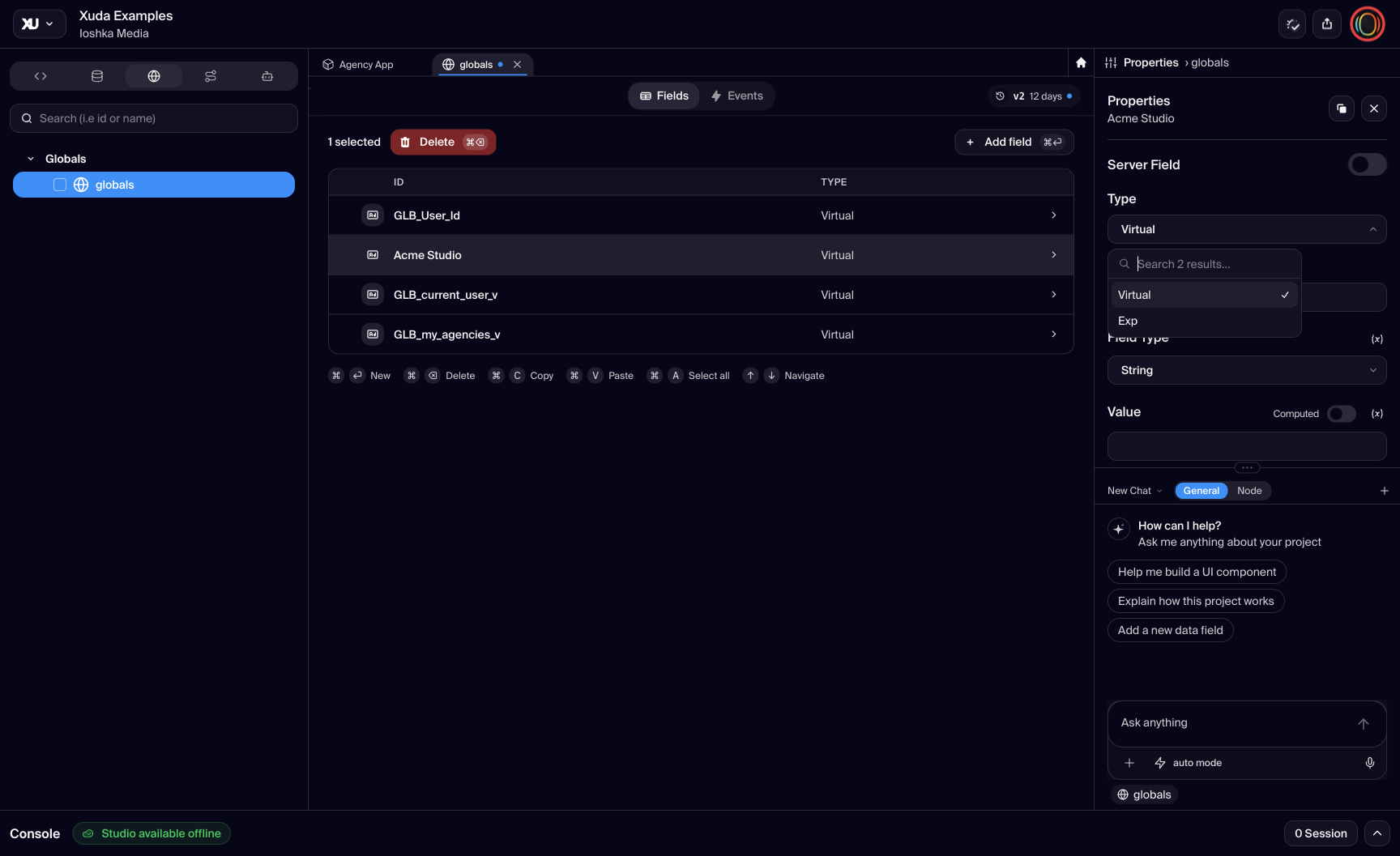 |
| Computed server field | 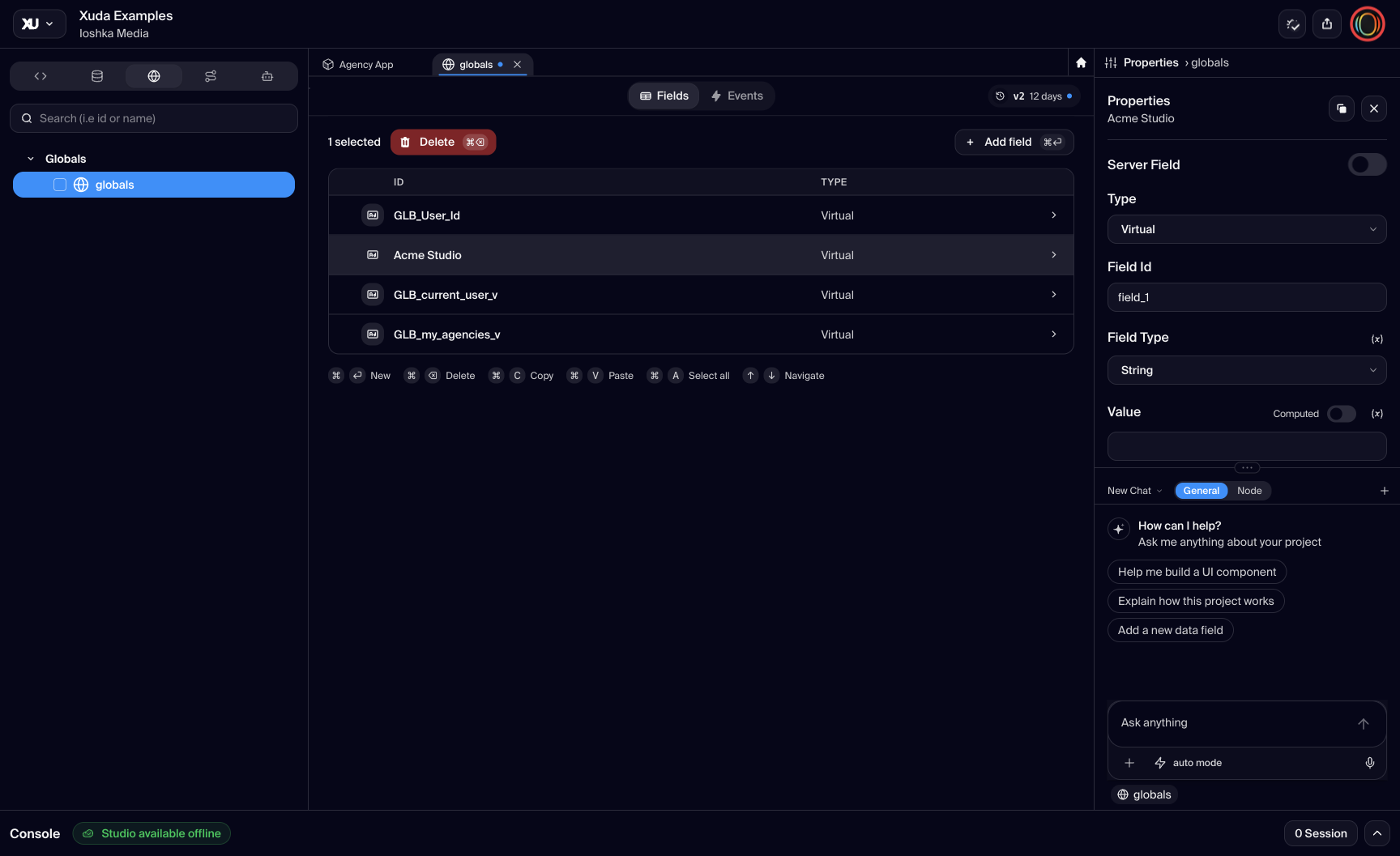 |
| Globals events list | 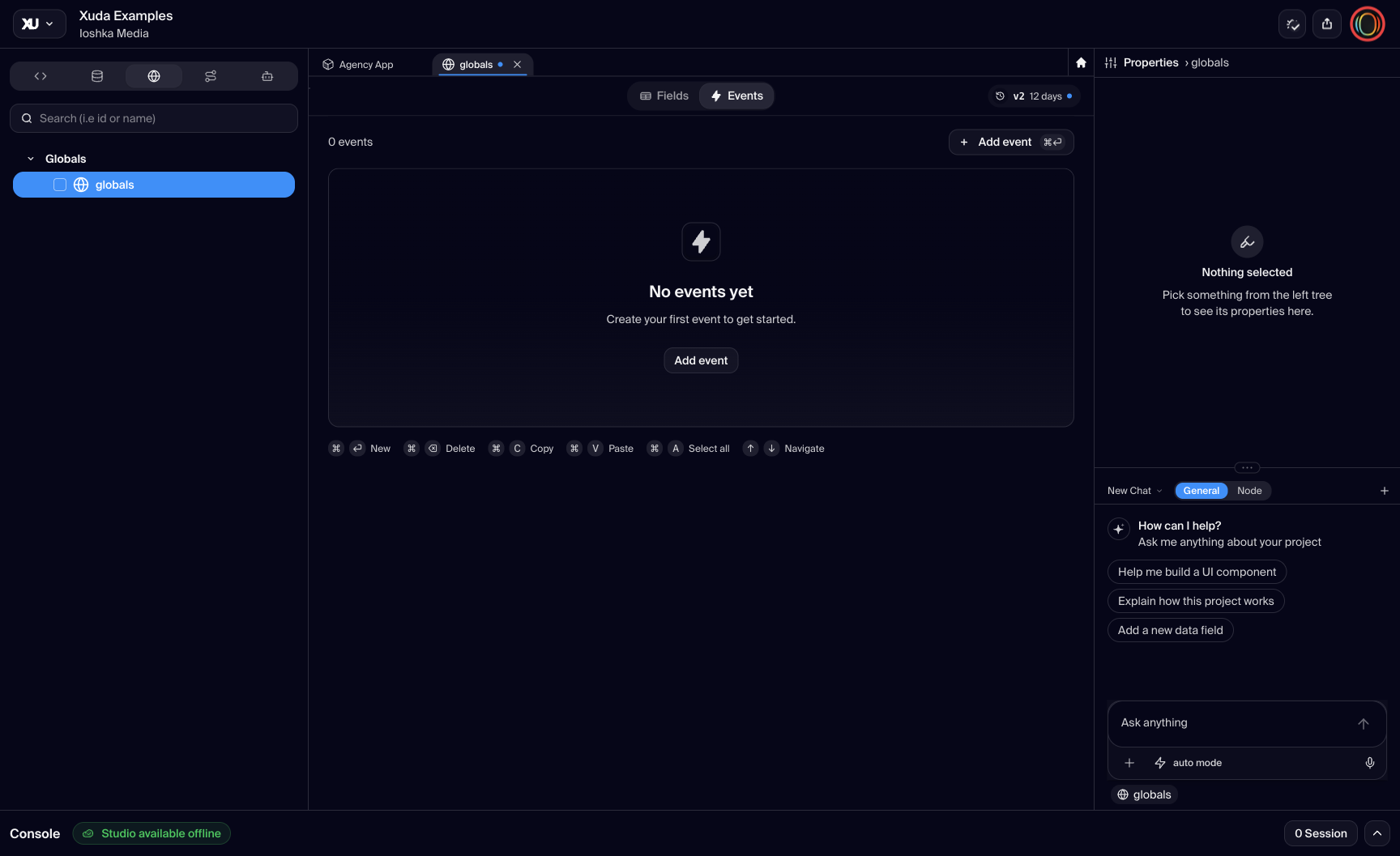 |
| Global event properties | 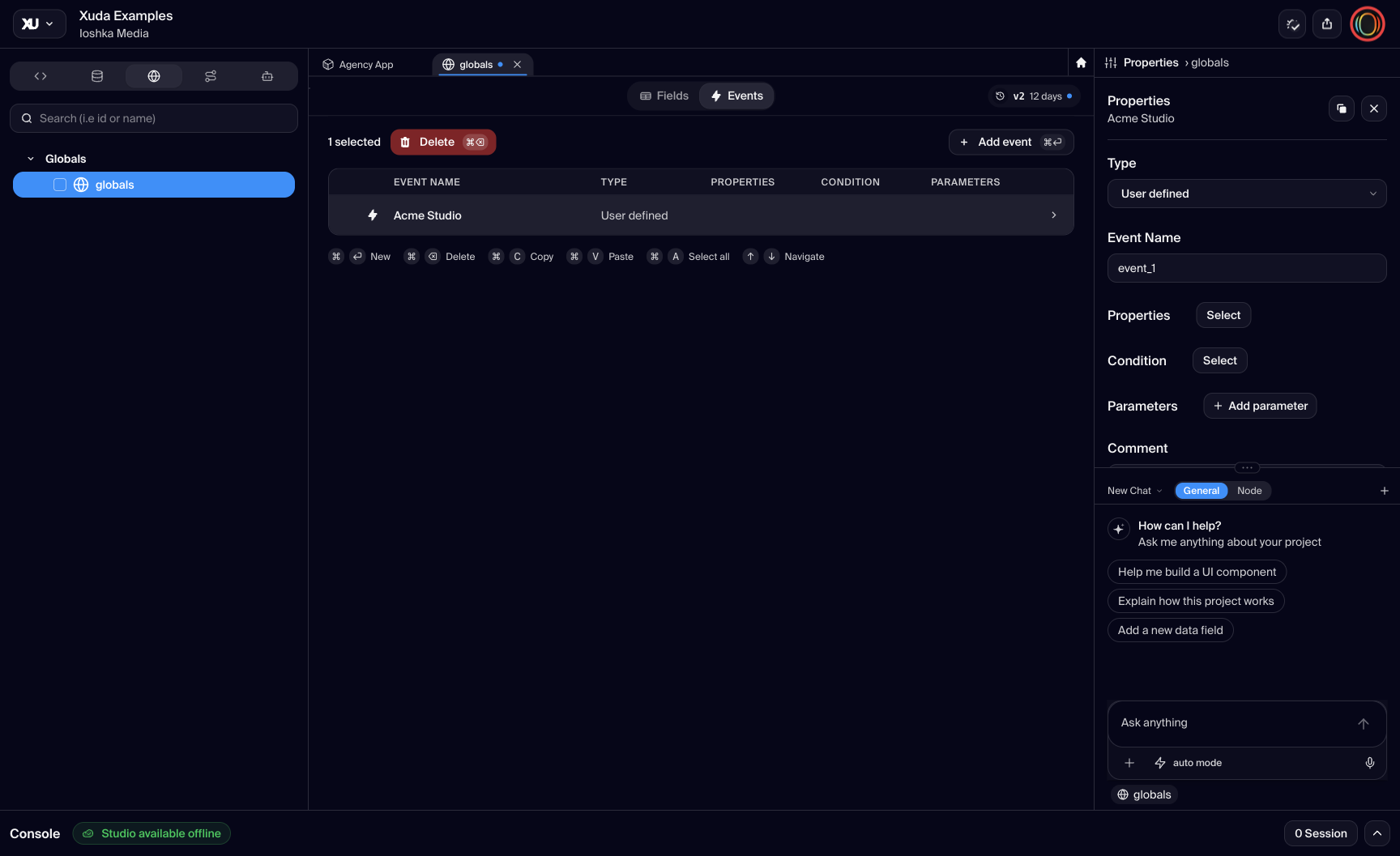 |
| Global event type menu | 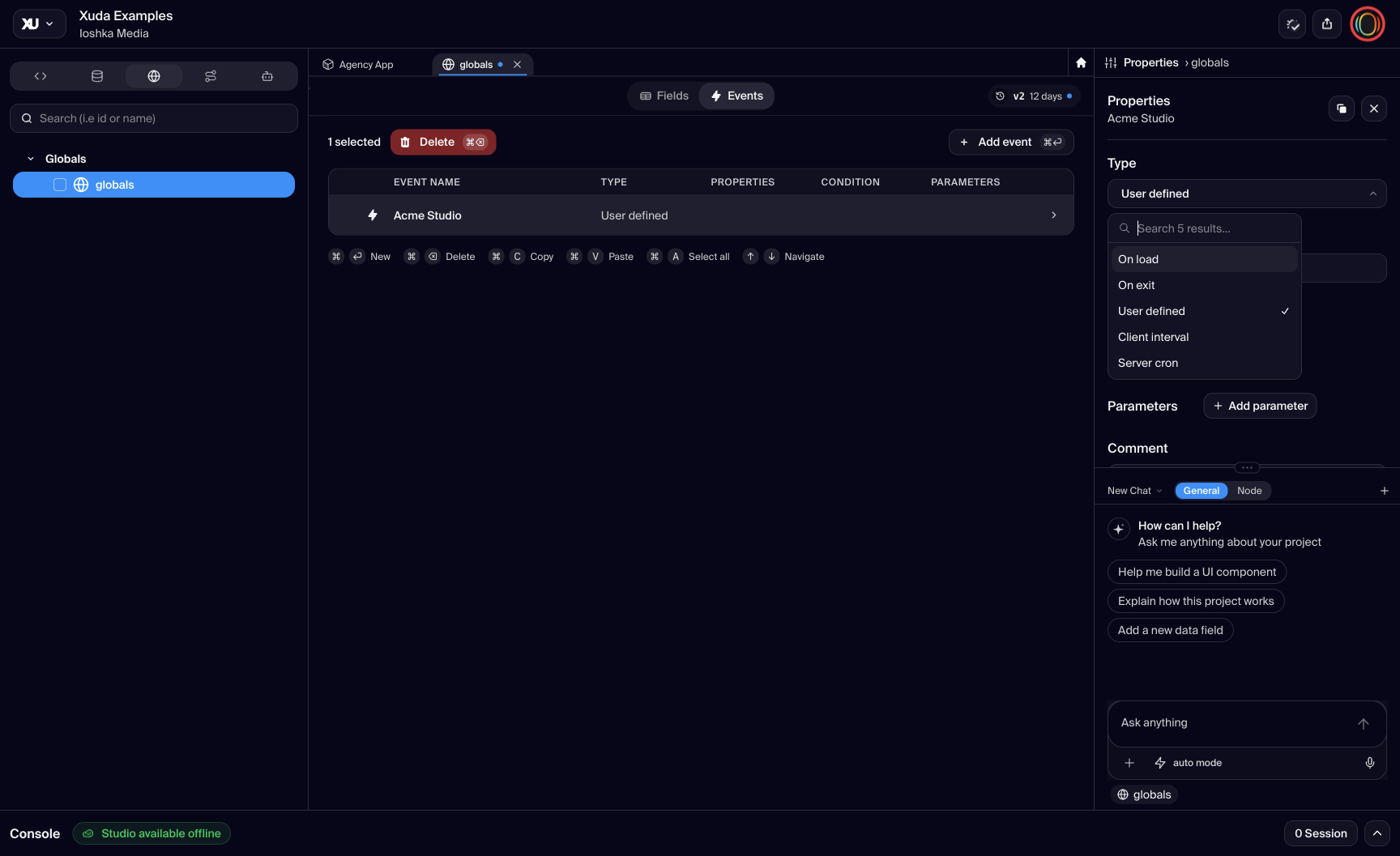 |
| Global workflow action menu | 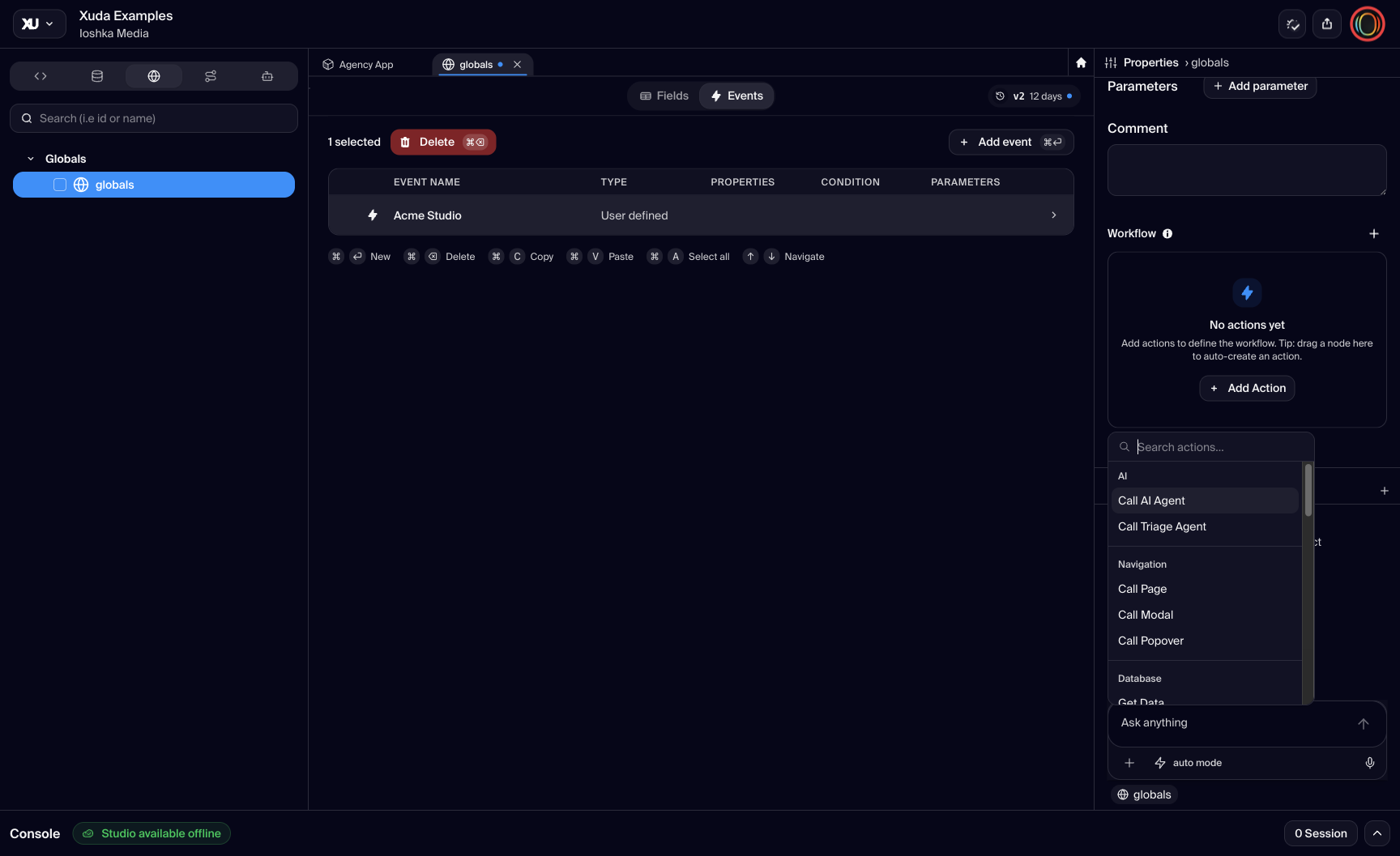 |
What Globals Do
Globals are shared values and shared behaviors for the whole app.
Use Globals when more than one component, route, workflow, or screen needs the same information or the same reusable action.
Result: instead of creating the same value in many places, you keep it once in Globals and reuse it across the app.
Where Globals Live
Globals has its own top-level section in the Studio tree.
When you open it, you work with two main tabs:
| Tab | What It Helps You Do | Result |
|---|---|---|
| Fields | Create shared values. | The app has common values that can be reused. |
| Events | Create shared behaviors. | The app has reusable workflows that can run from different places. |
Empty Globals
When there are no global fields yet, Studio shows an empty state and an Add field button.
Use this when you are setting up the first shared app value, such as a theme, support email, discount rate, current user setting, or app-wide option.
Result: Globals is ready to hold information that belongs to the whole app, not only one component.
Global Fields
Global fields are named shared values.
In the screenshot, the app has fields such as app_theme, discount_rate, and support_email.
Result: other parts of the app can refer to the same value by name.
Global Field Properties
Select a global field to edit what it represents.
Use the Properties panel to decide whether the value belongs on the server, what kind of global field it is, what name the app should use for it, what type of value it holds, and what starting value or comment it should have.
Result: the shared value becomes clear and ready to use elsewhere.
Global Field Type
The global field type describes how the value is produced.
| Type | Use It When | Result |
|---|---|---|
| Virtual | You want to store or reuse a normal shared value. | The app can use the value wherever it is needed. |
| Exp | The value should come from an expression. | The app can calculate the value instead of treating it as fixed text. |
Start with Virtual for most shared values. Use Exp when the value should be derived from a rule.
Value Type
The value type tells Studio what kind of information the global field holds.
| Value Type | Use It For |
|---|---|
| String | Text, names, labels, email addresses, themes, and status words. |
| Number | Prices, limits, counts, percentages, and rates. |
| Boolean | Yes or no choices and on/off settings. |
| Date | Dates, deadlines, schedules, and timestamps. |
| Object | A grouped value with several details inside it. |
| Array | A list of values. |
Result: Studio can treat the global value in a way that matches the information.
Server And Computed Globals
Use Server Field when the global value belongs to server-side work.
Use Computed when the value should be calculated instead of manually entered.
Result: Globals can support simple shared values and more advanced app-wide rules.
Global Events
Global events are shared workflows.
Use them when a behavior should be available across the app, such as refreshing shared values, preparing app-wide settings, running scheduled work, or handling a reusable action.
Result: the behavior lives once in Globals and can be reused from different places.
Global Event Properties
Select a global event to decide when it runs and what it does.
Use the Properties panel to name the event, choose its timing, pass values into it, add optional rules, and build its workflow.
Result: the global event becomes a reusable app behavior instead of only a row in the list.
Global Event Types
Globals supports event types that make sense at the app level.
| Event Type | Use It When | Result |
|---|---|---|
| On load | Shared setup should run when Globals loads. | App-wide values or behavior can be prepared early. |
| On exit | Shared cleanup should run when leaving. | The app can finish or clean up global work. |
| User defined | Another workflow should call this global event by name. | The behavior becomes reusable. |
| Client interval | Something should repeat while the app is open. | The app can refresh or check shared state on a timer. |
| Server cron | Something should run on a server schedule. | Global background work can run automatically. |
Use User defined for reusable behavior. Use Server cron for scheduled background tasks.
Global Workflows
The workflow area is where you decide what a global event actually does.
Use Add Action to choose the steps, such as navigation, database work, API work, setting data, calling another program, or adding a comment for context.
Result: the global event can perform real app-wide work.
Recommended Workflow
- Open Globals from the top-level Studio tree.
- Add shared values in the Fields tab.
- Give each global field a clear name.
- Choose the value type that matches the information.
- Use Computed only when the value should be calculated.
- Open the Events tab for reusable app-wide behavior.
- Use User defined events for actions that other workflows should call.
- Use Server cron only for scheduled background work.
- Keep Globals focused on values and behaviors that are truly shared.
Practical Tips
Use Globals for values that more than one component needs.
Avoid putting one-screen-only values in Globals.
Keep global field names simple and descriptive.
Use comments to explain why a global value exists.
Use global events for reusable behavior, not for every small button click.
Extra Feature Tips
- Store only shared app-level values in Globals; keep screen-only state inside the component that owns it.
- Use simple global field names because they appear in bindings and workflows across the app.
- Add comments when a global value exists for configuration, integration, or a special workflow rule.
- Use User defined global events for reusable behavior that multiple components should call.
- Use Server cron only for scheduled background tasks that do not depend on a visible screen.