
Xuda CLI User Guide
Xuda CLI User Guide
This guide explains Xuda CLI in a practical, getting-started way.
It is meant for people who want to understand what the CLI does, how a Xuda app is structured, and how to work in a project without getting lost in the generated runtime details.
If you want the deeper technical source afterward, use the raw CLI reference at website-static/xuda.io/src/technical-docs/raw/xuda-cli/README.md.
Feature Tips Map
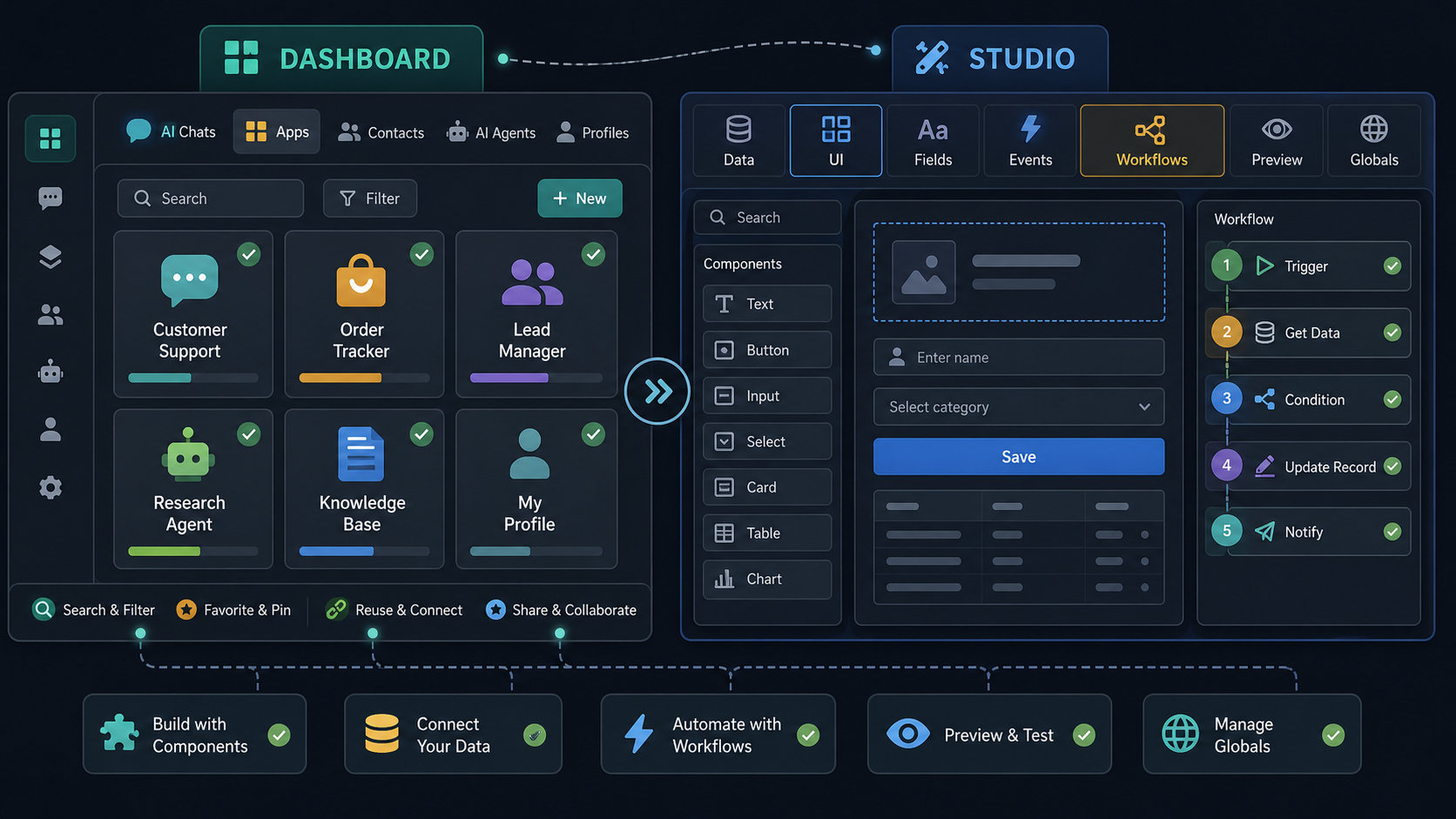
Use this visual as a quick reminder that most Xuda features work best when you connect the workspace, the data, the screen, and the next action instead of treating each area as separate.
Guide Purpose
Use this guide when you want to:
- understand what Xuda CLI is for
- know when to choose CLI instead of Slim
- learn the normal layout of a Xuda app project
- understand what
devandsyncactually do - know where to place UI, data, routes, tables, AI agents, and reusable logic
- avoid editing generated runtime output by mistake
The goal is simple: help you feel oriented inside a Xuda CLI project and know which part of the project owns which job.
What Xuda CLI Is
Xuda CLI is the local development CLI for Xuda app projects.
It helps you:
- create and run a Xuda app locally
- author the app in source files that are easier for humans to edit
- compile those files into the runtime document model that Xuda already understands
- serve the app locally while watching for source changes
- optionally sync app documents between local source files and the cloud
In plain language, Xuda CLI is the bridge between human-friendly source files and the runtime document format that the Xuda app actually runs.
What Xuda CLI Is Not
Xuda CLI is not:
- just a static file server
- just a build script
- a separate runtime from Xuda
- the same thing as Xuda Slim
Instead, it is a source compiler, local app host, and sync tool for full Xuda app projects.
When To Choose Xuda CLI
Choose Xuda CLI when the work feels like a real app rather than a small embedded page.
CLI is usually the better fit when:
- the project has multiple screens or feature areas
- the team wants a predictable source layout
- UI, tables, routes, and logic should live in named folders
- multiple contributors need a clearer project structure
- cloud sync matters
- the app will grow over time
When Slim Might Be Better
Choose Xuda Slim instead when the work is smaller and lighter.
Slim is usually the better fit when:
- the page is embedded in another site
- the UI is a small demo, widget, or microsite
- HTML is the main authoring surface
- you want the fastest path to a simple runtime page
If you want the Slim overview, use xuda-slim-user-guide.md.
The Core Mental Model
The easiest way to understand Xuda CLI is to think in layers.
| Layer | What It Does |
|---|---|
index.html |
Provides the page shell, metadata, and mount point. |
App.xu |
Defines the root Xuda screen for the app. |
source folders such as components/, data/, and tables/ |
Hold the app’s human-edited source files. |
| generated runtime docs | Hold the compiled runtime documents the browser actually reads. |
That is the big idea:
- humans edit the source files
- Xuda CLI compiles them
- the runtime uses the compiled output
The Three Most Important Files Or Areas
index.html
This is the outer document shell.
Use it for:
- page title
- meta tags
- favicons
- fonts
- external scripts when needed
- the root mount element
This file owns the browser document, not the app logic.
App.xu
This is the root Xuda screen.
Use it for:
- the main app UI
- root-level fields
- root actions and events
- top-level panels or layout structure
When people say "the app starts here," this is usually the file they mean.
Generated Runtime Docs
The generated runtime docs are the compiled output that Xuda reads at runtime.
The important rule is:
- edit your source files
- do not treat generated runtime output as the source of truth
That separation keeps the project predictable and avoids confusing round trips.
How Xuda CLI Works During Development
When you run the local development flow, Xuda CLI does several jobs for you:
- reads the project from the current directory
- parses the source files
- compiles them into runtime docs
- serves the app locally
- watches supported files and recompiles on save
This means you work in the source files while the CLI keeps the app runnable in the background.
The Main Commands
These are the commands most people care about first.
| Command | What It Does |
|---|---|
xuda-cli dev |
Compiles the project, serves it locally, and watches source files. |
xuda-cli sync |
Pulls remote docs, creates missing local source files, recompiles, and pushes local changes back when configured. |
xuda-cli --help |
Shows command help. |
Many projects expose the same workflow through npm scripts such as:
npm run devnpm run sync
What dev Means
dev is your normal day-to-day command.
Use it when you want to:
- run the app locally
- see changes as you edit
- work on UI, data units, routes, or resources
This is the command that turns the source project into a live local app.
What sync Means
sync is the bridge between local source and cloud project documents.
Use it when you need to:
- download cloud docs
- generate missing local source files from those docs
- recompile local source
- upload changed docs back to the cloud
This flow depends on project configuration such as api_key in xuda.config.js, but the key idea is simple: sync keeps local and remote project documents aligned.
The Standard Project Layout
This is the main project shape described by the CLI docs:
my-app/
  package.json
  xuda.config.js
  index.html
  App.xu

  components/
  globals/
  data/
    get/
    set/
    batch/
  apis/
  scripts/
  alerts/
  tables/
  routes/
  ai-agents/
You do not need to memorize every folder immediately. What matters most is understanding each folder’s responsibility.
What Each Main Folder Is For
| Folder | What Belongs There |
|---|---|
components/ |
Reusable UI screens, panels, widgets, and feature views. |
globals/ |
Shared app-wide state and cross-feature values. |
data/get/ |
Read-oriented data units. |
data/set/ |
Create, update, and delete data units. |
data/batch/ |
Record-by-record or bulk workflow units. |
apis/ |
API-style response units. |
scripts/ |
Reusable JavaScript helper logic. |
alerts/ |
Reusable toast, dialog, and feedback definitions. |
tables/ |
Table resources and schema metadata. |
routes/ |
Route and navigation resources. |
ai-agents/ |
AI agent resource definitions. |
Understanding components/
Use components/ for reusable UI.
Typical examples include:
- dashboards
- settings screens
- student lists
- profile panels
- feature-level views
Important rule:
- the root app belongs in
App.xu - reusable or feature screens belong in
components/
Understanding globals/
Use globals/ for shared state that multiple screens care about.
Good examples include:
- signed-in user information
- tenant or campus context
- feature flags
- shared preferences
- dark mode state
If a value only matters to one screen, it usually belongs in that screen instead of globals.
Understanding data/get, data/set, and data/batch
The data/ area is where logic units that work with data live.
data/get
Use this when you are reading data.
Examples:
- load rows from a table
- read a list for a dashboard
- fetch values for a panel
data/set
Use this when you are changing data.
Examples:
- create a record
- update a profile
- delete an item
data/batch
Use this when you are processing many records in a repeated flow.
Examples:
- run a workflow per row
- apply a cleanup task to a group of records
- trigger before-and-after record workflows
Understanding tables/
Use tables/ for the structured data model.
This folder usually contains:
- field definitions
- indexes
- table metadata
Keep tables explicit and predictable. If the app reads or writes structured records regularly, the table definitions should make those access patterns clear.
Understanding routes/
Use routes/ for navigation structure.
Routes describe:
- menu order
- launchable sections
- which programs belong to which navigation items
Routes do not replace UI state, but they give the app a stable navigation model.
Understanding apis/
Use apis/ for response-oriented units.
These are useful when you want:
- reusable data summaries
- response builders for external callers
- logic that should not live directly inside UI components
The important idea is that apis/ is about producing responses cleanly, not about rendering screens.
Understanding scripts/
Use scripts/ for reusable JavaScript logic.
This is the right place for:
- formatting helpers
- transformations
- small computation utilities
- named reusable logic that would be messy inline
This keeps complex logic visible and reusable instead of hiding it inside scattered component workflows.
Understanding alerts/
Use alerts/ for reusable user feedback definitions.
Good examples include:
- success toasts
- warning messages
- error dialogs
- reusable message patterns
This helps keep user messaging consistent across the app.
Understanding ai-agents/
Use ai-agents/ for AI agent resources.
This is where agent configuration lives, such as:
- agent identity
- purpose
- provider settings
- model settings
Keep the configuration focused. The agent resource should describe the assistant, while UI and workflow usage should live elsewhere in the app.
A Good First-Day Workflow
If you are new to a Xuda CLI app, this is a good order to follow:
- open
index.htmlto understand the page shell - open
App.xuto understand the root UI - look in
components/for feature screens - look in
globals/for shared state - check
routes/if the app has navigation structure - check
tables/anddata/to understand how data moves - run the local
devflow while editing source files
That sequence usually gives you the clearest view of how the app is put together.
Source-First Editing Rule
The most important habit in a Xuda CLI project is this:
- edit source files
- let the CLI generate runtime docs
Do not build your workflow around hand-editing generated runtime output.
The CLI is designed so source files stay readable for humans and the runtime docs stay machine-oriented for the app.
Plugin Model
Xuda CLI uses normal npm dependencies for plugins.
That means plugins are installed like regular packages rather than managed through a separate plugin subcommand.
Plugins are commonly used for things like:
- UI frameworks
- database behavior
- runtime extensions
SSR Modes
The CLI docs describe three SSR profiles:
| SSR Mode | Practical Meaning |
|---|---|
none |
Normal client-side rendering. |
first_page |
First-page server rendering with client takeover. |
full |
More complete SSR and hydration-friendly behavior. |
You do not need all three on day one, but it helps to know the project can scale into different render strategies.
Common Mistakes
These are the most common ways people get tangled up early.
Treating Generated Output As The Main Source
This makes the project harder to reason about and easier to break. Source files should stay the main editing surface.
Putting Root App UI In components/
The root app belongs in App.xu. components/ is for reusable or feature-level UI.
Mixing Shared State And Local Screen State
If everything goes into globals, the app becomes harder to reason about. Shared values belong in globals/; screen-specific values usually belong closer to the component.
Putting Data Logic Directly Into Every Screen
That can work for tiny experiments, but it gets messy quickly. Data units exist so reads, writes, and batch flows can stay more organized.
Using The Wrong Folder For The Job
When a project grows, folder discipline matters a lot. tables/, routes/, alerts/, apis/, and scripts/ each have a distinct purpose.
Helpful Local References
If you want to go deeper after this guide, these are the best next files:
Extra Feature Tips
- Keep human-edited source files as the source of truth and treat generated runtime docs as output.
- Use
App.xufor the root app surface andcomponents/for reusable or feature-level UI. - Put shared values in
globals/only when more than one part of the app truly needs them. - Keep data reads, writes, and batch flows in data-focused units instead of scattering them through every screen.
- Use
devfor everyday local iteration andsyncwhen local source and cloud documents need alignment.
Final Takeaway
Xuda CLI is the source-first way to build a full Xuda app locally.
If you remember one pattern, make it this:
index.htmlowns the page shellApp.xuowns the root app UI- source folders own the app structure
- the CLI compiles source into runtime docs
devis for everyday local worksyncis for local and cloud alignment