
Xuda Studio Events Workflow User Guide
Xuda Studio Events Workflow User Guide
This guide explains the Workflow area inside a component event in Xuda Studio.
It is written for non-technical users. It focuses on what workflow actions help you do and what result you should expect.
The screenshots are dark, full-screen captures from https://dev.xuda.ai/studio.
Feature Tips Map
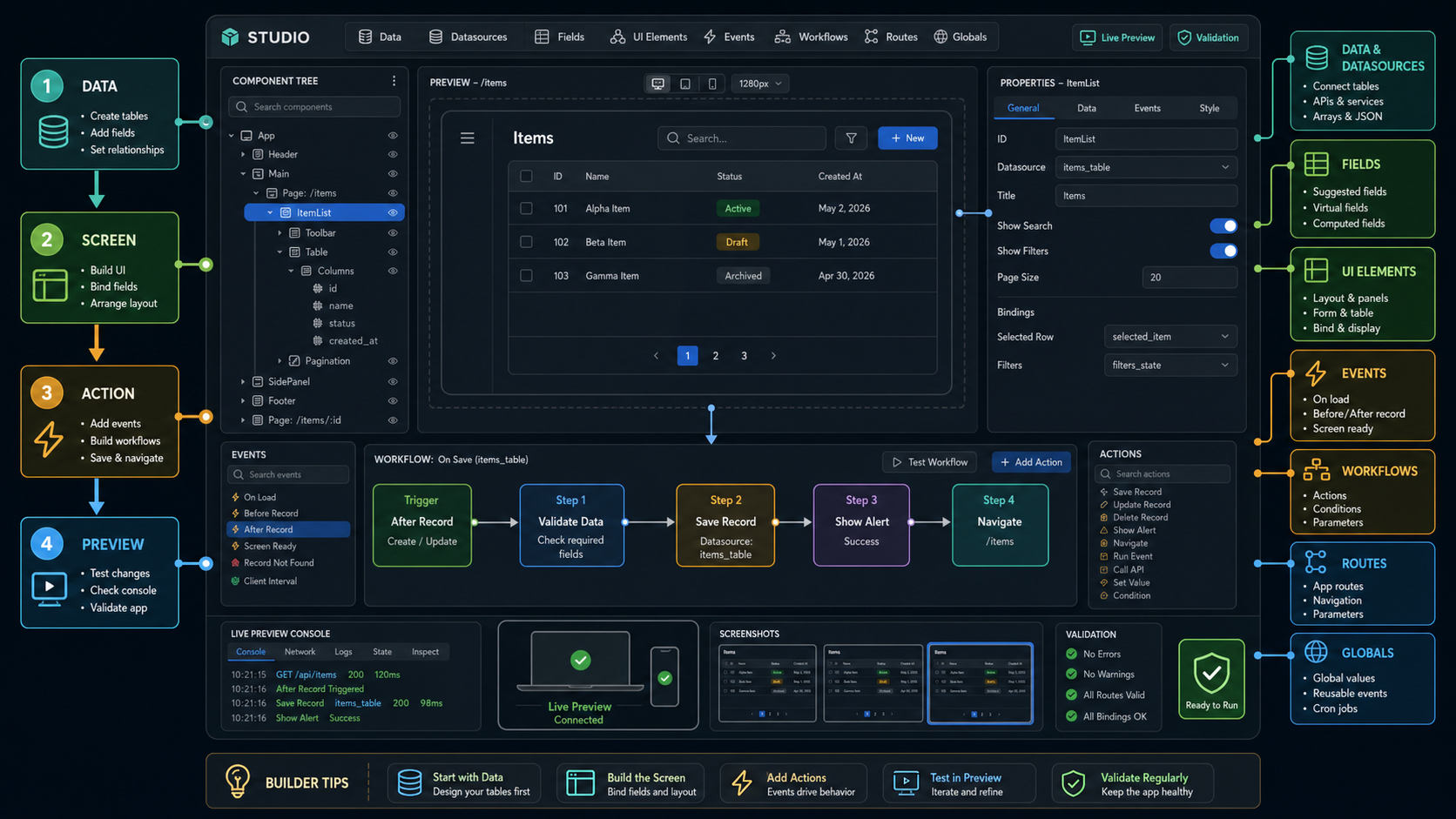
Use this visual as a quick reminder that most Xuda features work best when you connect the workspace, the data, the screen, and the next action instead of treating each area as separate.
Screenshot Gallery
Use this section to confirm that the screenshots are loading in your Markdown preview.
| Screen | Screenshot |
|---|---|
| Empty workflow | 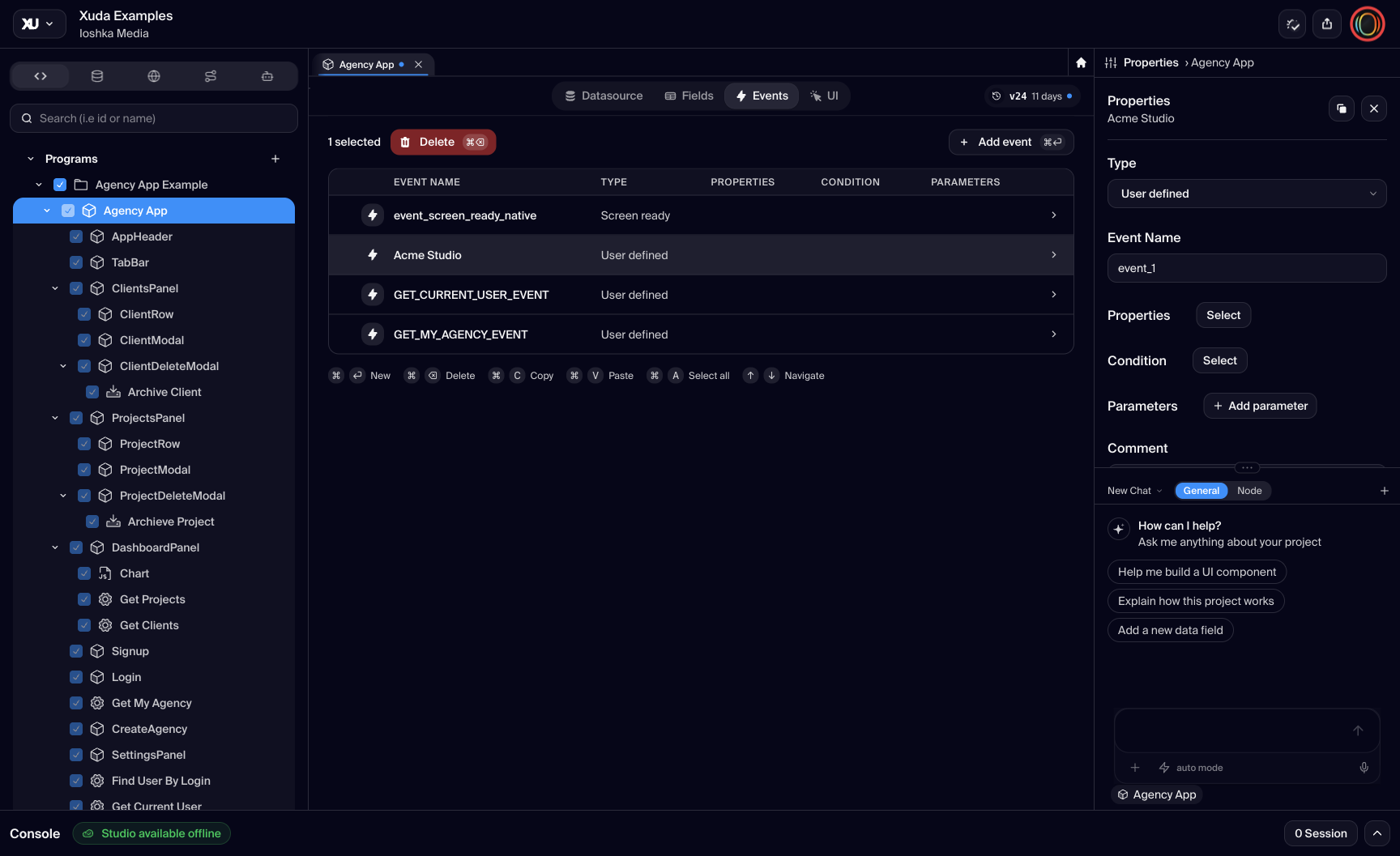 |
| Add action options | 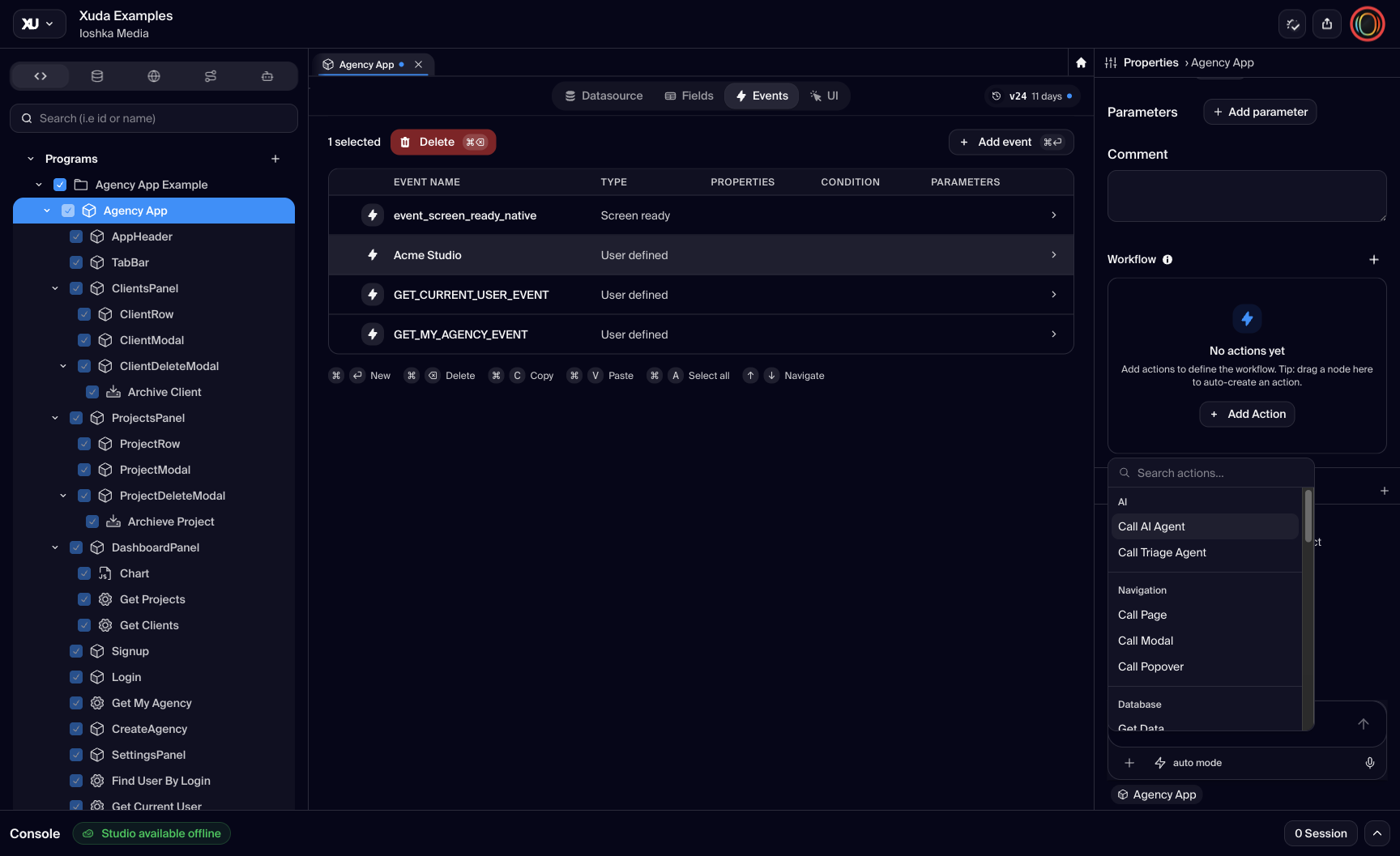 |
| One action | 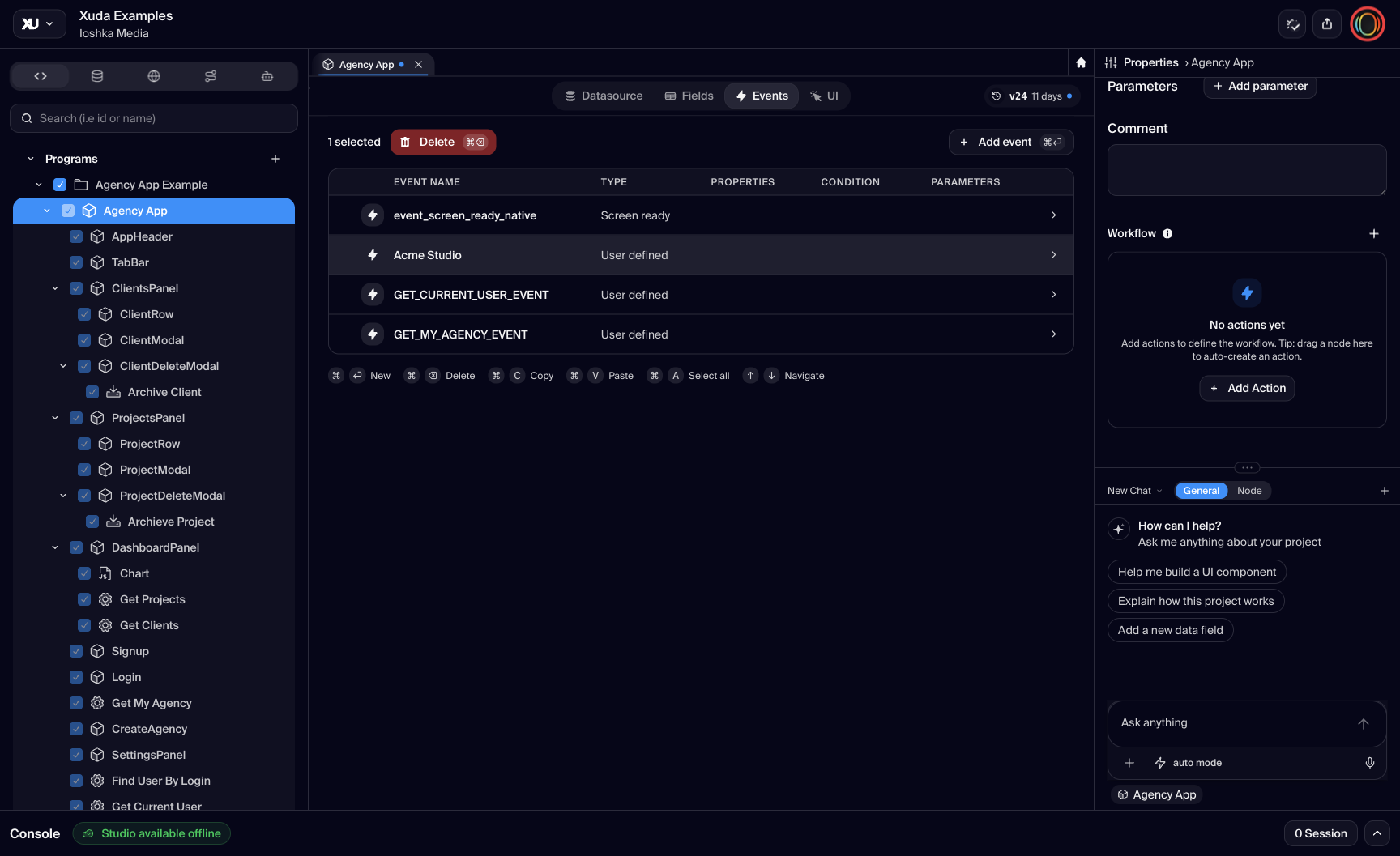 |
| Multiple actions | 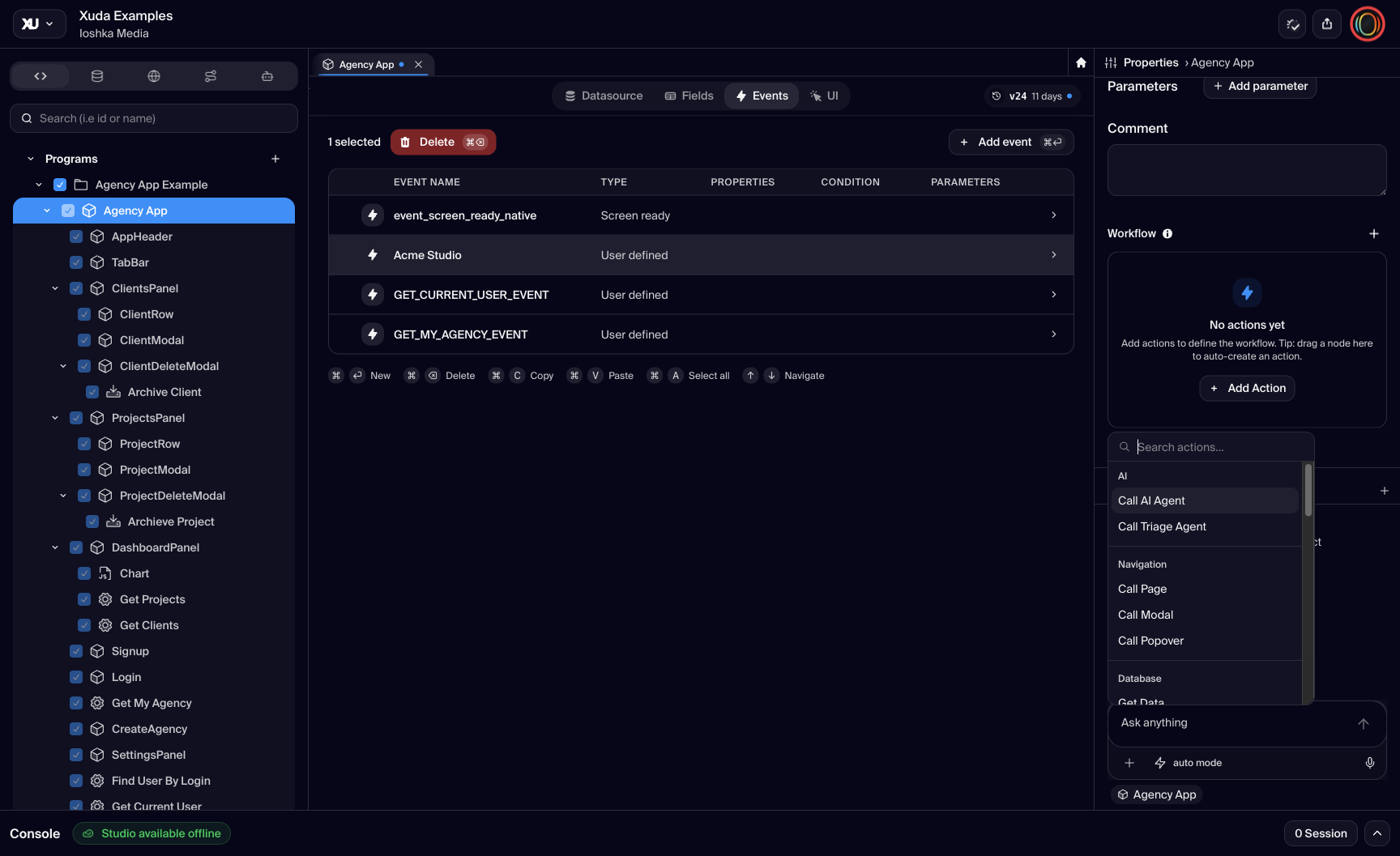 |
| Alert setup | 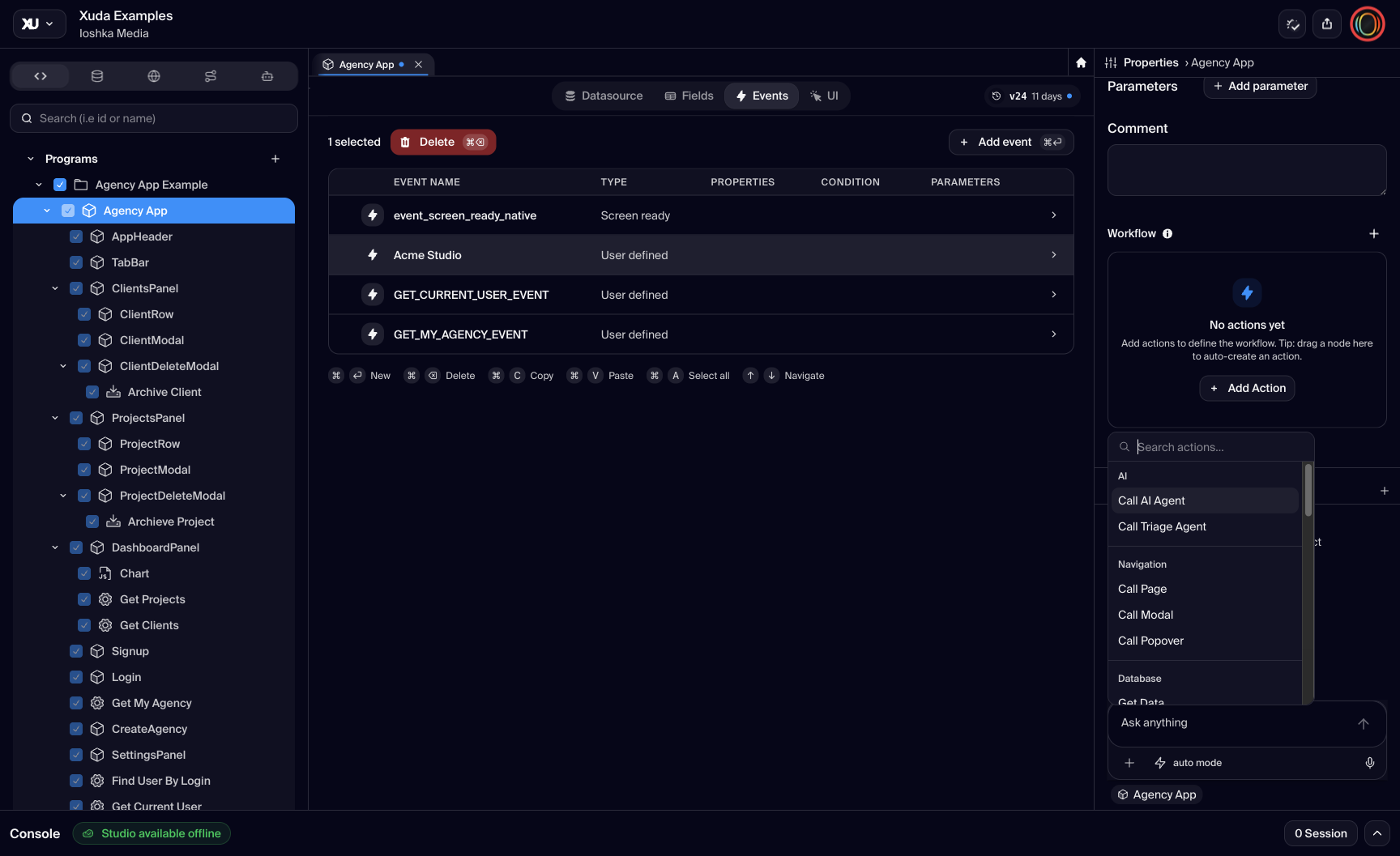 |
| Action condition result | 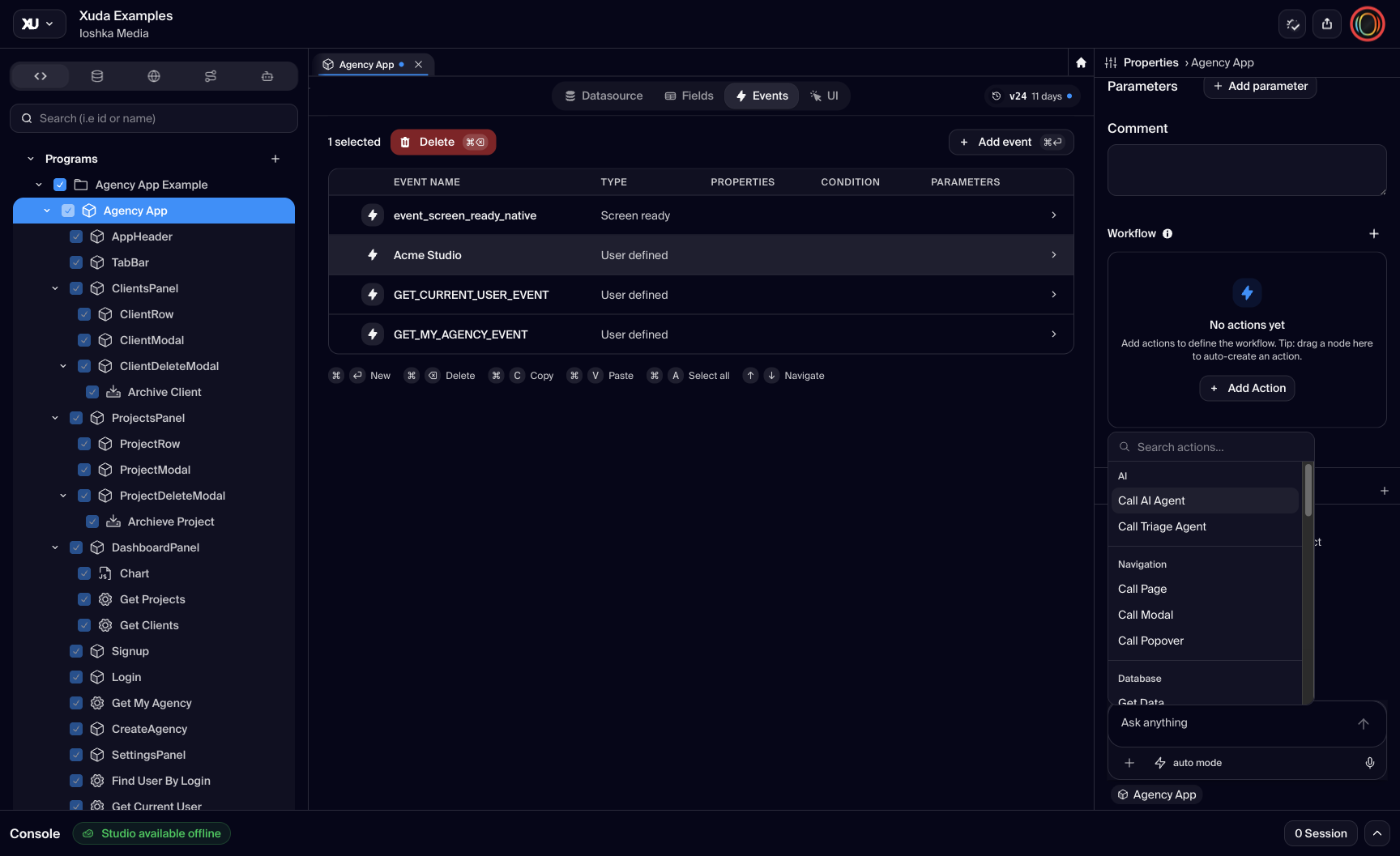 |
| Action context menu | 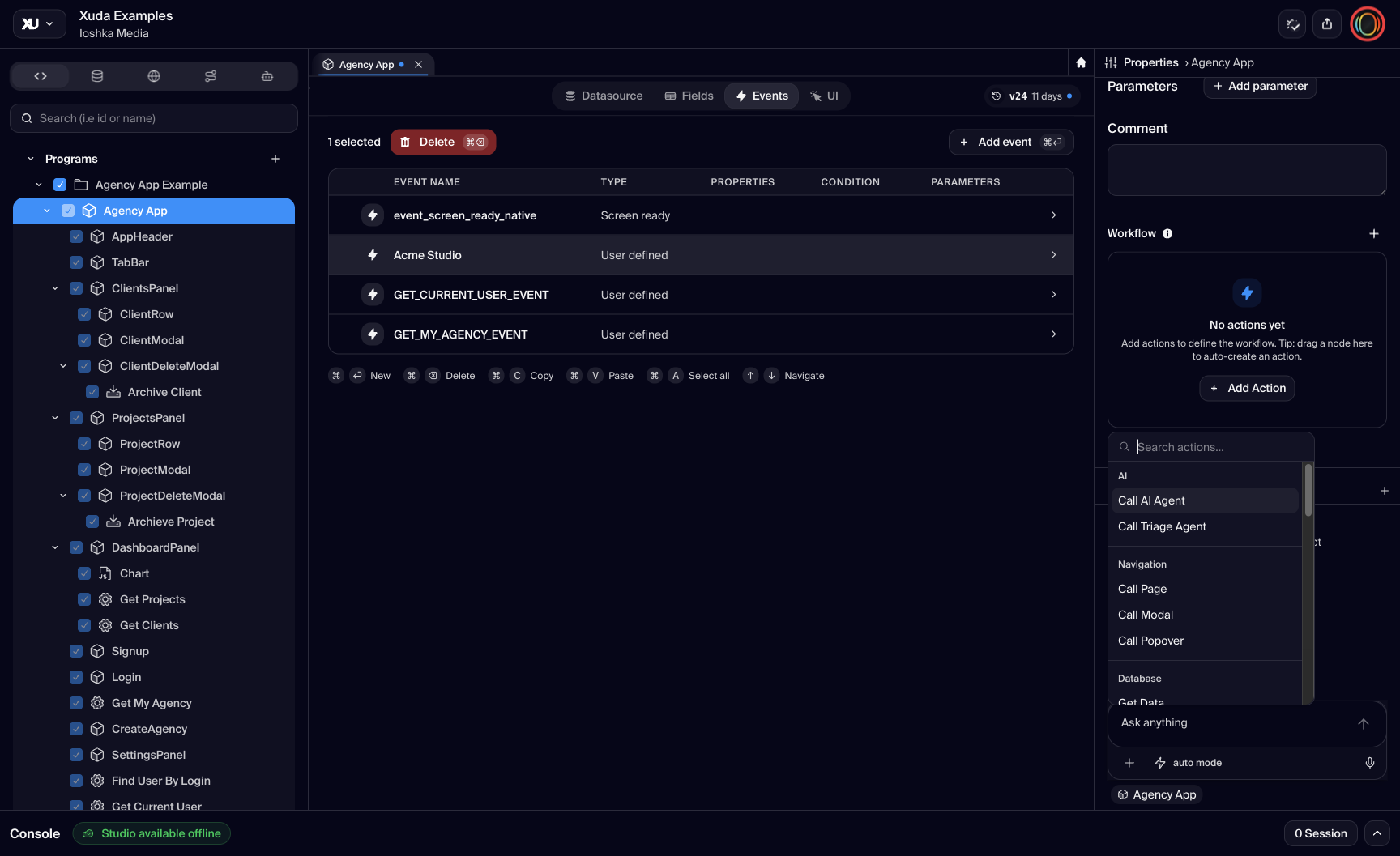 |
| Action condition expression | 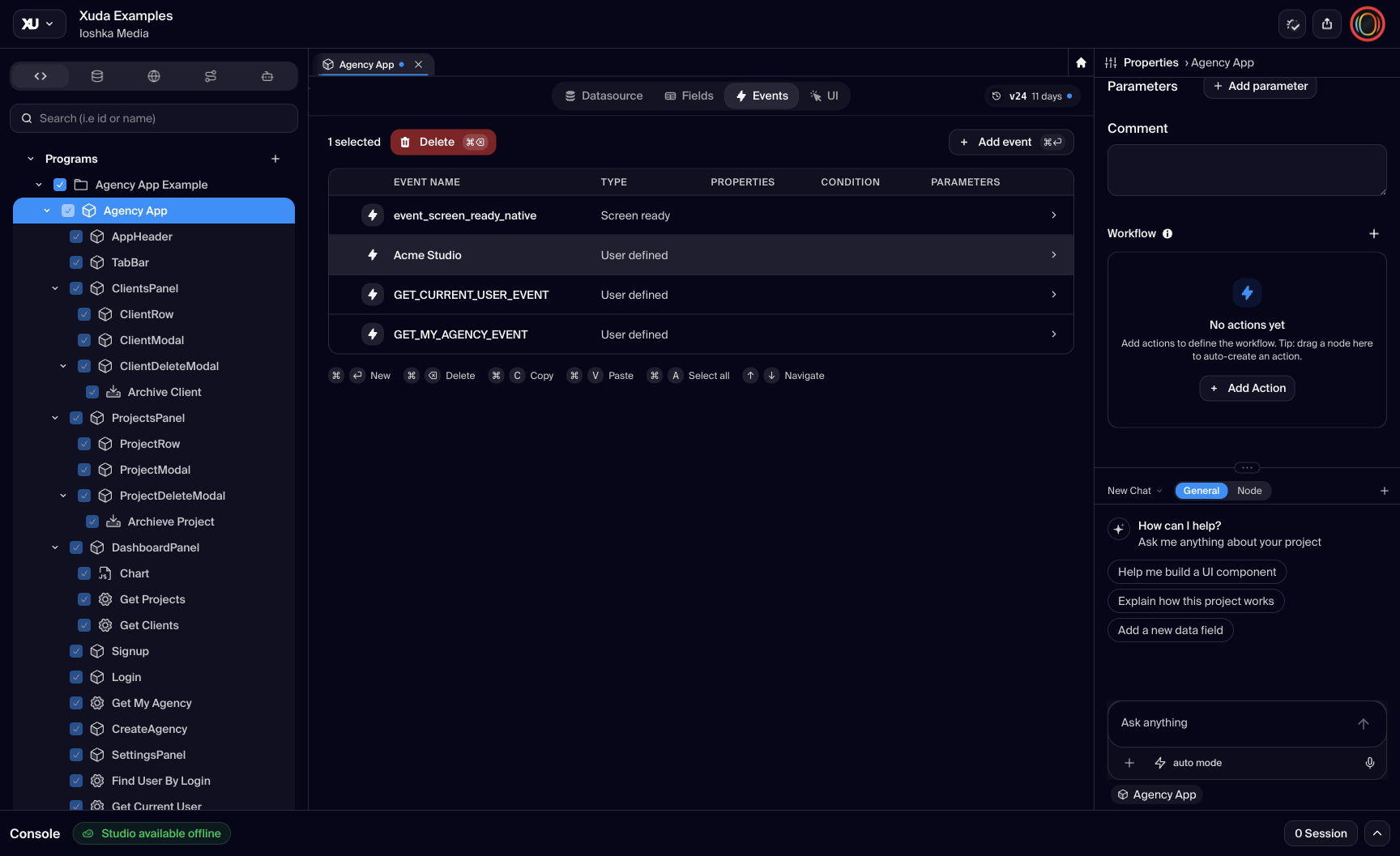 |
| Event parameters | 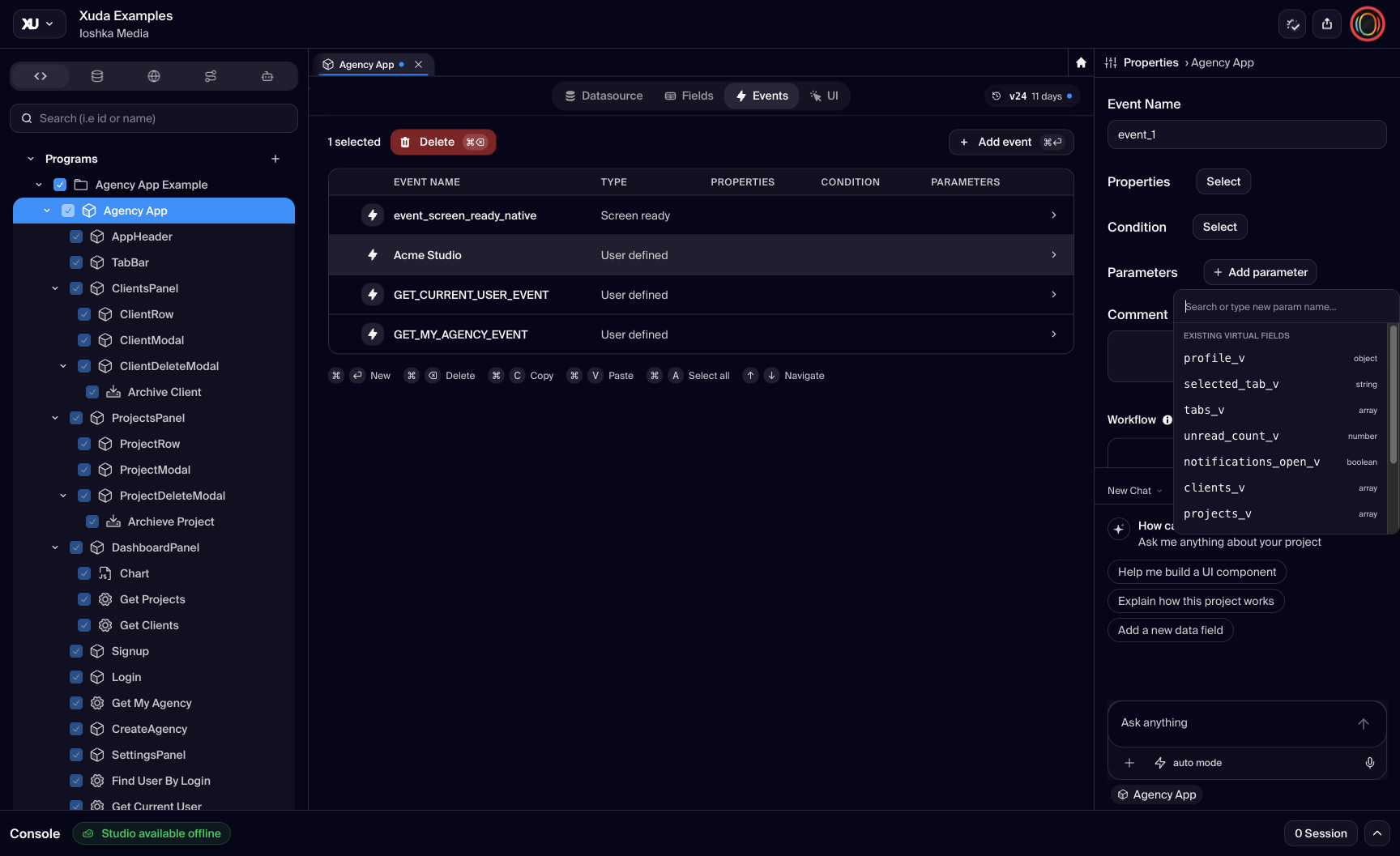 |
| Disabled action | 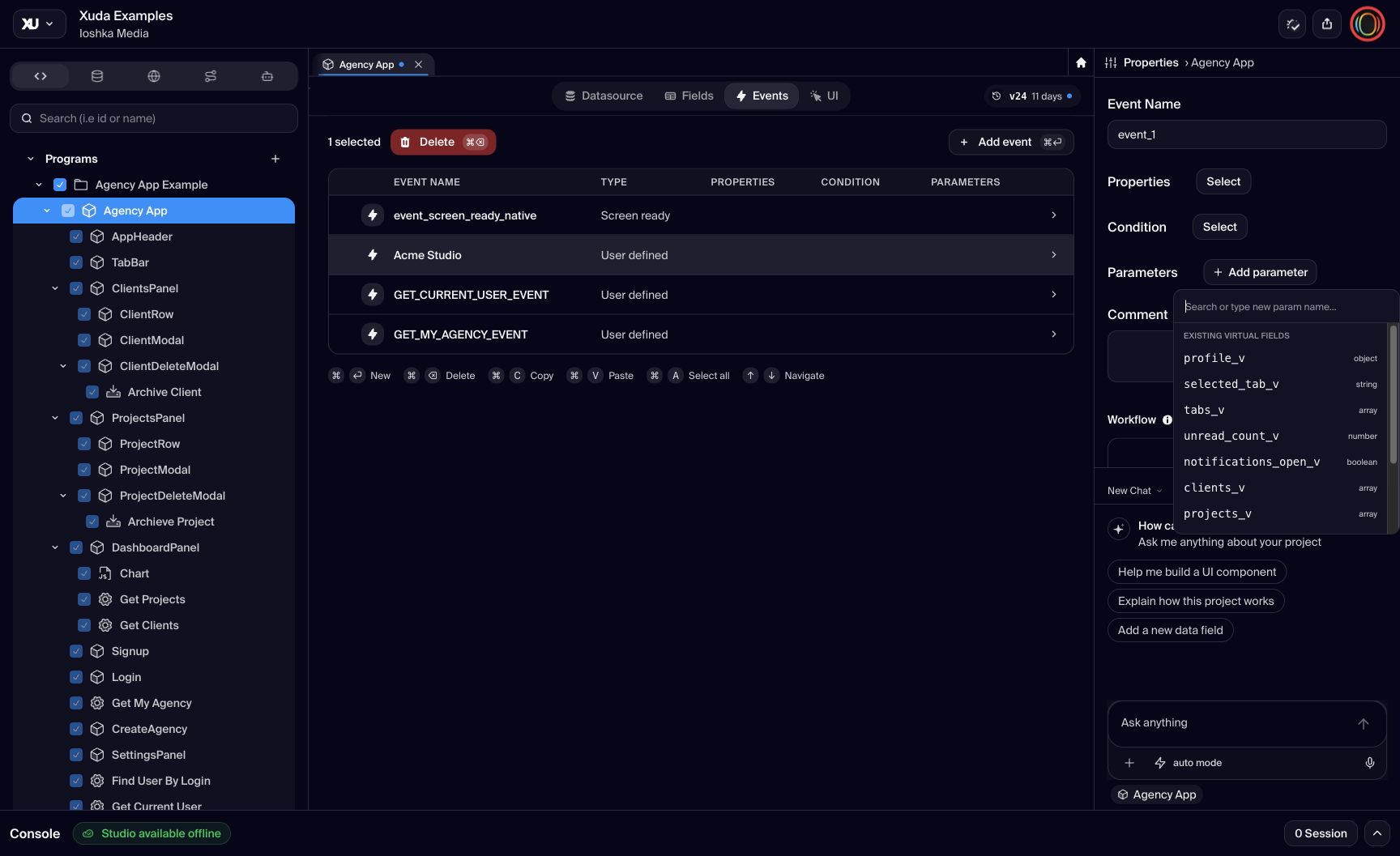 |
What The Workflow Does
The workflow is the list of actions that runs when an event happens.
The event decides when something happens. The workflow decides what happens next.
Result: a component can react automatically, such as showing a loader, refreshing data, raising another event, showing a message, or opening another screen.
Empty Workflow
When the workflow is empty, the event exists but does not do anything yet.
Use Add Action when the event should perform a step.
Result: the event is ready to become useful behavior.
Add Action Options
Choose Add Action to select what the event should do.
Actions are grouped by purpose:
| Group | What It Helps You Do |
|---|---|
| Navigation | Open pages, modals, or popovers. |
| Database | Get data, set data, or run a batch process. |
| JS | Run advanced custom behavior. |
| Event Handler | Raise events, emit events, invoke built-in actions, or wait. |
| UI Utils | Show alerts, turn loaders on or off, and manage feedback. |
| API | Call project, system, or external APIs. |
| Dataset | Update values used by the component. |
| Plugins | Call installed library features. |
| Custom | Add comments or notes to the workflow. |
Result: you can pick the kind of step the event should run.
One Action
After you choose an action, it appears in the workflow list.
Each action row shows the action type and the target or result of that action.
Result: the event now has one thing it will do when it runs.
Multiple Actions
A workflow can contain several actions.
Actions run in order from top to bottom. A common pattern is:
| Step | Purpose |
|---|---|
| Loader On | Show the user that work has started. |
| Update | Change a value in the component. |
| Raise Event | Trigger another reusable event. |
| Alert | Tell the user what happened. |
| Loader Off | Hide the loader when the work is done. |
Result: the event can perform a complete sequence instead of only one small task.
Action Setup
Some actions need extra setup.
For example, an Alert action lets you choose how the message appears and what kind of message it is.
Result: the workflow action can behave in the way the user expects.
Action Conditions
An action can have its own condition.
Use this when only one step should be conditional, while the rest of the workflow can continue normally.
Result: the workflow can make simple decisions without needing a separate event.
Action Context Menu
Right-click an action to open its context menu.
| Option | What It Helps You Do | Result |
|---|---|---|
| Delete | Remove an action from the workflow. | The step no longer runs. |
| Copy | Reuse an action as a starting point. | The next paste can duplicate the step. |
| Paste | Add a copied action into the workflow. | The copied step appears in the list. |
| Parameters | Pass values into a called event or program. | The target receives the information it needs. |
| Condition | Run this action only when a rule is true. | The step becomes conditional. |
| Open in new tab | Open the linked target for review. | You can inspect the called item directly. |
| Async | Let the action run without blocking the rest of the workflow. | Later actions can continue while this one works. |
| Watch | Keep attention on this action during the session. | Studio can help you follow the action while working. |
Use the context menu when you need to refine, duplicate, condition, or monitor a workflow step.
Condition Expression
The Condition option opens a rule editor for the action.
Use it when an action should only run in a specific situation, such as when a selected record exists or when a status value matches what you expect.
Result: the action runs only when its condition is satisfied.
Parameters
Parameters pass information from the current workflow into another event or program.
Use parameters when the next step needs values such as a contact id, email address, selected record, or current status.
Result: the called event or program receives the right values and can act on them.
Disabled Actions
Use the checkbox on an action row to temporarily disable that action.
This is useful when testing a workflow one step at a time.
Result: the action stays in the workflow, but Studio skips it until you enable it again.
Recommended Workflow Patterns
For loading data:
| Step | Result |
|---|---|
| Loader On | The user sees that work is happening. |
| Get Data | The component retrieves information. |
| Update | The component stores or prepares the result. |
| Loader Off | The screen returns to normal. |
For saving:
| Step | Result |
|---|---|
| Loader On | The user sees that saving has started. |
| Set Data | The record is saved or updated. |
| Alert | The user gets success or error feedback. |
| Loader Off | The save process finishes cleanly. |
For reusable behavior:
| Step | Result |
|---|---|
| Raise Event | Another named event runs. |
| Parameters | The called event receives the values it needs. |
| Alert or Update | The screen reflects the outcome. |
Practical Tips
Keep workflows short and clear.
Use one event for one main moment, and one workflow for the actions that belong to that moment.
Put loader actions around steps that may take time.
Use conditions when only one action should sometimes run.
Use parameters whenever a called event or program needs to know what record or value it should work with.
Disable actions while testing instead of deleting them.
Extra Feature Tips
- Put loader actions around steps that fetch, save, or call outside services.
- Use conditions to keep optional actions inside the same workflow without making them run every time.
- Pass parameters when a reusable event needs a record id, value, mode, or source component.
- Disable uncertain actions while testing so you can compare behavior without rebuilding them.
- Keep workflow names and comments practical enough that another builder can follow the chain later.