
Xuda Dashboard Project API User Guide
Xuda Dashboard Project API User Guide
This guide explains the API tab inside a Xuda dashboard project.
Guide Purpose
Use this tab when you want to review API activity, manage API keys, or inspect API-specific logs for the project.
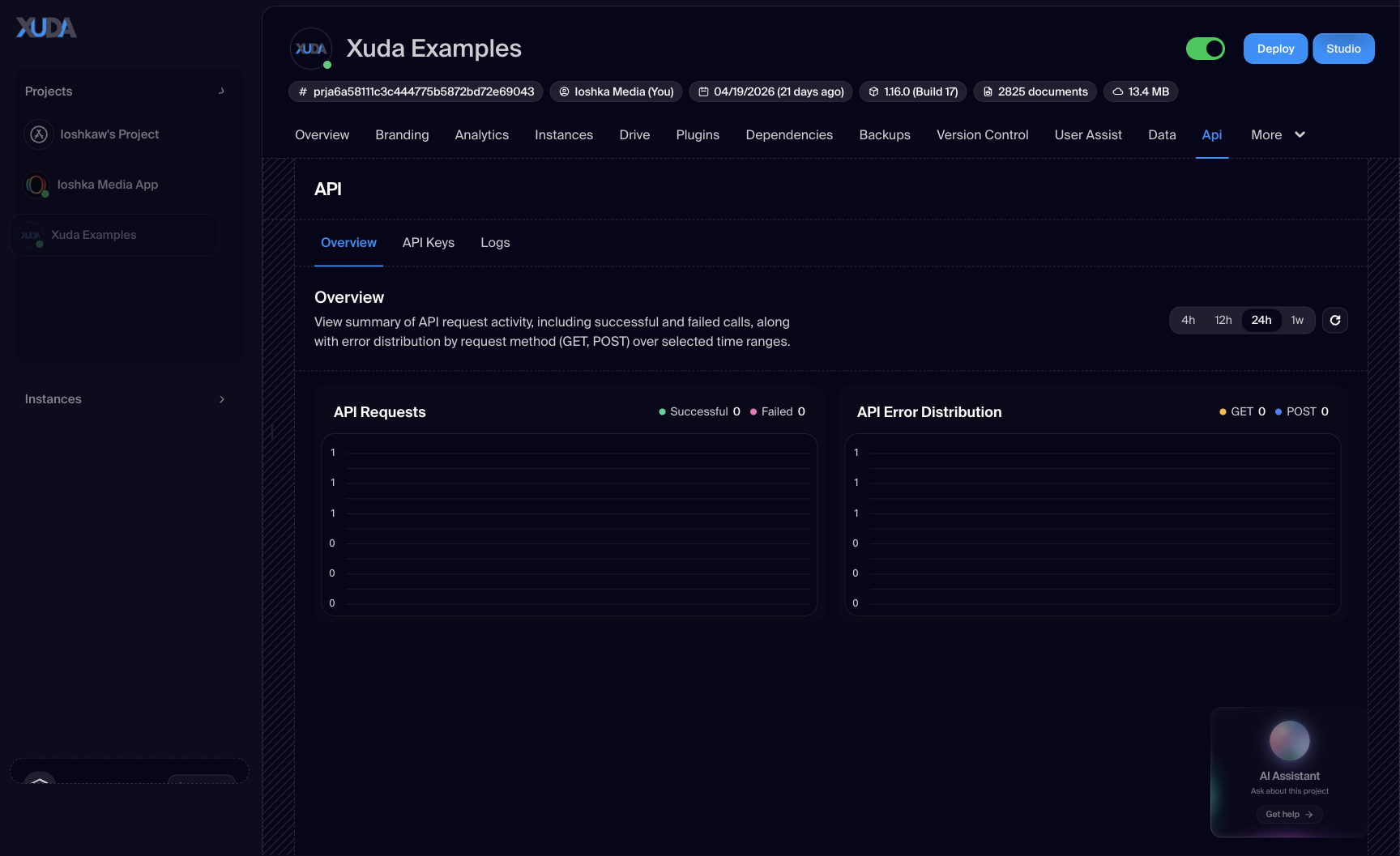
Step 1: Open The API Tab
Open your project in dev.xuda.ai/dashboard, then click API in the top project tab row.
If it is grouped under More, open that first.
Step 2: Understand The API Sub-Tabs
Inside the API area, the dashboard provides three sub-tabs:
- Overview
- API Keys
- Logs
This means the API tab is really a small workspace of its own.
Step 3: Use The Overview Screen
The captured screen shows the Overview sub-tab.
This area helps you review:
- API request activity
- successful and failed calls
- error distribution
- time windows such as 4h, 12h, 24h, or 1w
Step 4: Treat API Keys Carefully
The API Keys sub-tab is where integration keys are managed.
If you are not the person responsible for external integrations, it is usually best to review this area with a technical teammate before creating, changing, or removing keys.
What This Tab Is Best For
Use API when you want to:
- confirm whether integrations are active
- review API request health
- hand an API issue to a technical teammate with better context